Working From Your Phone: What I’ve Learned After 13 Years
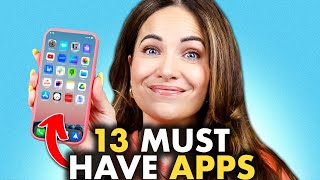
Alex Cattoni shares 13 apps she uses to run a seven-figure business from her phone. She relies on Google Docs for copywriting, Notion for her internal wiki, Asana for project tracking, and Loom for recorded feedback. Her rule: any tool must work equally well on desktop and mobile.
Chapters
Work from home, but make it anywhere, anytime. Whether you're checking off your daily tasks at a cafe in the streets of Venice, writing copy while getting your hair done at the salon, or answering emails from a train somewhere in the French countryside, as long as you have one of these handy, you can run your business with very little interruption to your productivity or workflow. Keep watching to learn all my favorite apps and productivity tips to make running your business on the go as stress free free as possible. Hey Posse, what's up? It's Alex. Now, I have been an entrepreneur for 13 years. Yes, that means I started my business before there was Zoom, before there was Loom, before fancy project management tools, scheduling software and website builders, before TikTok and almost before Instagram. Now that is really dating myself. So it's safe to say that online marketing has evolved in big, huge, massive ways over the years. I mean, every single web page used to have to be coded line by line by a web developer. Every single graphic had to be designed in tools like Photoshop by an actual graphic designer. And don't even get me started on what it took to create videos like this. Now, thanks to the online tools and SaaS platforms that we use every single day, and more and more are popping up all the time. Time starting and running an online business has never been so freaking easy from a tech standpoint, especially when you have one of these handy. So let's just say that my BlackBerry back in 2010 did not quite cut it. Now, while it's not often that I'm away from my laptop for extended periods of time, I'm working on that. There are moments quite frequently when I'm on the go and still need to g s d get done. So today I am sharing with you. My 13 go to apps are that and tips for staying productive from my phone. Now, these are apps that you might use all the time on your desktop, but you might not be using the mobile apps as much as you could be. And my rule of thumb is that I never use a tool in my business that I can't effectively use on both my desktop and my mobile phone. So let's get into it. Starting with number one, Google Docs. Now, for starters, I am a big fan of basically all the Google Drive apps. I use them religiously in my business. But the Google Docs app is one that I use all the time for writing copy on the fly. Now, I know a lot of people tend to shy away from writing copy on their phone, myself included, because let's be honest, it feels really hard and slow and awkward to type with your thumbs. Or maybe that's just me as a millennial who grew up learning how to type on a keyboard or when my first Cell phone right T9. Anyone remember that? Whether I am writing, reviewing or editing copy using Google Docs, and the Google Docs app is really a game changer. So let me show you how I use this on my phone. Okay, so to start, you go ahead and you open that Google Docs app on your and then hit that little plus button at the bottom right hand corner to open a new document. Of course you can go ahead and name your document and here's what a blank document looks like on your phone. So you can see that you have a lot of the same formatting functionality on your phone as you would have on your computer, which is really great. So I'm talking bolding, italics, underlining text, color, and of course highlighting are all here along the bottom. And then you can click on that A with a line under it. And it offers even more text editing options. So you can change the text size and font of your copy and then there's even more options like strikethrough and you can select different headings as well. Then under the paragraph tab you can take it one step further. You can change alignment, add bullet points, or change the line spacing. And then those three dots up at the top is where you can print, share, and then grab the link to your document or even check your word count, which sometimes is really important in copywriting. And the plus button up here allows you to add links, pictures and graphs, anything that you would typically add add into a document. So there is a lot of functionality right here on your phone. But let's go ahead and write some copy. How I run my seven figure business from my phone, my fav apps and productivity tips. Okay, so not exactly as fast as using a keyboard, at least not for me. But it does get the job done. Now let's go ahead and make this copy look a little bit better. You can go ahead and select that main headline here. Maybe I'm going to make it a little bit bigger, bigger. Then put the sub headline in italics and great. Let's just say, okay, I'm all done, I'm done editing. And once I do that, I want to make sure to hit the check mark to finish the document so it saves properly. So now it's time to share the document with your client or with your team. And sharing from your phone is really easy. You just hit that little human icon with the plus sign enter in the email address, whoever you are sharing it with, and that is it. Just make sure as always. And this is, you know, true on desktop as well. Make sure you are enabling the right type of sharing access. And like I said before, you can also grab the direct link to the document so that you can send it over in a message or an email. Now, I'd say that writing copy from scratch in a Google Doc is a little time consuming and I don't actually recommend it. But there are some pretty cool tricks that can help you make this process a lot faster. If you do have to write like an email or a social caption or something on the fly. Or you can use the built in Google Docs feature where you just hit that little microphone button and enable talk to text and then you speak directly to your phone and write whatever copy you want. And this also exists on desktop too, which is really, really cool. And there are a whole bunch of voice commands that you can use to make this even easier for you. You can just go ahead and Google those. All right, so that's how I write copy from my phone, which like I said, I really only do in a pinch. But it is an important tool that I use a lot, so I wanted to share it. Now here are some other tools that I regularly use in my business and on my phone. Number two. LastPass. So how many times have you went to log into an app on your phone and then you realize you have no freaking idea what the password is because it isn't stored? IPhone or your smartphone browser? Super frustrating, right? Or how many times do you go to log into a tool or an account on your desktop and then you remember, oh my God, I think I created that account while I was on my mobile phone and I didn't save the password and I can't remember what it is. Equally frustrating. That is why I religiously use LastPass, which is a password storage app that syncs across all of my devices. My desktop, my mobile, my iPad. So no matter where I am or what device I'm on, I'm never stuck wondering what in the heck was the password again? And the other really cool thing about LastPass is that you can decide what password words to share with the rest of your team and which ones you want to keep private just for you, like, you know, your bank login and things like that. Obviously you want to keep private. So there's a lot of functionality and you can play around with it. It's an awesome app. Okay. Number three, DocuSign. So, first of all, if you are still printing, signing and scanning documents like it's 1999, you need to stop it immediately. DocuSign is a really cool app that allows you to send, sign, and manage contracts digitally. Yes. Even on your mobile phone. So with this app, you can literally upload, sign and send a contract in minutes with just a few taps and a swipe of your finger. You can actually sign with your finger. So much easier than trying to do it with a mouse on a desktop. Right. And it securely stores all of your contracts too, so it's really easy to go back and find them and reference them. And you know, they are always safe and secure. So if you are working with clients, I highly recommend sending all of your contracts in DocuSign number four wise. So, of course, sending and receiving payments is a big part of running a business on the go. And it can be a little bit tricky to do from your phone, especially through your regular banking app. Especially if you're like me and you send a lot of international wires. I know I can't do that through, like my regular bank app. So Wise is an international payment app that makes sending and receiving payments super easy for any type of business. And the cool part about it is it works in 160 countries and over 40, 40 currencies. And the smartphone app makes it super easy to pay people and get paid no matter where in the world you are. All right, moving on to number five, the Notes app. So this one is really simple, but honestly, it's probably the app I use the most. So while I use Google Docs to write actual copy that I want to share with my team or clients, I use the Notes app all the time to jot down quick ideas, hooks, stories, quotes, or subject lines when inspiration strikes. So my Notes app is free, filled with little tidbits like this, and some of them never see the light of day. And others I text over to my team. And the Notes app makes it really easy to share through a text message or, you know, through an imessage. I also use the Notes app to draft social captions before I copy and paste them into Instagram or any other social platform that I'm posting on so that I'm not typing the caption, like directly in the app itself. And then I run the risk of losing it, because how many times has it happened where like, Instagram crashes right in the middle of you trying to write a caption and then all that hard work is gone? So I really like to just start in the Notes app and Then when it's all good and ready to post, I copy and paste it into Instagram or LinkedIn or wherever I'm posting. All right, now moving on to number six, Dropbox. So Dropbox is a cloud based storage app where we store all of our images and audio and video content. Now, we do use G Drive to host all of our written content. And while you absolutely can use G Drive for other types of media storage, I personally love how Dropbox has a desktop app that allows me to access my files offline, like if I'm on an airplane or something. And the mobile app is stored super handy and easy to use too, if I'm looking for a quick file or I need to upload an image or a video to share with my team. Because my entire team has access to our company, Dropbox, I know that anytime I upload a file to any folder, my entire team will have access to it. All right, moving on to number seven, Slack. So this tool is amazing. It is how I communicate with my team. We use email for communication outside the organization, but Slack is what we use for all of our internal team communication. And my team and I have channels for all of our different departments. And when we're in a launch, we create a daily scrum channel to talk about the launch. We also have an Inspo channel where we share swipe files and inspiration. We also have channels where we share customer wins and testimonials and so many more. But Slack is great. Even if you don't have a team and you're just working solo, you can actually set up a new channel for each client and invite them in so that you can communicate back and forth without having to put, you know, everything into email. But it really just depends on your client dynamics and how you work with their teams. And by the way, the Slack mobile app is awesome too. All right, number eight, Zoom. I know this is no surprise. This is a tool I recommend everybody use, but I have it on my phone as well. It is absolutely great for taking client calls or meeting with your team when you're on the go. And like I said, we're all used to the desktop app, but I find that the mobile app works really, really great. I prefer Zoom to other platforms like Google Meet, but honestly, it's entirely up to you and what you prefer to use in your own business and what seems the easiest for your clients. All right, next up, let's replace the Zed with an L. And we have number nine, Loom. I love this app, and I think that every freelance should be using it religiously. It allows you to record your screen and then instantly share that recording with your audio or even your video to a client or a team member. It's a great way to share your thoughts, your vision, your ideas or just feedback. Right? And if you're an auditory and visual learner like me, it is super, super helpful. And yes, you can use it on your smartphone too. I bet you didn't know that when you use the Loom mobile app, it actually saves the file to your Loom account so it is easy to access later, right? It is all on the cloud versus using the built in screen recording app on your phone which then sa a file to your phone photos. And that is definitely going to get lost among all of your personal videos and photos. That happens all the time. All right, number 10 on my list is Notion. So one of the most frustrating things in my opinion about working from your phone is that it is so hard to find anything you're looking for, right? Because you don't often have the same bookmarks in your browser or a desktop full of files that you could easily go reference or folders where you can organize documents. And this is where Notion really comes in handy. Now, while it's primarily promoted as a note taking and project management tool, I use Notion in a very specific way in my business as an internal business, Wikipedia or wiki site or a place where I index everything. Right. So this is where my team and I put every single asset, sop, video or copy document that we create. Now this isn't where we store all of our assets. As I mentioned earlier, we use Google Drive and Dropbox and Loom primarily for that. But this is where we document every link from those other platforms and it's categorized by project or functional area. So it's really easy to find anything we're looking for. And the app on, you know, mobile phones is absolutely great too. All right, number 11 is Canva. We love Canva. It's a lifesaver. Canva is a drag and drop graphic design app that makes creating amazing graphics and PDFs and images a total breeze. So I use Canva for literally everything. Branded PDFs for my coaching programs and lead magnets, documents, statements of work, YouTube, thumbnails, and of course all of the amazing social media posts and stories and graphics that you see me posting over on Instagram or LinkedIn or YouTube community. Now, while it can be a little hard to design something from scratch in the Canva mobile app, I mean, like it is kind of hard, the Templates make it really easy to create graphics quickly from your phone and you can of course review or edit anything. So I use this app every single day to review things that my team sends me. Number 12 Asana. So my team and I use Asana for project management and keeping track of tasks, timelines and deliverables. This app is literally how we keep my online business running smoothly. Asana can be used to keep track of day to day tasks as well as to monitor the overall progress of your goals and projects. And again, the mobile app is super easy to use. I am in there every single day on my phone. You can also use this app if you're a solopreneur. I did before I had, you know, my whole team, I would assign projects and tasks to myself and you can even do fancy integrations like integrate it with Gmail and then assign a task to yourself to get back to to certain emails by a certain date. So it'll help you really keep your inbox clean and organized and making sure you're getting back to people in a timely manner, which of course is very important when you're running a business. And if you haven't already seen my Inbox Zero video, you want to check out that video after this one I will link to it at the end and number 13 later. I use the later app every single day for writing social captions and scheduling them to auto post. So I write it in the note first, first, then I pop it into later, then I schedule it. And I love the mobile app because it can really help me see the content that's coming next or the content that we're planning and then edit and review captions on the fly if need be. So those are the apps that I use regularly in my business and on my phone. And if you're a new copywriter looking for clients, you'll probably also want to Download apps like Upwork, Fiverr, Freelancer.com, linkedIn, Instagram, and Facebook of course, to help you find and connect with potential clients. And speaking of connecting with potential clients, if you are looking for your next client, make sure to grab a copy of my free client getting guide because I have listed out 101 ways that you can find your next client, all in a handy guide. And you can find a link to that in the description box below. I hope you found this video helpful. I will see you next week with a brand new video. Until then, I'm Alex. Ciao for now. All right guys, if you enjoyed that video, make sure to check out the next one for the me right here and you can click right here to get a free gift. Declutter your mind by decluttering your inbox yes, today I am sharing with you one of my favorite productivity methods of all time, Inbox Zero. So what is it? And do you really need to have like zero emails in your inbox in order to be more productive? And how the heck do you even get started organizing an inbox with hundreds of or even thousands of unread emails? Yes, you know who you are. We're going to talk about all of that and more in this video, so keep watching.
More from Alex





Best Instagram Marketing Strategy For Small Business 2026 (PROVEN & PROFITABLE)

You know those headlines that make you click even when you swear you won’t? 👀