The video walks viewers through the end‑to‑end process of building a Canva Carousel skill inside Claude Cowork and using it via a plugin. First, the presenter connects Claude to Canva through the Integrations menu. Then, they ask Claude to generate a new Canva Carousel skill, which leverages the Skill Creator and Canva Creator and automatically pulls in existing brand‑guideline skills (color palette, layouts, typography, voice). The skill is saved, and its two components—the trigger description and the detailed skill.md instructions—are shown. The new skill is added to an existing plugin (AI Ready Business Systems). To use the skill, the user types a forward slash, selects the AI‑ready carousel skill, and provides a prompt. Claude asks clarifying questions, drafts the carousel, receives feedback, and finalizes the design. The finished carousel can be previewed and downloaded as a PDF for LinkedIn or as individual PNGs for Substack. The entire workflow takes under five minutes, demonstrating how Claude, the AI Ready Business plugin, and Canva combine to produce brand‑consistent carousel content quickly.
Chapters
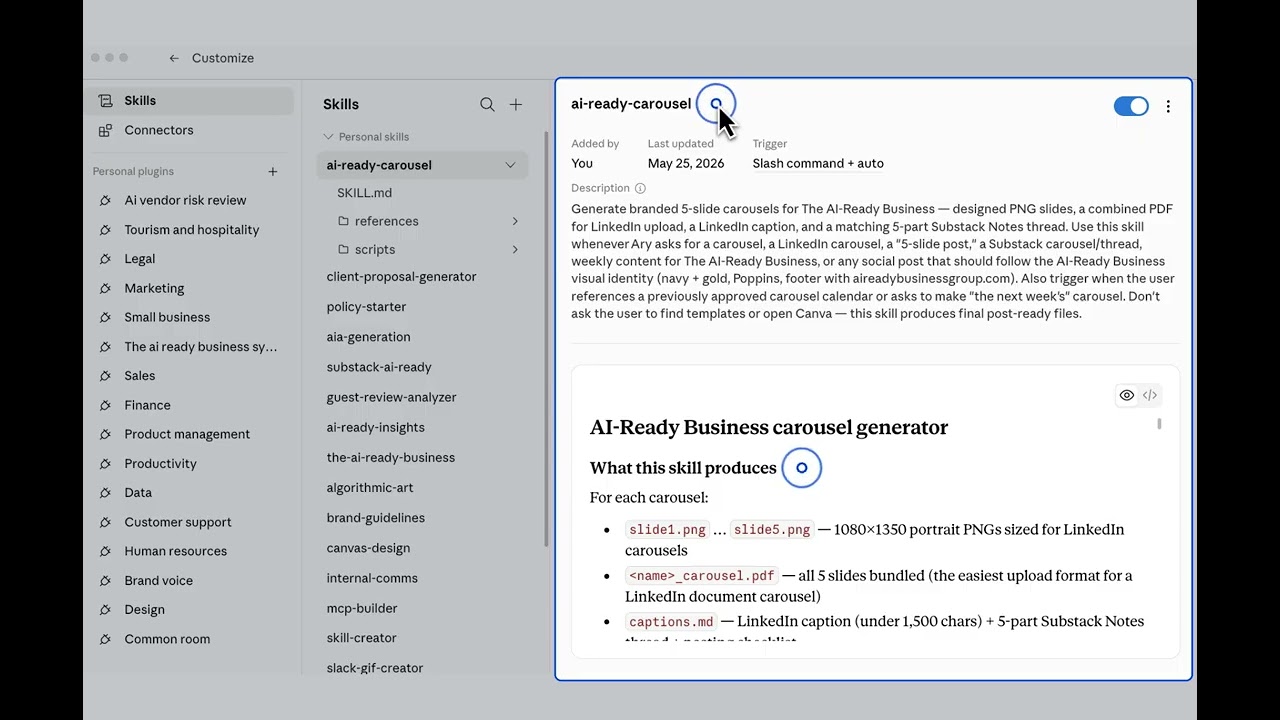
Create a Canva Carousel skill in Claude Cowork. Learn how to create and save a Canva Carousel skill and manage plugin settings in Claude Cowork. First, connect Claude to Canva through the Integrations menu. Next, ask Claude to create your Canva Carousel skill. Claude gets to work by referencing the Skill Creator and Canva Creator. It references other skills like your brand guidelines or brand voice. Once the skill has been created, it will prompt you to save the skill. On the right-hand side, you can read a description of the skill Claude created and determine if you need to make any edits. Under the list of skills, you will be able to see the skill.md folder and subfolders that contain the instructions for Claude. For example, the References subfolder has the branding guidelines, It includes the color palette, slide layouts, typography, and more. Claude follows these guidelines for the carousels it creates. A skill has 2 main parts. The description at the top is the trigger. It tells Claude when to use the skill. The longer section below is the skill instructions, the skill.md content. It tells Claude what to actually do and what the output should look like. If you already have a plugin, which is a set of skills and connectors, you can create new skills. Then, add them to your plugin. In this example, we have the AI Ready Business Systems plugin. We will add the AI Ready Canva Carousel skill to it. Here is the AI Ready Business System plugin, now with the AI Ready Canva Carousel skill included. Let's use that skill to create a carousel in Canva. Type a forward slash and select the AI-ready carousel skill from the menu. Once you've identified the skill, prompt Claude to generate the carousel you would like. Notice Claude asks me several questions to ensure it designs the carousel properly. Then, it gets to work. Claude shares a draft for me to review. I provide feedback, and then it generates the carousel. Claude generates the carousel. I can click Preview to download the carousel. Select the carousel PDF to share it on LinkedIn, or select each PNG to share it on Substack. And voilà! Here is a Canva carousel ready to share. I made it in under 5 minutes. I used my AI Ready Business plugin, Claude Skills, and Canva as the connector. It follows my brand voice and guidelines. Thank you for watching! Follow the AI Ready Business on LinkedIn and Substack.