This is a YouTube video titled "Chapter 10 Communication Center Customer Search with Quiz" created in July 2024. It features a single speaker, Joan Mulholland, providing a detailed tutorial on how to use the customer search functionality within a communication center system, including selecting stores, entering search criteria, viewing customer profiles, and accessing communication and appointment history.
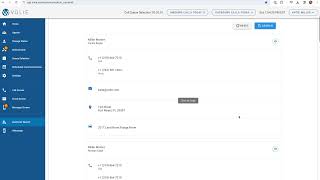
There may be instances when you need to look up details regarding a particular customer without initiating a phone call, email or text. Here on the left I'm going to select Customer Search. Here. It will populate this initial screen. So first we're going to be prompted to select our store or organization that this customer would belong to. Here I'm going to choose Miller Ford. The next area will be some options for search criteria. You do have the option to go back and switch the store if needed if you selected the incorrect one. Otherwise you can search and look for the customer by their first name, last name, email, phone number or vin. Once I enter my criteria and click Search, it will bring up potential matches for this customer. Once I've located the profile I'm looking for, I can select the green View profile icon. Now I'll see the customer's contact on the left and the tab section items on the right. If needed, I can pull up communication history, maybe to see details of my last phone call. Or maybe I need to view their upcoming appointment history in case I want to see if they are coming in anytime soon. When I'm finished with this customer, I can choose Exit and it will bring me back to the landing page for the search. Here I will be able to see my search criteria and if I need to look up a different customer, I can choose the reset button. Otherwise, if I've completed my search, I can go back to any other section within the communication center.