Tutorial on managing customer emails in a communication center platform. Learn how to handle email queues, respond to messages, forward emails, set dispositions, and schedule follow-ups.
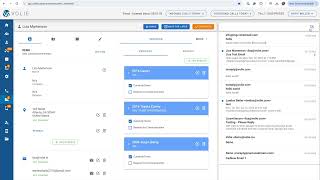
Similar to a text message. When a customer responds to an email sent from your team within Bali, you'll see a beacon on the left hand side next to email screen. Right now there's a two indicating that there are two emails from customers waiting to be answered. If you go into your queues or campaign list, you can see which campaign are waiting for responses and the campaign that they're emailing back into. You'll want to confirm that you're logged into that queue if you want to have the ability to be served and answer that returned email. Now I'll click on email screen and we'll be served the return email. You'll notice I still have the same three sections as before. The contact information and disposition will be on the left, my tabs in the middle, but the right hand side of my screen will change from the phone scripting or softphone to an email view. The email view is laid out very similar to a Gmail or Outlook where the most recent email thread is at the top. If the customer was the last one to respond, you'll see a blue dot to the left of the message. Please note that the blue dot won't go away if you simply click into it. It will only go away when you respond. If there happens to be more than one email in a thread, the first email sent will be at the very top and if you scroll you'll be able to see the most recent messages. I'm going to click into an email to respond, but please know you also have the ability to to start a brand new email if the situation requires When I click on this email to respond to the customer, I can either choose to reply or I also have the ability to forward the email. For instance, if it needs to be escalated or to go to a manager, I'm going to click the arrow to respond and in this screen I'm able to complete my message. I can copy or blind copy someone if there's an attachment that needs to be sent, perhaps a flyer or an offer that can be sent to the customer and I can type in my message when the email is ready to be sent. Click the green arrow. If you need to exit out of the email, you can click the red x icon. All communications in volley require a disposition, so once you've responded to the customer, you can click the pencil icon and select your disposition. Let's say there was a complaint and I wanted to send that information to my manager. I'm going to make my notes from that email and then hit save to save the disposition. Similar to the SMS area. You can save this communication for later. So let's say you wanted to respond to the customer. Let's say in this case you wanted to be able to reach out to them to make sure their concerns were answered. Maybe in a number of hours or a number of days. Similar to the callback disposition in the call screen you choose a date and time and then that way you will be able to email them again either see if they're still interested, if they had their question answered, etc. Otherwise if you're finished with this response you can hit the orange complete which will mark this message as done. It will either feed you the next email to be answered or if you're all caught up you'll see the Please hang tight screen indicating that all pending emails have been answered. You can then move into your next task such as making your next outbound call or being ready for the next inbound call.