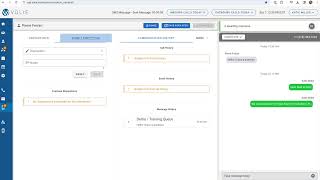
This is a YouTube video titled "Chapter 10 Communication Center SMS with quiz" created in July 2024. The content is a detailed instructional presentation explaining how to manage customer SMS responses within a communication platform called Volley, covering features like message queues, softphone usage, message templates, dispositions, and workflow for handling customer interactions via text messages.
When a customer responds to a text message sent from your team within volley, you'll see a beacon on the left hand side by the message screen. Right now there's a one indicating there is one return message. So one customer waiting for the team to engage. You can see which campaign or for what reason they are texting back. If you flip to your call queues and filter for the return message, you'll see the campaign from which they're texting back. You'll want to confirm you are logged into that queue if you want to be able to be served that return message and answer that customer. Now we'll click into the messaging screen and get served the return message. We still have the same three sections as before, so they're Contact info and dispositions on the left and the tabs in the middle. But the right hand side of the screen will change from the phone script or an email inbox to a softphone. Here you can see the customer's previous information and if needed, access communication history or any other information in the middle tabs to get caught up on the history with that customer. Within the softphone, you can type a message in the bottom right where it says Type message to respond to the customer. You also have the option of message templates or shortcuts to help you engage and quickly respond to the customer. If I hover over that shortcuts icon, I'll see a dropdown with different options. The top right shows the texting queue so you'll see any customers that have been waiting and who's been waiting the longest. If there's more than one customer waiting for a response, you can toggle back and forth or flip between message threads, especially if you're waiting for a customer's reply. You can then hop into that different thread and respond to that customer. Here we're typing in the message response and I can send that text either by hitting the enter key on my keyboard or selecting the blue arrow. You'll then be able to see that past communication history and if I hover over shortcuts, I can choose one of the options and it will populate into the message body below. Good news. It will allow you to make any tweaks. If necessary, press prior to sending to the customer. All communications require a disposition, so once the customer is finished, I can come in and select the disposition. Let's say they had a general question. I can then make any notes I'd like and click the save button to save my disposition. For sms, you can have more than one disposition in a message thread. That way if the customer texts you back, you could update the communication history with any new outcomes. You do have the option to save for later. So if you haven't heard from the customer in a few hours and you don't want to lose track of the message thread, maybe because they were close to booking an appointment, or you can schedule a Save for later and Volley will feed you the message again. Similar to the callback disposition in the call screen, you can choose a particular date and time and see if they're still interested. Otherwise, when I'm finished with the customer, I can click the orange Complete button which will mark this customer and this message as completed. It will then either feed you the next message to be answered or or if you're all caught up, you'll see this Please hang tight screen indicating that all pending messages have been answered. You can then move on to your next task, such as your next outbound call or being ready for the next inbound call.