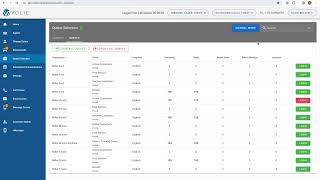
A walkthrough of the Queue selection screen in Volley, showing how to use Groups, Queues, login buttons, and status columns to manage call campaigns. Designed for call center agents and BDC team members.
When you first log into Volley, you'll be brought to the Queue selection screen. Think of it as a dashboard that displays all of the different queues or campaigns that you have access to. If you're part of a call queue group, you'll see the Groups tab here. This is a shortcut to make logging in easier. With this feature, we can group different campaigns for you in one easy to click spot. Your managers have created this functionality so that you can log into many campaigns or queues with one click versus having to filter through the individual queues themselves. You'll click the green Login button on the right and when it turns red, this means you're logged into all the queues in that particular group. If your team is answering inbound calls in Volley, be sure to always click the inbound group as well. This gives you access to receive and answer the inbound calls from customers. Now let's take a look at the columns you'll see on the Groups page. The remaining column shows you how many records are left in queue for that particular group, that is how many records have not yet been completed. The Ready column is looking at all of the records that are left to be completed and how many of them are available. That number may be lower than the total remaining based on factors such as time zone. If there are customers who are left in this queue to call but it's too early to contact them, those records would not be ready to dial. Similarly, if you just called one of your customers this morning and left them a voicemail, they may still be remaining because you didn't reach that customer. Thus you weren't able to complete that customer since you just attempted them. They may not be ready for their next phone call yet. With Volley, through working with your manager, we've created built in rules and a number of attempts to make sure you're not over contacting your customers or contacting them too frequently. Return Email and Return Message Both refer to any incoming emails or messages from customers within this call queue group. If there are any emails or messages waiting to be responded to, you'll see that indicated in those two columns. Finally, you have the assigned column. Think of this as an FYI telling you of all those records in those groups. Is there anyone else in your team or part of your BDC who has already logged into this group? And potentially if they're already working in some of those records? Let's now click on the Queues option next to Groups. You'll notice much of the same information we covered under Groups is displayed in Queues as well. If you're someone who doesn't have specific groups, you'll be brought to the individual Queues screen. For those who do have groups, you will also have access to these individual cues. You just won't likely utilize it as much as the groups. The Queues screen does include a few extra columns. We have an Organization column, a Queue column, and a Language column. The Organization column displays for you which store the campaign is associated with. If you work in a BDC which covers multiple organizations, you would be able to see each location. The Queues column will list each individual campaign that's associated with that organization. The Language column indicates the language that is associated with that particular queue, and the remaining Ready Return, email, return message, and Assigned columns all have the same definition as they did in the Groups tab. If you're coming to this screen, be sure and check with your manager. We typically recommend logging into all queues. That's most likely what your manager is going to recommend. Rather than picking through individual queues and using the login buttons on the right hand side, 99% of the time, you're just going to click this green button in the top left to log yourself into all queues. As with the groups, the button turning red indicates you're now logged in to those individual queues. If you have a scenario where your manager wants you to focus on an individual queue that day, you can.