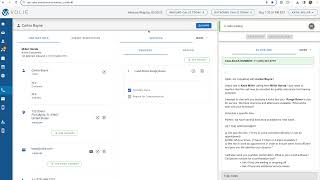
This is a YouTube video titled "Chapter 9 Communication Center Answering IB Call with Quiz" created in August 2025. The content is an instructional tutorial explaining how to handle inbound calls within a communication center software called Volley. It covers scenarios for answering calls, managing customer profiles, and submitting call dispositions. The format is a single-speaker instructional guide without dialogue.
In this chapter we'll go over Answering an Inbound Call There are a few scenarios in which you will answer an inbound call. You'll either be transitioning between a current inbound or outbound call and will be fed the next call using the Save and Stop or Save and Dial Next buttons. You may also have an outbound record up on your screen ready to dial and see an incoming call that you're able to answer. At the top right where it says zero calls waiting. If there are customers on hold, it will show you how many customers are calling in and sitting on hold. We're going to test call in right now and you see that it has changed to indicate that there is a customer waiting and their hold time. On the left you'll also see a red beacon next to the call screen icon. If you have an outbound customer up on your screen and haven't yet initiated the outbound dial, you can make yourself available for this call. You'll go to the status icon on the left and switch your status to available. Once you do so, you'll get a pop up similar to a smartphone indicating that there is an incoming call available. From there you'll select the green answer button to accept and answer the call. When you answer the inbound call, you'll see three sections of the call screen. When a customer calls in, their phone number will auto populate in the search and pop up a few different matches. As you can see in our example here, this phone number matched to a few different profiles. There may be multiple matches if family members or spouses share a phone number or if customers have a work phone number in common. In the instances where there's a perfect match one customer to one phone number, that customer will automatically enroll and it will pull up their profile. You'll also see a search or Create option. You can search by first name, last name, phone number, email, or vintage. Otherwise if this is a brand new customer, you can select create and enter their information as needed. In order to proceed and enroll the customer, we need a minimum of their first and last name and their phone number. The remaining information can be filled in during your call. If you're choosing a customer from options given, you can select the green check mark to the right of their name and that will pull up the rest of their profile. I'm going to choose to enroll this customer. I click the green check mark and now my call screen is broken up into the three sections with the full customer information on the left, the tabs in the middle, and the scripting on the right. I'm going to end this call using the End Call icon on the Call ribbon and toggle over to Submit Disposition as with every time you finish a phone call in Volley, inbound or outbound, you will submit a disposition to denote what happened with your call. As you can see right now, as I'm wrapping up my current call, there's another inbound call that is currently waiting to be answered. I can see that by looking at the top right as well as at the red beacon on the left. Volley is designed for you to help one customer at a time, so you're unable to answer an inbound call while you're finishing up your current call, which is also called the Wrap up status. In order to be available to answer that call, you'll want to select your disposition, make any notes, and then can either choose the Save and Stop or Save and Dial Next button. Once you do so, if there is an inbound call waiting, you will see the same screen pop up alerting you to the inbound call, and you can click the green Accept Call button as before. After you've accepted the call, the same three sections will come up again. You can choose from the options given, Search for the customer, or Create if it's a brand new customer. As a reminder, once you've found the customer's profile, you can click the green check mark, enroll your customer, and submit your disposition as needed. It.