This is a YouTube video titled "Chapter 9 Communication Center Transferring a Call with Quiz" created in August 2025. The content is an instructional tutorial explaining different methods to transfer calls within a communication platform called Volley, including blind and warm transfers both internally and externally, with detailed step-by-step guidance on using the interface and managing call dispositions.
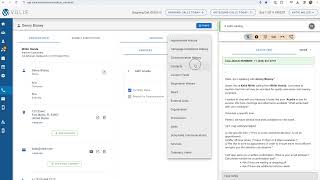
There are a few different ways to transfer a call, either within Volley or outside of Volley. Here I'll initiate a phone call to demonstrate. One way to transfer calls is via the phone ribbon on the top right. Using the furthest icon to the right. You will have options within the selection. You can do a blind internal transfer, a blind external transfer, or a warm internal transfer. The blind internal transfer will allow you to transfer to someone else currently logged into Volley. When you click there, you'll see everyone in your account along with their current status. You can search for their name, select their user and hit Transfer. This will end the call. On your end, move the customer over to the other user and you will be given the next customer to call. It's important to note that if you do internally transfer a call and the intended recipient does not answer, the customer will remain on hold until they are answered. So be sure your colleague is available for that transferred call. You can also do a blind or warm external transfer to a phone number outside of Olli. Here you can manually type in the phone number. So to demonstrate, I'll type in my phone number and then when I'm finished, I will click the green transfer button with a warm transfer that will place the customer on hold and ring out to that team member, such as a service advisor or the contact you typed in. When that contact answers, it will be the agent and the transfer contact on the phone. The customer is still on hold until you either hit Cancel the transfer or the Green Bridge Call button. The green Bridge call button will merge into a three way call once you click Bridge Call. Now all three of us are on the line and as soon as I introduce the call and hang up, the customer and that transfer contact will still remain on the call. Good news, it will not disconnect their conversation. They will still be speaking once you leave the call. As with any communication in Volley, your next step will be to submit your disposition. Hit Save and Stop or Save and dial Next and pull up your next customer record. I'm going to initiate another outbound call so I can demonstrate another transfer. We do have an area within the middle tab section called Contacts. You can find this under the More button in the middle section. Think of Contacts as your phone directory. We'll have quite a few of your team members or departments that you frequently transfer to listed within this middle section. If there are items missing, please alert your manager so we can make sure to include those individuals Next to each phone number. You'll see either an icon for a blind transfer or a warm transfer. Again, the the warm transfer is what we demoed earlier, but if I choose that because it's in the phone directory in the contacts area, I don't need to type in the phone number, it's going to pre populate it with the number we have programmed for that person. So now again it is ringing out to in this case, the contact. We've chosen the transfer contact and once again, until the customer answers, it is you and that transfer individual on the phone. Once you hit bridge call, all three of you will be on the line. If the transfer contact doesn't answer, you can choose the Cancel transfer to go back to the customer, or if you just needed to ask them a quick question, you can go back to the customer with the answer. Disposition of the call is normal. Choose save and stop or Save and dial next and continue on to your next customer.