Friday Training Session 3PM
Wendy Davis walks through Volley's communication center for real estate agents. Learn texting workflows, how to send and receive messages, the difference between acknowledging and completing a message, and daily habits that work.
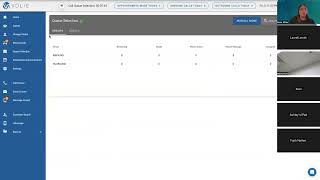
In case other people are unable to join us. So again, we're going to talk about texting, we're going to talk about manual mode, we're going to talk about some reporting and then we're going to talk end our time with some best practices. So let's first start with texting. So let's talk about the different kind of texting that can go on within Bali. This, this is also, you know, available for email. We kind of focus more so on texting to finalize our time together because most of our accounts, you know, do texting pretty heavily. So that's why we're going to, you know, focus on that as well this afternoon. So if I go into my call screen, I'm just going to use this for, for demonstration purposes here in a moment. So there's three main ways that customers can get text messages and, or emails in and out of volley. So one way is through a dedicated email or texting campaign. So you know, you have that queue selection, you have that list of phone campaigns, right. Your manager may also be doing a primarily SMS campaign or primarily an email campaign. Maybe we are sending appointment confirmations to customers as a text message, right? And then your team is responding to those. Maybe we are sending them, you know, a text message. Maybe they have maintenance due, you know, maybe they have services left in their maintenance package, whatever it may be, right. We're sending them that text message first and then your team is actioning those responses. Right. So that's one way, kind of a dedicated email or texting campaign. Another way is as a result of the disposition that you pick when you are finalizing the call. So in, in the setup that we do with your manager, just to kind of harken back to what we talked about earlier in the week. As a reminder, when we talk about attempts here, we, we program a follow up cadence into each campaign. Right. And it can be every other day. It could be twice a week, once a week, whatever it may be. Right. That we're going to try and reach that customer with those attempts. Oftentimes we have an email and, or a text message that's sent to go out. Depending on the disposition that you pick. Sometimes it's on every attempt. Often it's maybe every other attempt or the first and the last. Right. But those might go out based on the disposition you use. Most commonly it's something like ring no answer or left a voicemail that indicates you did not talk to that customer. Right. So there can be a text message and, or an email that goes out to that customer, it might read something like we were looking to get a hold of you. You may have maintenance due. You may have an open recall on your vehicle. Maybe your manager wants, you know, can change the contents of that message. Maybe we're letting a customer know, you know, that they have services remaining and they're in their, in their maintenance package. Maybe we're passing along a coupon or a discount offer, whatever it may be. Right. Those are going out automatically depending on the disposition you pick. So how you will know if that's happening? You remember the save and stop and the save and dial next buttons here, which are grayed out because I haven't made a call. But you know, you can see they're normally kind of a heftier rectangle, right. If this particular response, if this particular attempt has that email and or text message going out, this button becomes really long and skinny and it says save and stop. Send sms, follow up. So you know, is this an attempt that a customer. Is this a disposition or an attempt where the customer is getting a message? Based on the disposition that I choose, we can do that with any disposition. I would say the dispositions that indicate you didn't talk to the customer. That happens a large percentage of the time. I would say another one that accounts sometimes use is appointment scheduled. Sometimes your manager will want Volley to send out those appointment confirmations. You know, when you make an appointment in Volley, sometimes your scheduler does that. So you know, depending on what your manager chooses, that may be something that you're using in Voli for appointments scheduled as well. Just depends on your particular organization and your use case. So that's the second. So the first one is, you know, dedicated email or texting campaigns. Another is again these responses that are coming or these responses that are these follow ups that are getting triggered based on the dispositions that you're using. The third way is you can send kind of individual or ad hoc text messages or emails. So if you notice next to the phone number in their contact area, next to the phone number, you've got this icon of a soft phone here. You've got this icon right here. You can use that to text a customer individually. She's already has like let's just say that as an example, let's just say we were talking to customer Denny and oops, sorry, didn't mean to click out and customer Denny, maybe he had a speaker specific question he wanted to ask. Or maybe we were visiting with him and we scheduled an appointment and he needed a reminder, you know, where are we located, you know, where's the dealership address, who do I talk to when I get there? Any of those things. Right. You can send individual text messages to the customer. So you can go ahead and type your message here. We give you access to emojis. So if you want to use an emoji, you can. We also there's a paperclip icon here to the left. If you have to attach a, maybe you have to attach a flyer or an informational guide or you have something that you want to share with a customer, you can attach that to the text message as well and send that. And we'll talk here in a minute about how you action those replies that come into volley. But you can send those individual text messages as well. We also give you access to what we call shortcuts. So if you notice up here I have something called shortcuts, we can give you some pre templated text messages that you can pick from. So let's just say one of them is, you know, if the customer indicates they no longer own the vehicle. Right. Maybe we want to follow up the call with, you know, thanks for letting us know, we'll update our records. Right. Maybe we have a shortcut for our address information. Right. Maybe you're sending 7 or 10 or 15 of those text messages a day. Right. And rather than you typing it every time, rather than you going to another program and copying and pasting, we can, we can include those as shortcuts for your team to use. So that's something to keep in mind as well. And then we can just hit the return key or hit this up arrow and that would send that message to our customer. Right. So excuse me, you can do the same thing with email. If the customer prefers email, I would say in the information we looked at in talking to agents and talking to managers, the vast, vast majority of the time, if we're going to send those individual or ad hoc messages, most customers want those via text. You may have a customer who asks for that to come in via their email. I don't think that's going to be the majority of the time. The majority of the time it's probably going to be a text, the email, this email, it isn't a replacement for your Gmail or Outlook or whatever your team uses. Right. It's not a replacement for that. We don't hook into your individual, your individual email, but you can go ahead and send an email through Volley if you need to. Like I said, more often than not, if customers want that kind of individual personalized Message as a result of a conversation you had most of the time it's going to be in the form of a text message. Any questions there? Okay, so we've covered kind of the different, the different options for those messages, right? Okay, so I'm going to go back out to our main cue selection screen here and we're going to talk about a couple of the different ways that you can action, how you action the, the text messages, how you go in and locate those and respond to customers. So if you notice here, if you notice, I have, below the call screen here, I have a message screen. Okay. So similarly when the calls are coming in to voli or not, sorry, not, you know, serving up for the next, the next, the next, etc. When those calls are coming in, you know, volley serves you the next call, the next call with the call screen, the sms, the message screen is similar. Right. Volley will kind of tee up for you the next text message that's ready to be responded to. So I'm going to go ahead and click in the message screen. I'm going to get a notification if there's messages waiting. And what you see here, you'll notice we look pretty similar to the call screen, right? Except on the far side here, instead of a scripting and instead of an area where we can initiate a phone call, we have a text message window. Right? So when customers respond to our text messages or customers answer our text messages, this information, we can access it through that message screen and you can have your conversation with the customer, you can correspond with the customer, etc. So we're going to talk for a few minutes on some best practices, how we action these text messages and move them forward, you know, kind of mark them completed and move on. Before I do that, does anyone have questions on how I got to this spot? Okay, so this customer has responded to our message. Maybe we sent them a note reminding them of their appointment and they had to cancel and they wanted to reschedule. Maybe we sent them that text message that I, that option that I mentioned that go out as those follow ups as a result of the disposition you pick. Maybe they responded that they're no longer in the area. Maybe they responded like this customer here, this pretend customer that they wanted to schedule an appointment. So you're going to be able to action those messages so you can type in, you know, your response as normal. You still have access to emojis, you have access to attach those files we talked about. You have the same shortcuts. So again, if you want any of those messages to be able to access to, you know, to bring up those templates right away. You can, right, you will disposition text messages the same as you do phone calls. So for text messages, you actually have a couple different options to, you know, kind of check the box market as complete. Letting your manager know, your other team members know, I've actioned this text message, I've answered the customer's question, I've helped them, I've scheduled the appointment, whatever it may be, and you know, it's completed. If they text us back, we're going to get another notification and we complete enough complete another interaction. But right now we're telling Bali, I'm actioning this message, I'm marking it as complete so I can choose a disposition similarly, you know, to whatever the situation may be. Again, you know, have I had a conversation with them back and forth. Maybe I was talking to this customer, Denny, and I, you know, giving him some options. You know, you can come in tomorrow or come in on Monday. Here are the times that we have available and we've had that conversation back and forth. And you know, you can schedule an appointment, right, From a text message. Same as a phone call, right. Same disposition. If the customer said they're no longer in the area, if they say, you know, no thank you or I've already done my service elsewhere, whatever the answer might be, you would just pick the appropriate disposition. Once you do that, you click this green save button and then this button, this complete button, will light up orange and you can mark that message as complete and you would move on to the next one. So that's one way you can complete the text message. There's a second way you can complete the text message either if it. There's a couple scenarios in which you would check this green check mark here to acknowledge it. So if I hover over here, you see there's a green check mark, I can acknowledge the message. Let's say the message doesn't require a response, right? So the scenario I typically use is, let's say we worked with customer Denny and we texted back and forth with him for a few minutes, got his appointment scheduled for Monday morning. And your last message to him is, great, Denny, we've got you scheduled for Monday morning. Look forward to seeing you then. Have a great weekend. Maybe Denny responds tomorrow and says, thanks, you too. You're probably not going to say you're welcome, you know, I mean, you're not going to keep that, you know, ping pong going back and forth forever, right? But again, you Want to acknowledge the message. You want to let your team know I saw it. You know, this message from this customer doesn't require us to respond, but I want it to come off our pending list. I want it to acknowledge that, yes, I saw it. I either answered the customer or I acknowledged that I didn't need to respond to them. If I click this acknowledge message button, that complete check mark also lights up. So you want to complete all of your text messages either via a disposition or by acknowledging it. Just whatever the particular situation is. Right. A second scenario where you might acknowledge your message and is in the case of. Is in the case of if a customer responds, stop, right? Volley recognizes that as the universal opt out for texting. So you could not reply to that customer even if you wanted to. You know that's not, you know, that's not something that you could even respond to them because now volley has marked that phone number as ineligible for texting. The customer has opted out. But you still want to acknowledge the message and complete it so that again, it moves it off your pending list. Your team isn't looking at that as a message that's waiting for a response. You know that you can't respond. You mark it complete. We choose this complete button here, this orange button here, and then we get this please hang tight screen. If there's no more messages that are waiting for a response, you can go back to your call screen and you can go back to making your next phone call to your customer. Any questions there? A couple questions, Gabriella. Having the acknowledgement check mark isn't a choice or not. So you guys should have that. So I will do some checking in with your account manager when we're done because, I mean it's a, it's something everyone should have on their account. So I'll double check that for you. A question here. If they opt out, can they opt back in? Great question. We don't have a mechanism right now in Voli for them to send a message anywhere necessarily to opt back in. What you can do in the communication preferences, if you remember this from Monday, this is where we, you know, given for, you know, where we acknowledge if they've asked us not to call any longer or that type of thing. Just say in the past this customer had opted out for texting on a particular phone number and it was blank. We could go in and we could re opt in that customer if they did so later. So you do have the mechanism to do that if that becomes available. Good question. Okay, I'm going to bounce Back out here to our main cue selection area and we're going to talk about V Message. So vmessage is another way to interact with the text messages. So think of the message screen kind of like your call screen, right. Like I mentioned, it's going to bring you kind of like the call screen does, right. Your next outbound call, the message screen is going to feed you the next message that needs a response. V message is a listing of every text message that has gone in and out of Volley. So you can action them in different ways. You might utilize this in a different way so you'll notice that any that have a red dot next to them, those are messages where the customer was the last person to respond. So just visually you can see this is something your manager might use as well. You know, who's waiting for a response from our team, whom haven't we talked to yet? Right. You can also, in these messages, you can also acknowledge. So if you have, you know, for instance, this particular customer, I know this is one of our, one of my team members who's doing some testing. So I can acknowledge this. I can go ahead and acknowledge that same message. And now it takes that red dot away. Right. So I can do that. VMessage. One of the benefits of VMessage is it allows you to search the messages that have gone in and out to customers and received from customers. So you might want to look at particular text messages from a certain day. Maybe you want to look up a particular customer. Maybe you want to look up text messages from a particular dealership. You might want to do some filtering, right? You have the option, for instance, to filter where the customer received your reply, but they haven't responded. Maybe we want to bring up customers where we reached out to them. Maybe in that first example where I said, you know, hi, you know, the customer wanted an appointment, maybe we respond, here's the options that we have for appointments, but we haven't yet heard back from them. Maybe we want to look at those people again and kind of poke or ping those messages again and reach out to the customer. So you may have options where you want to search. The other nice thing about vMessage is that you have some of these different options. If, see, if I hover, I can see the profile for the customer. So similar to the call, similar to the message screen, right. I get the same information there. Bring up the soft phone icon. If I want to go ahead and text that customer, I can, right? I can disposition it right from here. I can disposition right. From vMessage. I'm also able to make a phone call to a customer from here. We're going to talk about manual mode next and the ability to call a customer outside of those outbound calls that are fed to you. So you may have an instance of a text message where you read and you think, you know, this really is better handled in a phone call. It's more intricate. It would be a lot to type out. Maybe the customer seems upset. Maybe it's a. Maybe it's a better thing to handle in a phone call than to try and text them. Right. So you can go ahead and initiate a phone call to that customer if you need to. Questions there. Okay. Before we talk about manual mode, one of the items I wanted to speak about is just some, some best practices when it comes to texting. Right. Texting is obviously an awesome way to interact with our customers. Right. It's a great way for them to be able to communicate with us. Maybe there's an. Some times of the day or situations where maybe they're not in a spot where they can take our phone call, but they might be able to text with us a little bit easier. Right. Maybe they're in between meetings or they're picking up their kids from school or whatever the case may be. They might not be able to take your call in the moment, but maybe they can text back. Right. Maybe that's easier for them in the moment or situationally. Right. Along with that, there is an expectation from the customer that, that we respond to them fairly quickly. You know, it's a great method to communicate with each other. It's a great method to reach your customers and have them be able to reach you. But what we don't want is for a customer's message to remain unanswered for a long period of time. Right. Our recommendation, best practice, when the last person leaves the BDC at the end of the day and shuts off the lights. You know, before you do that, you check and make sure. Are there any customer text messages that need to be answered? Right. You know, best, best, best scenario is you don't leave for the day until everyone has at least been responded to. Maybe they owe you an answer back. But we want customers to know that we saw their text message. You know, we're giving them the information they need, the help they need, acknowledging it, et cetera, et cetera. Right. I would also, when you're responding to a customer in that, in that message screen, you know, we were in where we had the customer's info and then the message panel on the right hand side. I wouldn't recommend Bali would not recommend spending a lot of time waiting for the customer to get back to you. I would not spend a lot of time in V message waiting for the customer to get back to you. Right. I would answer their question, maybe we wait a minute or two and then you can go ahead and disposition it, mark it complete move on. Right. When the customer responds, you're going to get another notification later so you won't miss it. When we've looked at data and this is not just for volley, it's not just automotive, it's kind of texting behavior across the board. Right. The data that we've seen is if someone is going to answer you soon, right. Very soon after they receive the message 80 to 85% of the time if they are going to respond to you quickly, it's going to be in the first three minutes they got the text message. Beyond that, it's going to be some point in the future. It might be two hours from now, it might be two days from now. Right. So I share with that with you to say, you know, a, it's really not a good use of your time to spend time waiting for this customer to respond, etc. Maybe, but maybe you give them a few minutes, you know, you, you type your answer, you give them a few minutes and then you move on to the next thing. Right. So again Voli will let you know if there is another message waiting, if there's something waiting for you to, to action on an answer. Best thing is to respond to that customer. Maybe you wait a minute, minute or two to get their response and then you can move on and go to the next text message or go into your next call, whatever the case may be. Any questions there? Okay, what I want to talk about next is manual mode. So I'm sure you've noticed manual mode here there's also another blue button that's in that the area in the call screen where you initiate your dial. Right. Manual mode is the ability to make a call to a customer outside of these calls that are going to be fed to you in the call screen. Right. You, you're going to get the next outbound call, the next outbound call. But you may have an instance where you need to contact a customer, maybe an advice, maybe some, maybe a customer left a message for an advisor and that's, you know something that you know your team actions. So you get a note to call that customer back. Maybe your manager, you know Puts a note on your desk or sends you an email. Here's four customers who their parts are in. Can you please call them and get them scheduled so we can get that service taken care of? Right. You need to call those customers outside of the next call that's fed to you. Right. So then you would utilize manual mode. So if you click manual mode, what you guys are going to see is this screen right here. You're going to choose your communication type, which is always phone. You're going to choose your dealership. Again, if you have, if you make calls on behalf of one dealership, it'll be the same name over and over again. If it's multiple dealerships, you pick the one you need. You pick the campaign that that call is associated to. Is it special order parts, is it an appointment confirmation? You know, what is the reason I'm calling that customer? You pick a campaign, you also have the ability to enroll them for attempts. So again, if you, if you remember just a few minutes ago we talked about, you know, those attempts, that follow up cadence we have in the campaign, right? Whether it's every other day, we're going to try and reach the customer once every four days, once a week, whatever it happens to be right. If you click enroll for attempts, then what Volley will do is if you in that call, if you choose a disposition that indicates you did not talk to that customer, Volley is going to say, oh, we didn't resolve our call for this time around. I'm going to put that customer back in the follow up cadence for that particular campaign. So then that call will get served to your team. You know, again, if it's two days later, three days later, whatever it happens to be, what that does is it keeps your team from needing to keep that email in your inbox. And I've got to remember to call this customer back tomorrow if I don't reach them today. Or I've got to keep that piece of paper on my desk and remember to call them back on Monday if I don't get a hold of them. Right, you can just enroll them for campaign attempts. Volley will put them in that follow up cadence of the campaign that you pick. So it's just less for you guys to keep track of if it's truly a one off call, if it's a one and done, if you're going to leave them a voicemail and then move on, you don't have to click the box to enroll them, but it is a time savings for you to keep them in that follow up cadence. And then they don't get lost in the shuffle. Any questions there? Okay, so I'm going to go here to search customers. So it's this green box right here. I'm going to go ahead and search customers. You'll notice it looks pretty similar to the inbound screen we. We looked at yesterday. Right. Except there's no suggestions here below. All we have is search and create because Volley does. We have no idea who you're trying to call. Right. So we don't have any suggestions for you. So I'm going to look up the number of the customer. Usually I find that easiest and fastest. Maybe you find that the VIN is easier, depending on what you have pulled up elsewhere. Right. You also have the option to create in manual mode. I don't see that that happens all that often. Usually you're calling somebody who's already in your customer database. If you would need to create someone, you can. Right. That can happen. So I'm going to go ahead and look up the phone number of the customer I want to talk to. I hit search. You're going to get Choices. Again, this looks pretty similar to that inbound. Right. I'm going to get choices to pick from. I'm going to click the. The check mark next to their name, and I'm going to say I'm going to call Claire. Okay. Now it looks just like my regular outbounds. Right. Just what I'm used to. I'm going to initiate my dial to customer Claire. And just for sake of speed and time, let's just pretend our call has already happened to this customer. Let's say that we didn't get a hold of Claire. No voicemail picked up. We couldn't leave her a message. You'll notice in manual mode, it says Save and survey instead of Save and stop or Save and dial Next. Okay. When I click that button, I go back into another lookup because Volley thinks if you have one of these calls to make, you might have five or six. Right. You may have a couple that you need to do. So I can look up another customer. I can look up another customer. Right. You probably notice there's also that save button above Save and Survey. You can do multiple dispositions in a manual mode call just like you do any other call. So if that would be applicable, you could do that. Let's say I'm finished. I've called my four customers to let them know that their parts are in. I'm done with that. Now I choose Exit Manual right here at the top. And I'm just put right back into my follow up call. You know, whatever my next customer is for my outbound calls, I'm put right back there. Questions there.
Just had a question about the manual mode and being able to text through that. I know this is a call function, but if a customer request is something that we could not do in the manual mode.
You can text them as well. If it's, if it's solely a text message, I would recommend maybe looking them up in V message and sending them a text that way or looking them up. We have a customer search. You can look for their customer and you would just get these first two panels of information. Then you could text them if you wanted. I would only do manual mode. If your intent is to initiate a phone call, you can, you can text them. It's not going to hurt anything. It's just an extra step you might not need. Gotcha. Yeah, good question.
Weird question. Just wanted to ask.
Yeah, no, no, perfect. Great, great. Time to ask him. No problem. Thank you. You bet. Perfect. So what I wanted to talk about next is some reporting and some, some goals and some, some of that information that you as agents have access to. So we're going to stay on this screen actually right here. If you notice up towards the top, if you notice up towards the top here, there is an icon of a trophy. So when you're getting started, we're going to set up goals with your manager that are visible to you here in the communication center. So there we can set up goals based on your call volume, either inbound or outbound calls, as well as the number of appointments you've set. And we can do that as a daily goal, a weekly goal, you know, whatever your manager would like. So what you will see here in the goal setup, let's just say our goal was 100 outbound calls a day. And let's say I've made 85 calls today. You know, this little, this little icon is going to be kind of a status, right. It'll fill in 85% of the way. You could also click on it and it would say, you know, 85 out of 100, for example. So that's kind of a good visual for you of, of where you're at in terms of your day. Right. You also have here at the top, there's some, you might, you probably noticed when we've been in, in our, in our training this week. You've got appointment and call logs here at the very top of your screen. So this is for today. So these are things you're doing today, My appointments I've made, my inbound calls. I've. I've taken and dispositioned. My outbound calls I've made and dispositioned. Right. So if I click into it, I get a log of those calls, those customers, the disposition I picked, you know, the dealership, the call was for the campaign, why I was calling that customer, how long my call was, all of those things. Right. You can do a search as well if you need to. But a couple of things, a couple of reasons. I like these call logs. Number one, an appointment log, too. Number one is a good. Again, it's a good kind of gut check. Where am I as my day is progressing? Maybe it's, you know, lunchtime. Am I roughly halfway to where I want to be for the day? You know, if I'm getting ready to leave for the day, you know, how are things looking? So it's kind of a good gut check, a place for you to, to look at, just to see how you're doing in relation to your calls and your appointments that you've made. The other thing you can do in the call logs, which is really handy, if you notice the phone icon over here in blue on the right, and it says initiate call. Let's say I called customer Katie earlier in the day or she called us and I need to call her back for some reason. Maybe there's something I forgot to mention to her. Maybe she had a concern and I indicated I was going to speak with my manager and give her a call back later in the afternoon. Right. You can go in manual mode and you can find her and initiate the call that way too. That's, that will get you the same result. But if you already talked to her earlier today and you know she's in your log, you can just find that person, click the icon of the phone next to their name, and then you go to a manual mode call for them. So again, looking them up will give you the same outcome. This is just a little bit faster. So if you happen to need to do that, you can. Questions there? Good question. Is the call recorded to, to listen to later? Yes, they are. Good question. So I'm going to back out here to my main queue selection page. We won't have time in our, in our sessions today to kind of really dive into some of the other reporting that you have access to. You know, we wanted to spend our time in these four sessions really making sure that you are comfortable with volley, that you're, you know, able to practice, that you're more comfortable when you launch, but just so, you know, kind of put a pin in it, something to look at, you know, maybe in a couple of weeks or down the road. You have access to reporting here, so you have access to both appointments that you've made in Volley. So you can kind of keep track of that. If you want to see how you're doing for this month, how you're, you know, how you're set up net for next month, what next month looks like. And you also have access to results reporting. So, you know, how is my team doing overall? How am I doing in relation to my team? Am I above the average? Am I below the average? You know, what do my metrics look like for the number of calls I've made, the number of messages I returned? Again, you know, you'll, you'll dive in deeper into this with your manager over time. This is something that, you know, your, your Volley team will work with them on and work with you on, you know, in the coming days and weeks and months. But just so that you know that that's there, that there is information you have access to, to kind of look and see how am I doing, how am I doing with my number of calls, how am I doing with my appointments, all of those types of things, you can have a chance to look at that information as well. Any questions there? Okay, Something I wanted to mention because we, we do have time to look at this this afternoon. So if you notice, we have a settings gear here. So just as a, just as a reminder, when I go to the call screen, right, I have the customer's info here and I have the vehicles in the middle. Those are kind of the default out of the box ways that Volley is going to be viewable to you. But if you go into this gears icon, you can adjust on your own personal user what you would prefer. So again, this is your choice. This isn't something that's going to be done for your entire team. This is your choice. So let's just say as an example, I like seeing the customer's contact info. Maybe I want to see that Disposition tab first or the communication Preferences tab first. I can, so I'm just going to pick disposition just so that I can show you what looks differently, but you can choose what you'd like. Let's say instead of seeing the vehicles first, let's say I really want to see their communication history first or maybe I want to see contacts first. I wouldn't necessarily, if you're new to Volley, I wouldn't necessarily worry about doing this right away or on day one or even day two. But just think about it as you're using Volley in your first, you know, couple days and weeks, et cetera. If the first thing you do every time an outbound call or an inbound call gets presented to you, if the first thing you do every time is go to the communication history or go to the contacts, you should have that as your default. It's just easier and faster. Right. So I'm going to go ahead and save my preferences and now when I go back in my call screen, notice now I'm at the dispositions first and I'm at the communication history. I can still get to everything else. I, I'm not locked out of it or anything like that. But again, just kind of keep an eye on it. Not something I would worry about today, but just know that in the future, again, if every call I go to, if the first thing I look at is the communication history, just to save yourself a mouse click, you should, you should include that in your settings. So something to take a look at there. Any questions? Okay, well, wanted to wrap up our last five minutes here with a couple quick things and then if anybody has any last minute questions with what we visited about this week. So hopefully you guys have had an opportunity to, to use your sandbox, to use your training area over the last week. We really designed this program in a way to kind of facilitate learning, you know, day by day, right? Different pieces of the in of the communication center, different pieces of ollie. So hopefully you found that helpful to, to kind of look at it piece by piece and have a chance to practice. Practice some outbounds, practice some inbounds, get familiar with the call screen, that type of thing. Take what you learned today in the sandbox, you know, get comfortable with, with, with the texting area, right? Take a look at that a little bit further. Take a look at those call logs, right? Maybe take a look at the settings, briefly look at V message, that type of thing, right? We've created that sandbox for you. We've created this, this training program for you so that you can be best prepared when, when your team launches with Volley. So your next step is going to be making outbound calls to real customers. So that's something that our volley team is going to set up with your manager. Whether it's maybe a recall campaign or another campaign of your manager's choosing, you're going to start making outbound calls to real customers. So similarly to these steps where we start you first in the sandbox, Right. You make outbound calls, you know, to you or another team member, you or your manager to practice, right? Did that with your inbounds. Now your next step, make some outbound calls to real customers and again, visit with your manager on that plan and what you're going to do next. They'll keep you posted of that as well. But that just gets you better prepared, right? So that when the time comes, maybe it'll be earlier mid next week for your team when you start taking those inbound calls. In Voli, you've got some practice with a real customer, right? I'm choosing a disposition for real, right? I'm choosing a disposition based on my conversation with that customer. Maybe, maybe that customer would need a transfer and I get a chance to practice that. Whatever the case may be, the more you can practice, I guess you know my point of saying all this, the more you can practice, the more you can do. The more you can spend time in volley before you have those inbound calls come in, the better your team will do. We just, we've done hundreds and hundreds of these launches and across the board, the teams that practice and the teams that speak spend time in volley in the sandbox and such. You're just better prepared on launch time, right? It's going to have its own, its own emotions and, you know, it's a change and it's different and, and you're, you're going to get there, right? Be patient with yourself, be patient with each other. You're going to get there. Your manager has direct access to their volley, their volley team, so that we're there to help them and help you as well. But make sure you utilize this area that we've created for you to, you know, to, to help you do that as well. So just to wrap up our time together this week, kind of our last best practices, something to, to get in the habit of when you're done for the day. As we mentioned in the beginning of our, our week, your best habit is to log into all of your cues at the beginning of your shift, right? When you're done with your shift, done with your day, log out of all of your cues, go to your name up at the top, right, and log out completely. So that's what you want to do when you're done for the day. The other thing to keep in mind, and again, it's, it's really muscle memory, it's something that you'll get used to over time is just make sure you get in the habit when you're going to walk away from your desk when you're going to leave your desk, change your status, say that you're going to break, you're going to lunch, whatever it may be. Right. That just keeps an inbound call from coming to you if you're not able to take it means your customers don't have to wait as long, means happier customers. Right. So just kind of get in the habit and get in the muscle memory of doing that. Any last questions, Faith? Absolutely. We will send that recording to you, but any last questions before we end our time for this week? Okay. Well, thank you so much, everyone, for being here and your attention and your time. Really appreciate it. Really appreciate you being here. Last call. I know most of you have, but if you could put your info in the chat before you hop off and I'll just let our team know you were able to join. If in the future you feel like you would be helped by a little bit of a refresher, just let your manager know. I do these sessions every week and we're always happy to have you join in the future if. If that would be something that would be helpful for you. So I hope everybody has a great rest of your day. I hope you have a fabulous weekend and happy launch. We'll talk to you later.
More from Wendy

Fixed Ops Roundtable: The TCPA Compliance Panel ft. Scott Davis and Josh Stevens