Tuesday Training 10AM Session
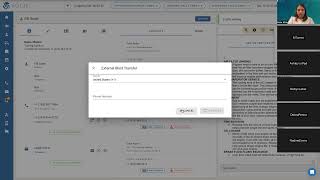
Wendy Davis walks through outbound calling in Volley: logging in, adding phone numbers, using the call ribbon to mute or transfer, and choosing dispositions. You'll practice 5 to 10 calls in the sandbox and learn to verify teammate availability before transferring.
Able to see the so thanks again for coming. This is our second session of four. We are going to talk all about outbound calls today. So that's going to be the focus of our time together. I'm going to share my screen as I did yesterday. I'm going to walk you through making outbound calls. That's going to be our primary focus for today. So we're going to go through what it looks like to make an outbound call. We're going to go through the process of transferring calls. We're going to going to look at that. I'm going to talk about choosing a disposition when you get finished with your call, what that looks like. And then we're going to talk about, you know, kind of some pro tips for handling your outbound calls. So that's what we're going to cover today as yesterday. You know, if you have any questions, please put those in the chat. And I'll be watching the chat as we as we have our session today. So it may be something that, that we're going to can cover today, maybe something that we are going to plan on covering another day so we can, you know, be sure and talk about that. I'm going to go ahead and share my screen and I'm going to assume that everyone can see my volley screen unless you tell me differently. So thank you so much. I know there's been a couple other people that have joined us here in the last few minutes or so if you can. And I'll say something before the end of our session if you can, please. I know a lot of you have already put your name or the names of people watching with you in the chat and where you're from, what dealership or dealer group. I just like to, to, to take a roll call at our, our training session. So if you could do that at some point between now and the end, that would be wonderful. So as a reminder, we're going to log into our sandbox and we're going to talk about what it looks like to make an outbound call. We're going to talk about how to transfer calls and we're going to talk about dispositions. So I'm going to log into my training sandbox right here on the far right here. I'm going to click login and I'm going to go to my call screen. So this brings up the screen we looked at yesterday. Right. So we're going to, I'm going to show you what it looks like to make outbound calls. I'm also Going to show you how you're going to practice because kind of jumping ahead a little bit, your homework items for the end of today's session is to practice some outbound calls in your own sandbox, in the sandbox that we've created for you and your team. So I'm going to walk you through that process. You'll notice over here, in the customer's information on your demo records as well, you'll notice that you have. There's a phone number already listed in your sandbox environment. That is a phone number. It's kind of a, a practice phone line we've created, so to speak. That number will not ring to anyone. That number, that number will not get answered when we load in test profiles in the sandboxes for you to practice with, we need to include a phone number in there. So, you know, that's why, that's why we have that information. Selah had a question about just a reminder on accessing the sandbox. So I'll just show that again if we're in our queue, selection where you first get when you, when you land in Bali, you're going to locate your training sandbox, click the green login button and then go to your call screen. So you'll have a campaign in your cues called your training sandbox that will ask if, if anybody doesn't have any particular cues, that may be something that our team is loading for you yet today. So I will, I will make sure that they do that for you. I'm just writing a note. Nadine, thank you so much. So follow along with me and then you know when it's time for you to do your practice. After our time, I can have our team make sure that everyone has access to their sandbox. So in order to do your practicing, what you're going to want to do in your sandbox area, you can either delete the phone number that's there. So again, in your practice area, you can either delete the phone number that is there or you can add your own. It's up to you and, you know, just depending on, depending on what's easier for you. So I'm going to go ahead and add my number. So you're going to want to add a phone number of someone you can practice with, whether that's your manager, maybe you're going to practice with another team member you want to be able to practice with, someone you're actually going to reach, whether you call a team member, cell phone, maybe you call your manager cell phone, etc, for two reasons Number one, you want to make sure you can reach a real person. Kind of mimic what that's going to look like when you make actual calls. It's also this training, both the outbound and the inbound practice inbound we'll talk about on Thursday, that's going to really prepare you for making calls to real customers. To help ensure as well that your headsets are functioning, we want to make sure that you can hear, you know, the other person, your manager or your team member you're practicing, that they can hear you as well. So this is a really important part of your training, not only to be able to practice, but to be also to make sure that your headset's functioning and you can hear them and they can hear you and all those good things. Right. So I'm going to go ahead and just add in my phone number because I'm going to call myself for practice. But again, you would put in, maybe it's your manager's number, maybe it's a team member's number, right? So I'm going to back out and do that again. You're just going to click add phone number. Or again, you can remove the one that's in there and add your own. Either or doesn't matter. So I'm going to add a phone number. I'm going to add my own number, and you can choose sell, home or work. In this case, with. With practicing, it doesn't matter. They all function the same. If you're adding a number in the future for a customer, I would try and indicate the most accurate label. If you know, just so that you and your team in the future, you know that this is someone's work phone or someone's home phone or whatnot. But you'll just choose the number type and then we choose our country, United States, and then hit save. Okay, pause for questions. Everybody with me so far. The reason, again, just to reiterate that we're going to put in your. That when you practice after our session today, in the next couple of days, before we meet again, when you practice in your own sandbox environment, you are going to either take out the existing number that's in there in that sandbox. Remember, that's a. That's a pretend number that no one's going to answer, right? So in order for you to get the best experience, you need to either remove that number and. And add in your own or just add in your own. Add in the phone number of your manager or a team member, whomever you're going to practice with okay, so you'll want to do that. And we're going to do that on each of our, each of our demo records here, each of our practice records as we go forward. So I'm going to initiate this outbound call. So we're going to speak with customer. Customer Fifi. Yes. You will see the sandbox soon. Correct? I will get with my team when we're done. I'm just making notes and make sure that everybody here has access to their sandbox. Yes. So you will see that very soon. Thank. Good question. I'm going to go ahead and initiate this outbound call. So I've got customer Fifi here and let's say we're calling customer Fifi because she's, she's has maintenance due, maybe she's on our active list of customers and she has maintenance due on her vehicle. So you'll notice over here on the right hand side we have a start next dial button and we also have a drop down arrow here. If the customer has one number you can just click Start next dial and that will dial that, that sole number. If you want to choose if they have multiple numbers on their profile, just go to the little down arrow here and choose the number you want. So just go there and choose the number that you want. So I'm. Because I'm practicing with my phone again. When you practice, you're going to practice with a team member or your manager. But I put in my own phone for, for our, our session today. So I'm going to go ahead and initiate a call out to my phone. When I do that, I want you to notice that up here you're going to have a call ribbon is going to appear in this area and we're going to go through the items there in a moment. So I'm going to go ahead and initiate my dial. I have a call coming to my phone. Okay. I'm going to mute myself or else we'll get a weird echo. So now I am on a call with a customer. So you notice that we have now this, this kind of peach or tan colored call ribbon at the very top. So we have some options now that we've initiated our call. So you can mute yourself if need be. You can put the customer on hold if you need to. We give you a dial pad. We know instances where maybe you call someone and it's their work number and you need to press an extension to get a hold of them. Right. This icon is for instant voicemails. This may or may not be a feature that Your account uses instant voicemails are essentially the ability to have pre recorded voicemails, you know, ready to go. So if you reach a customer's voicemail, you can just include that, that recording. So your account may or may not use that. You have the ability to end the call before the customer does. And we'll walk through what that looks like when we do transfers. And then we also have an option here to transfer the customers. So if you'll remember, when we visited yesterday, we went through in the middle section here in the tab section, we went under this more drop down and we talked about contacts. Right. And as a reminder, this is that directory of, of people that your manager has supplied to us, people you transfer to with frequency. Could be advisors, could be a ring group, could be the parts department, could be the receptionist, a member of management, whoever. Right. So you can use this and we'll, I'm going to show you a couple different times what transferring a call looks like. We're going to practice that a bunch today and then on our Thursday session as well. You can use this trans, this contact directory to transfer customers. We also have a transfer option here on this ribbon on the far right. You can either do a blind or warm transfer external means, outside of volley. So it doesn't mean external to your business. It doesn't mean going from your business to another business. For example, it's going out of volley to someone else again, an advisor, a manager, someone like that. Right. And we'll talk about this internal transfer in just a minute. The primary difference here, if I choose blind or warm transfer on this call ribbon here up top, I need to type in the phone number. So we want people in this directory that you transfer to often. Again we're, we're, we're setting that up in the launch process with your manager and with your leadership team. Part of training. Also, you know, once, once you start making, you know, towards the end of the week before you launch your inbound calls, you will be making some outbound calls to real customers. Maybe in a recall campaign, for instance. When you do that, you'll want to kind of look over this directory and make sure that you know, you see everybody you would need to transfer to. But again, I'll show you what it looks like here to transfer in just a moment and we'll do a couple of them during our time together this morning. So the reason we give you, you might be thinking, well why would I have this directory here and why would I have the ability to transfer someone and type in their Number. I would say, generally speaking, if it is someone your team transfers to with any, any amount of, any, any, any, any volume, right? Whether it's, even if it's only once a week, we want them in this directory. For you and your team, it's just a lot easier for you to transfer. We give you the option to do a transfer and type in the number because we know you may have an instance, maybe every six months you need to transfer someone to an 800 number at Toyota. And maybe because that happens so infrequently it doesn't make sense to have them in your regular contacts or, excuse me, your regular contacts directory, you know, you can just type in that number and transfer them. So it depends on the situation. 99% of the time you're going to use this contacts directory here. And again, once you get into some real customer records, you'll see your own contacts directory. We'll talk about that towards, towards the end of the week. What you'll notice here in this contacts area is I have blind and warm transfer options next to each phone number. You also notice it's a 10 digit number. So in order to transfer in Voli, we need a 10 digit number. Similarly with using the call ribbon up here, if we type in a number for one of those instances, like I mentioned, it needs to be a 10 digit number. You may look at some of these when you're going into your own directory and you may say, well, I don't recognize that as the phone number I use to call advisor Katie or manager Katie. You may be more used to seeing the numbers as extensions. We have to have more in volley than just extensions because extensions are not unique. Meaning if, if my extension on a phone system is 1, 2, 3, there could be literally hundreds of other people in other businesses around the country who also have extension 1, 2, 3, right? That extension is not unique. It's not a unique phone number. It is specific to your team. So that's why we need full 10 digit numbers and your IT team and your manager have supplied us with those 10 digit numbers to reach people. So I know we sometimes have questions on about that from agents when they're launching, you know, oh, I don't recognize this as the number for this advisor. I'm used to calling them at extension 1, 2, 3. We need a 10 digit number in order to do the transfer. So just something to keep in mind that that may be different than what you're used to seeing. So before I show you what it actually looks like to transfer a customer we're going to do that again. We're going to do that a couple times today. Does anyone have questions on, on where we're at so far? Okay. So I typically do not demonstrate blind transfer for a couple reasons. Number one, because it is pretty self explanatory, right. You transfer the customer and the call moves on. I typically demonstrate warm transfer because most of our accounts require their teams to do a warm transfer. And the difference being with a blind transfer you send the call on its way. You're not checking to make sure that that person is there. With a warm transfer, we're trying to reach the advisor for instance and confirm they're at their desk before we just send a customer's call to them. So that's our primary, our primary difference there. So let's say for example we needed to transfer customer fee fee to an advisor. You may have more transfers on inbound calls versus outbound. But I do want to demonstrate transfers both on this call today and our next call on Thursday when we talk about inbounds. So you know, you may have situations where you do transfer someone on an outbound. But I just wanted to demonstrate that for you today. So let's say FIFI needs to speak with Advisor Katie. We're in our contacts directory here. Again it's under this more drop down and we choose contacts. You can either scroll, you're going to get really familiar with your own directory, you're going to get familiar on where everyone is located or you can type in their name or their department. It's you know, ultimately what's what, what's easiest and best for you. Right. Just depending on, on, you know, what makes the most sense to you. So let's say I want to transfer this customer to Advisor Katie. I've located her. I'm going to click the warm transfer button by her phone number. So I'm going to click this warm transfer button and then I get this pop up window again. It has the phone number already in there. You don't need to adjust it, you don't need to change it. It's got the phone number in there ready to go at the moment I choose transfer. The customer is going to get put on hold and we're going to get a secondary phone window that pops up while we are waiting on hold for in this case the advisor. So again, once we click transfer, this pretend customer FIFI is going to get put on hold and we are going to get a secondary call window that pops up while we are looking to reach Advisor Katie. So I'M going to go ahead and hit transfer, and we're hearing a dial tone. I'm just going to go ahead and accept it on my phone just so that we don't continue to hear the music. But we'll go through the options here. Before I move on, any questions on how we got to this point? Okay, so there's a couple of different options with the transfer. You can cancel the transfer and go back to the customer. Let's say advisor Katie didn't answer, or she answered and said she couldn't take the customer's call, wanted us to take a message. You can cancel the transfer, go back to the customer, finish your conversation with them. Okay. This orange button allows you to break in and speak with the customer while you're waiting on hold. So there may be a few reasons you need to do this. Maybe it doesn't happen all that often, but let's just say, for example, when we were having our conversation with customer Fifi, maybe she said, you know, I've really been trying to get a hold of advisor Katie. I'm okay waiting on hold for a little while, you know, to see if she's able to talk to me. So we're on hold for manager Katie. Right. Maybe it's been 30 seconds, 45 seconds or so, and we want to check in with Fifi to see if she's still okay holding. Rather than canceling the transfer and then going back and trying to reach manager Katie, we can click this button to speak with Fifi so we can say something like, hi, Fifi, I'm still holding for advisor Katie. Would you like me to continue to hold or should I take a message? If she wants me to continue to hold and say, great, I'll check back in with you in just a little bit. And I can click that button again. And now I'm waiting for advisor Katie. We're waiting to speak to her. Right. There might be another instance, you know, maybe we reach advisor Katie and she says, hey, before you transfer Fifi, I have a quick question. Can you ask XYZ so that you need to go back to Fifi, ask the question, and then, you know, and then, you know, speak with advisor Katie again. Right. The green button bridges the call. Bridging the call brings all three of you together on the call. So we've reached advisor Katie. She's indicated that, yep, I can take the customer's call. Transfer them over. All three of you are on the line. When you do the bridge call, you, the customer, and the person you're transferring to so just ensure. And that's why there's this note up here. Bridge the call when you're ready. Because again, when you do that, the customer is brought back into the conversation. From there, it's whatever your handoff process is. So I'll demonstrate one handoff process. Your team may do things a little differently, and obviously that's perfectly fine. But I'll demonstrate what one of those looks like. So I'm going to go ahead and bridge the call again. I've insured manage with advisor Katie. She has the information she needs. She's ready to be connected to the customer. I choose Bridge Call. All three of us are on the line. And now I can say something like, hi, Fifi, I've got manager Advisor Katie on the line. She's going to take it from here. Thank you for calling. Whatever you say. Then you can go up to your call ribbon here and end the call. You can press this button to end the call. The customer and the advisor in that case are still having their conversation. You did not hang up on them. They are still having their conversation. But now you're finished with your part of it and you can move on to the next step, which is choosing your disposition. So again, I'll demonstrate the transfers. We'll demonstrate that a couple more times today during our time together. But conceptually, does anyone have questions on how that works? Okay. Good thing to know for yourself as well is we do have access. Your, your managers do have access to recordings of those calls, even after it's been transferred out of Volley. So if there's ever any question of, you know, what someone said in the conversation or, you know, if we need to go back and verify, you know, you can, you can always do that. So just, just know that. So our final step of our call before we can finish this one and check the box and be ready for our next outbound call is to choose our disposition. And as a reminder, that's the little pencil icon over here on the left, right? And as we talked about yesterday, you will choose a disposition with every call, right? Every call inbound or outbound, you will choose a disposition. So I'll walk you through again, a couple of different examples. We'll look at appointment scheduled as an example again. And because you do have the ability, if you want to, to choose up to two dispositions for a call. So we'll talk about that here in a moment. So again, I'm going to choose the disposition that best matches what happened on this conversation. And again, in your packet for the Week. I have a disposition glossary in there for you. We have one in there for you so that you can start to, you know, kind of study a little bit, you know, what are the use cases for the different dispositions. So maybe fifi wanted to schedule an appointment, which is great. So we're going to go to appointment scheduled, and again, we're. You're still using your scheduler, but all Volley needs is the date and the time of that particular appointment. So let's say we made an appointment for FIFI on Friday at 1pm okay, we're going to type in our appointment. You can choose the vehicle. If there's more than one vehicle, you know, you can choose the appropriate one and then you can choose the save button to save your disposition. Now, you can choose up to two on every call if you want to, and if it needs it. There are many instances in which this will not make sense. The primary reason that we did the multiple disposition option is because we know that there are times when you are talking to a customer and you want to schedule more than one appointment on the same conversation. So just to demonstrate this, I'm going to go to the vehicles tab here and I'm going to add a pretend vehicle for customer Fifi. I'm just going to add a pretend one for her. So let's say we are calling. We are calling Fifi about her Honda Accord. Okay? We're calling her about the Honda Accord, but in the course of conversation and I'm looking at her information, you're doing your due diligence. You also realize that her RAV4 is also due for its next service. And so you talk to her about both vehicles. Maybe you make appointments for both. Right. So I can make an appointment in this case for the Accord. I can choose the green save button here and then I can go and choose another appointment schedule disposition. Maybe she's coming in on Monday at 9am for the RAV4. So you can choose that particular vehicle. So again, you can choose up to two dispositions on every call. It was primarily we. We primarily did that for multiple appointments in one conversation. There's a good portion of the time where choosing more than one is not going to make sense. Right. For instance, you wouldn't have general question and ring, no answer. Right. You wouldn't have call transferred successful and call transferred unsuccessful. Right. There's so many instances where it would not make sense to have more than one. You don't have to have more than one. But if you need to, in particular with the appointment Scheduled scenario. You can do that. Okay. Any questions there on the multiple dispositions? Okay, so our final step before we're ready to move on, we have two buttons here. We have a save and stop or a save and dial next. So save and stop means that we're ready for the next outbound call. The next outbound call is going to come on our screen and then you initiate the dial, save and dial next. It's going to wait a few beats and it's going to initiate the next outbound call for you. So. Good question. Sorry, in the chat, how do we know what each vehicle is scheduled for? You will know. I'm going to pop back into my customer information screen here, the campaigns. So if you remember yesterday we talked about this area and about that, you know, here's the name of the dealership and then in the middle is the name of the campaign or the queue. So this will be if they're, you know, if there are an active customer, inactive, declined service recall, whatever reason they are in a particular campaign, that will tell you the reason right there. Good question. Save and dial next is something from an efficiency standpoint that you can certainly get to as you get going and you get more comfortable. We always recommend save and stop in particular when you are first getting started. And this is really, you know, the one you'll want to use in training because you're going to want to go to that next record, you know, put in your manager's phone number so you can practice that next outbound call, etc. Right. So again, save and stop just lets us initiate when we want to dial that customer. So I've chosen my disposition or dispositions if it, if it makes sense to have more than one, I've picked more than one and then I'm ready to get fed the next call. The calls are. Good question. So there's a question, is there a way to do a customer add on if they also want an oil change with a recall? I would, you're still going to utilize your scheduler, so you can still do all of that information in your scheduler. I would say, you know, if a customer, you can schedule more than one appointment for the same vehicle, they would just have to be at separate, separate dates and times. So if the customer had a recall appointment on October 10, but they had their oil change appointment on October 31, you could do that for the same vehicle. You know, you'll put all of that particular information in the scheduler. But if you want to, if that customer has more than one appointment Coming up for the same vehicle, you can book both. Just, just choose that appointment schedule disposition multiple times. So we're going to choose our save and stop. Good question. We're going to choose save and stop. Again, that's going to tell volley. I'm done with the call that I'm on. Bring me up the next call that's next on my list. That in the, in the priority that my manager wants contacted. So I'm going to choose save and stop and I'm going to get my next record and my next customer and we're going to do the same thing. So again, if this is a practice record, I'm going to go in here and I'm going to add, you know, you're going to add the phone number for your co worker or your manager, whomever you're training with. You're going to go ahead and add that number up here. We're going to go to our start next. Dial the little drop down arrow here and you're going to choose the particular number you want to call. The answer here on my, on my cell phone. Perfect. You can, just so you know, you can start to type in your disposition and make your call notes before the call has ended. You don't have to wait for the call to be finished in order to do the disposition. You have to. The call has to be finished to, to finalize it and move on. But if you want to start typing in here and start choosing your disposition while you're on the phone with the customer, you can. The important thing to know is if you happen to hit save and stop or save and dial next, it will terminate the call. So just keep that in mind. But you don't need to wait for the call itself to end before you choose the disposition. You can do that and then at you know when the call is done, then you can move on to your next, your next call. In in terms of the the question earlier about the oil change and the recall in Voli, if it was the same appointment, you would just make one appointment in VALI and then in your scheduler because you're still going to use your scheduler. You would note that information. All we need is the date and the time of the appointment and any particulars of the appointment stay in your schedule scheduler. So any specifics stay there. Good question. So I'm going to demonstrate the transfers again just because I want to make sure that we talk about that multiple times. So again, we're on the phone with customer Goldie. We want to transfer her to an advisor. I'm going to go in this more dropdown and choose contacts here again I'm going to scroll or I'm going to search whatever I find easiest to, to find the person I need to transfer to. Again you will get very familiar with your own directory and, and you know what, what works best for you and your team. So I'm going to locate her number here. I'm going to do a warm transfer. So again I'm going to click this warm transfer. Once I press transfer, Customer Goldie will get put on hold and we're going to get a secondary phone window that pops up while we're waiting for advisor Katie. So Goldie's going to be put on hold and we're going to hear a hold as well. So again my options just to revisit here, I can cancel the transfer, go back to the customer, right? Or maybe I didn't reach advisor Katie and I need to go back to the customer. Maybe I did reach her and she said she couldn't talk to the customer right now. So I can go back and take a message. I can click this orange button to bring the customer in and speak with them for a moment and then put them on hold again if I need to. When I'm ready for all three of us to be on the line, I choose bridge call and again that's you and the advisor in this case and the customer. Bridge call puts you all on the conversation and I can say hi Goldie, I've got manager or advisor Katie here. She's going to help answer your question. Thank you so much for calling. You end the call here and then you're ready for your disposition. If you're choosing one disposition, you don't need to choose the one and then hit save. If you're only choosing one disposition, you can just go ahead and choose save and stop next. So you only need to choose hit save here if you're choosing more than one disposition. So again I've, I've made my notes here, I'm just going to choose actually that was a successful transfer to Advisor Katie. I've made any notes that I want, you know, other team members to have access to in the future. Good habit to get in into to put notes on each call. Doesn't have to be a novel, doesn't have, you know, shouldn't be right, shouldn't take a lot of time, you know, just something. So if one of your team members or your manager is looking at a call at a, at a very quick glance, they can get the high points of, of that customer conversation right. Again, it doesn't need to be, you know, many, many paragraphs. You know, a few words or a sentence at most is great, but that just helps everybody. Again, when they look at that information later, they can just do a quick, quick glance. What, what was the, you know, what happened in this conversation with this particular customer? And again, I choose save and stop. And I'm going to get my next outbound call and my next outbound call. So that's what you're going to do for your practice this for the next couple of days. So we won't meet tomorrow. So our training sessions are Monday, Tuesday, and then Thursday, Friday, so we won't meet tomorrow. So your homework in between now and when we meet again on Thursday morning is to practice some outbound calls. Again, you're going to access these records in your sandbox. You're going to add the phone number for your manager or a team member or whomever you're. You're practicing with. Make sure again, that you are practicing with someone who can actually answer both so that you can, you know, practice the functionality also, so you can make sure your headset's functioning, you can hear each other sometimes. I've worked with agents where maybe they practice some calls with the manager who, you know, goes in another room, right? So you can just make sure that, you know, you can hear each other, you know, through the call, et cetera, et cetera. So that's what you're going to do over the next couple of days to practice is make those outbound calls, you know, in your practice area. You know, look at the multiple dispositions. Do some multiple dispositions, maybe schedule multiple appointments, etc. Just so that you can get again, a better idea of, of how they work. But that's what you'll do to practice over the next couple of days. I'll do another call here again just to show you how this would look. So again, I'm going to go ahead and add my num. My manager's number. Let's just pretend this is my manager that I'm doing some practice with here. I'm going to go ahead and save that number, I'm going to initiate a dial and I'm on with my customer. Another transfer item I wanted to talk to you guys about. If you noticed in this call ribbon here on the far right, there was a blind internal transfer option. So we talked about. External is people outside of Volley, right? Internal think of other, other agents. So this is your option. If you need to transfer a call to one of your fellow agents, one of your team members. So we're going to choose blind transfer. So the only option for transferring to another team member is a blind transfer. So you won't do a warm transfer to a fellow team member. When you click I'm going to go out of here and, and choose it again. When you click here to blind transfer, at the top, you're going to get this menu with a list of all of your team members. You can click the button, the select button, check that box next to their name, and hit transfer. That is going to send that call to your team member. They are going to be the ones answering it. They are going to be the ones responsible for dispositioning it. So if we transfer to call to a fellow team member, you don't go back to the record you were on. You get a new record, because that record's going to be handled by your, your team member that you transferred to. So typically we see needing to transfer to another agent in, in most often one of two cases, maybe the customer asks for somebody specifically. Maybe they got a call from, you know, Nadine and they want to reach Nadine specifically. Or, and, or maybe you have people on your team who, who speak different languages and you're in an area where people speak multiple languages. And maybe you have, for instance, two team members who, who speak Spanish. So you send Spanish speaking customer calls to them. Right. Typically, though, those are the two main cases which we see for transferring to fellow agents. You guys may have different ones depending on your situation. Again, you're going to select the box next to their name and hit transfer. You do want to make sure that they are at their desk. If you'll notice in the middle, it says status right here. So you may see available. You may see that they're currently on a call. You, you know, you may see, you know, what, what is their, what is their current action in Volley? What are they currently working on? Even if it says available, it does not mean that your team member is sitting at their desk and is in a place where they could take a call. When we talk more about inbound calls on Thursday, we're also going to talk about how you let Volley know, you know, what, what do I do when I step away from my desk so that, so that a customer's call doesn't come to me, right? What do I do if I'm at lunch? We're going to talk about that on Thursday. But it could say available. But your team member maybe forgot to say that they went to lunch or went to break and isn't sitting at their desk. So if you're in a room together, if the BDC is all in a room together, you'll just want to make sure, you know, do a visual, make sure that your teammate is actually at their desk. If they're currently on a call, it's okay to transfer that customer. You may even want to say something like, you know, Marian, I, you know, I, I see she's. She's just finishing up a call, but I'm going to transfer you over to her or whatnot, right? And then when your aid. When your fellow teammate finishes that call, then they'll get that customer's call, right? If you are remote or maybe you work remote some of the time, you know, it maybe you have a, a Messages or a WhatsApp chat or a Slack chat or something, right? That you can make up, you know, put a message and make sure that that person is available to take a customer's call. The reason we reiterate this, the reason we talk about this, is because once we transfer that call to our fellow teammate, the customer will wait on hold until that team member answers or the customer chooses to hang up. So we just don't want a customer waiting on hold for 10, 15 minutes or anything crazy like that, right. If someone isn't at their desk. So just make sure, before you are going to initiate this internal transfer to another teammate, make sure that they're sitting at their desk. If they're just finishing a call, you know, it's, it's fine to, to send the customer's call to them. We just don't want that again that you send a call to them and they're not sitting at their desk. And now that customer is waiting a long time and maybe gets hurt, frustrated, and hangs up. Right. Any questions there on the internal transfers? Okay, so in our last few minutes, I'm. Does anybody. Before we end our time today, does anybody have. Want to see any other items that we spoke about today? Oh, I'm going to end the call that I'm. That I'm currently on here. I'll choose my, my disposition and be done. So does anybody have anything they would like to see before we end our time today? Good question. Do they ever go to voicemail on a blind internal transfer? They do not. That does not trigger voicemail. So. Very, very good question. That's why we want to make sure that that team member is. Is, you know, actually sitting there available to take the call. Good question. Does anybody want to see anything else before, before I stop sharing my screen. I have a. I have a few minutes of things to, to chat with you about before we end our time today, but does anyone want to see anything additional here in Bali? Okay, so I'm going to stop sharing my screen. My, my final reminder, because I know we've had some people join us since we got started. If you haven't already, if you could please put your information, please, in the chat. You know, who's watching with you, where you're joining us from, what your dealership or dealer group is. I like to, to, you know, take attendance and let our onboarding team know that you were able to come today. So I know most of you have, but in case there's some people who haven't yet, if you could do that in the next few minutes before we end the call, that would be fabulous. So just some, A couple items we want to keep in mind, you know, when we are doing these outbound calls. We know for some teams, maybe being with Volley is maybe the first time that you're really doing a lot of outbound calls or the first time you're doing this many outbound calls, right? Maybe you're used to doing them for certain types of conversations, but you're more used to the inbound and not so much the outbound traffic as well. And again, we'll talk more on Thursday about inbounds. So we're gonna, we're gonna spend our time on Thursday with those. Just want to keep in mind, you know, when we are making our outbound calls, you know, we are really educating and helping the customer, right? Customers appreciate our proactive, friendly reminders. You and your teams, you know, you're in it all the time, right? This is your job. So you're very familiar with maintenance schedules. You're very familiar with, you know, what needs to be done at certain periods of time and how important it is, you know, the customer is, is, is relying on us to give them those reminders. One of my co workers made very good example yesterday. She talked about the dentist, right. You know, we know we need to go to the dentist. We know we need to schedule the regular appointments every six months like we do with our vehicles, right? But time gets away from us and we're all busy and we're all doing a bunch of different things, right? And so getting those act proactive reminders versus having to remember, oh, I need to call ABC Toyota and make sure I get my next service appointment, you know, getting that friendly, proactive call that reminds them or that lets them know that they have an open recall or we have a special offer you may want to take advantage of. We're having a special right now on tires. We're having. Whatever it may be, just making sure that we give those friendly, proactive reminders to our customers is really important. It's also about active listening. Right? This is a concept that, you know, just making sure that when we are on the phone with a customer, whether it's an inbound call or an outbound call, we are actively engaged in that conversation with them. How can we help them? Why did they call? How do you know? What do they need from us? How can we best assist them? How can we get them the answers or the information they need in the best way possible? Just making sure that we are actively engaged in every call, making sure that we can get the customers the information and the help that they need. So that is our time for today, everyone. Thank you so much again for all of your great questions and your attention. Last call to put your information in the chat. As a reminder, we do not meet tomorrow. We will meet again on Thursday. So we do not meet on Wednesdays. We will meet again on Thursday. Thursday is going to be all about inbound. So we're going to talk about how inbound calls are a little bit different, what those look like. In the meantime. You're so welcome. In the meantime, please make sure that you go into your sandbox area. Do those practice calls, you know, five to 10 practice calls at least before we meet again on Thursday morning would be great. And I'll make sure and visit with our onboarding team, make sure that everyone has access to their sandbox. So thanks again, everybody, so much. And I will see you all on Thursday morning. Have a great day.
More from Wendy

Fixed Ops Roundtable: The TCPA Compliance Panel ft. Scott Davis and Josh Stevens