YouTube Video
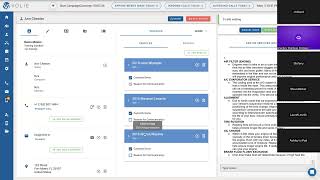
Jamie walks through Volley, a communication platform for managing customer calls. You'll learn queue selection, the call screen layout with customer history and scripts, how to handle opt-in and opt-out preferences, and dispositions that determine what happens after each call. Practice in the sandbox before the next session.
You know, in the next few minutes or here, we'll go ahead and, and let them in. So I wanted to give you kind of a what to expect over this next week of our sessions together. So I've got my notes up here, ready to go. So we are going to talk through the communication center in Bali and do a deeper dive there. We're going to talk through your making inbound calls, outbound calls, some best practices. We're going to talk through all of that in our time together this week. So I emailed a packet to everyone before we met this afternoon. If you didn't get it, just let me know in the chat and I can email it to you when we're done. No problem. It'll just give you kind of a guided, you know, things we're going to talk about in our different sessions throughout this week, kind of what to expect and then also you know, kind of like, you know, lay out what we're going to talk about during our time together this week. So I'm going to share my screen in Volley in a moment and just kind of walk through, you know, what you guys can expect here over the next four days. So we will go piece by piece in the communication center. If you've seen the packet, you know that there's some, some homework items at the end of our sessions before we meet the next day or the next session. Just to kind of walk you through step by step again, how are we going to make those outbound calls, receive inbound calls, some best practices, et cetera. So I'm going to go ahead and share my screen. I will pause at various points. If anybody has questions. We can certainly talk through those. I will share with you that, you know, when we are meeting this week, the what we're going to be going over again is that communication center overview. What we won't be able to cover are, you know, questions that you might have that are specific to your team and how your team uses Volley. So if you have specific ways that you action certain types of customers or certain practices that you do or workflows, you know, be sure to write those down. Speak with your manager and or your Volley account rep. I know we have some managers on our call and they can guide you through those and answer those questions. This will be to really share with you, you know, the communication center and how we make and receive those calls. So I'm going to go ahead and share my screen. Those of you who have been on the call since the beginning, you've already heard this, but I'll say it because we've had some people join and then I'll mention it again at the end. If you could, if you haven't already in the chat, if you could please put your name, anybody who's watching on your Zoom screen with you, as well as the dealership or dealer group you're part of, that would be great. I like to take Roll call and let your managers know that you know that you were able to, to join us this afternoon. So I assume everybody can see my screen unless someone tells me otherwise. So we'll go ahead and get started. So when you log into Volley, this is the screen you will see. This is what we call queue selection. So think of Q as being synonymous with a group of customers, a campaign. You might hear it in, in a couple of different, a couple different identifiers that way. So it's customers who might be, they're due for service, maybe they've got an open recall, maybe we're contacting them to confirm their appointment, you know, whatever the case may be, right? So you can see, you know, those different cues or those different campaigns that you have access to. Your list may be different than one of your teammates. So you are going to see the campaigns that you are skilled for and that you have access for. So maybe you have a team member, for instance, who primarily does CSI follow ups or primarily does recalls, right? Yours might be different. You're going to see the list of campaigns that is applicable to you and to the campaigns that your manager wants you to have access to. So just to keep that in mind as you get going, once you're fully launched with Volley, once you're, you know, fully taking those inbound calls and making your outbound calls at the beginning of your day, you're going to log into all of your queues. That is going to be your best practice as, as time goes on, that is because again, those calls are going to be fed to you in the order that your manager wants them contacted. So logging into all queues just ensures you're not getting, not only getting the outbound calls you need to make, that you are also eligible to receive any inbound calls that come into Volley as well. And we'll talk more about inbound and outbound call specifics tomorrow and Thursday on those sessions. But your best practice once you get rocking and rolling is to log into all of your queues. When you're training, you want to look for a training sandbox or a sandbox or a training environment that is listed in your list of Cues here. When you're training, just go ahead and inch and log into that individual individual campaign, that individual sandbox. And you can do that by just finding the little green login button here on the right. And we can just log into that individual sandbox campaign. This is something that has been set up for you and your team to utilize. It is pretend customers, pretend data. It's designed to let you push buttons and see what happens. Right. It's not real customer information information and it's not customer facing. So I'm going to walk through with you over the course of the next couple of days how you know how you use this in order to train and how you use the sandbox. But when you're going to go do your practice, just go ahead and log in to the individual training sandbox campaign here. And then we're going to go to your call screen on the very left here. So you're going to log into your sandbox environment and then you are going to click the call screen here. It's kind of in the middle, the blue with the hand phone icon right here. We're going to click into call screen. And this is what your customers are going to look like in Volley. So we're going to spend some time this, this afternoon deep diving into this area and what this information means for, for right now, for this moment, getting to this spot, getting here. Does anyone have any questions on how I did that and when? If you have questions, if it's easier to unmute yourself or it's easier to put things in chat, you know, just do that. Whatever, whatever is easier for you. Okay, so I'm going to move on, but I'll again, I'll ask for, you know, different points if you all have questions. So we've got the customer's information here on the far left side. So you notice we have again, this is pretend data. You're going to have the same thing, pretend information. Here's the customer's info and here is their particulars underneath their phone number, their email addresses, their physical address, etc. We are getting this information from one of two sources. We are getting it either from your DMS data or it could be from a list that your manager has loaded. So we are sitting on top of your DMS data. We are getting that either once a day or multiple times a day. It depends on the one that your team uses. But we are getting that information about the customer in those daily feeds. Names, phone numbers, email, that type of thing. Right? We're getting that information. It could also be on a list that your manager has loaded. So maybe on that list, you know, maybe it was people who have an open recall or people who, maybe they're part of your loyalty program and you're reaching out to them to make sure they use those services they have. Right? So customers can be included in these campaigns based on that information as well. So it just depends on, on how your manager has teed them up. On the top left here, you'll notice in bold the name of our pretend dealership here and then some other information. So if you make and receive calls on behalf of one dealership, you'll see the same name over and over again. If it's multiple dealerships or a dealer group, you might see this change. So it might say, you know, ABC Toyota, ABC Honda, ABC Subaru, you know, whatever it may be, that may change. Again, how those calls are fed to you. The next call, the next call is based on a priority that your manager has set up when we are setting up volley for your team. And we'll talk about that more. We're going to go into more details our next session tomorrow afternoon on how to make outbound calls. So we'll talk about that in a little more detail at that point. So you have the dealership name, you have the name of the campaign here in the middle. So again, is this, this is the reason for your call. So is this customers who are due for service? Is it customers who are on a declined services list? Are they on a recall list? You know, how do they happen to be in this particular campaign? And then we have the attempt. So every campaign has a follow up cadence associated with it. So you'll notice here it says first attempt. So this is the first time we are looking to reach out to this customer. Every campaign has a follow up cadence built into it. So we do that with your manager when you're, we're getting things ready for your team. When we're creating those campaigns, we program a follow up cadence. Maybe we're reaching out to that customer every other day. Maybe it's every three or four days, maybe it's once a week, whatever it may be. Right, so this is just your visual. Is this the first time I'm trying to get a hold of them? The third time, you know, what does that information look like? So that gives you a heads up there. And we'll talk further about some other areas in which you can see, you know, previous contact information from that customer. And again, we have their name, any phone numbers, emails, et cetera below so there's a couple more icons we're going to talk about here on the left hand side of this screen. I did want to move to our middle tab section here and talk about that for the next few minutes. Before I do that, does anyone have questions on the type of information that's included here or how we get that information? Okay, so in the middle we have what we refer to as our tab section and it's going to default to the customer's vehicles. So you'll notice that this pretend customer has multiple vehicles on their profile. Right. You'll also notice that one of them has a box checked as reason for communication. This is the vehicle that the customer is enrolled for in this particular campaign. So let's just pretend instead of the training sandbox, this is someone who is in our active customer list. They're due for service, right? The Jeep Wrangler is the reason we enrolled them into that campaign because the Jeep Wrangler is the one who is due for service, etc. Etc. You can change that if you need to. Let's say we call them and maybe they no longer own the Jeep, but as we were talking to them, they do have service needed on the Nissan, so we switched it to the Nissan being the reason we called them. You can do that if you need to. You'll also notice there is a box for currently owns. One of the things we're going to talk about in a few minutes are dispositions. This is the result of every call in volley, whether it's inbound or outbound. With dispositions, we can indicate, you know, does a person no longer live here, do they no longer have that vehicle? But you can also include that information here or remove that information. So let's say again, we're speaking to pretend customer Ann and she indicates that, you know, she no longer owns the Jeep Wrangler. You can unclick this currently owns box. And then in the future, even if Ann could be enrolled in a campaign, if she could be brought into that campaign or that queue, either based on the DMS data, maybe it was based on a list that your manager had loaded in. You know, you volley would look and say, well, she no longer owns that Jeep Wrangler, so we're not going to, to put her in this campaign because she already owns that per. She does not own that particular vehicle any longer. So that's a way for, for you just to kind of keep track of it and, and, and have that further. Jamie? Yes, the dispositions. I will, I thank you. I will get to those in a minute. Perfect. Thank you though for asking. So other information that's included in this tab section, we, we will go into some in more detail over the course of our time this week. But if I toggle up the more you're going to have things about this customer. Now when you go into your demo or your training areas, you know this will be blank, right? A lot of this will be blank because they are their pretend. So they're not going to have sales history or service history. In a real customer you will, so you're going to see sales history and service history. You're going to be able to see contact, previous contact, a communication history. So I can toggle here. This pretend customer doesn't have a contact history, but you would see other phone calls, emails, text messages that might have gone in and out of volley. So if your coworker spoke to them last. And now it's your turn to call the customer, you can see what transpired on that call, any notes your, your, your team member took, et cetera, et cetera, you can see that information. So that's one area you look at. Another area you're going to look at quite a bit that we're going to spend more time on tomorrow and Thursday. Is this contacts. So this is, think of this as a directory. So again it's contacts. Think of it as almost like a phone book or a directory. These are people that your team will transfer to often in working with your onboarding and working with your manager, they have supplied a list of, of, of individuals to us. Typically it's advisors. Maybe it's a ring group for, for parts or finance. Maybe it's other members of leadership. Right. It could be, it could be various people, but there are people that your manager, there's have deemed, you know, people that you transfer to often that they want included in that directory for you. It just makes transferring calls much easier. And we're going to go into that more in detail tomorrow and Thursday to show you what that looks like, you know, and then so you can practice it as well. But just know this contacts area is where those individuals or groups or departments will be listed so that you can transfer customers more easily using those. So I'm going to move on and continue covering some different items. Before I do that, does anyone have questions on, you know, in general what's included in this middle tab? Knowing that we're going to talk in more detail about certain areas as we go through our week. Okay, perfect. So on the right hand side is scripting and you could have more than one script that is included in a particular campaign. So if I go over to the more here on the right hand side, I can actually toggle to a different script. You may have more than one listed in a campaign for you to use. So for instance, we might have a script for our active customers. Maybe we also have objection handling ideas or maybe add on services that we can propose to the customer. Those might be included as well. So you can toggle back and forth if you would need to, depending on the particular needs for that particular call. You'll notice that there are items here in bold. We're pulling in information for the customer, your information, the vehicle, again that reason for communication we talked about with the vehicles. Just so that your eye doesn't have to bounce back and forth as much between the customer information on the left and the scripting here on the right, we're able to pull in some of that information for you. You can also scroll. So if there happens to be more to the script, we may also give you an idea for a voicemail script you can use that may be included in there as well. So this is your scripting information. It's located here on the right. And again, we'll talk through more specifics about these as we go through our week. Today's session is to give you more of an introduction to the call screen, to the different pieces that you might see. And then as we spend more time together this week, we'll spend a deeper dive some of these areas. I'm going to go back to the first panel here on the left, the contact information to talk about a few specific areas. Before I do that, does anyone have questions on, you know, in general, the types of information that are in these three panels? Okay, if you do, let me know. So we're going to start in the middle here with this tab called Communication Preferences. This is how you will note when a customer has asked not to be contacted. So if you have a conversation and the customer says something along the lines of, you know, please put me on your do not call list, right? This is how we note that information. So the box being checked means they are opted in. If the box is empty, it means they have been opted out. So again, we have this call. Let's say we call pretend customer Ann and she says, I don't want to be contacted anymore. Put me on your do not contact list. You can unsubscribe her or unopt or opt her out of all communications by clicking this top box. And then she is ineligible for, for outbound communication. In Volley, customers can still call in, but this would make them ineligible for outbound communication. So they wouldn't be brought up in another outbound campaign or for your team to reach out to them in the future. You'll notice below we also have a history. So if we're ever curious, you know, when was a customer opted in or out, what happened? We can always look back at that in the future and see when that occurred. You can also, instead of doing all communication, you can do specific kinds of communication. So maybe they indicate to you that they're okay getting phone calls. They would just not rather, they would rather not get emails or text messages. You can opt them out of emails and, or text messages. Right. So that top box is all communications. You can get more specific if you want to. You can also get specific by an email address or by a phone number. So let's say a customer indicated, let's say they had multiple email addresses in their profile. Maybe one was their work email and one is their personal email and they're okay getting email at their personal one, just not their work email. You can just unsubscribe that individual email address. Same thing with phone numbers, right. Maybe that customer shares, oh, you know, you've called. This is my work issued phone. I'd rather not get future calls or text messages on this phone. You can opt out an individual phone as well. So this allows you to, to update those customers communication preferences. Where we wouldn't want it used. The reason we spend time in our, in our trainings talking about it is we, we don't intend it to be used, we don't want it to be used for, you know, if a customer maybe was unhappy that day or maybe the conversation was difficult or maybe you think, oh, I'd rather not talk to them in the future. Right, I'd rather not do that. You know, there's other things that, you know, other ways we can indicate that as a call for your manager to look at or maybe you want to visit with your manager about those. But really this is intended for those customers who say to you pretty expressly, I don't want to be contacted, put me on your do not call list. You know, some variation of that statement because as I mentioned at the top, this does opt them out of any other outbound communication. So we just, we, we obviously absolutely, you know, both ethically and legally want to abide by the customer's request. We just want to make sure we're using it in the appropriate situation. Any questions? There Mariah had a great question. If you're texting with someone in disposition or save it, how can you go back and see a message history with a customer? Excellent question. So Mariah, just to kind of put a pin in that, we will speak later in the week in more detail about texting in and out of Volley in particular. So I'll note down your questions so I make sure that we can talk about that further towards the end of the week. But also if you're in a customer's profile, you can go to the more dropdown in the communication history and you'll be able to see any message history for that customer as well. But I'll show you later in the week, I'm just going to make myself a note here. I'll show you later in the week some other ways that you can look up message history for a customer. Great question. Will they receive a notification about the opt out? Jamie had a great question. They will not. That is not something they receive a notification on. Good question. Anyone else? Okay, well, I'll move. Oh, I had another question here. Are there templates for replies? Yes, yes, absolutely. There absolutely are. As I we're going to talk in more detail later in the week about texting through Voli. But just as a high level overview, the yes, you can have what we call shortcuts teed up for your team if you are replying to customers or sending them individual messages. We can have what we call shortcuts that are templated where you can just, you know, kind of, you know, pick and choose the one you want. But I will show you what those look like later in the week. But yes, that is available. Great question, great question. And also during our time this week, guys, you know, obviously this is, this is new for a lot of you, right? So you know, you may think of something after we've ended our call today that, oh, I saw this part of the screen and I forgot to ask my question. Just write those down and make sure that you bring them with you when we meet again, you know, next week and later or next week, tomorrow and later in the week and we can, we can spend time answering those as well. That's okay. So there's a question, I'm sorry, I don't know your name but regarding campaigns and queues, how will it look for multiple dealerships if we have a BMW and a Lexus, Will there be separate queues for each type of call? Yes. Long story short, yes. So what you will see and I'll go back out in the Main screen in a moment, we will group them by the dealership. So to your point, if you have calls for a BMW dealership and you for Lexus and for Land Rover and for, you know, whatever it may be, right. There will be separate queues. So you will be, you will be able to see here, I'm going to bounce back to the contact info. You will be able to see up here, you know, what dealership that particular customer is for. When we create those call priorities, you know, we, we prioritize with your manager, you know, the order in which calls are made. And you might, your priorities might be you might get 10 of one type of call for one dealership and then 10 of another type and 10 of another type, or maybe it's 20. Right. It could be different, you know, depending on your use case and depending on your team. But yes, you will see if you make and receive calls on behalf of multiple dealerships, they're not all going to be in one bucket together. They are going to be segmented by dealership. It's an excellent question. That is because we are getting each of those data feeds separately from the dms. So that allows us to keep that data, that data personalized and separated for that customer. Great question. Anyone else? Okay, Jamie, I will write down your note about. Jamie had a question about drop rate for inbound calls. I'm going to write that down so that we can talk about that more on our inbound call day. We'll definitely discuss that for sure. You bet. So we've got about 15 minutes of our time this afternoon. So there's items that I, a couple items I wanted to, to discuss further on this screen. One of them is the disposition icon. It's this icon of a pencil right here on the left. Your disposition is the result of what happened on that call. You will disposition each call inbound and outbound in your packet that I included for the week. And again, I know we've had some people join us. We've had a bunch of people join our session today, which is awesome. So, but I, I say that I might have a few people might have slipped through the cracks. So if you did not get a packet of our schedule for this week and some different items, you know, please place that in the chat and I'll make sure to get that to you this afternoon before I'm, before I leave for the day. So included in that packet, in addition to our schedule, is a disposition glossary, kind of a disposition cheat sheet, so to speak. And it goes through the different dispositions that we have programmed for you and your team to use. Each of those will have a def. A definition. We're not going to go through the definitions of each of them on our call today, but we are going to talk through them a couple in specific. We're going to talk about why we use dispositions and the types of information that we can. We can use the dispositions for in future calls, in future reporting, all of those types of things. So, and again, when we actually make outbound calls tomorrow and make inbound calls on Thursday, I will show you how the dispositions work as related to the phone calls themselves. So we'll go through that. So the dispositions, again, the primary reason we use them is it's the result of what happened on your call so that we can say, you know, in reporting that, that you have access to. Reporting your team has access to. I called Customer Ann at 3:30pm Eastern on October 6th and this is what happened. Did she schedule an appointment? Did she tell me she's not interested? Did she tell me she moved out of the area? Did she tell me that she'd already completed her service somewhere else? Did I not reach her? Did I leave her a voicemail? Right. What happened on that interaction with that customer, whether we reach them or not? So there's a couple I want to talk through in specific, but I wanted to go through with you as well. There's really four primary ways that we utilize the dispositions. So that first way is what I mentioned, right? It is the result of what happened on the call. The second thing we can do, we can include or exclude customers from being in a campaign in the future based on their disposition. Here's an example. Let's say we called pretend customer Ann and she told us that she moved two months ago. Well, we can choose the no longer in area disposition and in the future Voli will say, oh, Ann doesn't live here any longer. An agent told me on a call that Ann doesn't live here any longer. So even if in the future she could be in another campaign, even if she was on a list that your manager loaded, even if we were pulling her in from the DMS feeds, right, we wouldn't include an because we had been told in a previous conversation she no longer lives here. So we can do that with dispositions. Right? The third thing we can do with dispositions is send what we call alerts. So in your disposition glossary that I included for you in the packet, and I know some of you have indicated you didn't Receive it yet? No problem. I will send that out to you when we're done. There are some that have an asterisk next to them on the spreadsheet. I think there's three or four of them in our glossary. Those are sending alerts. So an alert, what that allows us to do is send an email. Maybe it's to your manager, maybe it's to a department head, maybe it's to an advisor. Your manager gives us that information when we're setting up your account before you get onboarded. Let's say for example, CSI Concern is one of them. CSI Concern is one of them. If a customer has an issue or a concern, right, that disposition, once you finish your call and again we'll look at tomorrow what, what it looks like to complete and finish a call and all of those things that will send an email to whomever your manager has indicated. It could be one person, it could be multiple people, right? We're going to send an email that's going to have that customer's particular information on it. It's going to have any notes you made here. It's going to have a link to the call itself, right? A link to the customer. So if your manager or that team member who's getting that escalated call wants to listen to the call, wants to look at it further, they have the ability to, to do so. This, what this keeps you and your team from needing to do, especially with those CSI concerns in particular. Tow in is another, you know, rather than you and your team, you know, having an interaction with a customer and then going to your email and sending someone a message, we take care of that process for you. So some of the dispositions send alerts and again there's three dispositions that do that, that we set you up with. It is CSI Concern, it is tow in and then it's an unsuccessful transfer. And again your, your manager has indicated to us who they would like to, to receive those particular alerts. The final way we use dispositions is, is they can trigger activity to be sent to the customer. Commonly it's on dispositions that indicate we didn't talk to the customer. Like ring no answer. We can send out a text message and, or an email with a template that we've worked to create and onboard with your manager. It may say something like, you know, we were looking to reach you. You may have maintenance due, you may have an open recall. Maybe it includes a specific offer, maybe it includes a link to the scheduler, you know, whatever your manager has wanted to set up. There. But we are also able, based on the disposition you choose, to send out a communication to a customer. And we'll talk through throughout the week what that looks like specifically. But we are able to, you know, to, to send those on your behalf. So just a quick recap. The four main ways we use dispositions. It's the result of that communication. We can include or exclude people from future calls. We can send alerts and we can also trigger emails and or text messages to go out based on your based on the disposition that you choose. Had another question. Great question. When a disposition removes a customer, does this update the manufacturer? Great question. It does not, but that's an excellent question. We don't Volley does not push information back to you. However, for you to know, for your managers to know. The managers on their side of Volley can pull down a report that includes that information. So if you would want to take that to another source, maybe your dms, maybe a CRM, another database and update it, they can get that information to update. Great question. Perfect. So I wanted to talk about a couple dispositions in particular and our last, our last piece of time today. So one of those dispositions is appointment scheduled. So you will use your scheduler alongside Volley. All we need though is the date and time. We don't need all of the other information you include in your scheduler. We just need the date and time. This is so we can say again in reporting and we're going to talk more about that as the week goes on. We can say I called Ann in my active customer bucket and she booked an appointment. It, it ties your action in Volley to a result that you schedule the appointment. All we need is the date and time. So we can just go ahead and pick the day. Maybe It's Wednesday at 1pm Whatever it happens to be. Right. So that's the appointment scheduled and again we're going to practice some calls tomorrow and Thursday and Friday and we'll go through, you know, kind of real time how to use these. But appointment schedule is one I wanted to talk about. The other is callback. So if you'll remember, and I'm just going to pop to my other little contact info here, you'll remember that we talked about. We're, we're feeding customers up in that follow up cadence that we have programmed in. Right. So the callback isn't for every single customer who you want to contact again. Right. You don't need to do this for every single call. So that if, if I called Ann today and didn't reach her that she gets a call in a few days. Right. This is for those times. Let's say we reach an. And she indicates, you know, I, I'm, I'm just going into a meeting or I'm out of town, you know, I can't, I can't talk right now. Can you call me on Monday? Can you call me on Friday? Whatever it may be. Right. You just choose the date and time. Let's say she wanted us to call her Friday morning at 10 a or Thursday morning. What is that day? Friday, Friday morning at 10am and then that call will be fed back to you to give that customer a call back. You can assign it to yourself if you want to. You don't have to. If you don't assign it to yourself, that call will just go to the next member of your team who is available. And again, we'll talk about more in detail tomorrow, how those calls are fed to you. If you do place yourself, Volley will try and serve you the call for about an hour before it opens it up to the rest of your team. We just do that so that if, you know, you happen to be out unexpectedly, maybe you were ill or, you know, or had a meeting that you forgot about that that customer still gets helped when they want to be helped. So that allows us to do that. So again, we're going to go in more detail later in the week about dispositions, how we use them, et cetera, et cetera. Jamie had a question. We are not connected to your scheduler, so we, we have, we get the data from the dms. So, for instance, if another member of your team, let's say an advisor, schedules an appointment, we will scoop up that data, you know, in, in the appointment history for that customer, in the service history for that customer when we do those daily pulls of your data. But we don't have a, a connection to your scheduler today. So that's why we just need the date and the time of your appointment. All of your other particulars you'll do in your scheduler. You just need to tell Volley the date and time of that appointment for that customer. Great questions, everybody. Love it. Perfect. I have a few more things I wanted to talk about, you know, in our, in our time here this afternoon. Before I do that, does anyone have questions on things we've talked about thus far or, or anything that, you know, that we went over maybe a little too quickly that you wanted to ask about? Okay, perfect. So just to give you kind of a little bit of, you know, what to expect over the next couple days. Again, I know some of you didn't get the packet and I will send that to you this afternoon for sure. I've laid out in your packet for the week. You know what we're going to spend time doing each session. There's also some homework items in there as well. The homework items will allow you to practice, you know, and do some incremental steps to get you and your team ready for launch. So today, our homework, and again, this is in the packet, but I'll send those out to you, those of you who didn't get it today, before we meet again tomorrow afternoon. What I really want to make sure that you do is make sure that you can get logged into Volley, that you're able to get logged in. If you're not, if you haven't received that invitation yet, let your manager know they can tag in the onboarding team and we can get you. Make sure, make sure you're logged in. Right. So that's number one. The second thing I want you to do and I'm just going to back out here for a moment. If I want to go back to my main screen, I hover on this little icon of a clipboard. It says queue selection. That's my main screen there. So other thing I want you to do, kind of a two parter, locate your sandbox, make sure that you can log in and then go to the call screen here on the left, the one we've been looking at this afternoon, and just press buttons, poke around again. This is pretend data. It's not real customers. You know, look at the information, look at where things are located. Right. And again we'll go through items in more detail over the course of our time together this week. But just get familiar, you know, again, push buttons. Where are things at that we talked about this, this session this afternoon and then we'll go into more detail as the week goes on. Tomorrow we're going to spend time initiating outbound calls. We're going to practice that together and I'm going to show you how you will, how you will practice in your own sandbox. We're going to talk about how we transfer calls. So we're going to go through that process. We're also going to talk about situations where you can, if a call warrants it, you can choose up to two dispositions on a call. It's not required, but you can. So we will talk through that when we meet again tomorrow. I know some of you on the call are some agents that have been with Voli maybe you are, maybe you've been with Volley, you know, a little bit or recently onboarded or maybe you are doing a review. You know, some of this, this homework information may or may not pertain to you. So, you know, just be sure and visit with your manager about that. But for those of you who are completing our onboarding, you'll want to make sure that, that you do that so that you can just be in the best possible place once you start making calls to real customers and then start making inbound calls in Bali. So we've designed our session over the next four days just to make sure that, you know, we kind of take it piece by piece. We'll, you know, we'll talk about specific items, we'll practice those and then you can practice them on, on your time in, in between training sessions and we'll go from there. So there's a couple other items that I didn't get a chance to cover today, which is totally fine. We'll cover them later in the week if we get to them. We're going to have some additional soft skills items that I'm going to touch on during our time together if time allows. We're going to talk as you know, as time goes on this week just to kind of give you a general overview. You know, as you've probably seen, you know, Volley can, can help you be more efficient because instead of maybe grabbing calls from a spreadsheet or from an email or whatnot, you know, Volley is going to serve you the next call that needs to be made. So we're going to talk more about efficiency and we'll talk more about those soft skills information as well. You'll notice that in your schedule for the week. Not something we got to today, but that's totally fine. I love all your questions and, and we'll spend all the time that, that we need to answering your questions. So again, we will meet at this same time tomorrow. Same time tomorrow. Last call. If you haven't yet put your information in the chat about, you know, who's, who's joining the training, your names, all that. I like to let our onboarding team know who was able to attend this afternoon before we, before we do our wrap up, does anybody have again questions or information in this call screen that they'd like to see again? So accessing, I think by Jamie, by dashboard, do you mean the main, the main queue selection screen? So we are perfect. Yep. So if I'm here in a customer and I need to go back to that queue selection, it's an icon of a clipboard right here, kind of towards the middle in the top. And that will place me back in my cue selection. And then to go back into my call screen to have the customer pulled up, I go on call screen on the left. Good question. Perfect. Wonderful. So we will, that will end our time for this afternoon. Thank you everybody so much for coming and for your, your great attendance and for your questions. Really appreciate it. Again, we will meet at the same time tomorrow afternoon. Those of you who need a packet and have included that in the, in the the chat, I will be emailing that to you this afternoon so that you have that in time for tomorrow. Again, as I mentioned, you know, please come to our sessions with these questions. You know, whether it's a question, you know, some of you have had great questions and it may be an item that, that I mentioned that we're going to talk about again in another session. But that's okay, you know, no, no problem. We'll just, you know, we can put a pin in it and make sure that we talk about it later. But really appreciate everyone being here and for your time today and your great questions, really appreciate you. And I will see you at this same time and place tomorrow afternoon at 3pm Eastern. In the meantime, I hope you all have a great afternoon and a great rest of your day. I'll talk to you later. Sam Sa.
More from Wendy

Fixed Ops Roundtable: The TCPA Compliance Panel ft. Scott Davis and Josh Stevens