Apple's M1 Pro and M1 Max are faster than Google Colab (machine learning speed test)
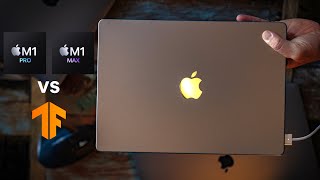
Daniel Bourke benchmarks M1 Pro and M1 Max MacBooks against Intel Macs, a Titan RTX, and Google Colab on video exports and machine learning tasks. The M1 Max is twice as fast as the Titan RTX on large model training, but the cheaper M1 Pro delivers better value for most ML work and 1080p video editing.
Chapters
Hello everyone. So as you may or may not have seen, Apple recently released some new MacBooks. We have two here. This is an M1 Pro and this is an M1 Max, both of the 14-inch variety. Yes, there is a 16-inch variety, but they— kind of confusing thing that Apple did this year is now both the 14-inch and the 16-inch run the same chips. We're not going to talk too much about that. What we're focused on is the speed test. Now you saw all the benchmarks, you saw all the graphs, they perform fantastic, but what do they actually do on a day-to-day workload? So this is an M1 Pro here. This is an M1 Max. Um, you can tell because I have a big graphic of the M1 Max chip here. And so I'm going to put up on screen, I have 4 different MacBooks that we're comparing today. One was a 16-inch Intel Mac that you can't buy anymore. One was a 13-inch M1 Mac, so the vanilla 13-inch entry MacBook Pro. And then we have an M1 Pro, which was the baseline M1 Pro Mac, the 14-inch. And then we have an M1 Max, which was also the baseline M1 Max with a 10-core CPU, a 32-core GPU. And all 3 of the M1 chips actually have a 16-core Neural Engine. So the main difference between the M1 Max was that it has 10-core CPU a 32-core GPU versus the 14-core GPU on the M1 Pro, and it has 32GB of RAM versus 16GB of RAM on the M1 Pro. All machines during all of the tests were running macOS Monterey, that new purple color. They were all done with the chargers plugged in. The new Macs have MagSafe. It is back, so you can get that trademark green light when you plug it in. If you want design details about them, you can watch another video for that. I'm mostly focused on speed tests. These are beautiful machines. So, I did 4 different tests. I'm gonna put a little screen recording here of what the 4 tests are, but essentially there was a Final Cut Pro, 2 Final Cut Pro tests actually, with a large video and a small video. The large video was my 4-hour TensorFlow for deep learning video, part 2 of, I've got 2 big TensorFlow videos on my channel. Um, and I was testing the export time of each of the 4 machines on the large video, both with the H.264 encoding and the ProRes encoding that Apple is really pushing for these new Pro machines. I don't know the nitty-gritty details of the difference between a H.264 encoding and the ProRes encoding, but what I did find is that the ProRes encoding takes up far larger of a file space than the H.264. And then we had a smaller Final Cut Pro video test, but we'll get into that in a second. So I'm gonna put up on screen the results for the export time. Now, export time is not really the most ideal proxy for how well your machine's gonna go at editing videos, but it's just the easiest measurable thing. So surprisingly to me, the 16-inch Intel-based Mac performed the fastest, whereas the M1 Pro and the M1 Max performed at relatively about the same time, taking about 2 hours to export a 4-hour long video, which was of 1080p. Now, a thing I did notice was that in the Activity Monitor was that there was lots of hardware left idle in the M1 Pro and M1 Max when using the H.264 encoding. Now, I don't know whether that's because of a software update that needs to happen in Final Cut Pro, or there's something to do I don't know. I don't know what was going on. I was just surprised that the M1 Pro and M1 Max took far longer than even the M1 Max— sorry, the vanilla M1— to export a Final Cut Pro video. However, that story changed when we switched over the encoding. Still the same video, but now exporting to ProRes. I'm going to put the results up on screen. This time the M1 Pro and the M1 Max really shone through. And as you'll see, there wasn't too much of a difference though between the M1 Pro and the M1 Max. And that's probably a, a recurring theme throughout this entire testing that I found was that there wasn't that large of a leap from the M1 Pro to the M1 Max, especially for the price point. I mean, the M1 Max is $1,300 US more as a baseline than the M1 Pro. Um, and then another thing to note was that when exporting to ProRes, there was a huge amount of CPU activity on all of the M1s compared to using the H.264 encoding. Now this may be because Apple mentioned that the M1 Pro and M1 Max have dedicated, uh, ProRes encoding chips. So maybe— well, that makes complete sense now that I say it out loud— is that those chips were really taking off. But you don't know if they are because Apple just says in Activity Monitor that it's CPU. And then another thing to note is that although the machines performed far better on the ProRes, the trade-off is you have a huge file size compared to the H.264 encoding. I mean, the H.264 encoding was 7 gigabytes for a 4-hour-long video, and the ProRes video was— wait for it— 167 gigabytes. Now, I don't know about your internet speed, but for me to upload that to YouTube, which I would probably do with that kind of video, that would take probably 3, 4 days, maybe a week to upload. So just keep that in mind. Things changed a little bit when we went to a smaller video. Now this was a 10-minute video, one of my recent videos, How I Study Machine Learning 5 Days a Week. And when using the H.264 encoding for the smaller video, all of the Macs performed about the same time, like plus or minus 30 seconds. So around about 3 minutes for each of them. So much better on that for the H.264 encoding for the smaller video from the M1 Pro and the M1 Max. And another note is that there was lots of hardware left idle in the M1 Pro and the M1 Max when using the H.264 encoding. I don't know what that is. I'm guessing there might be a Final Cut Pro software update coming forth. And then again, same sort of thing happened when we switched to small video but encoding to ProRes. This time the M1 Pro and the M1 Max really shone, exporting in about half the time as the other machines. But again, there was not too much difference between the M1 Max and the M1 Pro. So yeah, recurring theme. And then we moved on to the CreateML test. So CreateML is an app that comes with Xcode that allows you to create machine learning models on your Mac. Really easily if you have a dataset. So the dataset that we used was Food 101, 10% of all the data with a 224 by 224 image size with all of the data augmentation options turned on. And so that means we had 7,500 training samples, 2,500 testing samples. And for here, this is again where the M1 Pro and the M1 Max really shone. They were able to train in under half the time of the 16-inch Intel Mac and basically half the time of the M1 Mac. But again, another trend— well, the same trend, we're just seeing it again— is that there wasn't too much difference between the M1 Pro and the M1 Max. And when we look at the Activity Monitor while training with CreateML, the M1 Pro and M1 Max shoot through the roof on the CPU when training. Now, I'm guessing this might be because of the 16-core Neural Engine. But again, you can't be sure because you can't really tell when Apple is using or when any of these machines is using the Neural Engine, which is supposedly dedicated for specific machine learning tasks. Maybe it's getting used when Create ML because it's an Apple app. I don't know. And then we went on to two TensorFlow tests. So this is writing— createML helps you to build machine learning models easily. But if you want to build custom machine learning models, you're probably going to want to use a framework like TensorFlow. And so I'm a machine learning engineer. I write TensorFlow code almost every day. And so I was really interested to see how the machines would go running pure TensorFlow code. Now, to install TensorFlow on the Mac, you have to use TensorFlow macOS. and then to use the GPU on your Mac, you have to use TensorFlow Metal. If you'd like to see how to set up a TensorFlow environment on your machine, on your M1, check out my other video for that. Otherwise, there'll be a blog post link below. So the first TensorFlow test that I did was a small model, small dataset, TensorFlow CIFAR-10 dataset, which is 32 by 32 images, and the TinyVGG CNN convolutional neural network architecture from the CNN explainer website, a batch size of 32, 10 epochs, 50,000 training samples, 10,000 test samples. And I'm gonna put the results on screen here. I threw in a Titan RTX GPU, which is what I use as my dedicated deep learning PC. I don't always have access to that when I'm out and about. And I also threw in Google Colab with the K80 GPU, which comes on the free version of Google Colab. And what you'll notice is that clearly the Titan RTX performs the best here. But the M1s, all of them, the 13-inch M1, the 13-inch, uh, 14-inch M1 Max, 14-inch M1 Pro, all perform about the same, uh, with surprisingly to me, the 13-inch M1 performing the fastest of all 3 of those. But then even more interestingly is that all 3 of the M1s, I was really stoked to see this, outperformed Google Colab running a dedicated NVIDIA K80 GPU. Now, fair enough, the K80 GPU is free and it does come from 2014, but there's some things to, to weigh up for pros and cons of Google Colab. You need an internet connection to run on, whereas if you want to just do some testing machine learning models, some small-scale stuff, one of the M1 machines might be ready for you. And the M1, the baseline 13-inch, performs pretty well on a small model and a small dataset. And again, If you check the Activity Monitor, thanks to TensorFlow macOS and TensorFlow Metal, there is a huge amount of GPU usage in Activity Monitor. Then we went on to the next test, which was a larger scale model, larger scale dataset with, again, TensorFlow code. All of this code's on GitHub, by the way. Which was, the data was food101 dataset from TensorFlow datasets. The model was EfficientNet-B0, pre-trained on ImageNet with the top layers replaced. Batch size 32, epochs 5. 75,000 training images, 25,000 testing images. I'm going to put the results— they may already be on screen, but once again, the Titan RTX GPU performed, uh, well above everything else, which is expected though, right? Because that's a dedicated machine learning gaming GPU. Uh, behind that was the 14-inch M1 Max, performing at just over half the— or sorry, double the time of the Titan RTX GPU. I was really impressed by that actually. Then after that we had the M1 Pro, which is, here's another highlight of the comparing the M1 Pro and the M1 Max. It performed at just over 1.5 times in total training time and time per epoch than the M1 Max. Now that's the only real differentiator I was able to find in my experiments between the M1 Pro and the M1 Max. Otherwise they perform at basically the same for the things that I do day to day. So keep that in mind if you're comparing the M1 Pro and the M1 Max, uh, in your budget. The M1 Max is again $1,300 US dollars more than the M1 Pro, the baseline M1 Pro that I'm using. Maybe that money is better spent on more RAM or more storage in an M1 Pro. And then of course after that we had Google Colab. 16-inch Intel and the 13-inch M1 performed the slowest on the large data set, which Again, makes sense. You're not really looking to train large, large machine learning models on a 13-inch M1 MacBook Pro. And then if we check the Activity Monitor for the large-scale TensorFlow model with 100,000 images, there was plenty of GPU usage across the board of all the M1s. So that's going to wrap it up. If you want all of the statistics in an easy-to-digest format, there's a blog post that goes along with this. All of the code is on GitHub. But what's my final verdict? Well, I've been using an M1 Pro— sorry, an M1 13-inch MacBook Pro for the last year, and I love it. And from the testing, there's not like— it's not that outlandish difference between the M1 Pro and the M1 Max for the things that I would do personally day to day. But if you're in the market for a new machine, The M1 MacBook Pro 13-inch is still going to be fantastic for training small-scale machine learning models and experimenting and just using it as a day-to-day machine before you want to upscale to a larger, uh, model, a larger dataset. You want to use something like a dedicated GPU or cloud resources. If you have a little bit extra cash, the M1 Pro would probably be my pick of the machines. Um, the baseline did an outstanding job across all the tests, as you can see. Um, and for me it's a far better value for money, uh, rather than stretching and buying the M1 Max. I personally don't know what kind of workloads you would actually require the M1 Max for. Maybe if you edit multiple streams of 4K or 8K video, then you're probably going to want to go for the M1 Max. But for me, I still edit in 1080p. I still like to do little experimental, uh, machine learning models here and there on my machine. Upscale them, uh, when I need to. So check out the results. Let me know in the comments if you have any questions. Otherwise, enjoy your new M1 machine. Peace.
More from Daniel
Small Language Models (SLMs) Are the Future: Fine-Tuning AI That Runs on Your iPhone

Introducing Sunny - A MedGemma-Powered Skin Health Tracking App (Kaggle Competition Entry)
Benchmarking: NVIDIA DGX Spark & NVIDIA RTX 4090 | Part 4 - Comparing the results
Benchmarking: NVIDIA DGX Spark & NVIDIA RTX 4090 | Part 3 - Running LLMs on the RTX 4090
Benchmarking: NVIDIA DGX Spark & NVIDIA RTX 4090 | Part 2 - Formalizing the tests
Benchmarking: NVIDIA DGX Spark & NVIDIA RTX 4090 | Part 1 - Creating a series of tests


Local Multimodal RAG on the NVIDIA DGX Spark | Part 4 - Publishing our demo to Hugging Face


Local Multimodal RAG on the NVIDIA DGX Spark | Part 3 - Putting it all together