Apple's New M1 Chip is a Machine Learning Beast (M1 vs Intel MacBook speed test)
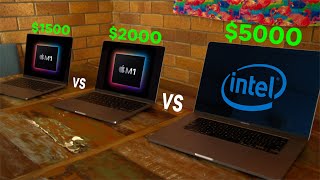
Daniel Bourke tests three MacBooks on video export, machine learning training, and TensorFlow code. The M1 Air exports a 2 hour 40 minute video in 38 minutes on battery while staying silent, and trains a Create ML model in under 12 minutes, beating both the M1 Pro and Intel MacBook Pro.
Chapters
Have a go at this setup. I've got 3 Macs here. We've got a big dog MacBook Pro. This is a 16-inch. This is one of the new M1 MacBook Pro 13-inch, and this is an M1 MacBook Air. And what we're going to do is a speed comparison. And I actually love— look at this color setup, how beautiful. We've got the matching decor. Flamingo is a colorful animal, great spiritual animal. That's, that's the kind of person I want to be, a colorful animal. But anyway, that's not what you're here for. Um, you've seen all of the, the bench tests, right, the benchmarks of Apple's M1 chip. I don't need to reiterate, uh, how good it is. It's getting raving, raving reviews. And so I decided, you know what, if it's getting these raving reviews on all these benchmarks, I bought this bad boy. This is almost a top-of-the-line 16-inch about 9, 10 months ago. And I'm like Did I just spend all this money on this big powerful MacBook Pro and these bad boys? So this is an M1 chip 16GB MacBook Pro, uh, 16 gigs of RAM that is. And this is an M1 chip, uh, 16GB of RAM MacBook Air. Can I replace this big dog? Because let's be real, taking this around in a backpack is fairly full-on, with a 13-inch machine. I mean, this one doesn't even have a fan. Okay, but we've got— and the screens are going to keep going off, that actually doesn't matter— we've got 3 tests outlined here: a video rendering one, a TensorFlow code one, and a create ML. Because, okay, the benchmarks are amazing for these, but do they perform doing the actual tasks I would do every day, which is edit videos and write code? So that's what we're going to test them out for. The first one we've got is a video rendering test. So I've, I've set them all up to have the same setup here. We've got Final Cut Pro, the latest version. They're all running macOS Big Sur 11.0.1 or something like that. They've all had a chance to, to go through the video and pre-render it all, all that. Essentially, the main test here that we're going to try is I'm going to click export on all of them and see how long it takes to export this video. Now, this is, this is no short video. This is a 2-hour and 40-minute video, my machine learning roadmap for 2020. So the file, who knows how large it's going to be. I think it's around 10 gigabytes once it's fully exported. And so this would be a great test because this is something that I would actually use these computers for, not like a Geekbench score. So let's, let's just get started. I'm probably most interested to see how the MacBook Air goes with no fan versus the big dog. I mean, when we were pre-rendering it, the fans on this were just screaming like crazy. Got that first test. Test number 1 is the video export test. We've got on here 26.5 gigabytes estimated export file. So we ready? I'm gonna do the M1s first. Well, I kind of need 3 hands to do this, but, um, yeah, come in here, camera man, Campbell Wham. So, I'm just clicking this one. Ready? We're gonna count down on 3. 3, 2, 1. Alright, there we go. We got the X-Sport up here, X-Sport up here, and X-Sport up here. The important thing is that they're all running off battery life. And so the battery life for the MacBook Pro 13-inch has actually been rated as basically insane. I think it's like 20 hours or something like that. So this one's starting battery life is 92%, and MacBook Air is 89%, and my big dog is 87%. So it'll be interesting to see how much battery life each of them lose after exploring this video. We might, uh, we might let this run and then we'll check back in once we've made some progress. Alright, so we've just hit 50% on the big dog. I'm not sure if you can hear, but let me, let me actually take the microphone up. The fans are going absolutely wild on this bad boy. So, just crossed over to 51%. I believe it might be because this has a dedicated GPU, uh, specifically, uh, an 8GB AMD Radeon 5500 or something like that. Uh, and we're also down to 71% battery on this machine. For basically every percent that the, the 16-inch increases its render export, it's losing half a percent of battery. That's what I'm noticing. So definitely taking a lot more power on this bad boy. So we'll check back in once we're close to the finish. Alrighty, let's lap that one. It looks like the big dog— look at that, that's back when I had a mullet, right? Um, so this one has finished. It took 21 minutes 23 seconds to render a 2-hour 37-minute video, and it is now on 57% battery. You can hear the fans going wild on this one. So we're checking in on this, the MacBook Pro 13-inch. It's got 86% battery left and it's currently at 65% rendered. So the MacBook Pro 16-inch with the dedicated GPU, Intel chip i9, finished Rendering the video when this was on 65% finished, and the MacBook Air is on 55% finished with 83% of battery left so far. So that's actually a pretty impressive performance. Like, I mean, it's not like this wildly finished before these. I mean, this has got 35% left and this one's just over halfway. However, the big thing here in here so far is the battery life. I mean, this is nearly below 50% battery already, and this is 86%, and this is 83%. Again, major differences that this one is still basically silent even though it's got a fan. I haven't heard it. I was trying to listen for it before. It still hasn't come on. Can you hear that? I can't hear the fan. We'll let these two finish and see how long they take. Oh, I think this one's finished too. So the 13-inch has just finished and it is at 32 minutes 38 seconds. I'm going to put a lap there. Beautiful. And we still have 83% of battery left. And I mean, this one has been completely silent. I don't know if you can hear it. Well, you can't because I can't hear it. They've both been completely silent the whole time. And so, this one's finished, still got 83% battery. The MacBook Air is at 81% rendered and has 80% battery left. The important thing to note here is that this big dog, although it finished about 10 minutes earlier, has almost only 50% battery left. That took 40% of its battery. Or thereabouts. The exact figures will be somewhere on the video. Whereas this one, the MacBook Pro 13-inch, took again about 10 minutes longer, never made a single noise, and has 83% battery left. So that was not even starting from a full charge. So in terms of if you want to use a laptop on the go, I mean, this one is like a $5,000 machine versus this is like a $2,000 machine. So in terms of video editing, I mean, this is a really once-off video editing use case, like just exporting a 2.5-hour video. But I mean, that's the things that I do actually day to day. If I'm taking, if I want a machine to take around, this is again even lighter. You don't want to be taking around your charger, or what if you forget your charger? That's life, right? You don't want to be left without power. So MacBook Air is still going. It's about 84% now. So we'll wait till this one's done and then We'll see how long they took in comparison to each other. And we're on! The MacBook Air has just finished. Let's lap that at about just over 38 minutes, so 38 minutes and 10 seconds, so about 17 minutes longer, but we still have 78% of battery left. This is on a machine without a fan, and remember In comparison to the 13-inch MacBook Pro, uh, this has the M1 chip, same amount of RAM, 16GB, but the M1 chip with 7 GPUs instead of 8. I mean, there's— I think there's 2 current configurations with the M1 chip: 8 CPUs and 8 GPUs, uh, or 8 CPUs and 7 GPUs. This has 7 GPUs. So in a machine, by the way, this is like 1/3 of the price of this laptop. And completely silent. You can't hear it. And about less than half the weight. So I mean, look at that. That just, that just edited or rendered a 2-hour 40-minute video in 38 minutes and lost 15% of battery, thereabouts. That is insane. Alright, now I'm gonna set these up for the next test and we'll check how they go creating some machine learning models because Apple did rave about how much faster the machine learning code is. And when it comes to machine learning, performance is spectacular. Thanks to the Neural Engine, ML is up to 11 times faster than the previous generation, which means for on-device— Something went wrong. As with all live demos, this isn't really live, but That's the beauty of video editing. We've now got the same test set up on all 3. 7,500 training images, 2,500 testing images, 10 different food classes using Create ML. We've got augment data turned on, flip and rotate on each of them. Oh, nearly stuffed up on this one. We're going to kick them all off at the same time. So you click on train and I'm going to click on train on here. Are you ready? 3, 2, 1, go! Alright, loading the images in. By the way, this one is at 31% battery after getting all of that sorted out. The MacBook Pro 13-inch is still on 75% battery, and the MacBook Air is on 72% battery. Alright, this is pulling ahead like no tomorrow. The MacBook Air is actually in front. So we've got about 1,300 images out of 7,500 processed on that one. Wow, we're not even at 200 on the 16-inch. We just crossed 200. This is at 1,300 images processed, and this is nearly at 2,000 images processed. And just a little quick update, the, the MacBook Air is about 1,000 images in front of the 13-inch MacBook Pro. And the 13-inch MacBook Pro is about 3 times as many images through as the 16-inch MacBook Pro. Now, I'm not entirely sure of what algorithm Apple runs when they use CreateML. However, this is just for— even if you weren't worried about the particular algorithm, just in terms of what's your most valuable resource? Time. If that is your most valuable resource, to train the same model on whatever machine you're working on. Right now, the 13-inch MacBook Air is working the fastest to create a machine learning model. This is blowing my mind. It's over 6,000, just over 5,000, nearly at 2,000. This is a pretty big machine learning model. 10,000 images on a laptop. It's like watching a microwave minute but way more exciting. Fuck! I can't believe the MacBook Air has stayed— it stayed 1,000 images in front of the MacBook Pro for the whole time. And this again is same amount of RAM, but this is on the slightly, uh, lower spec M1 chip and no fan. And this one is not even at 3,000. This one's about to be done out of 7,500, and this one's just about 6,500. Mind you, this has got 22% of battery left, so we're probably— we might be lucky to get out of here without having to plug it into a charger. Still 71% battery and 68— oh, this one's training! Look at this, this is beautiful. Oh my goodness, I'll move over here. Boom, this one's done. Now it's testing. How much time is that? That's 11 and a half minutes. The MacBook Air is winning in this CreateML test. This is phenomenal. It's done. So the MacBook Air is finished in under 12 minutes and it has 68% left. It's been through 7,500 training images and 2,500 testing images. So the MacBook Pro 13-inch has not even yet finished extracting the features from its images. It hasn't even commenced training. And I mean, the 16-inch MacBook Pro is not even— it's not even halfway through preprocessing the images. So this is, this is confusing to me. I mean, they're working same data. Again, on paper, you would expect the MacBook Pro to beat out the MacBook Air in a side-by-side test. But the results here, I mean, we're nearly a full minute and a half in front for the MacBook Air. All right, training starting on the MacBook Pro 13 at 14 minutes and 50 seconds. Model converged after 10 epochs. Same as the MacBook Air. Now we're doing the testing, and we're done. So this one still has 69% of battery left. I'm just going to take a screenshot of the results there. So this is testing completed at 12:13, and testing completed at 12:09. So the MacBook Air is a full 4 minutes quicker on this, this one experiment, by the way. And 67% battery left as well, so about equal there in terms of battery life left, but the MacBook Air, I mean, pulling out This one has yet to process half the images, uh, that we're working with. It's got 19% battery left. Hopefully it finishes this test before we have to plug it in to charge. Alright, so we just got a warning here on this, on the big dog. 16-inch that your Mac will sleep soon unless plugged into a power point. Uh, it's currently got 8% of battery left. We've only just crossed 6,000 images processed out of 7,500, and the timer is just over 30 minutes. I mean, referring back to the MacBook Air, that one finished in 11 minutes. I mean, Apple must have— again, I'm not sure what chip the— or what processor the Create ML app runs off, I'm guessing on the M1 machines it runs on the Neural Engine, which is Apple's dedicated part of, uh, the M1 chip which is specific for machine learning code. If you've ever had experience with machine learning, uh, you know GPUs and specific chips designed for machine learning are a lot faster, uh, at creating machine learning models than just pure CPU, which I'm guessing that this one is that this one is running off the CPU only. So it's not using the dedicated GPU to create this machine learning model because the fans aren't roaring. So I think this has been run off pure CPU, which might explain why it's so much slower in comparison to a machine that costs 3 times as less. 3 times as slower but costs 3 times as more. Down to the wire. This is the most enthralling video you're gonna watch today. Is, uh, this is the most nerd thing you've ever seen. We're biting our fingers. Battery versus machine. 7,500 out of 7,500 images preprocessed. 1% of battery left. Is the model gonna start training? We're 42 minutes in. We're 42 minutes in. Nearly 42 minutes. Training started. If it goes black here, I'm done. It's making its way through. You can do it. My trusty MacBook Pro. Has it done it? Training started 11:57 AM. Training completed 12:39 PM. Testing is starting. It's testing on 2,500 images. Wonder if I can get a screenshot of this. Screenshot. Screenshot. Is it going to finish? 1% left. This is enthralling stuff. You're never going to get this TV anyway. How far is it through the testing? You can't tell. This is Apple's apps. They give you like no progress. It just says loading. You'll be here for another 40 minutes. It's only got 1%. Come on, finish. Testing on this one took all of 1 minute, so— and testing on the MacBook Air took less than a minute. Oh no, it was so close. Oh well, my old faithful. 43 minutes, 10 seconds. Stop. So it did not— it gets it, the training completed, but it didn't finish testing. So they got basically the same results because I'm assuming they're using the same machine learning algorithm under the hood. So that's, that's astonishing. That is— I mean, the MacBook Air took just 11 and a half minutes. And by the way, the MacBook Pro has 65% of battery. Mind you, the screen has been on the whole time this has been training, so an extra half an hour. 65% of battery left. And same thing with the MacBook Air, the screen's been on and it has 64% of battery left. Well, we're gonna have to plug this one in to charge before the next test. That's a penalty as well, mate. You've got DNF and a penalty for charging. DNF, yeah. Alright, so we're gonna set up for the, for the next experiment. We're gonna write some TensorFlow code and then we'll be back. The final test, the one I'm actually most excited for. Now, after yesterday's technical difficulty of getting this one— well, the big dog ran out of battery. It's since been charged up to 100%. However, what you'll also want to note is that in setting these all up, this one is now already down to 70% battery. Um, and the little tidbit or the Easter egg here is I haven't charged these, these M1 machines at all this whole time. So this one, even after setting up the TensorFlow environment and whatnot, running some test code, is still at 40% power. This morning it was actually 55% or so, so it's— it took me about an hour or so to set up this experiment. Fingers crossed it works. And the MacBook Air is still running on 44% battery, so plenty of power there. Now, what we've got set up here is a similar experiment to what we did before with the Create ML app, but this time we're running native TensorFlow code on the machines, specifically using Apple's TensorFlow macOS fork of TensorFlow, which comes with TensorFlow version 2.4. So Apple and TensorFlow both wrote a blog post saying there's been an incredible speedup on running TensorFlow code natively on the M1 chip. So that's what we're going to test. Specifically, we have 3. We have a basic convolutional neural network to do some image classification, the same one as the architecture you'll find on the CNN explainer website. So just a multi-class classification there. Um, test number 2 is we're doing some transfer learning with an EfficientNet. So very similar to the stuff that I would do day to day. I do a lot of transfer learning. And test number 3 is I found a benchmark on the TensorFlow macOS GitHub that a lot of people have sort of just been trying out on their different machines and posting their results. So I thought I would do that benchmark along all of these. Fingers crossed they all work. If not, I'm going to compile the results into a document that's easy to understand rather than just watching this video. So let's kick them off. We're all, uh, starting from scratch here, running TensorFlow native on M1 Max. Data's loaded in, and we're going to wait for that one. We'll load in the data on the big dog, all using the same data, all using the same architecture. Um, now we're ready to train. 3, 2, 1, running. And 3, 2, 1, running. Okay, so these have finished one epoch already. Um, the big dog has errored out. With a massive stack of error. I mean, that's— that you've lost test 1 already. Wow, this is incredibly fast. So they're taking about 8 seconds per epoch each. So the MacBook Pro, only 5 epochs on 750 images with a relatively small convolutional neural network. But in terms of running— wow, that's finished, done. So about 8 seconds, 7 seconds, 8 seconds, 7 seconds, 7 seconds per epoch. And the MacBook Air has got 8 seconds, 7, 7, 7, 7. So the MacBook Air is Slightly faster per epoch than the MacBook Pro. That is phenomenal. We can't even test the big dog, but luckily— don't worry, I did some testing on this. It was working before. For some reason it's not working now. I've got— I'll put the numbers into a document at the end of this. Anyway, we're on to test number 2, which is transfer learning. So taking a pre-trained model, an EfficientNet-B0 more specifically, and we're going to use the same dataset, but this time just do a little bit of a Feature Extraction. So we'll load in here. Now something I did notice is that on the M1 machines I had to lower the batch size, uh, fairly significantly so that the pre-trained model would fit into memory. So if we got here, let's go kick them all off at the same time. I'm going to use the same batch size on the, on the big dog as well. Okay, so we've loaded in on the 13-inch MacBook Pro. You're seeing this live. This is We got 5 seconds per epoch, 7 seconds per epoch, and this one's about 25 seconds per epoch. Okay, we've just finished. So that took 66 seconds on the big dog versus 24 seconds and 21 seconds on the MacBook. The MacBook Air is going faster than the MacBook Pro. This is amazing. So these are— I've got one more. Epoch left. The MacBook Pro is about halfway through its second one, the 16-inch that is. We're almost finished here. This is going to be finished in 3, 2— wow! Okay, so these are going to finish at about the same time. This one's finished, MacBook Pro is finished, MacBook Air is finished. Final epoch took 21 seconds. That is incredible. Okay, well, this one's still going. It's only just finished its second out of 5 epochs. So these are both done, 5 epochs fine-tuning on an EfficientNet-B0 with 750 training images and 2,500 testing images. I'm going to let this one go, and I'm going to do test number 3 on this one. I believe it needs the kernel to restart. So this is again the benchmark that I grabbed from the TensorFlow macOS GitHub. So I'm probably going to post all of my results up there once it runs through. So we'll kick that one off, we'll restart the kernel on here, and this is test number 3 going in. So these are running through the benchmark from the GitHub. So thank you to William Zhang for submitting that. It replicates the original, uh, LACOON CNN architecture, and we're training here on I believe it's just on MNIST or something like that, which is handwritten digits. So this is running at about 26 seconds per epoch on the MacBook Pro and about 29 seconds per epoch on the MacBook Air. And we're still running the transfer learning experiment on the 16-inch. It's exciting. So this is about a 12 epoch test. We still have— okay, so the MacBook Pro looks like it's slightly faster on this benchmark one. Now on this test, the thing that we set up here is that we've disabled eager execution, and we specifically told this test to run by using mlcompute.setml_device, mlc_device, uh, device name GPU. So this is specifically telling the M1 chip to run this experiment on its GPU. It'll be interesting to see if we get sped up results by taking advantage of this machine's GPU. We are almost finished on a feature extraction test on this one. Okay, finally we can go to test 3 on the 16-inch MacBook Pro. This is where this might shine because we're using Apple's framework ML Compute to tell it to use the dedicated GPU on this machine. Let's see if it can, uh, catch up some ground, because this does have an 8GB GPU setup. So let's go. Ah, here we go. Python 3.8 is using 81% of the GPU, and it's still about 20 seconds per epoch. I wonder what's going on here. Activity Monitor. This is showing me— this may slow down the epochs here. So Python 3.8 on here is telling me that it's using 70% of the GPU. On this one, it's 80% of the GPU. And on here We have— so the fans have started right up on this one, nice and fast. Still at about 20 seconds per epoch, and this one's about the same. So about across the board, we're utilizing about 88% of the GPU. Python is using 50% of the CPU on the MacBook and 70% of the CPU on the MacBook 16-inch. That just jumped about 500%. So making some headway, the 16-inch is finally clawing its way back. I'm going to get out of Activity Monitor. So the MacBook Pro is finished. So it's finished Test 3, the benchmark. Averaged out at about 26 seconds per epoch. The MacBook Pro 16-inch is catching up to the MacBook Air. This one's on its final epoch now. And— we're finished. Oh no, one more epoch to go, but that's alright. We're basically done. This one, the GPU sounds like it's definitely getting used because the fans are going crazy. But I am phenomenally surprised at just how well these two machines are able to write or able to run TensorFlow natively. And mind you, battery life— these have never been charged throughout this entire experiment, from exporting a 2.5-hour video to training machine learning model with the Create ML app, to training three different machine learning models with native TensorFlow code, still have 35% battery left, and still have close to 40% battery left. And on the BigDog, I mean, this one has been charged to 100%, and we're down to 65% on here. So definitely a large power suck, but, um, I've got a fair few results here to collate, but I think overall, like, just for a gut feeling, Like, I mean, it's hard to justify the, the cost of this machine for the things that I would want to be doing in terms of day-to-day. Maybe it edges out slightly, definitely on the, the video editing, on the export. It lost on the Create ML app. So if you're using the Create ML app at all, maybe not the— I mean, I think Apple's M1 chip has been optimized for the Create ML app. Battery life, these two just absolutely crushed it. And then if you're running native TensorFlow code, I mean, the M1 laptops, even a MacBook Air, is able to run native TensorFlow code at a respectable pace. So I'm going to probably also do these experiments on a Colab instance and then put together the results in a table. So stay tuned for that. But what do you reckon, mate? Camera Wham, what's your, uh, you've seen all these experiments happen, mate. What's, uh, What's your feelings about them? Insane. I'm sitting here watching little laptops destroy probably my home desktop computer. Huh? Yeah, 2 laptops. So I mean, in terms of how I would use it, you've seen the benchmarks of how these M1 chips perform. They're crushing it. But in terms of my actual daily use, uh, which is video editing, writing code, I mean, I also write words. I mean, they're both— all 3 of them are gonna be able to write WordPress documents. I'm probably going to permanently set this one up as a desktop and then travel around with a MacBook Pro or a MacBook Air with the M1. I haven't quite decided yet. I mean, in terms of MacBook Pro versus MacBook Air M1, the only difference was on the video render, but we'll put the numbers together. Um, I'll put them into some sort of article, and I'll, uh, I mean, this one failed the first test it errored out, but I found the numbers before. I'll get it working and I'll collate them. But, uh, very, very impressed with the M1 laptop for, for the different use cases that I would actually use it day to day. I haven't been this impressed by some computers in a while. So, uh, yeah, leave a comment below if you have any questions on, on any of them. I'd love to know. And if I find any more results, stay tuned to the, to the article and I'll just put them all in there.
More from Daniel
Small Language Models (SLMs) Are the Future: Fine-Tuning AI That Runs on Your iPhone

Introducing Sunny - A MedGemma-Powered Skin Health Tracking App (Kaggle Competition Entry)
Benchmarking: NVIDIA DGX Spark & NVIDIA RTX 4090 | Part 4 - Comparing the results
Benchmarking: NVIDIA DGX Spark & NVIDIA RTX 4090 | Part 3 - Running LLMs on the RTX 4090
Benchmarking: NVIDIA DGX Spark & NVIDIA RTX 4090 | Part 2 - Formalizing the tests
Benchmarking: NVIDIA DGX Spark & NVIDIA RTX 4090 | Part 1 - Creating a series of tests


Local Multimodal RAG on the NVIDIA DGX Spark | Part 4 - Publishing our demo to Hugging Face


Local Multimodal RAG on the NVIDIA DGX Spark | Part 3 - Putting it all together