Building a Deep Learning PC
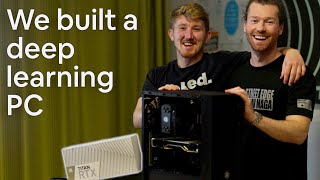
Daniel Bourke builds a deep learning PC after struggling to get GPU access on Google Cloud in Australia. He unboxes a Titan RTX, assembles an i7 system with Michael, installs Ubuntu and CUDA, then runs ResNet-50 benchmarks that match Colab performance.
Chapters
I got fed up. 2 days in a row. Yeah, 2 whole days. 2 whole days I couldn't access a GPU on Google Cloud. I was trying to do some deep learning experiments, couldn't access a GPU on Google Cloud because they ran out of GPUs in my region. I live in Australia Southeast, and I think there's something like, at the moment, 200 or so GPUs. And so all of them, all of them were taken up. And so I could use Colab. Of course I could have used Colab, but the experiments I wanted to run were a bit a bit outside of Colab's, uh, exceeded what Colab can provide. That being said, do you need your own deep learning PC? By the way, this video is about building a deep learning PC. You can probably tell that from the title. Of course not. If you're just beginning, Colab is more than enough for you to get started, or the computer that you have, uh, use that. Use it to write lots and lots of code. Um, or if you're planning on buying a new machine, just buy the one that you can afford and write lots and lots of code. Now, the reason why I decided to build a deep learning PC is because I've been in the game for almost 3 years now, probably, yeah, let's say 3 years, and I kept running into that issue with no GPUs being available on Google Cloud. Of course, I could have used AWS or Azure or something like that, but I'm like, no, you know what, I'm gonna have some fun. I want to build one of these things. I never built a computer before, and I wanted to, to build one. So that's Two of the reasons: partly for fun, probably the number one reason to do anything, and two, because I just wanted to have a local powerful GPU that I could run. And so that's what this video is, just documenting building the actual thing. I've put together a blog post which actually details this in many different steps. This is not a guide to, to building your own deep learning PC. The blog post is probably better for that because it goes through different things like what hardware you'll need, or better Better so, because this is not— I'm not an expert at this. I'm still learning this, right? This is the first time I've built a PC. It goes through what software you'll need, what hardware you'll need. Well, you need the hardware first, so it goes through hardware, particularly some great articles by Jeff Chan and Tim Detmers. They're all in the blog post, as well as how to install software, aka installing Ubuntu. I'm running Ubuntu on my deep learning PC. It's down on the floor, you can't really see it. And then how did I get the NVIDIA drivers such as CUDA and cuDNN installed on the Titan RTX, by the way. Spoiler, that's what's coming up. NVIDIA was so kind, check out, check out this bad boy. So thank you to NVIDIA who are currently, and you know what, it kind of saddens me that I'm showing you this now because if you've been paying attention to the internet, although this is amazing, amazing GPU, Titan RTX, look at that. It's not in there, but very nice box built by NVIDIA. Um, they sent me this GPU, and then on September 1st, my birthday, they go and announce some incredible new GPUs, the 30 series, so the 3080, 3090. So make sure you take, uh, whatever you see in the article with a grain of salt because the hardware— because the hardware NVIDIA just released is so new. All the articles and resources that I've listed Uh, don't— haven't listed the 30 series yet. And so basically they're just complete game changers in the world of GPU hardware. Um, the Titan RTX is amazing, but if I was going to build my own PC, if I didn't have a Titan RTX, I would probably look into something like a 3080, which doesn't come out for a couple of weeks as of recording this video, or a 3090. So yeah, a big shout out to NVIDIA. Thank you for the GPU. Um, if you're going to be running AI computing or deep learning, you're gonna want an NVIDIA GPU. Big shout out to my friend Michael, who you'll see in the video. He helped out to build it. And a big shout out to all of the amazing people who have done the hardware— hardware— hard— hard work. I was getting that confused with hardware. The hard work of putting together resources to help people like me build computers, build deep learning machines. I've just put them together in my own blog post. All the helpful resources that I've used. So yeah, I've got a little checklist here. Have I got everything done? Oh yeah, check the description. All the links that you need will be below. But nonetheless, enjoy this like little documentation of a bit of fun putting together a computer from scratch and getting it running and getting— actually, I'm not going to spoil, spoil the rest of the video. Enjoy. So we have a bunch of boxes here. I finally decided Well, actually, I've been very lucky. So one of the pain in the asses about, uh, running deep learning models on a Mac is that you can't, basically, because it doesn't have a NVIDIA card. So this box is from NVIDIA. Thank you so much. Apparently it has a big dog GPU in it, and I hope that's true because I haven't actually opened it yet. I got my friend Michael here. Hello. Who is, uh—
There's no cloth, okay?
Yes.
Things will definitely go wrong.
Apparently Michael has built some computers in the past. I've never built a computer. I did work at Apple as a genius, but, um, Apple computers are very different to all of this stuff. Like, it was actually a really fun process looking up what a computer takes, so hopefully I've got the right things. Like, this is a motherboard, this is a RAM, this is a CPU, see? And here's a keyboard, and there's probably an address on some of these boxes, so you might have to blur that out.
You might need an extra one of these when we get frustrated and—
So yeah, I think this video is going to be basically some form of— there's a time-lapse of building this PC. Hopefully it works, and then I'll include at some point the resources that I use that you can check out if you want to build your own deep learning PC. So, um, Michael's gonna help me with the hardware, and then the 4 days of debugging is on me, right? Yeah, that's right. That's right. Yeah. Alright, let's get this big boy Open. Yeah, there we go. It is well packaged. It had to come all the way— I believe it came from— where's it got? Singapore. Probably made in China, right? Yeah, a lot of shipping is, uh, that's a very important point if you're building anything or unboxing anything. Sharp knife. All right, please be a GPU. Oh, I think it is. Holy crap. All right, there we go. This is not going to be one of those like real, uh, neat unboxing videos. This is going to be a hacker style unboxing video. Boom! Titan RTX. Built by NVIDIA. This is— I'm not gonna lie, I'm actually— this is a premium quality box.
Very nice.
We've got some tape here.
Boom!
You ready? Has it got that 7-second delay? Woo! Very nice. Hopefully it fits in there.
Very nice.
That looks pretty cool. What do you reckon? Could I— should I just get a necklace? You just gotta leave it on. I need a necklace. I've got a GPU, dawg. Okay, so that's, that's a very shiny part. Alright, that was the main thing. I think unboxing a motherboard and fan probably isn't as exciting as this, but um, yeah, it's a Titan RTX. Now the reason why you need NVIDIA GPUs is because basically all of the The deep learning libraries require CUDA. Is that correct? Am I saying the right things?
Pretty much, yeah. All the useful ones, yeah.
Yeah, all the useful deep learning libraries require CUDA, and NVIDIA basically have a monopoly over that. So, um, yeah, they're the AI chip. Yep, until someone, someone who's AMD or Intel—
until AMD does some usable drivers. Yeah, CUDA is it.
I did see a very long thread on how to make your Mac, um, deep learning capable, but—
How long was it?
Very long. So what, how do we—
Alright, so we'll start with motherboard, RAM, CPU.
Put them together? Yeah.
Let's pull that out.
Now I remember at, um, at Apple we had to not touch parts. Is that a thing?
You have to stay grounded? Yeah, we should really, you know, align our chakras, stay grounded with the universe, and then get going. But, um, this is a motherboard.
Very novice here. Man, this, this thing's big. Look at that. Like, that's, that's too big. That's a big card. I've never, I've never held like a computer part like this. This is really cool. Um, how does that go back in there? I can just see this.
Okay. All right, no, no, keep that because we'll put the board on it. Um, it's a little bit softer than the table. All right, so go and touch something metal. Uh, over there. Something that touches the ground. Go and touch your, uh, what? Your—
is this real?
No, no, behind the curtains. Yeah, yeah, touch it. Just ground yourself.
Yeah, grounding myself.
Perfect, perfect.
From here?
No, look, there's a small chance it's gonna fail, but whatever, we've done our due diligence.
Yeah, there was a video we watched in an Apple training seminar, and I was called Dangers of ESD. And it was some real like old school video, and as this guy's like, "ESD will break your computer chips," it's like this one guy touching, and it's like, then it zooms in microscopes and the chips look fried. Anyway, uh, that's the inside.
Handy little, uh, little—
that's what we wore.
Yeah, yeah, yeah.
So we've got a motherboard. Yeah.
Now you ready to roll? Pull it out. All right.
Oh, pulling it out.
Yeah, yeah.
Jesus. See, when I look at these things, I just think I'm such a—
look at that.
When I look at these things, I just think I'm such an absolute monkey because look how many Like, I just write Python code, man. Yeah. And somehow it works on this. That still fascinates me. CPU?
I think so.
CPU. This is an Intel 10th Gen Core i7. There's a great article, I'll link it at the— at some point in this video where I read— actually, there's a website called PC Part Picker which you can like put all these together. I'm pretty sure all of these parts work together. And the people at the computer shop told me they would, so let's trust them. Oh, I remember actually. Look how small it is. That's it. Yeah, that's the brain of your computer. How long you reckon until we're Neuralinked?
I don't know, man. Soon.
Elon, Elon reckons. When do you reckon, Elon?
Get it going, Elon.
So do I literally just put it in there?
Yeah, so here. So we don't want to touch the chip as much as we can. So you want to see this little thing here?
This holds this down.
Yeah, so push it down, pull it across, and then let it go up from the outside.
Yes.
Yep. Boom. Now I can't— I think these new ones, I think you did remove it before. Yeah, remove, pull it off now. Yep, yep, yep.
Just like that. Oh yeah, pull that off. Oh, cool.
Hey, now when you try and just— so there's a little pointer in one of the corners, so in this corner, and there's a corresponding pointer on the board, so it should go in that point.
Yeah, that should be it. Oh, I don't know if you can see that. Apparently there's a— it's like on your car when you go to fill it up with petrol, it tells you where the where the fuel cap is. So it's a square. No way this is just going to slot in there. Is that it?
Yeah, that's it.
It doesn't click like— oh, oh, fuck, you broke it!
I'm just kidding, just kidding.
It's in! We did it! Alright, now install TensorFlow. pip install.
Yeah.
Um, what do we do next?
Next thing I would— RAM? Uh, before we put the RAM on, let's put the cooler on.
Cooler.
Because it gives us a bit more room to move.
We have a Black Edition. You know, I was looking at all these PC builds and for some reason, we were saying this before, a lot of like PCs are like obsessed with RedGuru GreenLot, like RedGuru. Red, green, and green lights. Um, but I was like, nah, I just want to— I just want it dark, blacked out, man. Yeah, I just want it— because if this thing is going to be running in this room, so where is it?
Where are you putting it?
I don't know, under the bed. I haven't decided, man. I was actually looking at, um, looking at a little pad today actually with, uh, 2 bedrooms. One to actually sleep in and then potentially another one to have as a as a home office. We have the Cooler Master. Oh, that sounds like screws. Oh my God, that looks like a—
This is the fun part. Yeah.
Alright, that's a mess, but— Oh, this is bigger than I thought. Hmm. Yeah. Is this actually how big that has to be? Has to be.
You can get smaller ones, but it looks to be a good one, so— Now we have to figure out how to mount the thing. Yeah, because once we go to the backing plate, you want to screw this into the backing plate so that it holds the backing plate on. Yep. So I would put your prop up and then—
it's, it's so—
it's a function.
Yeah, it works. You know, I miss building things with my hands. I was thinking that the other day, something with my hands. Oh, you can slide them.
So if you turn it over—
oh, there's the clip. I use a keyboard too much. I need to— these little slots.
Yeah, so put them all in the middle one.
This is how it's done.
How many hours do you reckon you spent looking for parts for this thing?
Oh, like longer than I wanted to. Yeah, but I kind of got into it. Like, see, when I first started, I was like, oh, this is real tedious. Why isn't there just like some straightforward guide on how I just like ordered these parts? But then I got into them like, oh, okay, there's a kind of a—
you get why—
an art form of why everything gets put together in a way it does. 'Cause working at Apple, I was like, well, there's only like 6 different combinations of motherboard and keyboard. Um, okay. Now I think there's thermal paste on the CPU. That's—
alright, so—
and then we plug this in.
So to do this, you basically— just before we do— so which way is this going to go? This is going to go top to bottom, yeah?
Yeah. Like that? The fan can go on any side, right?
Uh, you probably want it on this side going out the back of the case, but I think it'll go, yeah, either way.
Oh, is that the back of the case? Is that the— oh my god. Is that the back? I hadn't seen that before. Do you know what the back of a computer looks like? I do now. I didn't know that it looked what it looked like from this side of it.
Because before we put this set— once we put this thermal paste on, once this hits it, it'll spread. Yeah, it's not a big deal if you have to pull it off and redo it, but let's just make sure that these are lined up the right distance. That looks good.
Duh nuh nuh nuh. Cue Epic music.
So does that.
No, we need to save the epic music for when it gets powered on.
Need to swap lenses then.
All right, so thermal paste.
It's easier than you think. You just want to put a dollop right in the center. Yeah.
Um, oh, I've applied thermal paste before. This is one of the most important parts of the computer you've done before. But yeah, I have. We just want a dollop. Yeah, like a rice grain. Like a rice grain.
Oh, to try and get it in the center. Probably a little bit more, a little bit more. That's, uh, not too much, but it comes out like a banana. That's enough.
Yeah, boom.
Yeah, just even it so that it's, uh, look at that, gonna go in order.
What an artist.
The camera is not focusing at all.
There we go. What an artist.
The whole time.
It's like you're icing a cake.
That looks terrible.
That's a beautiful wedding cake.
There's gonna be people commenting.
I'd get married to this.
Alright.
I probably already am. Alright, what are we doing?
Now, here you go. Put it on? So, turn it around so that Cooler Master faces up, right?
Yeah, I want all the text facing the right way. That's very important when building a computer. Um. Christ.
So tip it so that the— so that— put the back two screws in first.
Yeah, great idea. You're guiding me. It's like we're making— we're making pottery together.
Hold me, Patrick Swayze.
Hold me. I think that's— that's sitting in. Cool.
All right, so now he's got to screw it down.
Holy goodness.
Rest of the camera lens in the RTX. So go about half Like, get it, get it in.
Hey, don't, don't—
you've done this before.
Don't treat the RTX like that.
So don't go the whole way down. You just want to basically get the thread in.
It's spring-loaded, so I have to use a bit more oomph than usual. Maybe I'll try this one. All right, look at that big dog.
It's like a Hi-Rise Cooler Master.
Yeah, it is.
Okay, so next thing, I think Probably RAM and hard drive. Don't worry about the fan yet. Is there anything else here? Yeah, because your fan—
you probably want to put your RAM in there first before you put— you know what, I've only— I might upgrade some RAM later, but I've got 32 gigs. Hopefully that's enough. See, the rule of thumb I found out with RAM and GPU is to at least match your VRAM with your normal RAM. So as in 24 gigs of memory on the Titan RTX, this big dog, 24 gigs of video memory. At least match it with your RAM here. So this is 2 16 gigabyte sticks totaling 32. We have 4 slots. We could go up to 64 if we kept going with this. I'm pretty sure the max you can get— you can get 32 sticks, maybe?
You can, yeah. You can get 64 as well. It's probably more about your motherboard than anything. I think, I don't know, I'd say the max for a lot of them is 64GB.
I like that. I really like that box.
PC's done, but can we get a look at this box? I'm just waiting for this to go into your—
I won this knife from a steak eating contest.
How many cows did you win?
A kilo steak, I think.
Big dog's got a microbiome test picked up.
Too much. Too much protein, man.
Hey, flip it because I'll fall out.
I am wearing a yoked shirt.
Yo, you still training at the moment?
Yeah, bro.
Backyard?
Yeah, backyard. Um, there's a new gym opening up in Sandgate. Uh, just doing heaps of jiu-jitsu.
So let's go. So they'll only go in one way, so We're getting the RAM in.
RAM in the RAM. Dude, this reminds me of an old—
so hang on, so see the slot in there?
Yeah, it's to other side. That's all right. See, some of me likes that, you know, with this US— actually no, I'd prefer if it was both ways.
So push them down, keep going down. So push, push both down and then push one corner harder than the other. It'll click in. There you go.
Oh, that was really satisfying. Um, this reminds me of the old Nintendo.
Put that one in the black slot, the back one, on the same channel. Yeah.
Oh, this one?
Yeah, so that way even though you got two sticks of RAM, the motherboard will dress—
they're different colors. See, that's, that's a little tidbit. That's what you get from experience. There you go, experience is talking there. Um, Remember those Nintendo 64 cartridges? Yeah, this reminds me of that.
Remember how you could get the vibrating ones?
Yes, the RumblePaks. Yeah, and to always fix your game, you would just go and put it back in.
I am the beast.
Even though that would— yeah, that did not work.
It's like the pedestrian buttons. That made it worse.
They're just placebo. They don't do anything.
I don't want to believe because I still walk up to some of them and go, I'm so certain that I'm making a difference here.
I'm sure. Well, if you think you are, are you? Is that good enough? Not in most cases, but, um, alright, we are— we have the RAM in. Yay!
Now, before we do anything else, let's chuck the hard drive in, or the SSD rather.
SSD, yes. I do have an actual hard drive too. I have a 1 terabyte 970. Get the knife in there. Beautiful.
How many megabit per second read and write speeds on this, Dan?
Um, yes, 970.
They're pretty quick these days.
970, I'm pretty sure. Yeah, I think they're a lot. 2000, 2300 maybe. Oh wow. That's cool. Nice and tiny, very little. We have that there. See, that also perplexes me that there's 1 terabyte on that, yet you get the big dogs over here which were like barely 500 gigs a few years ago. And all right, so where does this slot in there?
So you've got two. I don't actually know if there's any difference. There's M.2 MSB, M.2 ASB. I think it doesn't matter, but I'd probably put it in Only thing is heat.
Flip a coin.
That's where your, um, that's where your card is going to be, so I'd probably put it further away from your card.
Less heat. I can't really avoid not touching this thing. Slot it in, mate. Slot in. This only goes in one way too. Hold on.
Up the top.
Oh, right up the top. Wow.
Now before you do, I think you've got to pull that screw out first.
Yeah, ah, that would help. Do you want a little one?
There you go.
Oh, this one's fitting. Thank you. This is fun.
It's good fun, isn't it?
Yeah.
You get, you get in a state of flow doing this. I used to see how fast I could build them. I get down to about 35 minutes fully together, together, a low-end PC. Um, wow. Yeah.
What, were you building them at a shop or what?
Yeah, I worked at a computer store, so basically repairing machines, doing on-site work, and building new ones.
That's sick.
Mr. Robot, something like that. Yeah, no, it was good fun. And then I'd sit on Reddit and bodybuilding.com all day.
Waiting for jobs to come in. Okay, we now have— that's progress. So we have fan, RAM, CPU, hard drive, or at least one of the hard drives. I'm not sure how that other one fits in. I've got a— this is an SSD drive. We've got a 3 terabyte, so 1 terabyte SSD drive and a 3 terabyte hard drive that I'm not gonna move around, but it's in there. Um, alright.
Cool.
So, my understanding of that is that you want this— let's just put it this way, it's 2020, you want an SSD drive to boot off, to load all your stuff really quickly. Moving parts, just don't worry about that. Have that for your, like, long-term storage, but this is the stuff you want to access quickly.
Or your Rick and Morty episodes on that. Cool.
Where to next? Dude, this is so good. Thank you so much for talking to us.
No worries, no worries.
It's fun.
I haven't done this in years.
I'd be watching it. I'd be watching a video and just being like, what do I do now?
So next thing, I reckon, let's chuck this bad boy back on. You'll have to figure out how to—
You ready to get lost? I'm hypnotizing you. Ooh. Boy, you tripping.
So you probably want to get this like that. Yeah, so that's— so you probably want to put it so that— so this fan should go in up here. See that slot there? That's your CPU fan. So you probably want this to keep it neat like that.
Yep.
So what you'll want is then let's chuck these— I don't know how this works, but before. Do you remember how this went on? Yeah, don't worry about plugging it in yet.
Put it there, and then it like kind of hooked in here and then hooked in there.
There you go.
Sweet.
Cool.
Looking good.
So cable Let's, um, let's make this pretty. Yep. So let's take this off. And you know how this is done like once or twice?
I like the way you say pretty.
Real pretty. Real pretty looking.
Real pretty, that's what we want. We want a real pretty machine. We want it to look as good on the inside as it does on the outside.
So, uh, do you want to get that? And put it around here, that little tie.
Oh, the tie, put it back on.
I agree.
Beautiful. Slot it in. This is always the most funnest part of when you've got a cable lined up. And you just clicked it. If I could get this—
All right, is it in?
You've said that too many times and I know what I want to say.
I can't feel it.
I want to keep this channel PG even though we've got this sexy piece on here. Pick that up one time.
Yeah, there's a little clip, there's a clip at the side that'll guide it in.
Guide it in. Seriously, mate, you wanna, you wanna put your veteran hands in there? Because I think I'm gonna— one hit.
He's gonna push a bit more, it'll take a little bit, there's a bit of friction.
Yeah, alright, pull this.
So we don't want that getting in the fan, but it looks like that's come undone. But alright, that'll do for now. Yeah, that's alright. Alright, so now all the key things are on the board. Now we want to get it into the case before we put the card or anything else in it. Sound good?
Yeah.
Alright, so we need to clear all the shit off the bench.
Alright, seamless transition. Ah, so now the desk is he's nice and clean. We have the case. So yeah, apparently we put this in the case now. We have— shout out to the dude at the computer store who recommended me— I'll just open it from here— who recommended me this case. I was trying to look for one that looked nice and simple, you know, just blacked out. Hopefully it's got a glass wall. Hopefully it's not broken. Because as I said at the start, there are all those red, green, and light-up options. That just ain't me, man. Let's get this down here.
Go around, maybe.
Here we go. Beautiful. I'm gonna have a lot of rubbish. Look at this big dog. It's actually real nice. Oh, it is dented. Oh.
There you go.
No, that's memory dents. Do you see? You reckon things will still fit?
Everything will still fit, but you've got a big dent.
Look at that. That's— you saw that live in the flesh. That wasn't me, surely? No, that's, that's been—
it did come in AusPost, but there were no dents in the—
Australia Post? That's—
I don't think— come on, mate, that's, that's terrible.
Look at that. Maybe we can, um, unscrew it and like bash it in from there. I actually don't mind that because it's come with like a character. Yeah, it's a bit of character. It's been through the wars.
Like, it's already—
like, it's, it's, it's already been through a challenge and it's going to go through another of us putting that inside it. Let's see if it still works.
First of all, let's have a look at the inside.
First of all, we, we think that the fan might not fit. Now it might not actually fit because the case is tinted. All right, boom. What should we build, mate? We need to actually use this to build something.
What do you mean, like a project?
Yeah, and not just play Minecraft.
I don't know, we could build a modern house in Minecraft. You could build— have you seen some of those videos of people making, um, like computers in in Minecraft? No, I'm pretty sure someone actually did. Someone might have made a neural net inside Minecraft.
Yeah, they make— they use like—
they copy the architecture of like, uh, CPUs from like the '80s in Minecraft, and it's like 20Hz or something because you can make switches and like—
so Minecraft is like wires and stuff. They build like a Turing machine.
Yeah, it's literally a computer, and they even have a screen, so they've built like a graphic— a GPU So that it displays things on a screen. Like the same architecture that you build a GPU.
Dude, they— people need to find like the most hardcore Minecraft devs and like hire them as engineers. Um, that's pretty well dented. I just tried to undent it and it's not going out. See? I'm not sure if you can see it, but it's, uh, it's well dented. You can see it from the top.
There's quite a bit of bend in this.
And then from there. Look, so this is straight out of the packaging. Hmm, look, I don't really care. I did say I wanted it to look as nice on the outside as the inside, but— Well, that's gone out the window. Let's be real, I'm a bit dented too.
So what do you want to do? Are you happy to—
Yeah, alright. We can't do much else, like, it's busted.
Okay, so first things first, I'd probably throw the power supply in first. So before we do, take the, take the cape thing off the other side as well, because we'll run cables through. Yeah, we'll try and keep it pretty inside.
Here we go. Now we're getting real. Now it's actually starting to look like a computer for me. I remember being like, as a kid, like, this was a computer. I didn't think about anything that was inside it, like it was just this box. Like you push start on the box and it works.
The fan's gone. All right, chuck that down there.
Going into the computer rooms in year 8 and just playing stick cricket and Halo.
Oh, stick cricket, that was good. All right, so first things first, yeah, we want to put some power supply in. So before So pull this out. So that's— hang on.
Oh, little storage.
So this is where your hard drives go.
No way! What? This is cool. There's a lot of screws here.
Hmm.
Oh geez, Rick.
Um, so yes, yeah, power supply.
Ah, one we prepared earlier. Haha. Now again, this is a 750, going off the advice of the young gentleman at the computer store who said 750 watts should be enough.
Famous last words.
Yeah, exactly.
Decent brand though, the EVGA's are good.
Really? That's exactly what he said. He's like, well, if you go, if you go an EVGA, like, 750 should be enough.
Because a lot of the cheaper ones, they say 600 or whatever, but they're actually only good for 450. Because if your power supply is dodgy, you can fry your whole— yeah, you don't want to skimp out.
Well, what does this say? Does this say gold standard?
Gold power supply.
It's gold and it's G+, that's all we want on here. My computer is G+. Um, it's like, uh, what's that? Gold standard way?
True.
Optimal, optimum nutrition.
It's a G-unit.
I remember when I was getting into bodybuilding, that was the best whey protein, and I still am. It was. Yolked, yolked, man. That's the rule. If you're gonna be coding Python, you gotta be rocking pythons. Okay, I guess—
They even give you some questions.
We should just build one of these every week. It's like a cooking show. Nothing better to do.
Yeah, let's just get everyone to send, send their RTXs.
Yeah. Promise it'll work. And your damaged cases. We take all kinds of goods. You'll find the address in the description. Seriously, is this gonna come out? Oh, there's a tag. Yeah, there we go. Haha, I've done this before. See, this is a fancy unboxing show. We need that top angle. I'm gonna come in here real high. There we go. That actually looks pretty cool, actually.
Very cool.
I said actually twice. 750, another fan. I'm noticing there's a lot of fans. We got 2 on the RTX, which is in its little box.
Also lots of sexy cables.
Oh, Oh, very nice. Damn, EVGA, is that the brand? EVGA Supernova. This cost me money, but I'll give you a shout out anyway. Boom, boom, boom. Look at that. That— this is actually probably Aside from the RTX, aside from the RTX, this is my favorite part so far.
It's gonna look great.
I mean, I suppose that if without this none of it runs, energy is your most valuable resource. See, this is a philosophical channel as well as a tech channel. For like all of 2 and a half seconds. Yeah, that's it.
Alright. Yeah, some philosophy in there. Back to Python. Just pull all that shit out.
We need all this?
Yeah, we won't use all of it.
There's a lot of— like, there's about 18 cables here.
There'll be some left over.
You need cables, bruh? All right, power supply done. PC.
All right, so let's put the power supply in.
This video might turn out to be 4 hours long. It probably will.
Take the sticker off the Oh, there's a sticker on there, I think. Unless you want to leave it on.
Keep it shiny? Perfect. Where's this go?
So it should go in, uh, like that. Oh, actually like that, I think. So there's a spot for your fan.
Oh, that is cool. All right, look, that's— that seems like it's in. Oh, that's much better.
Just need a bit of oomph. Give it a bit of love.
Oh, it's bent down here too. This case is warped, man. Look at that. That's how it came. Who's this brand? I don't know if we want to— look, no, actually—
Silverstone. These are actually good cases. Yeah, someone's—
I don't know, I think it just might have been rough handled in the post. Like, I remember— I'm not gonna actually— I worked at a postal service once. Hey, you want this box? Whoop!
So notice these little risers here. Yeah, so we've got to put 9 of those in.
9?
Yeah, so you'll see that there's already 4, and then they don't put the others in because if you have us— yes, there's 2, so we have to put the other 3 in. So we've got to put these 3 here. Yep. So chuck those in.
So there'll be—
all right, there'll be a few more in there.
See, that's tricks of the trade. You just don't know. Wait, there's 4 here. These are risers.
Yeah.
Is that it? Yeah, dude. This is like, um, I feel like we're, we're at— we're a vet and like this is, this is our animal, the carcass.
Yeah, we're trying to revive.
Yeah, we're trying to Don't worry, buddy, we're putting you back together. We'll get you out of here.
It just might be a while. Clearly being, you know, how to do it.
Yeah, it's—
oh no, that's the top.
God, he bites hard.
Is that another— yeah, he bites hard.
He's so big. Okay, so we've hit a roadblock. There's a massive dent on the bottom and the top. We had a little discussion, do we want to replace the case?
You know what?
We're going to push forward. We're going to get this build done, broken case or not. Because we want progress, not perfection. There's a bit of philosophy for ya. Yeah, I should have warned you about that cliché. Um, let's get this in here. We're putting the heart, putting the heart back in you, Dinty. Bring you to life. Look at that, that actually went in way easier than I thought. Plenty of space.
So chuck it in. There you go. So get the back plate lined up. Looks good. Look at that, it's not even bent.
It works. We've got some I/O coming out the back. Yes! It's mounted.
Now you screw it in.
So yeah, line up these holes.
Yeah, easy. I think use these ones.
These ones?
Yeah. Oh, trying to remember.
I think these ones look better. Oh fuck, I'm trying to remember. Just guess and check.
I don't think it actually makes that much of a difference.
Um, which one says 9? The last screw. Motherboard's going in. Look at that, mate. Progress. Done.
We're on.
Still got so much to go. Hold on, where is it? No, I like that sound. Drat. Alright, um, what are you telling me? It doesn't work yet.
So now, boss, next thing, cables. Before we put the card in, because once you got that card in, it's gonna be a bit of a pain in the ass to get everything in. Yeah, so we'll plug all the motherboard in and then yeah, we'll do the graphics card at the end.
Sweet. So tip it back up.
Yeah, tip it up. Now, um, so let's do these one by one. So do this one first because it's the widest, so it needs to have a clear path so you can get the case back on. So this one has to go up here, I believe. Is it— do you want to have a look on the other side?
Is it the mid—
this one or the middle one? Which is better?
Probably the top. Yep, but 6 to 1/2 doesn't—
no, no, no, no, go up the top. I'm gonna make it look decent because you'll actually see this.
Fish on, fish on! All right, this is good teamwork. Thread it through to me, brother.
This you should be able to go up here.
Oh, look at all this. They've thought of everything here. Oh no, there's two slots here.
Okay, so put it to— do the one to your right, the 4.
They're both 4.
Oh, hang on. Oh, did you— yeah, okay, so hang on, you've got this one too. Oh, that's VGA. Hang on, where's the other CPU? There should be another CPU. So they're both— they split though, right? So you need to put 12 in and you've got 16. So there's 4, 4, 4, 4.
Yeah.
So chuck both of those in the one on the right. If you put them together, it'll make the 8 to go in.
Yep.
And in this one, we'll just use the 4 of it.
Oh my gosh.
Can you get away with just having one in there, or just that much? No, you'll need— you'll need it to come through.
There you go, we're in.
Only one of those will go in.
Yep, that's so confusing. Look at the concentration. Am I poking my tongue out yet? I need a hat backwards here.
My friend, you're losing light.
Come on, man. It's like that Keanu Reeves scene where he's hacking and he's just like Come on, man. Oh, we got one. Oh, I slipped out. It's so hard.
The amount of innuendos in this— in your rainbow.
Oh no, they both slipped out.
Um, so what do we got that we need to put on there? So you want to start at the bottom and then do the top row last.
Yep.
So I would start with the power LED. So you've got a Power LED plus, power LED minus. Looks like you've got two power LED minus, so I guess just do both. So I'd probably do this one, leave a gap between them, and do these. So I'd do them like that. So the minus on the bottom right-hand corner, you want to hold that? Yeah, perfect.
Yes! All right, we got them in.
See, power switch now works. All right, that's those.
All right, another amazing transition. This monitor is actually very sleek. I'm very stoked for this. So that was on. So now what are we checking?
The post monitor on. On.
Oh, now power. Yeah, moment of truth. You ready? 3, 2, 1. I see some lights. We've got a spinning fan, that's tick, and they've got some lights down here. Does red mean go?
Hopefully.
English? Yes.
Is there any output? No, no HDMI signal. Hmm, there we go. Oh, we've got—
we're on, we're on, it's on!
There's life.
CPU fan. All right, that's cool, I've never seen that before. Easy mode, easy money, baby, easy money.
There, we're good, we're good. System works right. So now it's got 32 gigs of RAM.
Everything's there. Intel, Intel i7-10700K.
Perfect. So now, fish on. Now for the fun stuff, that the GPU, that monster.
Yeah, the big dog, the bling right there. All right, let's get this big dog over here.
All right, let's turn this bad boy off. That is a nice screen.
Um, and the Titan.
All right, so unplug this.
Move the monitor. Yep, we don't need that anymore for now. All right, moment of truth. That's just a mosquito. Yeah, I think it bit me on the face. All right, actual moment of truth. We got the We skipped forward a little bit. The motherboard's in, the cable— cables are managed. Now this is actually a big, big top. It's a work of art. Probably put on the screen at some point the specs of this thing. It has a lot of flops, I know that. Okay, there we go. Look at that. You gotta peel that plastic back, dog. Wait, here? Yeah, there's plastic there, dog. The plastic porn. Oh, oh God, that's good. I like that smell. I don't know what it is. I like that smell. Yeah, okay.
How many outputs? What are there? 3 DisplayPorts and an HDMI.
Oh my God, look at that. It's like a giant button candy.
This is from the future.
This is unreal. Let's, let's put it in.
A black hole's gonna shoot out the front of it as soon as you jack it in.
Does it just clip in? Hold on, we're not, we're not, we're not over there.
Oh, hang on, before you do— sorry, watch out, come back in. Oh, prick. Oh no, we're good.
Do they pop out? They just like, yeah, clip off. Yeah, all right, slot it in. Boom!
Titan.
The Titan. Look at that. Get a close-up of that one. The Titan. I got a fingerprint on it. Ruined.
Little white gloves out.
Yeah. Okay, now do we screw this in?
We do. There you go. And put this in as well.
Boom boom. This one go there?
Yeah, yeah. God, that looks good. You just need another one.
I just need two. I just need two. All right, so, uh, Shannon, big shout out Shannon, thank you for the video. Um, I'm probably gonna be reaching out soon for another one once I make a Once I make good use of this one, and don't you worry, I will. Okay, 24 gigs of VRAM ready to go. We plug this in.
Yep, couple cables, dual power. We gotta go—
plugged in. What should be the benchmark? How could I test this? How quick can you train CIFAR-10 or something? Yeah, because I can't do ImageNet. That's gonna take too long. What's that, like 5 hours? You gotta get a video out next week.
Yeah.
All right, where does this one go?
So we'll, uh, what do we want to do with these cables? We can handle those later.
Yeah, but look at that.
All right, do you want to plug it into the, uh, monitor?
Yep. I think that's, that's thumbnail right there. Hold on, make it look nice and neat. Look at that action. That is, that is some seriously good looking inside of a computer. You know what I was saying before, I was never really into PCs, but But now I'm looking at this, I've been an Apple fanboy for a few years, I'm looking at this, this is pretty sleek. Now you gotta put this on. Do we need to check that this turns on or anything?
That's a good idea, but—
Keep this off for the time being?
I guess, yeah.
Okay, we'll keep this off for the time being. I mean, it looks good naked.
It does.
So plug it back in. Even with big dent on top. And dock it. Yeah, look at that. Look at that dent. Already got dogged. We thought about taking it back, but we're keeping the dent. Look, see? That's all right, brand new computer already dented. Anyway, there's some more philosophy for you. Time is your most valuable asset. So let's get this sleek— oh, voilà— back up in here, and then we're gonna— we don't have much footage left on the camera, so we're probably gonna time-lapse or time travel to when we power back on. Okay, so the camera's about to die, so we don't have much time. So this better work. Oh, it lights up! It lights up, dude! Oh, that's sick!
It works!
It lives! It lives! Boom, we're on! Look at that. Smartfan 32, CPU temp 34. That's good. System temp. Is that— are we on?
I think we're on.
Fish on! Yes, brother!
Good job, brother. Did it.
All right, now to, uh, now for the fun part.
Good luck.
Load some software, which I've never done before, and then, um, that's it. Load some software and get it running. I love that. That's cool. That, that looks sleek. It doesn't have the panel on yet.
And do you wanna—
oh yeah, okay, so we've got some— the hardware's done, now we're on to the software. We've got some, some progress here. Here we're loading, we're actually— so there's a keyboard, keyboard, mouse, USB stick. We're following this little guide to install Ubuntu. I just tried to use this mouse on the Mac. So I'm running two computers here. Here we go, prepare to install Ubuntu. Let's come over here, install Ubuntu. Yes, I would like. Detect keyboard layout. Please press one of the following keys: R, Z. No, um, it's not a Russian keyboard. Continue, normal installation. Yes, oh yes, here we go. Erase disk and install Ubuntu. Yes, there's nothing on here at the moment. Install it on— this is what I want it to do. So I've got 2 hard drives. I want to install it on the, the SSD, I believe. Install. If you continue, the changes listed will be overwritten to disk. Continue. Oh, where am I? Brisbane. Your name, Daniel Bourke. Choose a password. Weak password. Too bad. Welcome to Ubuntu. Yes! Alright, so that is installing there. And I believe the next thing after that is to, to test it out once I've got an operating system on here. I've chosen to use Linux. I'll get a web browser and a terminal, and then I should be able to install Conda through the terminal and get an environment running, and then we can test it out. Oh yeah, look at that little cat. Installation complete. Restart the computer to use your new installation. Restart now, thank you. Oh, oh, look at that. There we go. Ubuntu Daniel. That is me, thank you. Password. Oh, we're gonna— look at that! So cool. Now this isn't connected to the web yet, so we've got Firefox, we got Thunderbird mail, files. Beautiful. Is there a terminal? How do I open up terminal? We have some great news. After a few hours of troubleshooting, it looks like we've got a GPU running on here. So I went through a great article on here, installing TensorFlow with CUDA and cuDNN GPU support on Ubuntu 20.04. So I have the latest version of Ubuntu as of the recording on here, 20.04. Um, so long story short is once you install TensorFlow, like by just going like pip install tensorflow, you still need to, if you're installing it on a fresh machine, install CUDA drivers. I'm not going to go into what CUDA is, but basically It's what allows TensorFlow to be run on your NVIDIA GPU. Um, so I went through a whole bunch of documentation here of how to get this started. There's some great threads, um, on AskUbuntu. Uh, I'll link all of this in the description below. Slash, I'll probably put together my own article of how I got this set up because it did take a few hours of, of troubleshooting. Um, but long story short, I've now got a test environment set up Got a little Jupyter notebook running. I created a Conda environment, installed TensorFlow, installed the CUDA packages required to run TensorFlow on the GPU. Now if we look here, NVIDIA SMI. So when I first started, when I first got this environment running, this was not showing anything running NVIDIA SMI. Um, there's my Titan RTX.
Boom!
24GB of GPU memory. Very stoked. It also That's what's running on there. So now if I import tensorflow as tf, tensorflow version 2.3.0. Now this little command here, tf.config.list_physical_devices GPU, is going to show you how many GPUs you're running. If I was running multiple GPUs, it would come up— it's zero index, so it would be, say I had 2 there, it would be 0, 1. So if I create this variable, that's going to be on the GPU. I've already downloaded some data to try it out because that's what you got to try out, right? And there's another command here, tensorflow_test, to test if your TensorFlow version is built with CUDA. So if I copy this, copy, and I'm still getting used to this keyboard layout, by the way. So this would appear true if it's built with CUDA. If it appears false, this little command, your TensorFlow version is not built with— in the way that it can utilize a GPU. So you want this to return true. And then let's see if we got some code to run. Boom. Gonna create like a little image classifier. This is some code I've written before. It's going to classify different food images, create an image augmentation layer, and we've got a model. We're going to use just a basic ResNet-50 and A bit of transfer learning. This should run pretty fast. Epoch number 1. Boom! Look at that. That's running on the Titan X in the background now. The longest step is going to be actually the, um, the training will go pretty fast, but because there's almost 4 times as many test images, look at that, 11 seconds per epoch. We come up here. There we go. That Titan, that Titan is running at full capacity. Not sure if you can see it. Look at that fan just spinning. Here we go. There is nothing more beautiful in the world than seeing a deep neural network train. Actually, there's probably a few things, but this is up there. This is probably top 3. Look at that run through on the GPU. We've got about 8 seconds per epoch. So that's about equivalent to what you'd get on a Colab GPU running this. I could fiddle around with the batch size and whatnot and make it, make it probably a bit more optimized for using more memory, but friends don't let friends use batch sizes of more than 32. Anyway, I'm very excited for this. I've got a whole bunch of cleaning up to do, namely figuring out what kind of setup is going to happen here. I think I'm going to put this box down there and run it. I'll probably run it as someone mentioned on Twitter, I can run a VS Code extension from my MacBook Pro and SSH into that machine. So that's probably what I'll do. So I can just run, write code on one computer but execute it on another. So basically this will just set up as a— I'll set this up as a, as a physical VM just sitting here maybe, but I'm not sure. Anyway, check the all the links in the description below for everything, and I'll probably There's probably something I'm missing, so if I am, I'll add a little outro after this. But otherwise, happy building, happy coding, keep learning, keep creating. I'll see you next time.
More from Daniel
Small Language Models (SLMs) Are the Future: Fine-Tuning AI That Runs on Your iPhone

Introducing Sunny - A MedGemma-Powered Skin Health Tracking App (Kaggle Competition Entry)
Benchmarking: NVIDIA DGX Spark & NVIDIA RTX 4090 | Part 4 - Comparing the results
Benchmarking: NVIDIA DGX Spark & NVIDIA RTX 4090 | Part 3 - Running LLMs on the RTX 4090
Benchmarking: NVIDIA DGX Spark & NVIDIA RTX 4090 | Part 2 - Formalizing the tests
Benchmarking: NVIDIA DGX Spark & NVIDIA RTX 4090 | Part 1 - Creating a series of tests

Local Multimodal RAG on the NVIDIA DGX Spark | Part 4 - Publishing our demo to Hugging Face


Local Multimodal RAG on the NVIDIA DGX Spark | Part 3 - Putting it all together