LUG Meeting (Gitlab/Puppet) 03-09-2015
Linux User Group meeting covering local package repositories, Puppet configuration, OpenVZ containers versus Docker, and GitLab operations including SSH keys and CI hooks. The group also discusses upcoming infrastructure plans with OpenLDAP, Kerberos, and high-availability clustering.
Chapters
What's that? I'm sure the NSA was recording the entire thing. They didn't have to wait until the thing said it was recording.
What's up? University of Illinois Urbana-Champaign. We need to get a little intro for our YouTube video. Yeah, a little jingle. Huh? Yeah, a little jingle would be kind of cool. Alright, let's go ahead and get through the meeting notes here. Next time will be a project meeting, just so everybody knows. Richard Stallman will be speaking on campus next week. The details are at this Free Software Foundation link. Do check that out. William, did you want to say anything that's not already in the notes? Uh, no, I hope you can make it. Yeah, I just hope you can make it. It's free. It's not really going to be a technical talk. It's going to be about the open source movement. Open source software movement. I think we said the title of the talk is Free Software and Your Freedom. So we'll talk about the history of the GNU operating system as well as some of the issues and concerns surrounding the open source software movement. So yeah, it starts at 5:30 and it's free. It's open to the public. Tell your friends. So long as there's seating, you can show up or stand or sit or whatever. Um, we will be videotaping it, so hopefully we'll be able to distribute copies or something after the fact. Uh, CITES is actually going to record it for us. Um, they're going to bring in recording equipment? Yeah, they, they do this apparently as a service, and it's like $75 an hour. Um, so they're going to come in and professionally record. I don't know how professional it is, but somebody will record it who presumably won't fuck it up. Um, so yeah, very excited. Do you have an idea of how many people are going to be there? No clue. Uh, so it is on the FSF website, and I've gotten emails from people at Eastern Illinois about it. Um, I did put out an eWeek notification for faculty and staff, so like presumably a lot of people on campus know about it. I don't know, we're hoping for 400 people. I don't know if we'll fill that many. But it'd be really cool if we did. So yeah, hopefully we'll get some flyers up soon. There was a little bit of a hiccup with that. So yeah, tell your friends. So do we need to be in the space prior to that? So I'm going to— I would like to arrange a photo opportunity with the core members, so pretty much everybody in this room. Uh, I'll try to get a hold of Brian too, Devin if possible, um, just so we could get a portrait picture. That's gonna be before? And Devin? I, I don't know specifically yet. I would hypothesize that yes, it will be, um, before or after. Okay. I don't know. I, I'd like to get a picture with the board members. Yeah, I think that would be— yeah, that'd be awesome. And also then we can give our homies Yeah, yeah, so I have to get there a little early again. Fine. He's supposed to be sending some swag to me to like give out at the event. I haven't gotten it yet, so I'll check with his assistant to make sure it got mailed out. But he's giving a talk the next day in Chicago, so yeah, he'll just be down here for a day or so. Busy guy. Yeah, I guess so. Are we gonna take him out and get him drunk after the talk? I don't know that he drinks, actually. It is his birthday. Not even in Spanish? Uh, March 16th is Richard Stallman's birthday. It's also the day that Ubuntu officially switches to systemd. Oh my god. Oh ho, this is going to be an epic talk. Somebody should ask him about that. Okay. Anyway, I don't know how he feels about it. I mean, it's all free and open source too, so. Oh, anyways, next item. AppCache. So we have a new system up and running now. I did this last night. It is a Debian repository, our own personal one. It's running two services. It's running the AppCatcher program, which allows you to also— basically all our VMs point to this repository when a package is downloaded from them. So AppGet installs Vstop, for example, and then goes through the AppCatcher, checks if the package is already on there, and then it will pull it down to the AppCache system. So we have a cache of packages, so it will help speed things up. We won't always have to go out to the official Ubuntu repo, for example.
Would you rebuild on Campe?
I don't know. Yeah, they do. OK, well, we have this. I mean, it's on the same box. So maybe additional performance. I don't know. It's also a VM too. So maybe faster. Who knows? But in addition to the AppCache, it has another service which we will do for ourselves, is that we have our own repo. So you can add the appropriate lines, Debian source lines. And actually query it and actually add it as a repository in your sources, in your AppGear sources, and you can pull down packages from it. I have a GR security kernel package up there I did. It probably doesn't work. I haven't tested it. But it can be used. And I'm probably going to, unless we have demand for it, I'm probably going to limit it just to our VM IP space. But if you also want to fire up your own VMs or something on your laptop and use the same one, it might be worth just for testing just to have it out there available to everybody. Plus you might get some better caches in there, fill it up quicker. Yeah, that's true too. Yeah. So in the Puppet repository, take a quick look at it. So here's the repo for it. We got— sorry, in the modules repo, so I created a module. And if we go to manifest here, we have 3 different things. You have the init.py, which loads both of them. You got the client configuration, the server configuration. Go to the client configuration, we can see It's very simple. It does two things. It makes sure this 01proxy file exists on the server, and then it copies this, the one I have in the repository, to that. So that sets up your app, your local app configuration to use as a proxy. But then it also uses this Logix one, which actually installs the appropriate app sources file to this location. Then you can actually use it as a, as a directory packages. And that looks like a simple— this files, you go to log list and it's just these two lines here. Dev, the link or the URL to the proxy and then the architecture. So we check that out and for the server. Cd repo or modules repo cd. Oh yeah, so they're here. Take a look at server. You can see how I built this entire server with like 6, 7, 8, 8 Puppet types. Very simple. So this one is for the server. So the server installs these two packages and puts them in a variable called deps. So it's an array of— the first package we require, AppCache, and the second one we need to build the packages or to actually host them is ppkg-dev and then we create this directory structure if they don't already exist. This just creates the folders /var/www/html. We're just setting the variables now. We include Apache module. We're creating another module for Apache to install Apache. Real simple. And we say, hey, for the package type, just install. Make sure everything is present on the system. So it's going to pull these two in and run those. Then what we're going to do is the service is going to run next. So once the package is installed, you require that one for it to run. So you can do precedence in your ordering. So once that's installed, then you run the app cache service and it just— this Puppet module or this Puppet type just figures out what init system you're using. Whether it's upstart, systemd, etc., etc. And then we're going to use the appropriate command to pass that to the start option of that. And then so this one actually becomes start or in this case service appcache-start. And then we copy over the configuration files we need, which is a script I wrote to help make creating the packages easier. And the other configuration files. Pretty simple. At this point, let's go ahead and log into it. For the inside, I'm going to move real quick. Oops. Don't worry, it's much longer than that. It's kind of random. All right, so— it's not much longer than that. It's not very random. Oh gosh. Anyway, this app repo script, so you create a package, you drop it, everybody, so you want to create your own package, you drop it in the appropriate architecture directory. You can see here we have two packages I created, Linux firmware image for BREEF 1.14 for the GR Security kernel patches and the header files for the GR Security kernel patches. So I drop that in the amd64 directory and then all I have to do is run this update repo script. And that actually generates these packages.gz files which are indexed at all. And then that's where your— that's what app will pull down and figure out what's on your repository or what's available. So simple. You create a package. You drop it in the directories. If it's AMG64, you put it there. If it's i386, you put it there. And then you just run the script. And you're done. They're now available. And I also have this in zip with ZenTools. So I've shown you this last week, I know. We installed the Puppet. We do it over the entire configuration of our systems. But XenTools, just to recap real quick, we have a XenTools repository. I have a role script now called repo. And every time you build a VM, this script actually runs. It goes ahead and copies the source.list log file to the VM. What's mounted here is mounted as a prefix, which is a temporary directory you want like just build in the VM that and then announce the other proxy files to that so it's on the system and you can immediately begin using it. Okey dokey. That concludes that. It's been a long time, I know, probably for me too. Next one, oh, that is it. There's the address for the repo servers at repo.gamingblog.org. Also, moving into the meeting sections now and Linux notes, or Linux news. So yeah, Ubuntu announced they will be officially switching over to systemd next Monday. —also Samba 4.2.0 is released. There's some performance and compression improvements in it in the release or in the notes here. Better clustering support, snapshots also, that's kind of nice. And Markstein has focused on the 3. Moving into education epoch, so Waylon posted these. Did you want to talk about any of them, Waylon? Not really, just some introductory Linux materials. Some of the comments that we get sometimes from people who are new at this kind of thing— you guys are really that new? But they don't know where to start, and so I thought I would try to find some more user-friendly stuff for people who aren't that familiar with the command line. Sounds good. So here's Linux for Mobile. Okay, got a little notes here, few graphs. I said yeah, Active Directory. What's that? Active Directory PowerShell. I never know about that. So yeah, someone's ever like, oh, you just type out a command and they're like, okay, you know, type a bang or a splat or they're like splat splat splat, you're like, what's that mean? Well, now you know. Wait, what is the question mark? A watermark? Oh, a quirk. Okay, you guys call it a question mark? Crazy. An interrogation point. Did he say wild char? I thought that was an asterisk. You're the expert. It's a single character. Well, it depends on where it is, but like in glop and the bash shell, glop is a single character. Next. Oh yeah, so this is really cool. I do all these. I have like, I'm subscribed to like 20 or so of them. Stack Exchange has newsletters and when you subscribe to a particular newsletter you actually get the top like 10 questions asked for the week in your inbox. Highly recommend the Unix/Linux one. I do subscribe to that one and you get top voted questions every week. So I always pick up some new stuff in the shell and other Linx-related tools. I also subscribe to the reverse engineering one and about— oh, I subscribe to 20 of them, so there's quite a bit in here, but you check those out. I just tried to look— what, does he want ebooks? Ah, might have to join that one now too. Yay! Is there movies? Yeah, there's movies. That one is a— okay, well. All right, so nothing for proc period. Actually, I thought I had some notes, but I must have forgotten them. I'm going to save the Trueding Users section for another time. I can set up a demo environment. I hadn't done so for this. So yeah, we'll shelf that one for now. I guess the next one, basically just pretty basic. Sometimes I get external abuse reports from people on the internet for a poster on the campus network, and they put all their timestamps in Unix time. And so I was looking for an efficient way to convert those into UTC, so I modified some Python scripts that I have just to use that function. And so now they— like, I have an XML parser that goes through all these reports that I get and chunks them out into separate tickets so I can work on them individually.. And as part of that, on each one, it takes out the epoch timestamp and just converts it into something that's user-friendly. So just a quick and easy command. It's just date -d and then whatever the timestamp is. So here's the GNU long format. Oh, and so that number is the representation of the number of seconds since January 1970. So if you want to get the memory to percent of house. I'll increase the screen size a little bit here. Yeah, for sake of— Thanks. And then so it comes out to UTC by default. So you have to remember that UTC, depending on the time of the year, is either +5 or +2. 6. I'm sorry, -5 or -6. So this is how it depends on your systems, um, that's time we sync to. Oh yeah, that's right. Uh, so my VPSs are all on UTC. Yeah, what's the hardware clock or, um, systems— what's the command? sys— Hardware, no. Most of them are software. There's a package you can do a system to clock. You can sync with the hardware. You can also do clock, the hardware clock to the system. Isn't that HWclock? There's also a D one.
That's not the one I was thinking of.
Could be.
There's just a D tool for that.
I think it's like Time Cutter or something. Okay. Well, I wasn't aware of that one either. Cool. I don't have systems doing this, so. But maybe— I've never used this one, Vishen. I only use it for when I'm installing OS. Looks like you can set it there. So querying it, querying is what we want. So -f set. Oh, you know what, this is the one. I'm sorry. This is what I was looking for, the option that I was trying to— I always get those confused. Okay. So set the system time from the hardware clock. It sets the clock. Okay. So this is it. That's my bad. I forget. How do we query it? You can just run sudo hwplug. Or not. Oh yeah, you're right. File hash /dev/rtcd. Okay, well, um, This actually is probably because it's a VM. Maybe that's why that file is missing. Okay, well, we'll hold off with this. I'm pretty sure when you run it, it'll give you, it'll actually give you the date on your RTC and it'll also give you an offset from the system date. Like, you know, in a very precise format. Oh, cool. And then the next one we have is DMI growing. So because a lot of times I'm watching on the physical machine and I want to know what its taken model is, I'm remote, I don't know what it is. Again, I can call somebody, "Drum Consulting, I need to know what this model is. Dell PowerEdge what?" or something. Instead of calling them, a lot of times I can actually get that information by using, um, querying DMI. And, um, of course we'll need a physical machine for this to try it out, so I, um, We'll find out. So actually you can see right here it reached from devmem. There you go, that's all I wanted to show you. So it shows you who the manufacturer is and this is actually those Dell's we bought off eBay for $150, CS24SC. We've got 2 more for OpenNSM and hopefully we can have a 4-node cluster if I can get funding for that. Yeah, I used DMI Decode in a script I wrote for a place I used to work at for making specification sheets for each unit. Oh, cool. It was for, like, we had a division of the company had sales, so we just used that for automated spec sheets for everything. Oh, kind of right. Yeah, and I'm working on a library that uses that too. Oh, cool. Do let me know which function you have. OK. And we're going to have next with, um, Tucker. So you really should start demoing these. Yeah, um, just connect to Zoom. What could happen if I'm not here? I need to run a lot. I'll start. Anarchy, that's what. Sounds like that's a long way to do it. Okay, so I'm going to run— execute some random commands from Jon's shell history. But basically, I didn't notice what— something innocuous here, like git status. So say git status— my shell history is very long, sorry. So say git status is a really lengthy command that you didn't want to type in again and you thought it was kind of laborious to have to come up here and copy and paste this back into your terminal prompt. You could just do something like this and it would run that command again. So pretty simple. I actually didn't know that. No, somebody showed it to me the other day. They're like, yeah, so I just had figured it out the other day. I thought it was useful. Yeah, I think if you do the like leading character of a command, it'll run that command again. Do what now? Like if you do, say again? If you do like bang and then git, and then it'll just run the entire command. Yeah, okay. It's because first match. Okay, so it's It's the first thing in your history that it matches that, yeah. Okay, cool. First thing going backwards? Yes. So even if you just went bang G, right, it would still— I think like you press Tab, it'll expand it. Do what? Just hear your voice. Yeah, I think if you also do man history or man bash or something, there's a whole lot of years. Get out of here! I'm talking to work on the BSC, son. His computer's on the floor over there, so you can just kick it. Oh, nice. Yeah, the history expansion system's pretty advanced in Bash. Right. We should do a further talk on like the replacements. Yeah. And then picking these particular arguments from the previous command or something. Yeah. That'd be a good one. I'd probably do that next. Yeah, so next week. Oh yeah, speaking of that, and we'll be here next week or the week after, we'll begin again April. We got spring break and, um, call me next week. All right, so Next. Anybody heard of OpenVZ? So this was the, so it's another OS, operating system virtualization engine runtime. So essentially before Docker, there was OpenVZ. It's a container system. And it's a little different. It's not, it never got incorporated in the mainline kernel. So you have to download a modified kernel. They have a package on CentOS. So you add the repository and you yum install bzkernel. It's kind of a pain in the ass because of that. So you have to make sure you have the right kernel. The right kernel that they have patches for, otherwise it won't work. And that's outlined on top, right? So I was trying to find on CentOS which one matches. It was like 6.2, an old version of 6.2 matched. So I created a bigger box out of the same memory to try it out. But it's kind of cool. One advantage or two advantages it has right off the bat over Docker is that it has its own scheduling system. So you can actually do, like, limit the number of processes that are running. You can say, hey, I don't want any more than 200 processes in this container. Docker doesn't have that. It's a hack the way they're doing it now because the namespaces in Cedar don't give you control over that right now. Kernel. To do it in Docker, you have to use a daemon, the actual init scripts. In my case, I use an island to actually limit that so people can't fork bomb my containers. And what I would do is I take Upstart, Upstart was on Docker, right? You apply the, what we call limits, security limits to the Upstart daemon. This then gets passed to the child processes, so that ends up being the containers. And you can then use nproc to actually limit we're talking about limits in the shell. And for the case of upstart, it has their own system that follows the same idea. So a common one I think I do is nproc 200 in the upstart script. And that says, hey, no container can have more than 200 processes running at the same time. So they run, you know, the recursive shell function that's commonly— the commonly utilized one everywhere. It would stop at 200. So which works. So you check that, that's one of the things. The other thing is that built into this, they have their own disk loopback system and it's called Ploop. It's based off loop, now by mounting loopback devices. They call it Ploop, it's their own. And what they do, it allows you to actually specify the amount of storage for each device. So Docker does not have this capability unless you use DeviceMapper as a storage backend. Then you can set dm-dot, like, size equals whatever it is. It only works for that which you've already picked, and the other ones support it. But using OpenVC, then you can actually limit the container so no one can just run yes, pipe into a file, or re-release a file, and then not build this, for example, especially if you're working on shared container systems. So it's kind of nice. Just reminders of the two things I thought were kind of interesting about OpenVC. Now I do have a repository up for this, so if you want to play with OpenVC, —and if we don't have any, I'll get it up on our Zen systems and we can all play with it. So it only runs on kernel-hacked CentOS? No, it's supported on others, but it's not going to be easy to install it from the way it looks. So the kernel-hacked CentOS is the easy way to do it? Yes. So, uh, MakerIt, you go here, and then we can go down to OpenBC. So if you go to our MakerIt repository, You can actually type MakerUp if you have it installed and then you'll have a brand new machine that's OpenVZ installed. And you can see it right here, just a quick, quick look. We actually— first of all, we get their repo file, right? Copy it to yum.repo.d. We then import their GPG key to verify the packages so they can be signed— or, I'm sorry, we can verify their signatures. Then what happens is we actually install VZ and the package is this right here. This, well, vzcurl is what the curl we need. We also need the vzcontroltool, pluto, and vzfoil. These, you don't actually need these two. These are just extra features if you want to play around with different things, but I went ahead and did them all for this. At that point, we're going to go ahead and bring it up. I haven't really done much with this. I just did the slide. So let's go to vagrant openvz, vagrant up. Took me a little bit to find the vagrant box that was, that worked, the appropriate CentOS one, so I found this one.
How did you know CentOS? In the script you showed us, it was a Debian box.
Oh no, that's just some functions I copied. Those won't actually get executed because they won't get checked to see what OS you're running. And that condition will never be met, so it will never set it to Debian. I try to make my scripts somewhat agnostic as far as Linux distributions go. So you see here, if it's Debian, we test it up here. If it's Debian, we define this file as Debian or Ubuntu or whatever. If we find this file, it's an EEL system, right? And then whether it's Debian or not, it will install those packages. So I have these functions that actually check which system it's on, check the packages that are installed, and then use these based on what Fedora— what OS is and run the appropriate install script. So, but yeah, if you have an AOS or a Debian box, that will fail. There's a comment, basically. All right, does anybody else have anything to talk about tonight after this demonstration? Yeah, huh? What'd you say? I'm bringing a proof to everybody. Curious what kind of person you are. Shut up, you just ate with me. How's the last one, guys? Just put in a request for food. It's been a long time since we got that money out of them for So we'll look at this one right here. So essentially what we're doing is— I'll set them up first. Let's do— anything cool with that? It looks like an image file. Cool, thank you. Alright, looks like shit. What we're doing is the first one says we're reading everything from the file, right? It's an operator to match everything. And the next one is, hey, everything after this bin is going to execute through probably an execve system call. And then after that, what's going to happen is it's going to take the output of that and it's going to end up being an xxd. So after that, that'll actually be the result that's in our window. Do this. And now we'll type that. Vim is now a hex editor. Or a hex viewer, I should rather say. You can play around with that. You can see this looks like Photoshop. Yep. MagicType, I imagine was JFIF. I would imagine number and some other binary stuff. So it's just a viewer, right? You can edit it, the file, and I can do— I don't want to destroy it. And you can also use— there's actually a package called hexedit. Yeah, you can see I have it. It's called hexedit, and I think it's more robust. I just wondered, like, is this only for reading, or can you actually write to the file? Well, I don't want to write to that file, but you can use your normal Vim controls. Like, just write to some file and then cat it. I'm wondering if it'll just look like this, or if it'll actually write the binary. Yeah, just go to the live view. Um, okay, so view only. Yeah. Um, should have a machine here. Is it off? Oh well, it's still up though. You don't need it now, so connect to it. Alright, so at this point we have open— we're in the OpenVZ system. And so the main tool we want to use is vzcontrol. And we can do vz— or there's a bunch of other tools too. vz— you can see there's a crap ton of them. vzlist tells you the containers that are running. I have one container running at this point called 101. Right? We can do— A command called vzconsole allows you to attach to the container. So you can log in properly, log in to a program, give it a password. You want to do vzset. Oh, that's probably not going to use that. But vz— I'm sorry, it's not vzset. It's set. Okay. You specify the container number and then some information about it. I think you can do --mem. And I'm going to save it with— use 1 gigabyte of memory. And then let's look at that parameter. Let's take a look at the mem. Well, super funky. All right. No answer for that. Well, we'll just have to take a look at this then. Or let's just try a different option on this particular side. Whatever the syntax is. CPU1. See, that was— oh, fuck. It's ambiguous. Uh, --description, I remember, was one. Um, test container is what we'll call it. And then we have to use bash to save operator. Now it's saved in the configuration file. One cool thing about this is that every config is its own configuration file, so you can just literally just edit this. And you can edit all kinds of information from TCP receive buffers to page caches, to network processors, etc. on this. And you can see I don't feel bad for writing islet in the way I did because when you look at this, this is a bunch of shell variables. So you can actually tell how they reference it right there, right? So maybe you feel a little bit better about islet whenever— after looking at this. So maybe I'll— I don't know. That's a little easier to read in Python or something. Anyway, so that's it. And then you got your commands, like I can bring it down, I can stop. So you say I want to stop container 101.
Oops.
I want to destroy container 101. Nope. Why am I failing so much? Oh yeah, because I forgot set. 101 set stop. Order? Yeah, yeah, I'm sorry. So we need more arguments. Well, so we need— which is a better hello? Um, destroy. Actually, I'm an idiot. I don't need that. Worst demo in the world. All right, there you go. We're stopping the container because I barely messed with it. Like, it was like literally I got the VM, I got the vagrant box working the first pretty much complete. So I'm using this pretty much live. Start 101. And one thing about this, you can see there's the Fluke device that I talked about earlier using the Fluke package. So it mounts that in place with it. And there's a cool thing about this is you can actually mount the file systems. So there's vzmount commands and vzumount. I'm not going to speak broken control. And what you can do is you can mount the container to a mount point in your file system and you can go through and edit the files that way. So I don't have to configure any client to do that directly. Yeah, one other cool thing with setting the password, I'll talk about this more because I'm going to learn more about this, but there was an option for the password, I thought. Oh yeah, this will be easy. Let's look through my history. So we're using a Bluetooth container at this point and you use bzctl create and you You just specify an OS template and there's all kinds. And we use this tool right here to show you the available container types. And we put that run. That's going to list them all in just a moment. SUSE, Ubuntu, Fedora, Scientific Debian, and so on. So you can always use these as your file system for the container, which is kind of cool. And then you specify when you create. Let's go back to the history here and just match anything that we can see. And what we're going to— What I did was I did create 101 and specified the template and then said basic configuration. That just runs the distro-specific scripts, but there's sample scripts of basic. It's just basic install information. Container stuff are in private, and you can see a bunch of other commands right here. So, I don't know, we'll probably go a little more later on. We'll get to these stuff. It's going to support an island, but honestly, if it just supports like one kernel version, it's— or very limited, it's going to be a pain in the ass. Nobody's going to use it, so it's probably not worth it. But a lot of VPS providers, they actually use this when you log into your VPS. You're actually inside like an OpenVZ command. A lot of them have used this stuff for years. So, kind of cool. All right, going to finishing up Vim vicinity. Ctrl+P. Has anybody heard of the Ctrl+P Vim plugin? Super sweet, right? So, that's perfect. So we're opening Vim. I wanna open up— it's a fuzzy finder, file manager, right? So what you actually do is you literally hit Ctrl+P and you begin typing and it'll match any of the files in the directory. And I'm gonna match a Vegas file. And you can see it's finding them all, right? And I can select the one right there. So I'm in the Open Meeting directory. Let's open a new tab. Do Ctrl+P again. And with the README file, the max, the first one which is in the directory. I don't actually have to complete the path ever. It automatically will find it for you using that fuzzy finding algorithm. So that's really nice. So anyways, to install that, you have pathogen. If you want all these things that we've been doing in here, you can also get them from my .files or my bin files repository and just download it and then run, which I can show you real quick. For anybody that's interested in that, pretty sweet configuration, at least if I do say so myself, that I'm working on. Uh, you have to see the same, um, but it's not that file, it's been the file skipped out. But you can, you can clone this repository and you can run this use script and then it'll actually send the report through BMR, see, back up your stuff, send with your BMR and the .bim folder to my repository. Repository, which is what I have here. You got the main. Take a look here. Vim. Last name. Um, what else? I have this. Let's see if I can get it anyway. Vimrc is a link to the repository, right? Anyways, if you want to check that out, you can. And Ctrl+P, you can just download it and install it in the path again. So, the mod just pulled you can pull the plugins into your directory structure in Bundle, for example. And I would do git clone and then that program, and it'll put it there in the directory, and then Pathogen will actually recurse through those and load the appropriate plugins. Yeah, yeah, yeah. All right, so next is nothing. Oh, I'm sorry. Next, my bad, dude. So just real quick, I don't really know much about this, but figured I'd talk about it because it's kind of useful. So recent versions of Vim actually support a tabbed buffer, have a tabbed buffer system. So instead of the old way where you had to sort of, I guess, know what buffers you had open, you could list them, but it wasn't really like a consistent display like you might be used to it on a GUI. Yesterday, they added tab support, so it's nice. So the basic syntax for the commands is tab and then something. So you can see if I just do tab, there's a lot of commands related to the tab system, a lot of which I do not know anything about, so I'll just give you the basics. So if we just do, I think, yeah, tab new will just open a new tab, and you can see the bar at the top up here, and that's your list of tabs that you have open. You can also do tab edit, and tab edit accepts an argument of a file name, so you can just open a file that way directly. So if we do— if we were to— and— Oops. Oh, whoops. So the regular edit command will just open a file in the buffer you're currently working in. So if we were to open file 1, there we go, it's open. Now let's say you wanted to work on file 2 at the same time. You could just type Tab E, or Tab Edit, it's the same thing, and then 2. And now you have 2 tabs. And if you have mouse support enabled in Vim, you can actually select tabs using the mouse. It doesn't look like Jon has them on here. Let's see if that works. Oops. I don't think this terminal supports that. But you can see this X button up here will actually function in that case, and it will close the current tab if you click it. But the more traditional way to switch between tabs is to use the GT the GT keystroke. So if you press GT, that will actually— let me first open up a third one just so you can see this more easily. Those are out of order, but you get the idea. So we're currently on the second tab, which is File Name 3. We can move to the next tab by pressing GT, and we can do this repeatedly to switch tabs one by one. If you know a specific tab number you want to go to, you can also switch to that directly by passing a number argument to GT. So let's say we want to switch to the first tab. We just press 1 GT, and that will go directly to it. We can also do that for any of the tabs. So if we do 3 GT, that will go to the third tab, which is confusingly named 2 because I opened it in the wrong order. And there actually is a tab move command, I think. Rename them? Yeah. I think there's— I'm not sure. I'll check that in a minute. Okay. No problem. Oh, that's what it was. Okay, so like I said, I'm not super familiar with this, but okay, that's a little easier to see because it's in the right order now. And of course you can map whatever key sequences you want. The great thing about them is you can customize it however you want. So at home I have key bindings mapped to move tabs around so I don't have to type the commands by hand. Oh, I'm going to pull it from my files. Press Tab. Oh, yeah? Yes, press Tab. OK. On the keyboard. Oh. And the other one is hit Control-T. How would that open a new one? You have to do a bunch of— you just tab through, hit the tab button. Okay, so I think you have to have the plugin for this, right? Or you can— I just have the remap, yes. Yeah. It's basically using Firefox keys. I think you can do— well—
So is 1, 2, and 3 all tabs that hold the same buffer, which is why they all say test?
No, that's because I created 3 files with the same content, so let's change that real quick.
So— Then does each tab have to have a unique buffer, or can tabs share buffers?
You can actually— you can share buffers. So let's say we do TabEdit 2, then we have 2 2s. And if we append them both, you can see the plus signs both just appeared at the top here because they are simultaneously editing the same thing. So if we go back to the other one, you can see it's mirrored. How'd you do that one? I don't know that one. I just did TabEdit 2. Oh, OK. So I just opened it. Yeah, it's the same procedure. So, okay, what else? So there's also the G capital T keystroke, which will go back a tab, similar to G lowercase t. So if you do G capital T, and that's the same thing as if you have the plugin or if you map it yourself, you can press Shift+Tab. But G capital T will work on default. Configuration. And also it accepts a numerical argument, but it works slightly different than normal gt because it's a relative movement instead of an absolute movement. So with g lowercase t, if you specify an argument, it will switch directly to that tab number, whereas with G capital T, if you specify a numerical argument, it will switch backwards that many tabs, that many number of tabs. So if we go to 2G-T, and then you press 2G capital T, instead of moving to tab number 2, it will actually move back 2 tabs to the left, and that will result in you being on tab number 1, and it will also roll over, so if you do that again, you'll be back at 3. We're going to check out tab renaming. I'm not sure if there's— yeah, I don't think there's a— I don't know. I assume that if there's a way to rename any sort of buffering, then it would be consistent with the tab operations too. I just don't know how to do that because I just leave it as a file name. And one thing that is kind of cool about this is if we— actually, I shouldn't have closed that, but let's just do— So right now we're in the temp directory, and if we open Vim and we Let's just— let's edit— oops. So if we have something like this where we're cd'd into a directory and we want to edit a file that's not in the current directory, the way the default tabline is set up— and you can kind of use your own function to generate this line here. The top line with display three tabs. The default function that creates it will actually abbreviate directory names, which is kind of neat because it lets you display more on the screen, I guess. So you can see the O stands for one, T stands for two, and the other T stands for three. So I thought that was kind of neat. Yeah, I guess that's pretty much all there is to say. I was trying to— if I could add a few more. Thank you. If anybody's interested in seeing how I do the remaps to make it really easy and switch between the tabs, this tab, tab section, tab navigation like Firefox. You can see you can use Shift+Tab to go back, Tab to go forward. Tab U and, uh, or Ctrl+T, Tab+U, Ctrl+M for Tab+U. Um, that concludes the sessions. Been saying, been having talks, uh, about real-world projects.
So if anybody, uh, you'll get access to the, um, What happens is you keep creating the account, like, have to jump around your seat, and by the morning the key has expired, so it won't let me change my password. When I try resetting it, it says it's sending me— it says remote lookup was correct, but it's not actually sending me an email. If you'd like to reset it right now to root or something, I'll go in and change it.
Let me go back a minute here. Oh, thanks. Very slow response.
All right, I hear you. What do you want your username to be?
Uh, Silverdash. Oh yeah, okay. So at this point, anybody else that does not have, um, access to the systems, let me know. I'll create— I'll Do you need access? Okay. Let me go ahead and do a new user here. What's your name? Say again? I'm sorry, I can't hear you. I-A-N? P-I-C? Ian. I'm sorry, I cannot hear you at all. Uh, I-A-N space P-I-C-K. P-I-C-K. P-R-I-N-G. P-R-I-N-G. Okay, great. And what do you want your username to be? It's the same. Okay. Your email? I-P-I-C. Uh, did I hear more I-P-I-C? I-P-I-C. K-E-R-I-N. Okay. B-E-R-E-R-T-U-N-X. 2? Yes. And what is your email? Gmail.com. Gmail.com? Okay. Thank you. Ian, right? Yes. Nice to meet you. That looks correct then? Yeah. Okay, awesome. Okay, so at this point I'm pretty much covered him. You should get an email. And, um, do go ahead and verify that right away, like Sam. Yeah, it's working for me. Excellent.
I said it's working for me. Everything's good.
Okay, so excellent. Yeah, that's hilarious. All right, so anyways, uh, now just like repeat everything there, Jon. Could you hear him from there? Yeah, I could hear him. Oh, I'm over here. It's driving me crazy. I was like Well, you guys should have stepped off and then repeated it for him, like a repeater, you know? You know, like a hub network. I just thought your auditory channels were functioning properly. They may have not been. I couldn't hear anything. By the time his name got over there, it would be a completely different name. We should have just shared a phone number. Yeah. So, um, Ian and Sam, I'm going to add you guys to, uh, to the groups. You guys are now going to be developers. And log. Alright, so everybody that wants to access our repositories— I'm sorry, access our, um, the private projects that we have, people who play with Puppet, do, um, and you want access to our VMs, go ahead and upload your private or your public key. To do that, I'm going to show you, I'm going to demo this live and you just follow along or if you're not interested in that, I guess don't. So once you log in here, at that point you're going to need to go to the projects. So projects, Mudpuppet. You don't actually—
what you need to do is you need to clone the repository.
And you're going to need to already configure this. So, when you first log in, you need to go to your profile right here, profile settings. The first thing you do is add an SSH key. So create SSH key on your host, copy the public key into here, and then you'll be using that to access the systems. And then once that's finished, go back to the projects. You will clone it and then git clone that address. And what we're actually going to do is— probably need to configure your SSH config file to use for GitLab. So— well, I think I do, you do love. So probably go ahead and put this in your SSH config file. Hostar.godudelove.org, your username. You don't have one yet, but we'll create that for everybody. And then the private key is going to use to log in, so use that same key pair if you want for it to get that server. And if you have any questions, do— I can repeat any of this information. I'm going to go ahead and exit out of this. And then what's going to happen is then it'll be allowed to actually clone repository. So you actually need to do that first. And then we'll go into modules, we'll go into common, we'll go into manifest, and this directory contains user information. And you can see every user has its own class. So I'll go ahead and create these. Well, first of all, do you guys want— Ian, Lucian, Sam, do you guys want access to our VVMs? Our VPNs? Our VMs, virtual machines. Uh, yes, I believe that I'm going to need them to work on this project, right? Right. Okay, so let's go ahead and get this out of the way. I don't want to do this anymore unless somebody else, uh, I'm just saying that because I mean, so we can start getting on the project. So, so I'm going to go ahead and create the group, the names for you guys. So you're next, uh, inclusion first. Um, what's— uh, El Bantu and Lucian. I'm going to have to get your last name unless you care. Then we'll do, um, El Bantu for the username, and you're going to be user ID, uh, user 3. Next will be Sam. And it's over dev?
For the username? You can do either that or Sam.
Either will work. Which preference?
I think it's Sam. Okay. Because I know we use computer login names.
Okay, awesome.
By the way, I like the way GitLab uses the same Gravatar as GitHub, so when you actually put up an existing project, everything works correctly. Looks correct. Oh, nice.
And then Ian? Don't forget to change the thing for Sam too.
I added the UID.
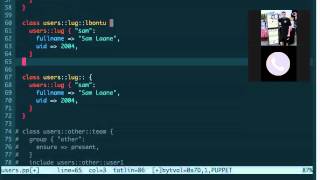
Oh, thank you, thank you. Sam, you have— no, I haven't updated this one yet. You guys know you can— there's incrementers and decrementers? Control it, thank you. I couldn't remember what the incrementer was. That's cool. Yeah, Ctrl+A and Ctrl+X. Oops, that's too high. Ctrl+X. And this is Ian's. Ian, do you have a preference on username for login? No, I just need— just Ian. And then hit green. Okay. Now at this point, if you guys want to generate your own password, let me know. I'll need the hash. So you can use the mkpassword tool. You can do mkpassword and it's installed. You can add this later, but once you have access to repo, -m ssh512. And I'll type in and hit enter. It's a password that generates the appropriate shadow file for them with the salt, the hash, and the algorithm that's used. And it's using 512 SSH. Okay? So in top here, that's done. Otherwise, you won't be able to use sudo until you guys set your passwords. Well, I'm not going to use sudo privileges anyway right now. And then at this point, I just add these two new ones to the one users class or members class. It's going to actually— it's going to add one of those. It's going to go ahead and vote with the keys up there. So let's do, uh, hold on to Sam, and let's do you all. In a moment, let's test it. So this is also— I'm also going to go through what testing is like with this system. So go back. So we made our changes to our stuff. Now we need— before we push it to the repository, we need to test to make sure there's no syntax errors, we don't introduce errors in the command history, making it a lot cleaner by omitting those. So we have the Vagrantfile right here. So I already have the Vagrant VM configured there. All you have to do is type Vagrant up once you have this repository. Also, if you guys haven't cloned this repository yet, please do. If you need any help, do let me know. So remember, the first thing to do is add your SSH key to your profile setting in the GitLab system and then configure your your system, your SNS config to actually use the appropriate private key when cloning from the GitLab system, which is what I showed earlier. Say again? Okay, then just go ahead and start one. Literally just do, uh, yeah, so you did the SNS keygen to create the key, right? All right, so then all you need to do do is just create a new file, .space/config, and literally just put— I mean, all you need is just like 3 lines. And the lines you want are— okay, so you want these lines right here. So, uh, you want that. You don't— you only— you can just put those 3 lines in there, it'll be fine for you. Of course, change your identity file to your private key. And let me know when you're ready for that. You see that all right? Yeah. Okay. Now, once you have that in there and you uploaded your private or your public key to the GitLab web server, then at that point, do the Git clone. Of the PUP, of the logger PUP repository. So here it is right here. Grab it. Here's the config or the URL for it. And then what you'll do is you do git clone and then that, of course, I'm sure you're familiar with Git. And then that will actually use that key to actually pull it down. Tom? SSL problem. Say again? SSL problem. SSL problem? Yes. No, you have to use SSH for this. So use the— so there's two links up here, HTTPS, use the SSH file. Okay, so the Daydream box is up. At this point, I already created this little provision script for you, or they actually did it for you. So you just run ./vagrant-provision puppet.sh, and that's actually going to apply all the changes I just made in the puppet module to this VM just to make sure there's no syntax errors and that they actually create all the new accounts. And it looks like we're done. There is now 3 new accounts for Lucia, Sam, and Ian. Right there. Thanks. So that works. I can actually push it up to the repository now. Very simple workflow, right, that you can see going on. You just make your changes to the config and then run the Baker provisioner and apply to the machine and see if it works. If it works, if it does what you want, then you go ahead and upload it. So I'm going to go ahead and add the config, right? And I'm going to do git commit and we're going to say this is common/users.ppfile add 3 new users. Okay, I'm going to push it up. And then what I'm going to do in this window, I'm going to go to— I'm going to connect to Hammy. Hammy is the Xen hypervisor. And then I'm going to go ahead and see Puppet directly. We have a cron job that runs every hour to do all the automatic pulls and the Puppet apply, but I don't want to wait until the next this hour, I want to do it right now. So then I just run ./pubandapply. Push another one of those on your workstation. Unless you want to install those on your workstation. And it's going to create those accounts on this system, and then as the crawl job runs for all the other systems, there will be new users for each one of you. Looks like I forgot to do git pull. Git pull. Yep, there's the new changes. Now we'll tell it to apply. And Ian, were you able to clone that? Yeah, but apparently it says that I can't use the VirtualBox module. The what module? The VirtualBox module on mine. Oh, did you make it up? No, I mean I can't run Okay, but you were able to clone the repository? Yeah. Okay. Yeah, I'm looking at it now.
Where are the—
I'll show you in just a second. Sam, sorry, sorry.
Where the user configs stored in this puppet file or puppet directory?
The— They are in modules, common, manifest, and then users.pp. You guys don't need— the only time you need admin is if you're going to set your password. What you'll need to do though is you'll need to add your SSH key, and that's why this is failing because it's looking for— wait, no it's not. Oh damn it, I got groups off. Group2003 already exists. 2005 is not unique. Oh, you know what?
You install packages that create new users, I guess. You think that's what's happening?
Let's find out. You install Apache, it creates an Apache user? Yes. So, ossec. That's the culprit. So what we're gonna do is— that is correct, Sam. We're gonna do var— well, let's actually just get rid of ossec. There's not a good way to do this, so I just might give a fuck right now. And then what we're gonna do is we're gonna group delete ossec. Oh yeah, see, there were the users first. So there's 3 users. Userdelete -r ossec m and then r and then go back to group delete. And so this, you can already see that these two systems are now identical between the VirtualBox VM or the bare VM and this machine. Close the book. So every once in a while something like this will come up, but now we pretty much got it fixed. So let's do, whoops, getent, take a look at it again, and then we see now 202. Is the last one. So now this should work. So let's apply it now, right? Apply. Now obviously there was a way to configure OSSEC to actually take a range of user IDs. Okay, very cool. All right, so while that's running, Ian, uh, makes a good error. —what problem you're having on cloning or— Okay, yeah, so you don't— you won't actually run this on your system. Oh, and so you're going to edit— so hit do like an ls just to take a look at the directory. Yeah, so whenever you want to make changes, you'll do it in here locally with the modules directory, and then what will actually happen is you'll test it with the Vagrant commands. You Vagrant Yeah, as long as you have Vagrant installed on your box, and that will actually provision it. Once you type Vagrant up, it actually grabs everything in the modules directory and manifests the entire Puppet configuration and applies it to the Vagrant box by default. So the only time you actually push something up is when you actually verify it like I did, where I went ahead and added you three as users, ran it in the Vagrant box, and it worked, and then I put it up. And then we had a a different issue on the server. We know it's one of the public configuration issues, but now it works. So, um, Mattel will give you everything you need. And then just a moment, you should actually— well, actually, you should be able to access the system now. So do SSH, everybody that is following along, or everybody that wants to set up a new account, SSH -i and then your key, right? Or since you're having issues with it, I'll just do, um, do a zen.newlog.org. So pretty much that's all you need if you set your config file, right? Your SSH config. You do that. Does that work? No, it doesn't.
No, because we never actually updated our public keys.
Oh, I'm sorry. Thank you. I forgot that step. That's right. So that's totally impossible for you guys. Okay, so once you have— thanks, Sam. Here's what you need to do. This is where you guys come into play. You're both able to do it? You're at the same— you have the repository cloned in? Excellent. Okay, so go into the modules SSH directory. Go to files. Then go to Authorize Keys and then create the key in there— or, I'm sorry, just drop your public key in there as the name of your user. So for Ian, you would, you would do— you copy and paste his key to Ian, for example, right? If you have the key, however you want to do it, put that in a variable, for example. So it has to match your username though because the function actually knows— the code knows where directly to put it in. So like I say, here's what we do. We do touch SAM and then we do SAM, we open it up and copy and paste the public key in there. And then once you do your local machine, if you have Vagrant installed, you will want to go back— actually you can start Vagrant up from here. I already have it running. I'm going to— yeah, it's already running. And then what you're going to do is run the Vagrant provision. You can either type vagrant provision dash dash— actually, just type vagrant provision and that will actually run the config. That will run the Puppet configuration on that box. Let me know if— what's up? It's fine. Oh, okay. Yeah. So— Do you have an lsmod grep for that dkms module?
SSH agent, you don't have to keep reauthorizing and unlocking your key every time. Excuse me?
You want to forward your agent to our box?
No, I don't use GNOME, so I don't have GNOME Terminal that actually saves. So every time I do an SSH, a git command that's remote, I have to enter my key and unlock it. Oh. I tried using SSH agent, like I thought that would start a daemon, but it didn't.
Yeah, I don't know where to— I'll tell Mike. I know, yeah, for most people run with their X Window System as the first process, so that's inherited in all the environments in the GUI.
Yeah, most people put that under the XNet?
XNet RC. Yeah. Okay. You have to Google that one off the top of my head. Luckily, I never have to do it because OS X has a credential helper. It'll actually save SSH keys for you. Is that part of Keychain? Yeah.
I mean, I don't know Keychain, but can't you just save items with this terminal or something?
Okay, I've never used Keychain. So you said the public key though, right?
Yes, that's—
Did you set the SSH config file?
Yeah, no, that is— I can push and pull easily. It's just asking me to re-enter a master key every time, which is slightly annoying.
It's so many prompts. Oh, you set a password if you do it here. What? You set a password? Yeah. Okay. Do you not? No. Well, it depends. It depends on what I'm doing. Sometimes I do, sometimes I don't. But yeah, for these I'm not doing that. But I see what you're saying. Um, like, this stuff's not that important to me, you know what I mean? Just look stuff, not having any confidential information. So I usually don't get confused. Okay, so you're having—
I don't actually have permission to push in this project.
That's just a management tool. Oh, this is the— oh, VBOX here. I'm sorry. Why don't you have a model? What are you running here? Oh, it's actually even nicer. Okay, I think I have a problem. I used a different kernel. Okay. And I think I have another kernel that I loaded because it works better anyway. Okay. Alright, cool. Yes, let me know if anything— yeah, you're just missing that module. And Sam requested a machine to go ahead and install Vagrant on your localhost. Actually have a virtual machine that everybody can log into and run Vagrant there. I'll probably be working on that sometime soon unless someone else wants to do that. I'm Sam. Sorry, what was happening with you?
Uh, I can't actually push because we have read-only permissions. Oh, really?
Maybe because you consider a production branch.
Unless you have that information set, that repo set differently.
Okay. Well, we'll find out. Let's just change you to master and see if that works. That'll be the quickest way to find out whether it's that, which I'm sure it is. So, puppet settings, or no, I need to do— I do this here, uh, change Sam to Master. Okay, uh, Sam Master. Let's try that. Okay.
Ah, let's see. Yes, that's how he pushed.
Oh, really? Okay, well, everybody else needs to have more permissions to this particular project anyway. And just remember, be very careful when you work on these things because this goes to all the systems. So if you do something that happens to break everything, it'll break everything, it'll break all the systems. Just for the sake of easiness and the fact that convenience makes people more productive because they're more likely to do something, I'm giving access, you know, just to everybody, just for the hell of it. So— Just be careful and always test the stuff in there before. I always get lost in this web interface.
Mike, this is real quick. Yes, master is set as a protected branch under protected branches, and you have to have the master permission to push to protected branches, which is what's happening.
Okay, thank you. So question, how am I getting protected?
You would go to the project. I'm sorry, can you— Yeah, I see I pushed it right there. So you just click it and then you go to settings, protected branches.
Oh, thank you.
And if you scroll down, you press the unprotected button in red at the bottom. So the link to protected branches is below here. Yes, first user.
OK. Thank you for that. You just taught me something new. Son of a bitch. That's why I like Dawson.
And it's probably— GitHub doesn't have the features. I guess it is designed to encourage people to create topic branches and do pull requests.
Mm-hmm. Yeah, I guess that makes sense. All right, so now I can actually make you— put you back to— You can see how much I suck at web interfaces. I'm just clicking around. Oh, I hate this. So let's go members and then do Sam. And if you change it back to developer, then try that again. Ah, it's late. Is it— is it perhaps late? —logging. Logging, okay. Cool. And then, so Ian, can you see, can you go ahead and if you haven't already, add your file here? I was just complaining when I tried modprobeing it in a normal curl. What did you say? When I try to log in, it gives me a network error, but also I don't have internet. Like, I know Trevor's like, problem either. You don't have internet? No, I mean, like, I installed, like, my Wi-Fi driver on this phone, but I can't even get it to run. Okay. Do you have the keys configured though? Well, I put it inside, but I haven't configured it. Okay. So are you good then? Or do I need to— or do you need help? I'll have to figure it out. Okay. Okay. So then, so Sam's private key is there now. Let's go ahead and pull it down and make sure this works for him. Open Apply. I'm just going to say private key and then public key. Thank you. So we're missing something, Sam. Uh, you Oh, where's my fault? Okay, so why— ah, sorry, I forgot there's one more thing. So what we need to do is hit Edit, Manifest. All you want to do is you need to do a client, and at the top here you see the users. You got to add your user to this array. So, and then that, that'll only do that though once you change your or add your key to this because it's recursive, the other ones won't fail. And then Ian, whenever you're ready for that, let me know and we can add you in here.
So does this GitLab support us using post-commit hooks to make sure that like the thing validly processed and run?
Yeah, I think there's hooks. I'm not sure about specifics. We can take a look. Let me go to the project. Per project, log settings, webhooks. I'm guessing this would be— I've never used any of this. Do you know how this works?
I mean, I've only used pre-commit hooks because GitHub doesn't let you use hooks on the server side. But basically you write a batch script, and if that batch script returns a failing code, it would reject status, it would reject the push.
So I'm going to drop it in the .github directory? Yeah. Yeah, I've done that. Okay. I don't know how to do this, so I don't know how these webhooks work. Do you know how these work?
I do not. Okay, I'm just curious.
I'd be interested in knowing how to integrate this with something else, maybe like IRC or something, you know what I mean? Just to get little messages.
Like, it looks like it's supposed to be done with like a Travis UI installed. Is there an open source version of that?
Trigger CI? I don't already know what that is, but we can take a look. So this is a part of Travis CI?
I think it's part of Jenkins.
Jenkins, okay. No, we don't have that, but do you know how to run Jenkins?
I've never done it before, but I mean, it's the VM that I could set up.
Yeah, if you want— if you'd be interested in that project, I would like to have you work on it. Got it. So I'll go ahead and put you down for that, actually. And if you decide that you don't want to anymore, let me know and we'll That's awesome, I guess. So let's go ahead and get you up here. And we added you— guys that are wanting to work on a project, please do add it to the to-dos. Put your name on what you're going to work on. So we're going to add Sage Client P and Sam to user directory. And we're actually doing pretty good. We have quite a few links to our stuff already. Let's do repos, log, todo. And we got servers and software. Put the servers one. And then we'll do— we'll add Jenkins at the very bottom. Jenkins. And I'll put Sam here. And Waylon's going to do FTP, so I'll put Waylon here. And we also won't show anything else, just about everything is set up. So I feel like Pounds. It should be some way to say they're done. So pound is finished. So pound, pound. This flag will be open as soon as I'm done. And then we can kind of let us know it's not quite done. Or let me give in— it's in progress. This is done. This is done. In progress. —point module available but it's not letting me load it. Yeah, I don't know off the top of my head. I've never had to use real Linux. I'll take that back. I've never had that error on Linux. Can you Google that? Yeah, I will. Okay. Let me know if you find out why it's not working. Well, I know what I'm doing for tonight. I am going to put up a new bigger box, a bigger box for us, so we don't actually have to figure out if it causes problems.
Okay, I'm still getting permission denied. I'm trying to access that and not getting results that way.
Oh, okay. I have to Pull that— I didn't multiply that last change. Is key in there? No. Just a second, sorry. Okay, Sam, your key's there now. And does anybody need access to our— our GitHub repository? You need those? No, I think I got those. Okay, let's check it.
Okay, so at this point, um, uh, I can't authorize these, but I still can't— ah, I can't seem to access it for whatever reason.
Okay.
Looks like it's the entire thing. Sam.
Strange. Is there anything else explicit? Okay, let's check you on this. You are there. Okay, so, um, did you see a person denied, Tam?
Uh, try again. Uh, it says person denied for me. Yeah, I think you just got a bunch of things on the screen too. So let's see what Tam is unhappy about.
What is the, uh, what's Hammy?
I don't see why Hammy was running the other PHP.
Hammy is the hostname. Okay, okay, so let's, uh, actually And all right, so there's the last few lines. You validate your SAM pre-auth, so initializing cam settings for SAM. Open your, your localhost system variable. What's this one? init_user_group. Oh, we missed a letter out of both. Here's the problem. So, um, bear with me. I have a lot of configs. I forget.
So it's all using a group that the user has to be part of.
—something? Yeah, so, well, what we're doing is, uh, you're asking to do a group instead? Are you— sorry, I heard half of what you said.
I'm asking if all users are part of a special group that you have on the— that the work that you SSH in, and that's a part of that group or something.
It's not by group, but it is by user. But since you brought that up, it's smarter to actually do it by group. So I don't have to edit this anymore. I actually, I was creating a user for a while, so I actually forgot how we had it set up. So let's fix that right now. So modules, SSH, and then we're going to do man— or we're going to do templates, ssh-config, and then at the bottom you can see here you need to add SAM, and I'll rewrite this to be something a little bit better later. And then it'll log in too. So you all can log in. Looks like we need to create a log member group and then just do this to allow group— allow groups and then put log in. That's the best solution for that. Okay, so at this point, that's just a simple edit and that should be it. Nice. I don't know. They'll find the Word 20. All right, Sam. Sorry about that. Let's go ahead and apply this now. Okay. Cool. Well, it's a good thing that we're going through all of them through the modules too because then everybody that's here can also see how it's all done. Get this file, this file, this file. It looks like I need to go ahead and start creating groups. All right. So you can also see here the way the SSH configuration does it. It copies the new file over. There's a new hash, and then it knows using the service, um, to automatically restart SSH once there's a new file deployed. Place. Just getting a refresh of that. That's kind of nice. Hey, Sam, I would expect this to work for you now if you would give it a shot.
Okay.
Oh, this is actually— okay, I should probably shouldn't have used that, James. All right, so we're going to do this. I think it's because I didn't think that— all right, so now service—
so wait, you have— it's like it requires all of them, or is it just whitelist based on one?
No, what I think— log doesn't exist as a group, it's just causing a problem. So try again.
Yep. Uh, yeah, it works.
Okay, so I need to go ahead and create a group for Luke, and that's not going to be hard. So, um, that's my fault for not even thinking about that. Group. So, um, Should I define bridge as zenbro? Huh? You don't need to edit any of that. That's all the grabbing shows for you. But yes, it should be that interface. All you really need though is the size, memory, and CPU. And for CPU, don't use any word too. And hostname. Any hostname. Will it automatically set the netmask and gateway? Yes. And firegrub? Yeah. The filesystem? Yes. It's in the same conf file. We talked about that one last week. It does apply the rules to— —knowledge is— let's go back. Modules, that's our common. Let's go to manifests. Copy users to groups.pp. And this is going to be the group module from Now, whoops. And this should— could be a lot simpler to do now. And then now, of course, who do we deal with? Fumble-deer, public types. Get the type reference out. Figure out what groups should be set to. Groups right here. We ensure that the group exists, so that property needs to be set to present. So, uh, make group. And we're gonna say group's gonna be called LOD, right? I'm gonna do this. We will say present or insured, actually. Uh-uh, insured. And we'll actually name from the property value if its name's not set. Or the resource title is actually the appropriate term for it. And— okay, I can't really figure out what's getting much easier. Oh, it tried to install something. Was it trying to install all the packages on the virtual machine? Like, it's trying to retrieve a bunch of— that tends to— Actually, I can ask you that. Okay, so can we go ahead and navigate our SSH to the machine? That's done. Now I want to check the— Yeeks or Jon? With a— Wait, I talked to you last night. Still with the package, the cache packages? 44 minutes. So it's going to be doing this for a while. Yeah, best to start that shit at night. I'm just going to go home now. Did you do it in Vagrant yet? Workflow man, do it in Vagrant so we can verify it and then we'll put it on the server. I'm just carving out the VM right now. Yeah, you shouldn't have to do that. You do it automatically. Like, I always put everything in Vagrant. It's just good workflow. First, and when you know it works, then you carve out the VM. Okay. I mean, I'm just saying. Well, I'm not going to install anything before I do it in vagrant. You know what I mean? Right. I was going to do it locally and then do it. Yeah, I mean, then the VM just sits up there. I mean, it's not a problem, I suppose, but I'm just afraid you're going to forget to do the VM. To the bigger VM, which is the important thing. Okay. You already logged in now? So do this. Take a look at apps/sources— nope, apps/conf.d and see if there's a 01proxy file. In the Vagrant VM, see if this file exists. Oops. Yeah, I'm done. Okay, that's fine. I'll remove that file. And then just X out of the VM and do Vagrant provision. All right, let me let this intern— okay, um, so now I need to figure out how to apply everybody into this group. So should we type up like, uh, is there any way we can self-service some of these? I mean, like In a perfect world, we're going to grow more, and so we're going to have to do this sort of onboarding stuff. Right. And so is there any way we can make this easier for people? What do you mean? Which part? It's pretty easy right now. You just have to edit 3 files. Well, it's really just 2. For a new user. You know, it's a lot easier than creating 15 different accounts on all those machines. So it's not very easy. Can you access— see if you can access like wget google.com or something. Well, I mean, if you want documentation, that would be great. I would ask for help with that. That, you know what I mean? Yeah, I'm not suggesting you do it all yourself. I'm just saying, do you think it would be something that would be worthwhile? Yeah, documentation would be helpful. Or each area can just review the video too, which unfortunately last week didn't record it, but there you go. I mean, because hopefully we grow some more.
Like, if you're going to have some configuration tool copy over documents, file?
Hi guys.
Would that also be in this file? I said if we wanted like a piece of code that copied over a, uh, zshrc or bashrc config for each user, would that be in this file?
Yeah, you can put it here. Yeah.
And also where you set the default shell to zsh if zsh is installed on the system. Yeah.
Um, So if you go to the very top, shell, just copy and paste that line. You have to follow the footprints of this. But if you want to change it, say, for me, I would just edit here and then do bin/zsh. Okay.
Is it smart enough to then only execute that line if zsh is actually there or if the path resolves?
No, I don't think so. You'll have to make sure it's installed. So you'll have to create a new module. Actually, what you don't even have to do that. What you can do is just go to the— we already have a packages module, okay? So, um— Okay, so in the common module, there's this packages one already here. All you have to do is add it to shell, so it's already there. So it's already on all the systems. But if you want to require it, which is probably the best to do it from where we have it in the config but the require option. So if you would say copy over your Zeesh config file prior to— or verify— before you copy over the Zeesh config file, check if the package of Zeesh is installed. In that case, you just do— whenever you do your file copy thing, then you just do require and then you would say package and you would do zsh here so that way it will install— it will execute whatever above if zsh is installed. Okay. Okay, so I'm almost done with Creating new blood groups. So let's see here. Let's see if this works. So Vagrant provision. Oops. I can just do this. See if that works. Ian, do you need help? Okay, but I tried doing Vagrant help. On the SSH keys that I added. It's just giving me a bunch of like foreign keys. Can you go in the VM and verify that you can access the internet or something? Like wget google.com? Inside the VM. Huh? Inside the VM. Inside the VM? Yeah, it works. Oh, and then get rid of— boy, is that package file there again? I think that's it. Get rid of what? I think it's that appkit file or the appconf file there. I bet that's what's happening, and I think I just forgot to actually comment out the client line in the video config. Okay. It's not there anymore. Okay, now, well, honestly I need to do that. Every time you run that it's going to copy that file over. So that's me. Here's what you can do for now. You can do, well, I'll just upload the manifest side of PP. This is actually where you include all the modules for each host. That host is called test right here. So we just need to comment out that line. Pardon me. This is in manifest site on PP. So want the repo and then manifest site on PP. I'll go ahead and upload that. That's because I believe it's limited from to our IP space on the VMs. That's what you're getting us for, for installation. Actually, that's exactly why you're getting us for, is for this. You know what? It's almost better just to have that. I'm going to go ahead and just allow everything for now. It would be nice to be able to run our Maven configuration, but I haven't changed much. So to do that, I need to edit repo file app-cacher.conf. And then you go to allowed hosts variable and change that to star. And that should do it. There is a problem right here. One second. Yeah, I can keep that there. So what is the diff then? You don't— just do git pull in just a second. You don't have to change anything. I'm gonna go ahead and try it again. That should work. Alright, so now what we're gonna do is git add manifest.pp and then we want to do modules repo files appcache. Okay, so that should allow us— repo allow access outside of VM.
So can GitLab be set up to use— so Git pull that— can it be set up to use like OpenLDAP as its backend for user accounts?
Yeah, so hopefully we'll have that whenever we have an LDAP server. All right. And we'll hopefully have a Kerberos server too.
That's definitely in the works. It's kind of funny because right now we're making a bunch of scripts that are that whenever we add a new user, they get propagated to all the different boxes. But under what we're going towards, you just have a Kerberos and no LDAP. Then you would use PAM's Kerberos authentication for everything. Right. Which kind of— that is awesome. So you've done it on like—
I've never done an open LDAP installation myself or anything. I've managed them for business before, but— so I don't know how to jump on my head, so I don't actually plan on getting into that for a long time. All right. So unless you know how to do it.
I know ACM admin used to run their own stack, which was just about what we're going towards. They— although the top of the line, they used AFS as their file system. There's a reason that they've walked away from it. Not the world's easiest, right? Uh, but yeah, and I think it's a pretty good idea. I'm just curious about whether or not it's going to keep all this internal or whether it could like open it up to other things too. Seems kind of silly to have a Travis system that only our internal projects can hit.
Um, well, uh, it was originally— we planned it just to be for open NSM. Well, I'm time with opening it up. However, with that comes more responsibility for me because then it's like I have other people's projects. I mean, if I have help, that'd be great, but you know, if something goes down and other people's groups rely on it, you know what I mean, there's more of an incentive for me to put more time. I'm busy with work already.
And you don't really need to do it because you'll be here for a while, so you don't need to source like other people to try to pick it up.
Right. I would like to be able to teach everybody how to— well, that's what I'm doing now, teaching them, but people have to get enough experience by themselves. But I also don't feel comfortable at this point with just our ZenFonder system. We would need a cluster. I would want— because everything, all these VMs are hosted on a single machine right now. So if we could do like a Kennedy cluster, that'd be great. But I really don't have any more servers for that right now. Open NSIM is going to have 3 servers, hopefully 5. Okay. 4-node Kennedy cluster and a development XEN project system. The XEN project system is racked now in ACM. That got done 2 or 3 weeks ago. Now I just need to get the funding for— we're waiting for some sponsors for the Kennedy cluster. And that way, if one of the nodes goes down, we still have 3 others that the VMs are all distributed upon. Yeah, that's kind of interesting.
I know that vSphere Center has a way of migrating things back and forth, but I don't think Xen does.
Yeah, Xen doesn't. But if you use Ganeti, it's Google's management software around Xen and KVM, they have a thing built in called DRBD. It's disk over RAID. So you create your VM as a DRBD image through the command line console. It actually replicates that to all the nodes. Okay. So every node has the same copy. So every time you work on a node, you can see the traffic going to all the other nodes copying that data over. So that's how we actually do failover in, uh, Kinetic.
Alright, that makes sense. The APM system would be that they had all the non-important— all the VMs would be hosted on AFS, which would be separate hardware systems. But that meant for a very big headache when we had to make sure these systems got turned on in time for these other systems to resolve DHCP to these systems so they can have the network drive so that they can boot everything else. And it was a huge pain. So I think Google's approach makes a lot of sense. Makes a lot more sense, especially at scale. And I'm excited to see what that looks like.
Okay, cool. Yeah, hopefully I'll be able to talk about that in the future and just kind of get more— I got it working in my house. I got two Dell CF-24s in my apartment, I should say. They have it working on, but once we get a rack, we can demo it. Thanks, cool. All right, man, see you later. Thanks for coming. All right, um, Ian, sorry, did you— yeah. See what it looks like here. This is a bunch of these. All right, dude, um, can you get Bolt? Um, you're doing a very not convenient— gave me that before password this time. I have no idea why. I did hear you fall. Oh, what the fuck, you're right. I don't know. Um, well, the good thing is, is that Keith's on there. I put mine inside the— inside this upgrade key. This is the key to log into Vagrant. You see what I'm saying? So it's looking for this key file, that might be why. Does that exist? I don't know how to copy it. No, I— so did I copy that? —by a 5-character tag? Yeah, this would be the Vagrant key. So Vagrant comes with its own default key. I imagine you didn't change it, but let's just check. Home, print, build, puppet, .vagrant.ini. Oh, it's almost there. Is that the— you didn't change this, right? No, no. I wonder why— okay, anyway, so it looks like— you can see it's hooked on 222 where you can log in because— I don't know how to do this. Yeah, okay. SSH— oh, we can just do Vagrant SSH. The password by default is vagrant, just so you know. You can log in with the password for now, and then I would just rebuild the VM. So let's log in. —wait. It is the default password. Strange. Any authentication is broken this time. Uh, uh, -p 2222, and then we do Vagrant at 127.0.0.1. Okay, so yeah, if this doesn't work, then you need to rebuild it again. Okay, so just, um, here, destroy. And I expect if you rebuilt it, it should work. I don't know if it was something to do with the Puppet config. It should be though, because mine's working. It's not causing any issues with mine. They're just too big now. Oh wait, maybe it is. I didn't— that's— I hit X1. Huh? Yeah, I'm running— do I still have a big graph? Yeah, too big. Let's bring the whole thing back up. All right, well, that concludes the log. People. Yeah, people. Yeah, yeah. See you later. Next week. Next week. We're out next week. Have a good night. Oh man, I'm tired.
More from Jon


What No One Knows the Podcast / Vodcast featuring The Tampa Bay Wave and Jon Schipp

Meeting the Exposure Management Challenge: Key Use Cases for Success | @OfficialRapid7 #SolutionSpotlight
Spot Security Control Gaps and Non-Compliant Resources Across Your Attack Surface