LUG Meeting (Nmap) 02-09-2015
Jon Schipp led the GNU/LUG February 2015 meeting, covering Nmap extensively: scan types, host discovery, service detection, OS fingerprinting, and evasion techniques like idle scan and FTP bounce. The group also discussed domain setup, LD_PRELOAD exploitation, Vim productivity tricks, and Ndiff for automating scan comparisons.
Chapters
Alright, it's that time again for GNU/LUG. So Shane graciously used his own money and paid for gnu-lug.org, so we have our own domain name. So big thanks to Shane. So now our virtual machines that we'll have up online will be able to use a DNS name to actually point to them.
Actually, about that, it would be a good idea, like, do we want to use those email addresses? Do we want— and if so, do we want to throw together our own mail server, or do we want to like have Gmail host it, which is pretty damn easy to do?
And like, they have all for easy, right?
Like, I think it'd be a fun project to build a mail server.
That is true, right?
But like, in the meantime, is it worth it while, like, throwing it? And like, I think it'd even be cool to do— I just found out about this Docker Mail. Where you can just pull down from Git repos a set of Docker containers that you follow a script and it puts together, throws together an email server for you like that.
Cool.
Yeah, I think the ideal situation would be to build our own mail server, because we all want to get some experience with doing something like that. But that's down the road for sure, I think.
But that—
but we—
you and I were talking about possibly moving this meeting in a direction to where we had dedicated some time to work on some projects during the meeting time. Yeah, which would be— that'd be— that'd be one cool idea. Like, hey, let's— we have a server, like, let's put a— let's put a mail server on it, you know. And if anybody else would be interested, we'd also— I don't know if you guys saw I posted an idea. Is this an appropriate time to just take over? No, no, this is good.
OK. This is good.
I posted— I just realized I was just hijacking the meeting. I posted an idea on Facebook. Have any of you guys seen this sort of JavaScript implementation of a shell window on a web page? I think that'd be something cool for us to do for our landing page. And maybe it could just be a little script inside there that taught a few things. Book showed how to set, you know, like just showed you a few commands and gave you a few prompts and then at the end been like, "To learn more cool things to do in Linux, visit us at our meetings because we're great and Linux is awesome." Cool.
Yeah.
Okay, cool. So maybe then we can, at the end of this meeting, we could divvy up some projects or ideas that we have and then maybe delegate them in the future.
Yeah, like I'm already working on putting together an email server for that CCDC thing. So if you want, I could just kind of learn that for that. And then it'll be—
Yeah, save you time too, because you're getting—
But yeah, so if anybody else wants to look into setting up that JavaScript thing, that would be a fun project. I think Devon said he might be willing to play around with it too. We all like to volunteer people that don't show up to meetings.
Yeah, definitely. In other news, our Zen project system hit the bucket last night, or kicked the bucket. It went down about 1 AM. Shane noticed it, and there's some— looks like there might be some ECC errors in the BIOS for the memory, so we need to potentially replace the DIMM modules or replace the motherboard. So we just haven't had a chance to actually look at it physically yet, but that's what I've is what I've heard, so that kind of sucks. In better news, Raspberry Pi 2, version 2 is— or Raspberry Pi, sorry, Pi, haha. Version 2 is now on sale. There's an article on FreeNAS that's doing a lot more features with ZFS now. I wanted to play with the ZFS file system for some time, especially since I used to be a BSD admin. I haven't got a chance to do it, so something to play with. Also, I don't know, I didn't put most of these documents up here. I don't really know what the next one is, but I suppose we can look at it. You can now petition the union to fix my document.
Wait, when does that run for the police?
Oh, to support open document formats when communicating with the public. Oh, that's kind of cool. So you can petition to say, "Hey, we want this in an open source format." Awesome. So the other thing was the guy that wrote GNU PG, he's going broke. There's an article about that. Well, you basically did— there's a bunch of articles about that. But since that happened, there's been like, I think, over $50,000 donated to him so he can keep up his work on privacy. So that was interesting. How much? Huh? How much? One of the numbers I read was over 60,000. 60? Way more than that now. Yeah, I'm sure. Yeah, way more than that now. So that was cool. CrunchBag Linux, based off Arch, is now coming to an end.
I think that was Debian-based.
Huh?
I think it's Debian-based.
Oh, it is Debian-based? I thought it was Arch. Never mind. Sorry. Thank you for correcting me. There's an ArchBang. Oh, that's what it is. Damn it. OK. Yep. Thank you. So CrunchBang was a Debian-based distribution that is now pretty much done according to the author. The developer has announced the project's come to an end. Things get left behind. He doesn't really have time. Or he also says he believes that it no longer holds any value. So he encourages everybody to use vanilla Debian. There's a really cool article out on the security-related input on LD preload. Environment variable you can set to actually load a library. Go ahead.
Just something related to what you just said.
I think it's kind of funny.
I just saw a video online of a talk that Linus Torvalds gave that he has never used any Debian-based distro whatsoever.
Oh, really?
He said they're too difficult to install.
Really?
Yes.
That's interesting. I wonder why he thinks that. So yeah, this is about LD_PRELOAD. It's the ability to use a library prior to loading other libraries in the system. You'll find a lot of our userland rootkits will exploit that by saying if you have to call the system call open for something in your program, if you do LD_PRELOAD, you load your own library that actually has some of that call in there. You write your own function for it. Able to do what you want rather than what the system will want or what the system will do. And it gives you a detail on how to do detection. Here's a little C program where they actually, they open up the preloading C file or library file and they're able to detect whether it's, whether that successful open was an indication of whether your system supports it. And then further on, they got, there's a lot of code in this, but actually detecting whether a variable is set etc., etc. It's really interesting, so I highly recommend this, really good article, detailed. A lot of stuff on here on the proc filesystem as well, getting the memory address space for the lib library, etc. So I highly recommend that if you're interested. The other thing was on the Cypherpunks mailing list, if you're interested in privacy, I highly recommend joining the Cypherpunks. It's a lot of guys that just shoot the shit and talk about privacy and they're pretty effin adamant about privacy and mailing lists and every once in a while there's something new that comes out. There's this mail program called Confinant Mail. It's an open source, non-SMTP cryptographic email system optimized for large file attachments. So it's its own— has its own protocol, client-server architecture, and it uses GNU Privacy Guard for the actual encryption and authentication and you can actually use it over Tor. So if you're interested in taking a look at the features, you can right there and you can use it to contact whoever else you want to contact using this program.— this actual protocol geared toward privacy. And there's packages for OS X and Linux, etc. So education e-box. E-box is where we talk about any training courses related to Linux that are worth looking into. Linux Foundation actually has a sale now for their Essentials of System Administration. The standalone is $399. Wayland actually just purchased this and I went through the content on the website here and if you look at it, there's quite a bit of detail here. A few things that stood out that I don't see in a lot of other courses is that it covers all 3 popular Unix systems, kernel modules, udev, there's a whole section on udev which is pretty cool. The other thing is it covers Linux file systems including exFSS and btrfs which are up and coming big things that you don't hear a lot about. Also logical volume management and a number of other things, package management systems, AM modules. So it looks fairly, pretty in-depth compared to a lot of the stuff I've seen. So for $400, you know, if it's in your budget and you can afford it, I highly recommend purchasing it straight from the people that fund Linux the Salary and other things. So nothing from Brock period. SSH section, so Wayland added these. The first one is self-explanatory, the PID file. You can actually change that if you want it to be in a different location. Debugging in the SSH client also, sure, the more V's you put, the more verbose it is. Let's do— oh wait, where's my— damn it. So we can just apply this. If you've never used this, so I'm gonna go ahead and log into my web server. Right, nothing exciting. So now we're gonna add -v and you get a lot more exciting things such as different debugging modes. This is level 1 right now. You can tell what it's doing. It's anything that's also— it's gonna tell you the environment variables that are set for, that are passed up. Tells you where it tried and what line for particular options, whether you're SSH config file. The information was sent, the ciphers, the algorithms back and forth, let you know all that information. And since I'm using the master control to multiplex different communications, it actually tells you that here using the, I'm using the cmsocket directory for this. And of course you can go one further. Now you can see that there's debug 2 values in here. So it's more verbose output. And then finally you can do 3 and you can see that there is now debug level 3 information. So this is really helpful.
I'm gonna tell you a few examples of being a sysadmin.
When you're setting up an SSH server and you can't get in, and you want to know what— like if you have a different authentication type other than password, like public keys or GWS API or Kerberos and RSA tokens, and you might not know which one it's trying, and you can use the -v option. It tells you which authentication type it tried in order. So you can see, in some cases you may forget to turn the flag on inside the SLES daemon, and you'll see that's why it failed on this one. So that's— it can actually tell you which ones it's trying and then whether they succeed or not. So that is a quick way to debug whether you have correctly set up your SSH daemon. And this one, use-dns, you go to the man page. This is a security feature. Dun dun dun dun. Use DNS. So, specify whether SHD should look up the remote hostname and check. So if they map back and forth, it will allow it. If not, it will not allow it. So it's a security feature for people that are spoofing things. The resolution does not match back. So essentially what that is, so it's highly recommended for production systems or systems that you care about. That should be having legitimate users that have a reverse lookup and a forward lookup. Next, shell space. So we have redirection in sudo. So this is essentially what we talked about when Simon was here and about why did not work, which I said incorrectly. Alluding to shell built-ins. But the reason why those commands didn't work when you echo, sudo echo something into a file is that after the sudo command executes is when the redirection takes place. And just to make that more clear, which I should have just demoed it right there but I didn't even think about it, is to do— I shouldn't have closed that window. But, so, sudo, alright, and we're gonna echo something and we're gonna put it in /etc/passwd. Permission denied. And what's actually happening here is denying because, like I said, the sudo command executed, echo something, but once that was done, the redirection happens post-execution and then it fails to rewrite it because you no longer have the privileges of sudo, you have the privileges of your normal user now. So how do you fix this? Well, the way that's recommended is to do something like this where you call the shell. You say the shell execute a particular command so that the entire pipeline here is executed as the sudo user. So do that and now once I authenticate, that should be in my /etc/passwd file. So, system. Okay, so now if we actually go to /etc/passwd, you can see something's at the very bottom. Remove it. Oh yeah, and I'm not root, so let's— do we have by sudo or sudoedit on here? Nope, we do not. So sudo vim and see, it's Robert. Okay. Alright, so fairly easy to understand, just to demonstrate that. Sorry. And then, so that takes care of shell space. Now, a bin vicinity. Did you have anything for that? Yeah. Okay, cool. I figured these are your notes. Yeah. Okay, let me get you back to the terminal here. There you go. I don't know where you wanna do it at. Never mind.
Oh, I did this, uh, I just forgot this one.
That's what it's— no. You have to do a --no-check-certificate. Oh, okay. Cool.
Okay, just give me one second to set up here.
Whoa, how'd you collapse them like that?
Those are Vim folds. I'll demonstrate that in another thing if you want. Or I can just— I can talk about it real quick if you want. Yeah, go for it. So Vim has a feature called folding, which is something you find in a lot of other full-featured IDEs like Eclipse or whatever. And basically you can collapse a section of lines onto a single line just for readability if you're working on a big project or something or doing a presentation. So I don't really know too much about it other than the basics, which are to create a fold, you highlight the region with visual mode, then you press ZF, and that creates a fold. And once you create the fold, you can highlight the fold with the cursor and press ZO. That opens it. And then ZC closes it, and ZD deletes it.
That's all I know. But, uh— ZC closes it?
Yeah.
Okay, cool.
Yeah. So, okay.
Okay.
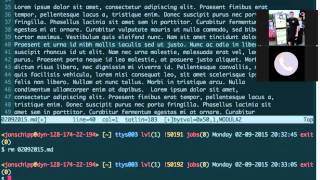
So first thing, I'm going to talk about visual block mode. And so this is an extension on the normal visual mode that you all are used to, I'm sure. So to access visual block mode, you press Ctrl+B. And so now it says visual block down in the mode line. What this basically is is a rectangular visual mode. So you can select a block of text to work with. So one thing I find this really useful for is inserting text on multiple lines. This is not the only way to do this, but it's by far the easiest, and I use it all the time. So I'm just going through that real quick. So let's say we wanted to put some text on all 5 of these lines. All at one time. So what I'm going to do is I'm going to enter visual block mode, select just this first column here, and I'm going to press capital I, and that enters insert mode but acting upon the block that you just selected. So you can enter some text, and when you press Escape, it will actually fill that all in on each line. So now for a a little bit more of a practical example.
This is great for comments, by the way. Yeah.
Scroll that up there. So let's see. Let's say these 4 lines were part of a program, and you wanted to print them out, each with separate print statements. You could do that with visual block mode. In just the same manner. So as you can see, they're all— they all have printf, open paren, quote. And then we want to add the part at the end of the line too. And this is a little more involved.
So you do—
you can actually start anywhere on the line. You enter visual block mode. You select all the lines. And you press the dollar sign to go to the end of the line. And what that does is it'll actually select up to the end of line of each line specifically. And then you press capital A, and that will append to each line. And then you can fill in your— whatever you want to append to each line. And that's a quick way to do something like that. And of course it works with repeat operators as well. So next thing, joining lines. So let's say you're working on a program here, and someone worked on it for you, and you don't like their syntax style, them putting these things on separate lines. So you can actually join lines. You can actually join the current line with the line below it by pressing capital J. And it will convert the newline character into a space. So you saw here, I'm at the end of the line here, and it turned that into a space, and it brought the contents of the next line and combined it with current line. And you can do that repeatedly. No, don't do that. So that's a quick way to do something like that. You might think that capital K would do the inverse, but I guess we were thinking you could just go up a line and then join downward, but I actually added this to my MRC at home to be able to do that feature, because normally capital K is mapped to go to the man page of the selected word, so like if you had less or something, you press capital K, it goes to the man page, but I don't really use that that much, so what I did is I actually did a map K to the— was it the fold? Or not fold, join. And then you have to specify a -1 parameter to specify that you want the line above it, and then insert a carriage return. And so now if you wanted to join— let me do that so— look at unhappy. If you wanted to join these two lines but starting on this line, press Cap+OK, and it does the same thing. So that's pretty nifty. Related to this would be separating lines. Let's say you have a very long line here, and you can see this is— looks like 929 characters wide. I'm not sure if that's right. Yeah. And let's say you wanted to split this up into multiple lines to make it more readable on different systems with different terminal widths and such. So the standard— the classic standard terminal window at least is 80 columns by 24 lines. So that's what them defaults to when you use this next feature. So basically I can do a visual line selection on this, or I guess I could just do plain visual as well. It's the same thing. And then To separate this into multiple lines, to split it up, you press GQ. And that will format it automatically. And I'm not sure if there's a way to change the width. I'm guessing that there would be. But the standard is to split it up 80 lines. And then it'll do it nicely. So it won't split up words across lines.
I wonder if you can just do like colon text width equals. I think that's what it is. Curve set.
Yeah, looks like it. So whatever your text width is, then that works.
What was the command you used? G what?
GQ.
GQ. Cool. Yep.
And that also works with the standard Vim motions as well.
So if you don't want to—
if you have, like, say, 5 of these or something, you could do g— or you could probably do gq5j. Yeah, it looks like it.
Cool. Yep. Sweet. The folds are really nice. The VisualBlock stuff, I've been doing that for a little bit now. That's really useful, especially when you do comments.
It always annoys me when I work on a computer that doesn't have the full version of Vim installed, and it's like vim.tiny, because it doesn't have VisualBlock. So I can't go to do that.
That sucks. Yep. Cool. Thank you. Alright, no C quarter tonight unless anybody wants to step up. Alright, so let's play with Nmap. Alright, Nmap is a really sweet program that has a million command line options. Actually, it's not a million, but I think it's over 1,000 with all the arguments too. So it is a network mapper, essentially what Nmap stands for, and it allows you to do things like host discovery and service discovery, and it goes even further to do OS detection, and it has its own scripting language based, well, it's not its own, but it uses Lua for scripting. People can write plugins, and then you can actually use those in your environments to do particular interesting things. For example, one of the things you can do is you can check SH versions. The banners, you can do find old v1 versions, you can use SMB scripts. There's a bunch of SMB scripts by Ron Bose, I think. Yeah, Ron Bose. He wrote, or is it Gula? Damn it, I don't even remember now. I'm gonna go look it up, sorry. SMB Nmap scripts, Ron. O'Peel? Yeah, it's Ron Bose. Okay, he wrote a bunch of these. Like this one checks for vulnerabilities in SMB. And you can do stuff like mapping shares, getting information from the share, permissions, all that stuff. Really interesting. But it's most fundamental, it's a networking tool. And as an administrator, I've used Nmap defensively and offensively. And it's a great way to map your host. So I highly recommend when you bring up production systems to scan with Nmap from the outside to see what's available, what people can actually access for access to, access to the resources. Because you can see what ports are open, If the ports are open, there's no intermediate devices blocking access to those ports, then people can query them and try to get information from them or connect to them and do something like SSH, right? So, quickly started, there's a number of options. First thing is Nmap by itself. We can do nmap google.com. I should probably— you can just press the space. It actually gives you some information here. 39%. Of the scan done. And this actually tells you what google.com has available. You can see that they have TCP MUX, HTTP, management, HTTPS, and a bunch of other— some X11 stuff that resolve this particular host that google.com is pointing to at the time. So I got a bunch of things right there that's really interesting. So let's just do a little further. So what actually happens here is there are different scan types. -s is a scan type and the— specify the option you want to do a particular scan. The capital S after says what kind of scan. In this particular case, we're actually using a stealth scan. What's actually going to happen is your machine is going to send a TCP connection out beginning with— actually, it's not even going to be a complete connection. It's going to be a TCP segment with the SYN bits that we're synchronizing with the host. If the host responds with an ACK, an acknowledgement, that means that's all that needs to be there to tell Nmap that this port is open. Then for a full TCP handshake, what actually happens is a SYN, a SYN-ACK, and then the final ACK. That's called the three-way handshake in TCP. That says that this is going to be a connection, you complete it. And what actually happened with the SYN and the ACK is you're actually— what you're doing is you're actually synchronizing sequence numbers. That's what you're doing. When the first SYN comes out, you set the sequence number. When the ACK comes back, you set the sequence number from the other side. That's how they know where to begin counting the bytes. Across the network connection. So did you have a question, Shane?
No, I just was able to get it to work as soon as I made sure I was connected to the internet.
Okay. So if we want to do the full handshake, we do -t for TCP. They call it SYN stealth because typically your daemons will not log if the handshake is not complete. There won't be a log generated for connection complete in your logs, say, SSHD or something else. Called a SYN scan, a stealth scan. There's a number of other ones like ACK scans and pushes and window scans and other things, and null scans, just modifying different bits of the TCP segments to see how a particular host responds. But typically almost all you really need is the TCP SYN scan or TCP regular scan. And the ACK scan is useful in stateless firewalls. Because you'll get— if the firewall is stateful and you send an ACK to say, "Hey, I already communicated with this host and you had an acknowledgement with it," then the firewall, if it's stateful, it won't respond, but if it's stateless, it could respond. So that's how one way to tell the difference between stateless and stateful firewalls. Those are a few other ones that are mostly in weird scenarios where you're just getting odd devices with weird TCP/IP stacks, you might be able to get information from them. But anyways, so we can do -t if you want to do the full scan. And let's actually look at the packets as they come through. So -s, we'll go ahead and do, we'll scan for this one port. We'll do -p 80, or no, I'm sorry, let's do 80. And we'll use jonschipp.com, my website, as an example. And then what we can do is we'll see the result here. For the SYN scan, I forgot to mention, oh, that was weird, okay. For the SYN scan, you need to have root permissions. For the TCP scan, you do not. So we can see that that port is open on my website right there. And if I go to my website, you're there because that's the port it's communicating across with. So in this particular case, let's add another option, --packet-trace. And this actually shows you the packets that were sent across while nmap scanned. So this is a great option for learning how to use nmap. And in this particular case, you can see that my machine, this laptop, before it even did the SYN scan, Nmap tries to do host discovery to determine whether the host is online because if it can't get a response with a ping, for example, ICMP echo, it'll actually just not even worry about it. It'll actually just say, "Hey, this host is not online. Why bother scanning it?" Unless you tell it to explicitly scan it. So what it first does is send an ICMP echo request right here to jonschipp.com. Then you can find out that jonschipp.com responds back Oh wait, did he— this is actually out of order. TCP echo request. Yeah, and then it went ahead and did the SYN scan. I don't know why I didn't see the response back. Maybe there was no response back and went ahead and did it. But actually what also happened is in host discovery, Nmap doesn't only rely on the echo request, it does a timestamp request. Ah, that's what happened. So my machine or the host Did not respond. Let's just double-check that though. So this is what it's resolved to. So do dig jonschipp.com. Schwartz. Yes, it's that. So ping. Ah, okay, so it did get a— it should have got the response, but I don't know why we didn't actually see it in the output of this. So unless it was delayed. But we can actually see that we did get the timestamp response, right? Here it is. So we sent the timestamp request and the response. This is to get the timestamp of the server and a lot of people know about ICMP because it's important to the internet. It's crucial for sending messages whenever things are broken. It's an information protocol. So in that particular case—
Can a real TCP wizard do all this without Nmap?
Yeah, you can find it from the command line, yep. With Scapy, for example, it changes it all on opennsync. So, yeah, so in this particular case, we actually— there's the SYN here. We synchronize with the server with the SYN bit right here. They send an ACK back, an ACK bit back, which says we acknowledge your SYN bit, and then that was it. At that particular point, NMAP says that's really enough. You can see here, here's the rest of it, the SYN, SYN ACK again, and the SYN ACK is what we wanted to see and we got back, because they're both set. Because he's actually synchronizing the initial SYN that I sent to him and he's acknowledging it, the one that I sent. So they're building both sides. In that particular case, that allows us to say, hey, the port was open. Once it receives this, That is the sole determiner for whether the port is open or not. If the port is closed, let's try something. This is probably a port that's not open. Okay, so what happens now? In this particular case, ah, so I know what that was before. I'm sorry, I didn't look in further detail. What actually happened is Nmap does not only do the ICMP echo to see if the host is up. It does a port— a check to port 443 and to port 80, which we did not specify, just to see if there's a response from the server to see that it's up. That's part of the host discovery phase, not the actual scanning phase. And once it determines that the port is up, it then actually does this right here, which is the synchronization and the synchronization acknowledgement back from the server. So in this particular case, we did it to a strange port. And first, Nmap is trying to determine whether the host is up again by waiting for a response from it. And again, echo request, send to port 443, acknowledgement to 80, timestamp request, we got a response, timestamp reply, and then we actually sent out the packet. It found that the host is up, then it decided to send out the packet to 234. And in this particular case, ooh, you see that the echo reply here? This echo reply came late. It matches the echo request up here. Okay. So that came late, so I didn't see it right away. And what happened here is we did a SYN to that and we didn't get any response. You don't see a SYN-ACK. And look at here. You actually see the same thing again. The SYN to the same system, 6725205, 67205 on the same port because it tried one more time in case the packet got lost. And then that, because there is no response back from the server, Nmap labeled it as filtered. Filtered right there. So that actually— filtered is a state which does not allow you to know whether it is actually closed or not. It could be open. All that tells you is that there's no response from the server. So what that actually means is there could be a firewall in between your sending machine and the server and the firewall is actually blocking, but the port really is open on the other side. To actually know whether the port is closed, what actually happens in the TCP communication is a TCP reset. So a TCP segment with the reset bit set. If you get that back, that says that the host is— responds to it with that when the port is closed. And what we can do is Let's do here, let's, what's the option for, give me a second here. I don't use Nmap as much as I used to, I used to know a lot of this stuff off the top of my head. What the option actually tells you, oh reason, it's --reason. So this actually tells you why. So in this case, --reason, which is another option you should use if you're an Nmap newbie. It tells you why. Or you can use it all the time. So it said— this tells you why it was filtered because there was no response, right? And if we do that again and we do on port 80, you can see the reason was that it received a SYN/ACK. So instead of going through the debugging of the packet sent, you can actually just look at the reason right there. It tells you what was determined based off of that. So a port that might be closed Or 53 maybe. Domain, oh, that's filtered too. Let's scan a bunch. So another thing to do is by default Nmap will scan a large number of ports. I think it's the top 1,000 based on the data of what is the most common port seen on the internet. So it actually has that in a database. And so let's start with the most common, which is probably HTTP web, something like that, right? And it works its way down to the top 1,000. FastScan does the top 100, I believe. So you just FastScan right here. Oh yeah, we can't specify the port with the fast scan. Top 100. It's gonna send a bunch of crap out. And you can see that based on the fast scan and the reasons, my website has FTP open, SSH, SMTP, HTTP, and whatever the hell it's in this. It is. Nmap actually gets these names from its own services database. And it also has an OS database. Then we actually get OS information from the system. So if you want to do that, we can go a little further. And we can do version detection. So let's go back here. Jon? Yes?
When PacketTrace returns those— when it says what the protocols are of the ports that are open, it's doing those by industry standard, right? And not by any sort of evidence that that's actually the service that's running on that port?
No, Nmap's a little different. Nmap actually has its own services file based— it's a bunch of aggregated information about all the people that use Nmap to figure it out.
Right, right. So somebody else could be running some funky custom protocol on port 22.
Oh, I see what you're saying.
Right.
And like the fact that it says it's SSH doesn't really mean that it's necessarily.
Right. Yeah, and to go farther in Shane's point is that you need to then go to the next step and do some sort of banner grabbing or enumeration of the actual service. And Nmap has it called version gathering and you pass the -s or the -v option to do that. So we'll do it for these two ports here. We don't need much. And what it's gonna do, and it has a database to say for different ports and services, what is the most likely, what can we send to it to get the most likely, or most likely have a response and get information from it. So it's gonna keep sending these out until it has enough information collected. And I should have probably turned off the packet trace on this because there's a lot of information. But, It's going. You can adjust all these timeouts. So that's the cool thing about Nmap is if you're an attacker or just someone who likes to play around on the internet, you can just scan all kinds of hosts. There's a random option. You can scan. If you want to find all port— like you're interested in some service. Say you're interested in machines on the internet that have X11 exposed, right? Remote X11. It's on 6000, for example. You can use Nmap to scan a huge number, a range of those addresses and get all the results back and then you can start querying their systems if you wanted to.
Wait, what does Remote X11 mean?
That's the port that you can use to actually query the X server. So you can actually push the desk, whatever's on their desktop, you have access to it to your machine.
Right, right, yeah.
Huh?
So is that the port that's used when you connect like SSH -y or whatever?
Yeah, well, kind of. So SSH -X does, I think it starts with 6010 and then for every one it increments it by one. Thanks for coming, Kyle. It increments it by one and so yeah, eventually that port will be open on localhost on that system because it then forwards from localhost over the SSH connection.
And you can do wildcards for IP addresses so it can be like local network. You can do just 192.168.* or something like that.
Yeah, you can scan the entire Yeah, it's good. Especially when you want to figure out what students are having Windows File Shares open and stuff. Don't recommend it though, but. So what do we get here? So at this particular point it said, yeah, this one's open. HTTPS was filtered, no response. And it was not able to detect the version. So this gave us a signature of all the crap it tried. If you know what it is because you own the service, you can go to the website and enter the fingerprint and tell them what it is so they can add it to the database. I was not, based on this, I was not able to figure out what that was. So what else we can do is OS detection. Let's just go to Nmap here. OS. A is for aggressive. You can do timing stuff. I can tell you based on timing intervals, a lot of systems like our black hole router, the NCSA, you can actually bypass the blackholing of your system if you use something like -t2. 'cause based on the timing, it only counts, keeps track of certain connections when you're port scanning for a particular point in time because otherwise it takes a lot of memory, it has to do over time. So if you can actually set your scan up to only scan deep, deep, slow like that instead of like shh, you know what I mean, a bunch of packets, you won't keep state of all that and by the time it runs out of memory based on the interval of the software, it won't be counted as an actual port scan. Port scan, for example. There are a lot of softwares like that. I was able to bypass a SonicWall firewall before at an older business because their system did that too.
Well, plus I think that'll help to obscure what you're doing from somebody that's just like Wiresharking the packet, like the actual traffic. If you see like ports, like all these ports hit like right in a row, it's like, oh, I got— I'm getting port scanned. But if there's a bunch of other stuff in between, it's like It's a lot harder to read something like that, right?
Yeah. Yep. Just to go a little further, like I said, the -v probe open ports, you can actually get all kinds of options and try how much intensity. You can actually run the scripts here. The OS detection is enabled with -o, so we want to do that on this host. We'll do -o, see if we can actually get some information from it, and go. Actually, I don't want Packet Tracer, that's too much info, so let's just get rid of that. Oh, is this a physical server or like a VPN? This is, this is a, this is a VM on DreamHost. And so with, I mean, it's a VM on a physical server, I expect. I don't actually know, I've never tested it besides logging into it. But, um, yeah, I wish I had some better ones to scan. While that's running, you can also do, uh, back to the host discovery stuff. It's really nice to be able to do ARP lookups on your network. You don't even have to ping them, you can just send a bunch of ARP requests out to all the addresses and and see what the responses are at the layer 2 level. So here, we found a bunch of stuff open on that particular system. A lot of this could be a lot of other hosts on there too. But it says the OS scan results may be unreliable because they have the criteria here. They didn't find one closed port, it looks like. But the device, they categorized it as a Linksys device. Wireless access point that I'm actually touching. Kernel 2.4. Uh, tomorrow. So that could be accurate or not. So that's definitely really interesting. But let's do some more fun stuff. Let's do the version of the host discovery. So ping scan is what we want. So it disables the port scan and just allows us to ping all the hosts in the network. So let's just do this real quick. So in0 is set this address. So I want to use nmap, I want to do this, and then -s reason, that works for this too. And we can do 128.174.22.*. Alright, at this point it tells us all the hosts that it found. So this host is up, all these hosts are up. So you can actually pass another option called --open, which only responds with what's available. And omits everything that is not, which gives the same thing. So everything that's prefixed with host is up. So you can see all these machines are up and we could scan it, I suppose. I don't know if I'm allowed to do this, to be honest. So at this point, let's take a look at who this guy is. So we're gonna go fast scan again. And SSH is open. Let's query it a little bit more. Let's do the version detection on this. Actually, let's do Yeah, version detection. Aha, we actually got information this time. It said that it's running OpenSSH 5.9 patch 1 on Ubuntu Linux. So you go to identify—
What did you do to get that info? Huh? Nmap -fsf.
So f is the fast scan, the top 100 ports. It's what I recommend if you're going to do anything because it gives you the quickest results. And then the meat of this one is -sv for version detection. We can do -o now. Do the OS detection. Oops. Remember, if you don't have root on the box, you can do the -S capital T to do the TCP scan, which does not require root privilege. You have to open up a raw socket otherwise with the self scan just to do half the connection. Otherwise the operating system takes care of it with the connect system call or whatever. So in this case, it detected the system as Linux, didn't really give us much else though. So based on the results above though, what we can do is, eh, well, let's do, let's just grab another host, do the random one. CSL, let's do you, press spacebar to see the results here if it has them ready yet. I wonder if I, um, I had a— I wonder if there's some block on this. I don't know if it's, uh, I don't want to stay too long, so I'm going to quit out of it. But anyways, you get the idea. Other things that are really nice is the -sl option. So you can actually have a— if you have a big text file of IP addresses, actually go through and scan them all. Taking this path in the list. You can do specific options in host discovery like excluding particular hosts. There is a nice, the random targets, you can say, hey, I want to scan 1,000 random hosts and it actually just generates IP addresses. Do you have a question, Shane? No. Okay, I didn't know if your hand went up or not, sorry. You can also do traceroutes, a bunch of other stuff. If you're interested in more advanced things like FTP bouncing, it's an attack on FTP, FTP servers using the port command that allows you to, if they're vulnerable, if the system is vulnerable, you can actually launch attack as an FTP server that's vulnerable and all the scan actually looks like it's coming from the FTP server instead of you. The other one is the idle scan. That's actually available in this too, the -i. You get a zombie host, one whose TCP sequences, is it TCP? I can't even remember now. I think it might be IP. The sequence numbers that are generated incrementally, that means they're guessable. So you ping a machine enough times to figure out whether the algorithm is randomized or incrementally. And all those TCP/IP stacks and operating systems that don't have a lot of security in mind will generate incrementally. And then from that, you can predict after every time you send a packet what the new number will be because it's going to increment by 1.. And in that particular case, you can use that to have that to actually get results from another machine by spoofing back to that machine. And when that machine— you act like you're another host. You say, "Hey, I'm google.com's IP." And then you send out the packets to google.com IP with your source address spoofed as the zombie host. The zombie host is the one that has the vulnerability in the TCP/IP stack where it increments incrementally. And every time it gets back to that host, it's incremented as 1. When the packet, when it responds back. So then you just query that host for its IP ID and then whether it jumps 1 or 2 actually tells you whether they responded, the SYN/ACK came back from the other host or the ports are actually open on the host that you wanted to scan from the victim. It's kind of complicated but I've done it before and it works. The problem is a lot of modern operating systems have that vulnerability I have to have that mitigated with randomization of TCP IPs or IP IDs. There's a few other ones, but you can do top ports. Yeah, that's cool. Yeah, that might be the one I was thinking of.
Yeah, you can do 10 or 20, like, top most frequently used ports, or is it the 10 highest traffic ports on that?
It's the most ports that have been— they're most likely to be seen.
Okay, so it's like a statistic average across—
It's a good way to get high traffic, yeah. What is most seen across.
Oh yeah, so that's super helpful. Like, 'cause if you really just wanna know if you have FTP port or SSH port or something open on this, you don't want to wait while it scans 64,000 ports, right? You're just like, no, just hit the 10 you know I want. Right.
And instead of using that, I always, which I have used that before too, but the -f I talked about, the fast scan, is great too for that kind of thing. We just wanna do the top number. And then the scripting, there's the scripting stuff too. I suppose I can go on. They have the whole firewall IDS evasion where you can spoof your source address. Yeah, we could have a net— we could have decoys, etc. So I have to run to the lab.
Thanks a lot.
Yeah, we could have an Nmap week, year. Yeah, Nmap club. That's pretty cool. It's just so versatile. I do want to learn some more about some Basic networking, I think you recommended TCP/IP Illustrated.
Yeah, it's a really good one. Yeah, me too. I don't know jack. Hold on real quick before you guys go.
You guys should come to OpenNSM sometime, you know.
Yeah. I want to show you something. Yeah, yeah. I wrote this article a while back. I did this at a former business. So we used Nmap. You install Nmap, it comes with a program called Ndiff. And what we did was we did daily scans. And so every day we did an Nmap scan and then got the results of all those systems on our network. And the next day we did a diff of the next scan, it actually shows you what ports changed. So you can see if— that's where you can detect compromised hosts too. If a port, a newly open port on some strange number just opened up and it wasn't in yesterday's scan, either someone installed a new service, it was compromised, or something weird is going on with the OS. You know what I mean? So you can do that. So here's what I'm— I wrote an article on how to do it, but it's just some shell scripting. But then it would send me email too using the version information. Like I can get yesterday, like this machine It actually told me when the SSH keys changed for my hosts because Nmap version detection gets fingerprints and stuff like that. Just all automated using shell. And they give you— you can export your Nmap output to grepable format, XML and stuff, and you can change the XML to HTML using the XML2HTML tool, for example. And I generate a web page for every single day. So then I have like a web page that shows all the hosts with each port open every single day. Wow. All right.
Hey, thanks a lot.
See you guys next week. All right, thanks for coming out.
Thanks.
It's nice because then you could just store the diffs, right? So that saves you a lot of, a lot of room.
Yep. Oh yeah, wait, one thing, uh, if anyone has, um, like any, uh, awk or regex knowledge, that would be cool for a thing.
I can do awk. Um, I can do regex too. Yeah, like what kind of regex? Yeah, how do they—
I don't know, like anything cool that you— I don't know. I only know basics. Yeah.
All right, that concludes log.
Thank you. Basics are good.
More from Jon


What No One Knows the Podcast / Vodcast featuring The Tampa Bay Wave and Jon Schipp

Meeting the Exposure Management Challenge: Key Use Cases for Success | @OfficialRapid7 #SolutionSpotlight
Spot Security Control Gaps and Non-Compliant Resources Across Your Attack Surface