LUG Meeting (Shebang Intepreter)
In this informal GNU/Linux User Group (GLUG) meeting, Jon Schipp leads a session covering several Linux administration topics. The meeting opens with an announcement that the two GLUG Slack groups have been merged into a single channel, with instructions for joining. Jon then demonstrates Docker integration, showing how to launch containers from the Slack channel, and reviews new Docker 1.10 features such as seccomp/BPF syscall filtering, user namespaces for unprivileged containers, and the Docker Engine authorization plugin system. The group uses live containers to explore hostname handling, container startup, and the containerdsm tool. The bulk of the session shifts to Unix filesystem permissions: Jon explains the classic rwx model, the owner/group/other triad, octal representation, and the role of the umask in setting default permissions. Participants create a new user, examine /etc/passwd and /etc/shadow, discuss password handling, and explore the security implications of the shadow file. The discussion then moves to script execution, covering the shebang (#!) mechanism, how the kernel selects an interpreter, and how arguments are passed to the interpreter. Finally, the group experiments with sed, demonstrating line‑addressed editing, in‑place modifications, and the idea of self‑modifying scripts. Throughout, participants ask questions, troubleshoot missing tools (e.g., man pages, apt), and share tips. The meeting ends with plans to continue the agenda via Zoom or future sessions.
Chapters
Alright, it's time for GLUG again, the GNU/Linux User Group at the University of Illinois at Urbana-Champaign. Um, so a big update that we have is that we've consolidated the two Slack groups. We used to have two groups, we had #glug-members and we had #glug-admin, and we consolidated into one Slack group now, and there's the link, so if you want to be in it, you can sign up there. And if you have an illinois.edu address, you don't have to ask for any permissions or anything. If you do not, then you'll have to send a request to one of us and we can add you to the team. And the reason for consolidation was people weren't cross-posting in from one group into the other, and eventually everybody just stopped talking in Glug members for a long time, and there's somewhat some chat inside the other one, so. I feel like it kind of divided the group in half, I think. So just kind of merge them together, and now we can all, which the chat's already picked up in there and say, "I ready too." But we'll see how that goes. And that is, I say, that is our official communication right now is Slack. So for any working on notes, et cetera, projects, we all communicate in there. I set up some GitHub integrations. So if you guys want to have one-off meetings, In the channel, you can type, I think, dot slash— or I'm sorry, forward slash Hangouts, and it'll just spawn up a Hangouts for you. You can just click on it in the channel. I set up GitHub integrations too. So anytime there's a new commit, it goes to the appropriate channel. As you guys can see—
Hey, Jon, what's the root password in these containers?
Like right here is the GitHub stuff. It is opennsm.
How do you set the hostname in Docker build? Because like whenever I run the container, I just get some—
You don't. You don't do it in the file. It's an option, the -h option from Docker itself.
So you're not worried about it in the Dockerfile?
No.
Okay.
Yeah, it doesn't go there. I think I handle it myself inside ContainerSM. It gets the name and automatically replaces the name with that. So it should always have, it should say silk, for example, if your directory is silk, I'm pretty sure. So it handles it.
Right now my hostname is E2520EA2827.
Did you run it as container, with containerdsm?
No, not yet.
Okay, yeah, that's, so I'm pretty sure if you run it with containerdsm, your hostname will be silk. It matches whatever is in the directory. So you have a silk directory, it'll put that as your hostname. So moving, Along, um, meeting sections, we have a link. Docker 1.10 was released, and this is a pretty big update. They've had some stuff that I've been wanting to play with for a while that hasn't been available. Let me zoom in here. One thing is they have setcomp policies now that you can use. So if you're not familiar with setcomp, it is a way to filter system calls. Like you can filter packets for the Berkeley Packet Filter language in the kernel. It's using a similar language to filter system calls. You take a look here, see if we can look at setcomp. Like certain projects use, like SSH uses, I think Google Chrome has their own sandbox with setcomp filters. And you have to write, I think the interface is with C, and let's see here. Yeah, so you got setcomp/bpf, 'cause again, they try to make it like a language, just like Berkeley Packet Filter, and you can allow the calls here. And then when you compile it with your program, someone cannot execute. If you say, hey, you're not allowed to execute like kldload or something like that, you cannot do that. It kind of filters it, which is kind of cool. Something that would be a cool programming example too if anybody wants to play with it. Also, what they allow, or they added was, of the important things, was the user namespaces. So we've been waiting for these in the kernel for early support for them for a long time. It allows you to run a container not as root, but as the actual normal user with a mapping inside the container. So you have a map, you can have to do a mapping between like user 655 blah blah blah in the host to that user or a different user in the container or unprivileged user in the container. I'm sorry, on the host with root in the container. So it allows you, you don't actually have to do a root mapping. So it actually increases security. It does a further isolation of the user IDs. So it's less privileged. That's a pretty big one. So definitely I want to check that out and play with that one. So, but again, for isolating system users. And they also have a new authorization plugin system that you can use to limit API calls in the Docker Engine. All stuff I need to look at for ILET so I can try to incorporate it in there. We don't have anything for educational learning tools this week. Moving along to file system permissions. Leroy wanted to have a demonstration on some basic file system permissions. I think Lucian was going to head that off. And do you want your own box? Or do you want—
I don't care.
Okay. I'll just back out of here.
Let's just go to—
here, let's put you in a container actually. Docker run, and we'll just do— I will do Debian bash. So now Lucian's in a— oh wait, I don't have Docker running, do I?
Oops.
Boot Docker.
Start.
Sorry, that's probably really annoying. But now it's so nice just to have containers to do demos with. Like, I don't have to wait 30 seconds to build a VM. I do have to wait for the first time to spin up my first VM, which is running Docker though. But then once that's running, I can just on the fly just spin up, oh, you want to demo something in CentOS? Okay, just launch the CentOS container. You want to do something in Debian? Yeah, it's pretty dope. Oh, we don't have a Debian, do I? Just a second. There we go. Now you're in a Debian container as root, so you can do your thing. Sorry.
How was that so fast?
The—
that?
Or the container?
The Debian thing.
Oh yeah.
Watch. Boom.
I mean, how did it get it so fast? What did it grab?
It did an API call to Docker Engine inside the virtual machine, and then you're really just inside the virtual machine the container's running, and it just connects you with the SSH, I think.
That's great.
Yeah.
All right, guys, so some basics on Linux and Unix-like file system permissions. So permissions are a huge part of sort of the Linux system and Unix systems because they allow you to set security properties of every file on the system. So I'll just go ahead and give you a demonstration of why this might be useful. So let's say you're running a system with multiple users, like a ton of users. Maybe you're running a school or something, and you want to give the students access to some files, but you don't want them to be able to modify the files because that would mess everything up. So there's a ton of ways you can configure permissions to do exactly what you want. And it starts with basic read, write, and execute permissions. So let's say you have a file here. So we have a file named file, and if you pass the -l option to ls, it'll show you extended information about the files in the directory. If you've ever wondered what this first column is for, these are your standard permissions. The way this goes is there's a dash here, which I'll talk about in a minute, but that's basically extra flags for non-standard files. And then there's 3 here for r, w, and x. The x is grayed out, but the r and w are for read and write, so those 2 are enabled. And then there's another group of 3 here and a third group of 3 here. And they all could have r, w, and x printed in them, but you'll notice that some of them are dashed out. And why is that? The groups are actually divided between owner— I'm sorry. Yeah, file owner, group, and what's the third one? Everybody else, I thought. Yeah, everyone else. Okay, other, right. So for this file, our owner, whoever owns that file, which in this case is root because I'm root, I have access to read and write to that file. Other people in the group, which is also root, who are not root, can only read that file, although— This actually doesn't apply here. This is a special case because anyone who's root can do whatever they want, I believe. But let's say—
So is anyone else outside the group?
Let me just add a user real quick, and I think it'll make it clearer. Okay. So now I've just created a user called user. Run whoami, and I am user. So now we have this file here that's— that's owned by root, right? And if you look here, we classify under the other group because if you look in, if you grep for user in /etc/passwd, you can see we are not in any groups, I believe. So, and anyway, we're uid 1000, so root is UID 0. You can see there, and then if we were to do to-do ID issue, or if we exit out here, that's ID 0. Anyway, we're obviously not root.
Can you do a sudo instead of login?
Yeah, I think that would also work. I just want to show you guys that since we're not in the group or we're not the user that owns the file, we can't actually write to this file. If we were going to say maybe echo foo to file, permission denied because we're not— we're not in the permissions to be able to write to this file. And if we were to read this file, well, of course, there's nothing in it, but you'd see that there's no problem here. It reads the file just fine. Let's talk about changing permissions. Let's say you have this file. We didn't ask for it to be created this way. It just sort of was that way by default. So that actually is controlled by something called a umask, and that's set on a per-shell basis, I believe, and basically that controls what the default file permissions will be when you create new files. So—
Repeat that one more time.
Umask?
Just add.
Like that? So if we run that, we see 0022, The reason it's a 0022 is because it's actually a bitmask that is applied over file permissions to get the— or it's applied over 777, which is full file permissions, to get the permissions of your resulting file, which is kind of confusing, but once you do it a few times you get the hang of it. So let's say we want to change the permissions of this file. So if we go back to our ls here, we have read/write on owner, read on group, and read for other. So let's say we want everyone to be able to write to that file as well. So right now, as a normal user, I'm not the owner of this file, so I can't actually change what the permissions are. If I try to do a chmod, let's say +x file, We can't do that because we're not the owner. Let's go back to root here. What's up?
Can you go through the history so I can see how you added users and after that—
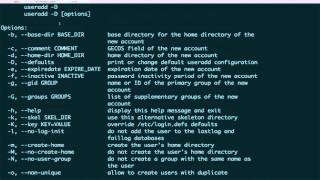
Sure. I'll just type it out for you. I did history grep user. It was this one. So useradd -m. -m creates a home directory, and -d specifies where the home directory will be created.
You good? Yes. Default, I think it's /force. It's just a root password.
No, they can look around. —unless this is any file or directory that has the other bit with the write bit, they can write to. You could log in.
Are you trying to log in, or you could try an su. Oh, yeah. Password and then the user. Does anyone know, actually, can you create a passwordless user?
Can you do what? Delete?
I believe so, but I'm not sure.
Because the login program asks for a password whether there's one set or not.
You can have it skip that. Actually, when you do the add user and stuff, does it—
What was the question? Here's the thing.
If you do a useradd -m -d /home/u2/u2, right? So we just added a user u2. If we try to log in u2, there's no password set, but it asks for a password, and if you try to hit nothing, it doesn't let you log in. So you can't log in unless you have a password. So how do you— let's say you wanted a password.
—password file. Oops.
Just do a by passwd is the appropriate way to do it. Oh, is there a— Yeah, yeah.
Oh, you don't have it installed. Go back. Oh, it's fine. Whoa. Yeah, it's pretty bare.
All right, fair enough. I don't know what you're going to—
I don't know what you're going to install that editor real quick.
Oh, is it? Take the X out. That X there?
Well, first do a getent shadow and then space U2.
Okay. Oh, so that— That dollar sign, exclamation point says they cannot log in. Oh, okay. So is that equivalent to the x in /etc/passwd?
Um, yeah, if— so the x in /etc/passwd means that it should look— it can be any character, it doesn't have to be x, it can be a through z or whatever. If there's a character in that field, that means that the system should then look for the /etc/shadow file. Sweet. If you remove the x from the /etc/passwd file, I think that grants access to the system. You don't have to have a password to log in. You can test that real quick.
I just did. Yeah, that works. So I removed the X and it let me log in.
Nice. Yeah. So it can be any character in that field. That means it's going to check the shadow file. I learned that from that linked API book, by the way. I didn't actually know that it would work.
That's sweet.
So is it basically like the no login flag is sort of set automatically?
Because the password hasn't been set. Sorry? That makes sense though, right? Because like you don't want— you don't want in that short amount of time before you set the password, you don't want someone to log in, right?
Because it's like, okay, when you do the add user and stuff, it doesn't ask for a password, which means that the account is there with no password set. Yeah. So I mean like theoretically, yeah, but okay, but that actually makes sense.
Well, you could see how it would be, right? Like so let's say a sysadmin was adding new users. Let's say we're adding students at a school. And we're preloading each home directory with the student's grades for last semester. And let's say we added all the users before adding their default passwords. So we added user Lucian, and they put my shitty grades in the home file, in the home directory. But, you know, anyone could just log in as Lucian without a password and see my grades if that wasn't the case. So until they added the password. Does that make sense? What's up? I got a question.
What does the shadow file do? What exactly?
I know it holds the password hash. Yeah, as far as I know, it's just for password hash. I don't know what the historical reason is because I think everything used to be in /etc/passwd. I think the password hashes used to be in there as well, but if we do a cat /etc/shadow, you can see the password hashes are in here.
Can I be curious?
Could you look at the default? I would be curious what the default is. Whether the default permissions on /etc/shadow and /etc/passwd were different.
Oh, just the permissions on it?
Yeah, I'd just be curious. I should only have upcoming in the title.
So shadow is 6— oh, okay, that's interesting. So anyone who is not root cannot even read /etc/shadow. Yeah, because it's— That makes sense.
So it's like somebody who's not root can't— because it's like the /etc/shadow would be their password hashes, and so you can't— so if somebody wanted to grab the hashes and start doing a brute force—
Got it. That makes sense for them to separate it then. That means that any—
Why does it make sense?
Because— okay, so the way it's set up right now here, you see— okay, so /etc/passwd— I'm using the stat command, by the way, which is a nice way to show permissions because it shows not only the ls -l sort of representation, but it also shows octal. So I'll talk about octal in a minute, but so on /etc/passwd we have read permission for all users on the system. Everyone can read. Owner can read, group can read, and other can read as well. So that means I can be Joe Schmo and I can read the /etc/passwd file. So that's nice because then I can query who's on— who, like, how many users are on the system, what users exist. But I have to be a root user to be able to read the /etc/shadow file, which contains password hashes, which could be sensitive.
So that's nice. What does /etc/shadow do? Huh? What does /etc/shadow do?
Oh, so that was just a substitution. I just replaced u2:x with u2: just to get rid of the x because no editors were available.
Where is the x? Okay.
I gotta leave.
Bye, I'll see you around.
Is that minute, right? 39? Yes. Okay.
I'm impressed you used sed because I never really learned how to use that.
We should have a sed talk. Sed is cool. It probably is. I wanna learn more about it because I've seen some amazing stuff done with sed. I think that one time we sort of had nothing to do, I showed you guys that sed Tetris thing, which just shows there's crazy things you can do with it.
That's cool. I'm just like, that's cool you know how to use it because I don't.
Okay, so let's talk about changing the file permissions. So we have this file. I'm just gonna give it some contents to make it more interesting. The way filesystem permissions are usually referred to is actually not by this long string here because I guess it's a little cumbersome, and also it's not really the way it's stored on the system. This is sort of just like a visual representation that makes it clear what the permissions actually are. The way the system actually likes to refer to file system permissions is by an octal representation. An octal, if you're not familiar, is a number base that goes from 0 through 7 inclusive, and basically the reason they choose that is because you see how we have our 3 groups of 3 here? Well, if you write 111 in binary, You can see how these are kind of just binary flags, right? They're either on or off. There's not really any other values they can be on each position. So the first one of each 3 can only be an R or a dash. The second one can only be a W or a dash, and the third one can only be an X or a dash. And I don't think I mentioned X before, but X is for execute, which allows you to run programs. So that's basically like a binary representation, right? So if you take 3 of these, you go 111, well, that's 7 in binary. So you just basically need a number base that can go from 0 through 7. Well, hey, octal's perfect. So what they do is they just represent this as an octal triplet. So we could represent the file system permissions that are already on this file as 644. And the way we get that is we take a look at the first group here, and this is basically a binary 110, and if you convert that to decimal, that's 4 2, which is 6. Look at the second one, 4, and the third one, 4. So 644 would be the same thing. And if we look at— if we do— if we run a stat, I like stat because it shows, like I said, it shows the octal. If we look at stat file, hey look, 0644, and it matches up. I'll talk about that first digit in a minute, but it's actually optional in most cases, so we can afford to gloss over it for a few minutes. So let's say we want to change this file to allow everyone to be able to write to it. So remember when I was user, when I was the user called user, I couldn't write to the file, so let's change that. So we use a utility called chmod, and if we take a look at the man page here— oh, we don't have man. Let's take a look at the help. You can see the usage is chmod, we can give it an option, but we pass it a mode and then a file to work on. So chmod is nice in that it actually allows some sort of visual representation of what the file system permissions are instead of having to use Octal, but you should get in the habit of using Octal just because it's more precise, I think. So anyway, so let's change this file. So let's say we want everyone to be able to write. So that's gonna be 666 because 6 stands for read and write permissions, and We repeat that 3 times to make it for the whole system, for every user. And since we're root, that goes through just fine. Let's try su because someone mentioned it earlier. So if we do su user, cool. That's probably even better than login because it doesn't spawn a login shell. Okay.
I did the same thing. It's not letting me spawn.
Did you change it to be specific to whatever user you created? I mean, if I were you, I'd just edit it with an editor so then you can see what you're working with. So all I was doing was removing that x bit, right, or that x character. Actually, so does su— Can you say a command? Actually, I should just change because that's going to get annoying. Lucian? Yeah?
If you don't specify a shell for a user, you can't log in, right?
If you don't specify a shell explicitly, it implies /bin/sh. Yeah. Since we have this experimental U2 thing, let's try that. I just changed our default shell to bash.
What does that mean?
Shell? Oh. Sorry, what's up?
Password. No, the— that.
This? I was replacing— see here how it says /bin/bash? That was the same as this before, but /bin/sh is a really limited shell really only intended for running scripts.
What does that sed say?
That sed says go to the line that starts with user, so this line, so we're not going to affect any other lines in the file, and then replace sh at the end with bash. Basically just apply the substitution. We were going to test that about the shell thing. Oops.
What do the brackets mean?
The bracket is apply. Run a command on the lines that match from a previous command. The previous command was this slash here, which means match a line, and then it says, "Okay, once we match that line, we're going to run a substitution on it." Is that a sed thing? It is a sed thing.
That's related to regular expressions, isn't it?
Yeah, but I don't think that part's standardized because that's sort of a sed-specific thing, being able to run commands on top of each other like that.
Why don't you just find the YouTube itself and replace it?
What do you mean? Well, I don't have an editor installed, so I'm kind of making do here.
No, no, no, I'm saying, um, s slash, um, I don't know what you call the arrow up YouTube, since that means YouTube. Yeah, so run a sed using that, slash that with the s in front.
Oh, because— so if I did that, I'd have to replace— so it's going to match this and it's going to say, okay, what do you— so it's going to find the right line, right? But it's going to say, okay, U2, what do you want to replace U2 with? So that's not what we want to do. We don't want to replace U2. We want to replace something later on that same line.
Oh, so, okay, keep going.
So what does the other one do that you have?
This one? Yeah. So this one says, okay, we're not gonna do a substitution just yet. First we wanna locate that line. So we're gonna locate the line using a slash command, and then the way slash works is you say slash, then your pattern to match, and then another slash, and then a command to execute on it. So this works out really nice. Like let's say, Since we're on a slight aside here, let me just do a demo here. We have a file called f here, and it has 3 lines: 1, 2, and 3. Let's say we want to say— we're going to use the find command, and we're going to say 2. And we're gonna go into file F, right? So what that does is it's gonna say, "Hey, missing a command," 'cause I found this line and I don't know what you want me to do with it. So let's say we wanna remove that file, so we just put a D for delete. So now it just returns 1 and 3. So what we're doing with this command is I put the bracket because I think if you don't, it gets confused with the extra slashes or something. Really, the brackets are intended to run multiple commands, like chaining them. But anyway, and then we're gonna run the ask command, the substitute, on the matching line.
Does that make sense? Oh, so you basically find— find then and replace it with sh.
Yeah, these are just escapes for the slash because I used slashes.
Find /bin and then replace that with /sh?
No, so it's find here. This will make it clearer. You can use any delimiter you want. So this is the same thing. Does that make more sense? So find /bin/sh and replace it with nothing. If I wanted to replace it with something, I'd put it here. But we just leave that empty because we're going to try to see what happens.
Why do you put the dollar sign at the end?
Just to confirm that it's at the end of the line. That's the end of line symbol. Okay, so it still logged me in. I guess— wait, that's kind of interesting, actually. We didn't give it any shell at all, and it actually gave me bash, which is more capable than /bin/sh. I suppose it depends on the login implementation, I would guess. We don't have man. That's pretty interesting. That's what happens, I guess, on this system. We deleted the shell from /etc/passwd— or we deleted what shell we wanted to use from /etc/passwd, And then we did a login, and it gave me bash. I would have expected either an error or /bin/sh, but—
So I think there's a way to tell this. Go to your cat /etc/shells. Well, you're Debian.
Isn't /etc/sh simply bash or dash or whatever? Uh, sh is symlink to dash.
Okay, and you're not dash, you're straight up bash.
Yep. Strange.
Um, there's got to be a file that says which one to go to then. Um, can you visit access.com for login? Um.
Oh, I don't know if they have the— I was trying to find the format specifier for the— Sorry, for the permission octal— oh, access rights. They call it access rights. Okay, so I use this in a script just because it's a nice way to get the octal without really putting in any effort. So if we did a stat -c %a file, that gives us our permission value. So let's test that, by the way. Let's log in as user, and— oops. So now, hey, look, we have write permission. So now if we want to say, "Hello from user," and we will t -a, or actually we will just append to file, no error, and hey, it worked. There you go, simple permissions. Let me talk real quick about execute. I believe this is actually— Yeah. Sorry, do man 5. I don't have man.
Install man.
Man-doc. Okay, should I just—
you can search for it.
It might not be here. Is it here? All right. Huh. Balls. What the fuck would it be? Oh, wow. It would count as core utils?
No, it wouldn't be part of core utils.
Man pages? Just try that, man pages. That doesn't sound—
That wouldn't have matched that pattern though. I think the repo or maybe— Oh. Yeah, this is pretty cut down.
No, we're using this for—
Maybe it hasn't grabbed this stuff yet, the catalog or whatever. Hey, okay. I like the apt whatever 1.something added that nice little progress bar at the bottom.
I've never seen that before.
How'd you do that? You probably use apt-get, right? I'm just using apt, which is similar. It's simpler. There's only a few commands, I guess. Or I guess? I don't know. I like the interface better than apt-get, so it looks cool. Anyway, what were we doing? Man what?
25 password. Are you fucking kidding me? Okay, it's got the— doesn't have— man util. Man util, try that.
Like that? Oh. So install the— okay, it installed /usr/share/man but not— okay, yeah. Well, you get to see the progress bar again.
Oh, Jesus Christ, what is it? Oh God, dude, I'm sorry, this container is cut. ManDB?
That's it. Is it? Damn it.
I had to do this one for some images too for Docker and I'm just like, I forget what it is. Because who thinks of ManDB? Like, it does not come to mind.
Yo, progress bar.
Password.
Damn it, dude, something's funky with your keyboard. I have to press everything twice.
Yeah, yeah, yeah. All right, /shell.
Uh, hold on, hold on, just get— hold on, hold on.
Yeah, or just grep the man page itself.
More is less. What's pager? Pager is just the default program for stuff like that.
It's called pagination.
Okay. Ta-da. Uses the—
If this field is empty, defaults to the value /bin/sh.
Well, that didn't happen.
There's got to be another program in here that's— or something that's— or maybe it's PAM. Maybe PAM has something that modifies it. I don't want to get too off track, but I was trying to track that down and figure out what the heck that was. I suspect it's like a PAM environments thing.
Yeah. Weird. That'd be cool to figure out what actually causes it. We could do an strace, but later. I don't know. Let me just talk about exec real quick because that's really all I'm really qualified to talk about.
I gotta leave in about 10 minutes, so—
Okay. I think this is a kernel feature, but it might have something else to do with file systems as well. When you have a text file that's marked as executable, it will read the first line as an interpreter. And the way you do that is with something called a shebang. And you're probably familiar with this if you look at shell scripts or Python scripts or anything like that. So let me get a real editor here real quick. What's gonna be quick? Let's see how quick that goes.
That's a lot.
All right, great.
Let's say we have a file here and we want to run it with the Bash shell. We just want a Bash script that says hello— oops— hello world. And we could just leave it like this, but that doesn't really tell the system how to execute it. We should do this is we should say— What do you mean how to? So we have a text file here, right? All this is is a text file. And if we were to say chmod +x file, giving it the x flag here, right? That doesn't really say— we can run it and it's going to work, but it doesn't really say, hey, do you want to use Bash? Do you want to use Python? It's just guessing that you want to use Bash because you're already in Bash. Oh, so you're going to put like— We're going to do this. We do a— yeah. That's called a shebang symbol. It's just pound sign and an exclamation point, and then you specify the path to your interpreter. You could do /bin/bash. You could do /bin/sh, /bin/. It's all going to be the same in this case. Now if you run file, it will do the same thing, Well, here, let's demonstrate it. Let's do echo shell. That returns bash. Change that to /bin/sh, and there you go. It's undefined because dash actually doesn't— or dash doesn't define that value in scripts, I believe.
What did you set it to?
I set it to sh. So even though it still works— Yeah, just go ahead and cat it also.
Oops.
And that should be the same exact behavior if we do that, I think, unless it has symlink detection. Yeah. But anyway, that's a system-wide feature that applies to executable text files.
Is there other things you can do with the shebang?
Yeah. Anything that accepts program input or anything on stdin you can use it with, which is really cool, and I need to play around with this more because there's probably something really neat you could do with it. For example, let's say we wanted to say "bin cat," and let's say we want— In this case it's kind of useless because you could just write a text file, but let's say you want to just print out the contents of the file. We have our file here, and if we run it, it will actually run "bin/cat" on the file, which of course includes that first line, so it cats itself, which is kind of cool. But you could run this on anything.
Can you run the algorithm?
Yeah. Because people like, with awk scripts, it'll say, you know, shebang bin/awk -f, which is the argument you pass in an awk script as a file name.
Couldn't you do that? I think that's what he's asking, right? Are you saying could you pass arguments to the interpreter? Oh, can you be like -o, -b, -c?
Yeah, you can. So cat has a few command line options. Put, I don't know, dash— yeah, that'll work.
Dash v should work.
Oh, actually, that won't. Let's do et. What's et? Et is extra characters and tabs, I believe. Here, we just need e because it will show end of line. I'm not sure if dash v implies— dash v implies a few others.
It does special characters, or prints them as is, I think.
Okay, this man page is different than the one I'm used to, but anyway. Oh, no, I'm sorry. I was thinking of t. t is equivalent to -V capital T. Sorry, I got that mixed up. But anyway, now we see the dollar signs for end of line. And if we wanted that to be something more flexible, I'm curious if this would work.
Oh, that's neat.
Oh yeah. No. Pass another— pass a file, another file. So go back and then execute that again.
Just add another file name. Okay.
Should I keep this? Yeah. Because this didn't work.
It tried to echo that as a file, or try to open that up as a file, right?
Oh, maybe it did. No, see it—
No such file or directory, right?
It tried to cat— Yeah, it tried to cat $*. Which isn't a file. Right, so it's not going to change no matter what we pass. See? Although it did work twice.
It did work, yeah. So how is that working?
No such file or directory.
That's the question. It's like it's saying cat that, right? But then it's also kind of working. So how—
Yeah, where's the error message coming from?
Cat.
Yeah, but like how? Well, because bash is saying exec. —l or something, bin/cat. Oh, wait. I wonder—
So it passes in the file, and then it passes in the arguments to the—
Like that or something.
I don't think l comes after. I think it's file, file after because those are the arguments to the interpreter.
Oh, yeah, yeah. Sorry, sorry, sorry.
So if you just remove the $10*, it should work.
Well, right, but why would it actually— Why would it do that? Why would it—
Because cat is the interpreter. When you run a Python file, right? Yeah. Python there, it runs Python, the name of the file that you're ./executing, and then it passes in those options to Python.
I understand what you're saying, but if you have a shell script, it doesn't work that way. Shell scripts have their own parameters, and they can interpret it how they want.
They have their own parameters, but shell takes in those parameters and passes it to the—
Here's what I mean. If you have— What's an sh option? -e, right? Or -x or something? So f2, and we can say hello, and that's going to say hello. So you're saying if we do -x, that should be passed to the shell?
I'm saying it's going to be passed as an argument to the shell, but since it knows that it's executing a file at that point, it probably won't interpret that as its own argument.
That's the thing, though. It doesn't do that, so I don't know.
Yeah, yeah. So it— how do I explain it?
Oh, you're saying— okay. If you just run—
hmm. If you run—
If you type /bin/sh ./f2 -x, what happens? Right? That line that you typed there is actually what's getting passed into exec. I'm pretty sure. Oh, okay, okay. All of the arguments goes through the interpreter no matter what.
I gotcha.
All that ./ does is puts in the interpreter name as the first argument. Or the first thing you're expecting.
Wow. Okay, so whenever we had the dollar sign asterisk, that was passed literally to Kenneth. Yeah, okay, that's why it errored.
But we still don't know why it worked twice, do we? We still got the— Oh no, because we— —basically that whole thing was just unneeded. It would have worked by default. So we could do this, and it still works.
Because what you're doing there is really just cat file file file.
Right. OK. Well, it's—
geez, this is really messed up. OK. It's saying bin/cat ./file file file. Oops. Like that, right? Yep. And obviously that returns the same thing. Cool. That's neat. It's intuitive but confusing at the same time a little bit because of the arguments. Yeah.
I've seen scripts do interesting things with not actually putting interpreters as the first line. Oh, really?
I can't remember what it was.
I'm trying to think what—
Was it just using a heredoc or something? Maybe.
I thought it was using something like sed or some kind of common Unix command. But passing its own file as the first argument.
Interesting. Oh, so maybe like— huh.
I'd be interested to see how this is done.
Can you tell sed to take a command as its— or like a file as its first argument? Yeah.
Like as an argument? Yeah, sed takes a file as an argument. Like for commands? Yeah, like a file to work on?
No, like you can put the sed commands in a file and run that file as a script.
Yeah, because it accepts standard in, right? So if you did touch file sed file— Okay. Wait. Hold on. I may have just gotten ahead of myself. Oh, I think there's an option you passed. Maybe it is. No, F is script file, so we want sed -e, right? E does a command or something.
Then set /e as the interpreter in the script, and then writing a set script after it. Let me see if that— let me actually run this. Oh, you inserted the average size instruction.
That's it.
So, okay, so like that, and then if we do— and then say file— shoot. Yeah, do file. Well, it's— oh, yeah, that'll work, yeah. But okay, so I think there's an option you pass, right? Maybe it's F? Are you saying it's F? Nice.
Nice. Okay, so we have—
sed -f is our interpreter, right? So that's going to execute sed -f to whatever file— sorry, to its own file. Actually, wait. Porter, you could probably explain this better than I could because I'm working some out of my head right now.
You're basically saying sed -f on the foo bar replacement thing on itself.
Yeah, so what it runs is sed -f final file, which ends up replacing foo bar, or like basically replacing foo with bar.
I mean, that's kind of cool.
Yeah, so there's some other thing that I saw that I thought was really cool, which is like a really clever use of making a script.
Yeah, so like basically the shell script modified Kind of.
It didn't actually modify it. It didn't actually modify it because it's not inline.
I'm sorry, it modified its source code, but it wouldn't have modified what was running in memory?
What if you do— Self-destructing shell script.
What is that? Inline.
Oh, okay. So it actually will modify the file. You can specify— some versions of sed require a— like the one on Mac OS X at least a while ago was you had to specify a file extension to be used as a backup file because it's really easy. It's really easy to mess up your files this way, especially when you use like -n for do not auto print. Like I screwed up half my website this, like at 4 in the morning once because I accidentally had a -i at the beginning of a long command and I didn't see it, and it killed the file. So be careful when you run -i. Okay, so this should—
There should be one called group run.
Oh, whoops. The "i" has to be first. Okay. Take 2.
What is the dot?
There's no dot. Dot should match anything. Wait, do you know why this doesn't work? Well, star specifies how many characters actually inside. It's not— it doesn't work the same way as like other shell globbing.
Does sedman default add one thing to the line?
It goes line by line, if that's what you mean.
Yeah, but would a—
I was expecting this to say it's going to match every line and delete them all. Oh, shit.
I gotta get going. Oh, right, right, right. Hey, um, is there any— I'd like to continue this. You guys are planning to stay later because we got more on the agenda, or we can just move it to next week. I don't know if you guys are in a hurry, but if someone wanted to, uh, continue, if they could like use their laptop, put it up here and do Zoom, then I can connect from home. But if you guys want to save the stuff, that's good too. Whatever you want to do, it just depends how long you're wanting to stay, really.
Yeah, I'm probably gonna head out too.
I probably should go take care of my border collie dog.
Sounds good. I'll go ahead and wrap that up then.
Thanks, Jon.
Sorry I took all that time.
Oh, it's all good. I wish I didn't have to leave.
I'm curious whether it's working.
What?
So the thing that Sam said with the dot before, we didn't have a dot in the file, right? Well, that was— is a dot not mean something?
No, the dot means match any character.
But it gave the error, like, unknown command dot, even before you had a dot in the file at all.
More from Jon


What No One Knows the Podcast / Vodcast featuring The Tampa Bay Wave and Jon Schipp

Meeting the Exposure Management Challenge: Key Use Cases for Success | @OfficialRapid7 #SolutionSpotlight
Spot Security Control Gaps and Non-Compliant Resources Across Your Attack Surface