In this tutorial Jon Schipp demonstrates advanced usage of tcpdump focusing on stdin/stdout handling, binary stream redirection, and parsing of captured data with standard Unix tools. He shows how to read a pcap file or live capture by using the dash '-' as a filename to make tcpdump read from stdin or write to stdout, and explains the need to redirect binary output to a file when displaying on the terminal. The video covers live piping between two tcpdump instances, highlighting the buffering issue that prevents immediate data transfer and introducing the -l (line‑buffered) option to force packets to be passed as they arrive. Schipp then illustrates how to pipe tcpdump’s ASCII output to grep and awk for quick extraction of HTTP GET requests, source/destination IPs, and port information, and walks through example awk scripts bundled with the Debian tcpdump package (packetdat.awk, send‑ack) that tally packets, ACKs, and display TCP sequence numbers. Finally, he discusses processing multiple pcap files: why concatenating raw files fails due to global headers, how to correctly merge files with mergecap, and how to iterate over files in a shell loop to invoke tcpdump on each. The lesson concludes with a recap of these techniques for flexible packet capture and analysis.
Chapters
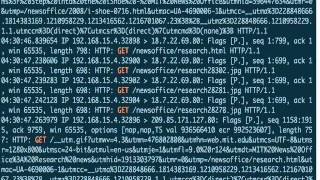
In this video, we're gonna be talking about stdin, stdout, and passing data from tcpdump to other programs. So first off, you typically read a pcap file like this, right? We're just gonna print one packet. You read it in, it prints it out. Well, if we actually pass it we tell tcshump to read from stdin, that it reads from a file descriptor that's set up. And we can do this by catting a file to stdin, which is the requirement. You have to pass something that is someone's stdout, and that by someone I mean the program. In this case, the program's stdout, which is cat stdout, to tcshump stdin, and then it'll read the file just fine. So this kind of shows you how you can take the output or input of tcpdump and do other things with it by chaining commands together. So let's try tcpdump -ni eth1, and we're going to print 1 packet, and we're going to write it to standard out. Instead of specifying the file name, we specify the dash. Oops, got any permission to do that? Of course you don't. Always forget. And you can see right here that there's a bunch of data, a bunch of binary data, gobbledygook. And that is what actually happens when you specify the dash, because remember the -w tries to write it to a file, so it uses the pcap binary format. If you specify the dash, it tries to write that to the screen. So if we just, if we go back and we print 2 packets, you'll see more crap. Yep, a bunch right there. So what we need to do is we want to pass this to something that can do something with it. You can redirect this directly to a file, so test— or we already have that, so binary.file. And we'll go ahead and see if that does something. Give it a second while it tries to get a few PCAPs and/or packets, and it has some. So let's do file binary dot file. You can see that it is a PCAP file, and we can try to read it in with another version of peek, or with another instance of tshvidup, and blah blah, there it is, 2 packets that were captured there. Great. So we actually wrote out the binary directly to stdout and then use the shell to redirect that binary to a file. Just kind of showing you the workflow of this. Now you may have a time or case where you actually want to capture packets live, such as, um, from interface, and then pass it to another instance of TCPdump to do the parsing. So the idea here is instead of having one instance do all the work, then the second instance is what actually filters or does something for you. One just writes, the other does some parsing or analysis. It doesn't have to be just with tcpdump. You can have another program that tcpdump is writing to, whether it's tshark or ngrep or Snort or Bro, etc. It's possible to do those things, but let's focus on tcpdump since this is the tcpdump module. Now what we're going to do here is we're going to write to stdout binary packets, for our packets in the binary format. And then we're going to read it in to tcpdump with the -i, just to demonstrate these pipelines. And you'll see this isn't all that useful, but it allows you— it just kind of demonstrates the power of this. They're waiting. So either packets haven't arrived yet or they're being buffered, which gets to another point of an option that you should be familiar with. They're actually being buffered, so go ahead and kill this. Might take a little bit of time. So if we cancel that, yeah, it was— it only captured 12 packets, and that wasn't enough for it to actually pass those to the next program. So you have to specify the -l option, which to see the line buffer of the packets. In this case, it's actually as they're coming in, passing them over to the tcpdump, um, other tcpdump instance reading from stdin. Let's go ahead and try something. Let's try to sniff on an interface that has more data. Is it eth— well, that is quite a bit right there. Let's try eth1. Yeah, nothing there. Let's just see how long it takes to do the buffer one. There's a lot more traffic coming in now, so let's, um, Let's do this and I'll time it. Hopefully it won't take too long. Then we can see how many packets were required for it to fill the buffer and then pass it along to the second tcpdump instance. Well, while that's going, I'm going to background it and then run in the background. Okay, so for the next part of this, we're going to talk— we're going to actually just take the data and just pass it Oh, there it is. So how many? So around 100 that were fully captured. So we had a buffer around 100 packets. We don't know the exact number because we— because I wasn't able to stop it right on time, but probably about 100 packets that allowed— that was required before it actually passed those packets to basically from here to the second tcpdump instance. Okay, I'm gonna go ahead and clear the screen. Now let's talk about tcpdump and just basically using other tools like the Unix command or the basic Unix toolset to read and write from tcpdump's ASCII output. So what we're gonna do is we're gonna run tcpdump and I'm gonna load this specific pcap file I want to try. Uh, which has got some tac trafficking in it, I believe. trobad.pcap. And we're going to say, go ahead and print one just to make sure it's right. Yep. What we're going to do is we're going to pipe it to grep and we're going to tell grep to match every line that has a GET request. You can see there's quite a few of them streaming by the screen and we can do something else, just basic command line parsing. And this is going to match from GET to the end of the line. So match every character after. And now we just have the GET requests, and we can see specific URLs that people are visiting in that were done in this pcap, or when this pcap was taken. CNN article for 2008 for crime, Oklahoma girls, Katrina supplies, some stuff, more CNN. What else we got in here? Anything stand out? Some apparel, so maybe some shopping going on. A lot of images, new office, just a bunch of stuff. Some web objects from MZ Store Services. I wonder what that is. That could be interesting. But yeah, you can just kind of see how we're able to quickly get information by parsing it. Let's try another example. We'll use awk, which is a pattern language for a formatting pattern language, and we're going to say, hey, print the third field of the packets. And the third field happens to be, in most cases, the first IP address. And basically what we're doing— let's just go ahead and show you how that's working. So one, you say awk's default delimiter for fields is a space, or any sort, any sort of whitespace that's not a newline. And we actually have this Field 1, space, field 2, space, field 3, then space, field 4, space, field 5. So if you actually want to get just the source and destination IP address, we can use awk again, and we'll say 3 and then comma 5. And voilà, we do have it. But let's make it a little bit prettier, add a new line— or, I'm sorry, a tab in there. Now we have it formatted in a little better way. So now we can be like, oh, I want to find all the stuff matching— I can just search, we can do it like this, um, port 80. So now these are all the connections to and from that have port 80 involved in it, right? It would also match things where 80 was in the, in one of the octets of the IP address. But just to quickly do things like this is really nice to be able to separate all this data. So this kind of gives you an idea of how you can use this by piping data from tcpdump to other tools to pull out useful information. Next, what we can do is we can show you those pack— or those tools that are included in the Debian package. So show you real quick here, we have a few example scripts that are awk scripts that we can use just to do more parsing. Let's take a look at one of them or two of them, see if they do anything interesting. So this is gonna format it in a certain way. So let's try that one. So that is packetdat.awk, and how we do this is we'll read in a pcap file again. We'll do this nitrobug.pcap, and then we're gonna do is we're gonna pass it to awk -f to read that file, which reads the awk script. Okay, so it actually formatted a bunch of information for me, tallying the number of packets sent, the number of ACKs, etc. That's kind of nice. Let's try— let's see what else is available. Um, grep awk, we got sendack. Let's try that one, sounds cool. What does it say? We need the number of bytes in a packet to do the output. Okay, so it's going to compare byte sizes. It's gonna print, ah, send time, start sequence. Okay, it's gonna nicely print some TCP data, sequence and acknowledgement numbers. So let's do this one now. Let's go ahead and say run send-ack. Yeah, nice. So for every single packet it's printing the sending address and sequence numbers formatted and acknowledgement numbers formatted. That's kind of cool. So you can see how we can— you can also write these scripts yourself to do certain— to pull out certain data or fields that allow you to, you know, just be able to choose what you want. Okay, one other thing to note about stdout and stdin, etc. Is when working with more than one pcap file. So we talked about how cat, just catting that file from the binary format and saying, hey, tcpdump read the binary input using the standard in option to -r works. But if you have two files, so what else do we have here? We have, we have rip— or jon.pcap. And you can see at the bottom it says Ethernet, and which didn't finish, says ether didn't finish, and it says pcap_loop bogus savefile header. What's actually happening is cat is passing this one first, that one actually completes, and then it receives the global header of the next pcap file, which is a 24-byte header that starts off every pcap file. After that is the per-packet header that has the timestamp for each packet, and then the packet after, all the way down until the file is completely finished. So what's happening is tscap is expecting another packet header, but is then passed the header of jon.pcap, the global header, so it fails. It doesn't understand that. It's not designed to read that. So to be able to go through multiple files, you have to merge them together with the tool that's available with Wireshark, for example, called Mergecap. There's other tools also available, or you can use some command-line trickery, which we discussed in another video in the libpcap module. And then another way to do it is just kind of loop through the different files. So We can do a for loop. So if you're familiar with the shell, you can do for, you can say any, any number after any value after this. So for i in, I'm choosing i, could be num, straight, just go ahead and use num. Or actually, let's just do for file, file in pcap, and we'll say, just to show how it works, echo file blah blah blah. Whoops, uh, not if, do, done. Okay, so what it's gonna do is it's just gonna— for anything that matches this, it's stored in a temporary variable called file. And then when, when the body executes of the loop, it echoes the value of file, and that's substituted for what file contains, and that is these things that it matched up here with the star. And then it's done. So if we want to actually do something with tcpdump though, we actually have to say tcpdump -nr file, and then I don't know, we want to print 3 PCAPs or print 1 packet from each, right? And that's what it did. This is from Jon.pcap, this one packet, and this other one is from test.pcap, and that is a single packet. So that's how you iterate through multiple files. That's one way to do it. So now we'll conclude this lesson.