Tcpdump - Advanced 4 (Checksums, Verbosity)
Jon Schipp walks through tcpdump's checksum validation and verbosity options. Learn how to skip checksum verification with -K, use ethtool to check offloading, and see what -v, -vv, and -vvv reveal in packet details across RIP, NFS, and SMB traffic.
Chapters
Let's learn about some more advanced but very useful features of tcpdump. The first— we're gonna start off with learning about checksums. Okay, so I'm gonna create a new packet capture, sniff live on eth0, and I'm gonna capture one packet. I'm gonna write it to a file called checksum.pcap. Nope, sudo to open the socket. Okay, alright, one packet was captured, you can see. Now what I'm gonna do is read this pcap file in. I'm gonna pass the -v option, and we'll talk about more, more about verbosity later. We're gonna pass one level of verbosity to tcpdump while it reads this file, and basically just gives us more output. One of the things you may see is this checksum. This is the checksum. IP header. This is for the TCP header. It validates that everything in the packet, the IP packet, was okay based on the checksum algorithm when it was received and sent by the system. You can see that it says incorrect. Well, why might that be? Well, many modern network cards provide a feature called checksum offloading. And you can check whether your card supports that on Linux with ethtool -k, the network name, network card name, and then we can grep for checksum. You can see that mine has checksumming offloading for transmit checksum, so the tx is for transmit. So what this means is When your, when your operating system is gonna send a packet out, it's gonna stuff a temporary checksum inside the packet. It will then make its way to the network card to get sent out on the wire. But the, since if offloading is enabled, the network interface card's checksum offloading feature will replace that temporary checksum calculate a new one that is the correct one based on the appropriate checksum algorithm and place that in the packet. Now, whenever we sniff, and whenever I sniff on my machine and then send a packet out, the tcpdump software, any of those other software that uses libpcap, will see that packet with the fake checksum value. Before it's actually recalculated by the network card. And this is why it says the checksum is incorrect, because it's looking for the correct one, which is this, but instead we have a checksum of 184F, which is the default value that's stuffed in there. So once the packet leaves the operating system and hits the network card to be sent out on the wire, then it will be calculated and sent appropriately. So the receiving host can validate it, but the sending host, because of the level of where sniffing actually happens, it will not be able— TCPdump will not be able to see the act—
the real checksum.
It'll see the fake value. So we need to be aware of this, and we can turn it off with an option in tcpdump. We can do tcpdump --dont-verify-checksums, and then we're gonna do the same thing, -v -nr, read that checksum. Pcap file, and now you can see that there's no information printed about the incorrect checksum over here. It's just omitted. You can also do the other format that's not the long format. It's just the -K option, which— oop, -K option, which also does not validate checksums. Now let's talk about tcpdump's different levels of verbosity. There are 3 levels, 1 through 3, and they are set by simply adding more Vs. I can do level 2, level 3 to a pcap file. And verbosity allows us to, or tcpdump, to provide more detailed output about the packets that it sees. So we're gonna do one level verbosity with -v. We're reading a pcap file, I'm gonna print 1. So you can see that before we have one line of output, now we have two separate lines. And the first line The timestamp is set here, then we have the protocol just like in regular TCP output. And first, actually, I'll go ahead and bring up one of those so you can compare it. And then we have the source IP, the destination IP, etc. But that's, that's where this cuts off and changes. The source IP and dest IP are down here. Here's the verbose info right here. So first it tells us verbose info about the IP protocol. And first we have the type of service, the time-to-live value, the IP ID, which is the IP identification field, an offset, IP flags— different, or these differ from TCP flags. And you can tell by in the TCP flags we have here, we have a capital letter F, and here we have a lowercase letter f. Here this means, DF means don't fragment, Then we have another field that says what the IP packet is carrying, and it's carrying TCP, and the number to refer to that is 6. If it was a UDP packet, it would be 17. And we have a length for the size of the packet, and we have the checksumming information that we talked about earlier. The rest is the same. So if we go over to an IP header, you can see that the identification field is here, and that is one of the numbers we talked about. Also talk about the IP flags, and that is this nibble here, or not quite a nibble. Then we have the fragmentation offset, which that offset field we saw, the time-to-live field, and the protocol field. The protocol field is what actually is the value that IP is carrying. If it's set to 6, it's TCP. If it's set to UDP, it's 17. And we have the header checksum right here. So that's just a way to print out more details about the packet.
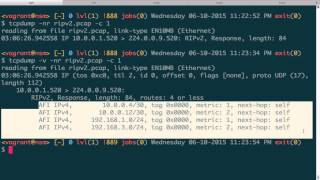
For some protocols, verbose mode in tcpdump will actually do some basic protocol decoding. First, we're gonna read in a pcap file that contains the Routing Inter— Internet Protocol Version 2. We're gonna go ahead and print one packet here. You can see that we have the, the, the IPs, the port numbers, length, and then it tells us that this is a RIP version 2 protocol in the data section of the packet. And this is actually specifically a RIP response message. Well, what happens if we actually use the -v option instead of verbosity here? You can see that it goes further. Like before, it actually gives you the extra IP header information but it act— but here it actually goes in and prints out the data, data portion of RIP and parses it out. It tells us the address family, which is IPv4, the routes themselves, the tags, the metrics for the routes, and the next hops, the gateway. So in this case, we can actually see verbose giving us more useful information than what is normally there. We're going to work with the double verbosity option, and this will just do more application layer protocol decoding. So first off, let's go to wireshark.org, go to the sample captures page here. I'm going to grab this nfs_v3.pcap and we'll go ahead and quote it. When you're downloading it, you'll need to quote it because there is an ampersand here, which is the job control character for the shell. If it's not quoted, the shell will think you want to background that particular job. Next, what I want to do is I want to send a filename that we want to specify to make it shorter because otherwise it's going to be pretty long. It's a long URL. So nfs.pcap.gz is what we'll have whenever this finishes downloading. Okay, and you can see here it is a compressed gzip format here, so we're gonna need to decompress it, gzip -d. And now we can look at, see what it is, and you can see now it is a TCP capture file. So let's go ahead and read it in, nfs pcap, and I want to search for port 2049, which is the port NFS runs on. Actually, to do a quick check of that, you can use the /etc/services file on your Unix system and search for NFS or the protocol of choice, and tells you which— what port is associated with that service. And 2049 for TCP and UDP. So my filter here, nfs.pcap, port 2049 matches it for UDP and TCP because we didn't specifically specify the transport protocol. So we're gonna go ahead and run that, and you can see that tcpdump automatically told us what kind of stuff, what kind of data, or what kind of the application layer protocol was inside the IP packet. It says NFS, and it was able to do some basic decoding with request and reply. Packets. So now what we're gonna do is we're gonna add the -vv option, and it's gonna give us more information. You see here we have NFS reply like we saw earlier, but in addition to that, it gives us responses, it gives us, um, the actual timestamps, and for the different, um, access times and change times of the file on the file system and file IDs, etc. So it actually gives us a further decoding of this packet, which is really nice. So now what we're gonna do is we're gonna go in the same website and grab an SMB file, pcap file, or a pcap file that contains SMB traffic. I'm gonna grab this Torture, smb.torture here, pull it down and do the same thing we did earlier, use the quotes and say smb.pcap.gz. Okay, and again we're going to decompress it, and now we have our tcpdump capture file. So I'm gonna go ahead and start off by reading in the smb.pcap file. Let's see, start the first packet here, and first packet is using SMB. It's over port 445. See if we can do SMB, let's see, services, um, what else is it called? SIFS? Nope. Search 445. Ah, they call it Microsoft DS. So, um, that's what we want here. And what we're going to do is we're just going to go ahead and match everything on this port 445. That's just the SMB traffic. You can see there's a lot of it in there. So what we want to do now is see if it gives us any information by default. That is, TCP don't give us any protocol decoding information. If we look here, we can actually see that it does. It gives us, um, after the TCP stuff, it tells us that's an SMB packet, and then there's a basic SMB command, SMBWRITEX, and then here's an SMB CREATE command. These are replies and requests, which What happens if we want to get more information? Well, if we do the -v, all we really get is the extra TCP header— or excuse me, IP header fields that we talked about earlier. But we add the -vv again for double verbosity, and we'll actually get detailed protocol information. Let's go pipe it to a pager so we can sift through it. You can see here we have the TCP and IP protocol fields. Now, then after that, we have the SMB packet. And where we saw just this earlier, now it has all this extra data that TCPdump was able to decode for us. And this is really only useful to you if you actually understand and know the SMB protocol, but TCPdump gives you this information when you ask it for it. And there's some actual data here, application data it looks like. It's really ugly because it's a binary protocol, but there it is. Okay, and if you actually want to do search for what the other protocol stuff has, you can do the --v in the man page, and it says even more verbose output. For example, it does Telnet character options, and they are printed in full whenever the Telnet protocol is seen. And it probably does it for a few other protocols because it says 'for example,' so it'd be interesting to see what all those are.
More from Jon


What No One Knows the Podcast / Vodcast featuring The Tampa Bay Wave and Jon Schipp

Meeting the Exposure Management Challenge: Key Use Cases for Success | @OfficialRapid7 #SolutionSpotlight
Spot Security Control Gaps and Non-Compliant Resources Across Your Attack Surface