Jon Schipp covers snap length, which truncates packet data during live captures to boost performance, and packet timestamps stored in the libpcap header. He shows how the TZ environment variable changes displayed times and why timezone consistency matters when comparing captures from different locations.
Chapters
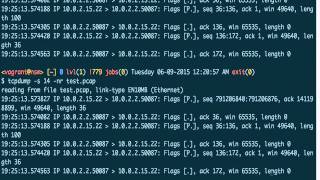
Alright, let's learn about snap length. Let's go ahead and open up the tcp.manual page. I'll increase the size of the screen, or the font, just a little bit and search for snap. You can already see that -s is the option for snap length, and it's a way to snarf, is the word they use, bytes of data from each packet. So what this means is that we can truncate data from a packet at a certain point, and this is useful for a number of reasons. Mainly, I see it as a huge benefit whenever there's a large number of packets coming across the wire and you only need to focus on— because you know that you're— the data that you're looking for is between a range in the packet. So if the packet is greater than is 4,000 bytes and you know the data is somewhere between like say 200 bytes and 2,000 bytes, you can, you can specify the snap like to trim off at the 2,000th byte. That way you, your capturing packet program, in TCP in this case, does not capture anything after, which actually causes more performance overhead because it has to take care of each extra byte. Let's go ahead and give it a demo of this. And we're gonna go ahead and listen on eth0. Give it sudo here because I'm a normal user. And we're gonna say, let's just go ahead and show you what's going on right now. So there's some packets coming up. Now what we're gonna do is we're gonna specify a snap length of something really low, and we're gonna do 14 bytes. That's very low, so that'll won't even be rendered useful. So unless you just want the Ethernet header. So 14-byte snap length. And just print the first 5 packets. And you can see that everything before was truncated, and there's just this, there's not much there. So let's add some more bytes, let's add 68 bytes. Ah, now we got some more information. And funny thing about 68, that actually used to be this default snap length in older versions of tcpdump for IP. Then they bumped it up to 96 bytes, and now currently the default is 2 to the 16. Um, so let's go ahead, which is 65,535 if you're counting from 0. So just see, you can look for the word default now. Search default. So the snap length bytes is now a default of 65,535. So pretty much handle its largest value you can send, or you can set. So you'll be fine with this number, um, but you may also want to go lower. So let's just do 96 bytes. We don't want to have too much data. So let's just do 96, and that— if that's all— excuse me— if that's all we need, then that's all we need. We don't need to capture anything extra. And you'll find out when it comes to performance on systems where there's a high packet rate coming in, such as high hundreds of thousands or even millions per second, then this can actually mean the difference between tcpdump losing packets at the kernel or being able to capture them. And process them. I wanna make one more note about the snap length, and that it only applies for live sniffing. That is, if you were sniffing on the interface, it works. If you were not, it does not work. And let's just demonstrate that so it gets across to you. So let's do, um, we're gonna read in from this test.pcap file, which you can see there's a few packets there, and we're gonna specify the snap length of 14 here. And again, Reiterating my point here is that nothing was trimmed. The entire data sample or dataset is still there, and this is because in the tcpdump.c file in the source code, when you set SNAP_LENGTH, it's only in a function that is working on live interfaces, so it simply will not be able to trunk data coming in from a pcap file when it's being read from a file. Hey guys, we're gonna be talking about timestamps today. So let's go ahead and take a look at this test.pcap file I have here. Whoops. And remember, we briefly discussed timestamps before, and that we have by default, we have the hour, minute, the second, and the microsecond for each packet. Remember, each packet is on a line itself. This line is wrapped, so this is all one single line. Then we have the next line after, all the way across, and so on. So every packet has its own timestamp. So where does it get that timestamp from? Well, we take a look at the libpcap file format. Every single packet has this data structure assigned to it. So inside this data structure, there is this ts_sec variable. It's a 32-bit unsigned integer that stores the value of the timestamp. In seconds. And this particular value is Unix Epoch time, that is, is the number of seconds lapsed since January 1st, 1970. And if you are a Linux person or you work with Unix or Unix-like systems, you're probably familiar with Unix Epoch time. Also, there's another field or another declaration right here for the microseconds. This, this actual variable is where the microseconds extension is actually placed in there. So that will store that. Next, it might be, or you should ask yourself, why is this useful to me? Well, you may come across or have to do an investigation where a pcap file has been captured in another place, and when you transfer it to your system, the timestamps are not the same as when they were captured. Your system will actually translate it to its current system time, and we're gonna demonstrate that. This is something to be aware of. Okay, so what is my system time? Well, one way to do it is to find out is to use this particular modifier for date, and tells you that I'm using a UTC, Universal Coordinated Time. And this is a recommended time for investigations and syncing logs across systems in different geographical areas. They have one reference point. So that's what my my machine is set to right now. Another way to do this on a Debian-based system is to cat /localtime, and that shows that it's UTC as well. Or cat— I may have a timezone file. Yeah, this shows as well. Okay, so now that we know this is actually— this pcap file that we looked at is reading these pcap or these packets and printing out the timestamp in from UTC. Well, let's, let's change that. So I'm actually in, um, I'm on Central Time. I'm located in Champaign, Illinois right now. So let's set the TZ variable, which is a locale variable, a locality variable that sets the timestamp for your environment. And programs typically will read that. Not all programs do, but some will read that, and then based on what the value of that, they'll change their output. And we're gonna say Americas, and then we're gonna say Chicago because Chicago is on Central. And then we're gonna read in this file again, test.pcap. And, oop, let's see here. Is it America? Yes, it is America, not Americas. So you can see that now the timestamp has changed. And this is a 24-hour clock, so this is actually at 2:25, 13 seconds after 2:25. And to further demonstrate that, let's do Indianapolis because that's not too far from us and it's actually in Eastern Time. So, and then it's an hour ahead Eastern Time. So here it's 3:25 and that is 13 seconds after 3:25. So now that we can see if we have a pcap file and we need to investigate and it's from another time zone and we need to correlate it to time based on where the pcap or the packet capture was recorded, we would have to change our TZ environment variable to the time of the person that, that investigated the cap or created the capture file and passed it to you, for example. Or you can also have that, that, that, that same reference point of UTC, and then, then it'll be more synced across your system. You don't have to worry about it, but some systems are set to local time, and that's why this matters.