In this tutorial Jon Schipp walks through the structure of the UDP protocol and demonstrates how to dissect UDP packets using tcpdump. He begins by describing the minimal 8‑byte UDP header—source port, destination port, length, and checksum—and explains how the length field represents the sum of the header and payload. Schipp then shows how to read a pcap file with tcpdump, applying UDP‑specific filters (e.g., "udp", "proto \UDP", "ip proto 17") and the -x option to display hex and ASCII data. He explains how to determine the IP header length from the IHL field, locate the UDP header offset, and extract source and destination ports using printf on specific byte offsets. The video details how the IP protocol field (value 17) signals that the payload is UDP, and how to verify this via /etc/protocols. Schipp further clarifies the relationship between the IP total length, the UDP length field, and the payload size, illustrating calculations that reconcile the 60‑byte IP packet, the 40‑byte UDP segment, and the 20‑byte IP header. Finally, he covers the UDP checksum computation using a pseudo‑header (source IP, destination IP, protocol, length) and notes that a checksum of all zeros is acceptable for crafted packets, relieving the need for full checksum calculation.
Chapters
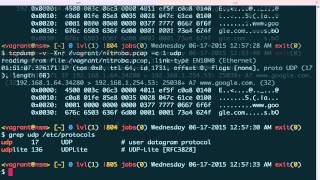
Let's talk about the simple UDP protocol, and when I say it's simple, I mean it's simple because of the header. The header size is only 8 bytes, and there's nothing too fancy about it. So the first 2 bytes are the source port, the second 2 the destination port, the, the next 2 after that is the length, and And the length over here, if you go to the wiki page on it, says that it is a field that specifies the length in bytes of the UDP header and of the UDP data. So we add the UDP header and the UDP data, that is the payload that UDP happens to be carrying. You add the size of those together and that equals the value in this field, that is the length. And finally we have a checksum to validate the, um, the packet. So let's go ahead and move over to the tcpdump here, and we're gonna go ahead and read in a pcap file I have available called netrobo.pcap, which we've used before. And we're gonna go ahead and print, uh, 1 packet, and we're gonna specify the UDP filter to say, hey, only print UDP packets. Okay, you can see the first packet available was a DN— or a DNS packet, which uses UDP. There's another way you can specify it. You can also use the proto primitive in BPF, and then you can say backslash backslash UDP. It needs to be escaped like that, and that's another way to do it. And of course, if you only want to do IP, that is protocol UDP in IPv4, then you do IP like that. And if you want to do IPv6, you do it like that. Okay, so now, um, we know a little bit about, um, how to specify filters for it. So here we have a machine trying to contact, uh, from source port 3428 to a DNS port 53 on this host right here, and it's a request for an A record from google.com. This— whoever sent the request wants the IP address of google.com. What we're going to do next is we're going to add, um, the -x option here to print the ASCII and hex data for us of the packet. Okay, so now we get more details. First off, the— recall that the IP header is 20 bytes in length if and only if there are no IP options. And the way to tell if there are IP options is to look at this nibble of the first byte of the IP header. And that nibble represents the number of 32-bit words, that is 4 bytes inside the IP header. And if the value is 5, that is 5 times 4 because they're 32-bit word is 4 bytes, then the IP header is 20 bytes in length. So 5 times 4, so that tells us, hey, this is 20 bytes in length, so now we know where to expect the UDP header, and that is right after those first 20 bytes. So here we can see that there's a little scale for us, and across each row is 16 bytes worth of data. You can recall that a hex digit like that is a byte in size, and if you put 2 of them together, of course, that's 2 bytes. And if we just go ahead and look here, we got 4 right there. So 4 and then 4, where 2 bytes are in each set. So then we multiply that by 8 here, so it'd be 2 times 8 because there's 2 bytes here and we have 8 fields, and that equals 16. All right, so next, if you want to quickly look to see what this is, we can do printf here. And, um, %d to say, hey, we're going to just print the decimal conversion of that. And we want to do 10, and that is 16. So that's how we know, um, where we can have an offset. 16, this will be 32, and you add 16 to that and we have the next number. So quickly, just to see, 32. All right, so now let's go back to the tcp.command, do it again. So what we have here is if we count, if we do the offset of 16 That puts us right here because we're in this row though, 16 in decimal, right? Then we skip this 2 bytes and we go to the next 2, and that ends up being the 20-byte mark, right? Because 16, 2, 18, 2 more, 20. So right here, and this is actually where the UDP header starts. So if we look at this value and we do, we print that in the same way that we print the earlier printf, and prefix the hex prefix on here, you can see this 3428, and that, if you recall, was a source port here that TCPdump was able to pull out, identify for us. Next, following the UDP header, if you go back to the, the UDP header graph here, or the image, you can see the next field is a destination port, and that we would expect to be 53 in decimal. So let's go ahead and do this. Voilà, 53. Okay, and let's stop right here for a moment and talk about one more thing on the IP header, and that is you need a way to determine what IP is carrying. And how was, um, tcpdump able to actually tell us what is above? And to do that, we need to again use tcpdump. We need to apply the -v option, and here it actually says proto UDP. F17. So 17 is the actual decimal number that represents the UDP protocol. And IP has— the IP header has a field called the protocol field right here. It's a 1-byte field that once TCP/IP reads that, it knows to apply, or knows what protocol is coming after. So if this is set to 17, then you can see they have a bunch of them down here, then it's going to be UDP. 17 is UDP. And funny enough, you can actually apply the numbers. If we do the filters, do another filter here. We can actually do, um, proto, you can do 17, and it also worked to print that same packet. You don't have to specify UDP. And there's a file that actually has a list detailed for you. So if you go to grep UDP /etc/protocols on Unix system, you can see that it says that UDP, the User Datagram Protocol, is number 17. So this is the way you can quickly reference it, um, from this file. Where in the IP header is this 17 value located. So let's quickly go over to the IP header graph or the diagram, and you can see that every— all these headers start with a byte offset of 0. So we'll go down to 8, that's the time to live field. You can see 9 right here, the 9th byte, which is where this would be. This is actually where the protocol field begins. So let's go over to tcpdump, and we can do— we can go ahead and count over 9. So here we have where 8 ends, but we start from 0, so it'd be 7, 8, and then 9. So this is an 11 number. So let's go ahead and do the printf thing for that value. And %d, and then we'll say 0x11. You can see that, voilà, it is 17. So that's where that comes into play. That's how tcpdump and the operating system knows what IP is carrying. It simply looks for the value in that field. Now let's talk a little bit about the length field again. So given the packet that we have in here, the length field— go back to the UDP header— is the third field here after the destination port. And this was the destination port, so here's the length field. Take a look at this. We'll go ahead and print the value of that. You can see that it is 40, and according to the definition, if you recall, the length is the UDP header, which is 8 bytes, plus the UDP data. So If we look up here again at the packet and take a look at the length, this is of the IP, this is follows on the IP line, so that is the IP length, the length from the beginning of the IP header to the end of the data that the packet is carrying, and that is 60 bytes. That is, you can see it's not including the link layer. If we take a look at the UDP stuff, we go down here, you can see it says the UDP value for, um, The data that is carrying the payload is 32 bytes, and if you add that 8-byte header to 32, you have 40, which is that number that we just got. And thus, um, 60 minus 40 gives us— which gives us 20, which is the length of the, the IP header. So again, um, 40 is the value for the UDP header plus the UDP data, and that is 32 bytes of data the UDP is carrying, that is the google.com and stuff, plus the 8 bytes of the UDP header. The checksum field is used to do— perform error checking on the UDP header and the UDP data. If you go over to Wikipedia, it tells us that, um, the computation is done by a 16-bit ones complement of ones complement sum of a pseudo-header of information. So whenever the receiving host receives a UDP packet, or when it transmits, it uses this pseudo-header, which is essentially— it takes pieces from the IP portion of the packet, the source IP address, the destination IP address, the protocol field, and the UDP length, and does the ones complement calculation on that. And this is not transmitted over the wire or anything, this just happens whenever it receives by the operating system. It takes all these fields and pulls them out and does a calculation on them to validate whether the, um, the packet was valid, or that it is— it— the checksum represents the data that is inside the packet. And if it's not, it's discarded. And then the case of UDP, since there's no keeping track of everything like there is in TCP, it's connectionless, UDP is connectionless, then the receiving application actually has to take care of requesting the retransmission from the, from the client. So that's just a little bit about that. Also, when dealing with UDP, one thing to note is that UDP value for the checksum can be all zeros. You can set that and then it'll, your machine will handle it just fine. So if you're doing packet crafting and such, or just messing around and you want to craft some packets, you can set the field to all zeros without doing the calculation, and your operating system, or at least most, will, will consider it okay and consider the checksum valid.