Tcpdump - Protocol Review1 (IP)
In this instructional video, Jon Schipp walks through the IPv4 header structure and its key fields using live tcpdump/tshark demonstrations. He begins by highlighting the minimum (20 bytes) and maximum (60 bytes) header sizes, explains how the version and Internet Header Length (IHL) nibbles determine header length, and decodes each header field—ToS/Differentiated Services, Total Length, Identification, Flags (including the humorous "evil bit"), Fragment Offset, TTL, Protocol, Header Checksum, and source/destination addresses. Schipp then introduces IP options, focusing on the Record Route option and strict/loose source routing, showing how options extend the header to 60 bytes and how routers handle them. He captures ICMP traffic with ping, demonstrates the -v and -X tcpdump flags to reveal option data, and explains the limits of the Record Route option (max nine stored addresses). Finally, he generates a large‑size ping (2,400 bytes) to force IP fragmentation, explains MTU constraints, shows how the Identification field groups fragments, interprets the More‑Fragments flag and fragment offsets, and calculates fragment lengths. Throughout, he uses concrete tcpdump output, hex/ASCII views, and pcap files (google.pcap, ip.pcap, fragment.pcap) to illustrate each concept.
Chapters
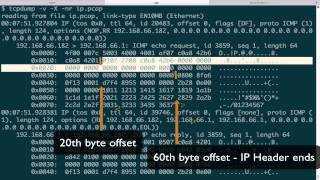
All right, hope you guys are ready to learn about the most widely used routable protocol on the internet, that is IP, also known as the Internet Protocol. Jump over here to the IP header structure. This is an awesome diagram that shows it very well. So first off, there's a few important facts I want you to remember. And that is the minimum header size for the IP protocol is 20 bytes. The maximum header size for the IP protocol is 60 bytes. Do commit those to memory. Most of the time you'll be working with, um, or seeing, uh, 20-byte IP headers, but there's an optional IP options field that can, um, make the header longer. Also, the maximum size for the IP header is 65535. So let's go ahead and move over to the tcpdump, uh, or the terminal window so we can run tcpdump here. And I'm going to go ahead and open up, um, first I'm going to use a -v option for verbose, which will print out extra information about the IP header fields. And then I'm going to read in a pcap file, just do google.pcap. And then I'm going to use the -x option to print ASCII and hex data of the actual payload portion of the packet. —well, of the entire IP packet. And then what I'm going to do is I'm going to print one packet to begin with so we don't clutter up the screen. So this field is what's added by the verbose option, the -v. It is the field that— or this line adds all the— a number of different IP header fields. This prints them out for you so they're easy to see. So let's begin with the first byte of the IP header. Beginning offset 0, and that is, um, this byte over here. You can see this is 1 byte and there's 2 fields in this byte. So each of these fields are 4 bits, and in computer science, a bit is all— or 4 bits is also known as a nibble. And the first one is the version number. You can see down here it says the version of the IP protocol, 4 or 6 are valid. The next, um, nibble is the internet header length. And this is the value of— or the value here is represented as 32-bit words, and it's used to describe the size of the IP header. It's how the operating system knows, or any device like the routers know, how long the IP header is. And if you look over here, it's set to 5. So 32-bit words is, uh, 32-bit words are also equivalent to 4 bytes, so which is 32-bit divided by 8. What this means is we can actually multiply this 5 here by 4, and that equals 20. And that actually means that this is the 20-byte— this IP header is 20 bytes in length. So this is actually how we know how, how the size of the IP header. Now if we have IP options enabled, this particular NIBL will be larger, and we'll show that later. The next field is the type of service that's also shown up here, ToS, and that is now known as differentiated services, and it's used for quality of service and latency and stuff like that, setting particular bits that routers and devices are programmed to read in and, and decide whether to transmit faster or something like that. So Just a way to provide priority on packets. And then we have the field after, which go ahead and refer back to the, the diagram. This is this total length field. This is a 2-byte field. And this, this particular 2 bytes is the total amount that, or is the, is the size of the IP header and its data. We refer to this total length, and that is different than the header length field or the internet header length field. That's one way to clarify those two is that this one's just of the header length, and this one is just the size of the IP header plus the data. It's the total length. You can see that if it's 2 bytes, that is 2 to the 16, because 2 bytes is also 16 bits. That means it's— there are 65,535 possible values. Or 36 possible values if you start from 0. And the biggest, like I said earlier, is that the maximum packet size for IP can be 65,535. So that's where this comes in, that's why, this is how that's determined. Next we have the IP identification field, IP flags field. The identification field is actually used for fragmentation, which we'll also talk about later. Also we have the IP flags field. Remember TCP, or you may or may not have known, but TCP has if you didn't watch the other videos, has its own flags field that specify what the segment is supposed to do. And this one has 3, 3 different bits, 3 different options here. So the first one is the reserved bit, this X, and that is, it is not really in use. There's a humorous RFC that went around called, that refers to this bit as the evil bit, that this bit is set, then the packet must be evil. It's kind of funny, but you can check it out. The next bit is the don't fragment bit set, don't fragment bit, and that means that the router should not fragment this particular packet into smaller pieces. Then this one's the M, or this is the more fragment bit, and that's just a way to say, hey, more fragments are gonna follow. Then we have the fragment offset field, and this is a way to refer to data after the IP header relative to the beginning of the first fragment. So that during reassembly they can all be put together in order. Then we have the time to live field and the protocol field. Let's go ahead and go back here. So we're actually right here now. If we count over, the time to live field is 40 here, and we do printf and print that in decimal. Yes, your x40, that is 64. And if you look at the top here, TTL for time to live is 64 when TCPoat translated it with the -v option. And the time-to-live field is a field that describes— using a number describes how long the packet should live, its lifetime. And it does this by— so we started out 64, which your OS sets. Different operating systems will set different numbers, but in Linux it's common to see 64. Once the packet hits the first router, say my home router, it'll be decremented. That 64 will be decremented by 1. It'll then become 63. And for each router that it hits, it'll be decremented by 1. And then when it gets to 0, it gets— it becomes discarded. The packet— the router throws it away. And the reason we have this is to prevent routing loops, or packet loops actually. So we prevent these never— these packets from having this never-ending cycle where they just route throughout the internet. So this is how we put an expiration time on packets. Next, we have the IP ID field. Here's a translation right there. Oh, I'm sorry, not the IP ID field. We were right here. So we have another field, and that is at the 9th byte offset, I believe, or the 10th, and that is the protocol field. So if you go back here, so we have 8— oh no, that is 9, 9 byte offset right here. And this is a field that tells our— the operating system what kind of protocol IP is carrying above it. And if you take a look here, we have 06, and we can do grep TCP. So I know this off the top of my head, so I'll just show you. 6 is TCP, and you can see over here that TCPip already took care of that and showed you that it was 6 up here with the verbose option, and it translated that to ProtoTCP for you. So, um, after that we have the header checksum field, and this field is used to perform a checksum on the header, and if the header checksum fails then the packet is discarded. So it's a way to validate or keep the integrity of the packet and lets the router or host know that it's been tampered or damaged or something. So that's just a way to verify that. Then we have two, two fields after, which are the source and destination IP addresses, and we all are familiar with those. Alright, so now let's talk about an IP option. So first off, what I'm going to do is I'm going to begin capturing on my interface for packets that match the criteria of IP and ICMP. I want to background it, and then I'm going to go ahead and use ping to print, to use a record route, which is a type of IP option. And we're gonna say, hey, only do one packet, and then I'm gonna give it an address here. I'm using my local router. Okay, sent the record route. Pull it from the foreground, quit that. Now I have a pcap file that has that information in it. So, so we go to ip.pcap, read that in, and you can see we have two packets here. And they look like normal ICMP— when you use a ping, that is normal ICMP echo request and its reply. But there's more to it here. We're using the -V option, the -X option. The -V will print more IP header information in this case, and the -X option will print, uh, data in from hex with hex and ASCII, um, of the data in the packet. Okay, so we're going to stop here. We're going to go over to, um, the internet here. And type in IP options. Let's go to the first link from IANA. You can see here that says the internet protocol has provision for optional header fields, and there's actually quite a few of them. So we're going to be specifically used talking about record route, which is an old one not really used anymore. A lot of these aren't really used at all, and you'll probably— we probably won't encounter them, but you should be aware of what this is, that this is a field in the IP header, and they can make IP do different things. 2 that might be concerning is the strict source route. Anything that matches source route, let's just do that. So we have strict and we have loose. This is a way that someone can craft packets that only follow a particular path, that is, they hit the routers that they want because they set the source path, source path in the packets. And this was a security concern many years ago, and it could be still today, but most routers will drop packets that are not allowed them if they have the source route options enabled. Be aware that that can be— it could be still an issue. So now we're gonna go back to this IP datagram, and we see it's an ICMP echo request. And then what we want to do is really want to show— what we're trying to do here is show you how do we know that IP packet contains options. Well, we talked about the header, the internet header length earlier. We'll talk about that again right now. So remember, the first nibble, first 4 bits, is the header, uh, or the, excuse me, the version number. The second nibble in the first byte is the internet header length, which is the number of 32-bit words inside the IP packet. And if it's set to 5, you multiply that by 4 because a 32-bit word is equal to 4 bytes, and 5 times 4 bytes is 20, meaning the minimum header size, or meaning the packet's header size will be 20. However, this is F. And F in hex is 16 or 15, sorry, that's right. So what this means is, so it'd be 16 if it was starting from 0. What this means is this packet has IP options enabled. So we take that 15 and we multiply it by 4 and that we get 60. So just to verify, 15 times 4, we get 60. So that means the— we have the 20-byte header, and then the rest of those bytes are the actual IP options. So, um, here we have 16 bytes, we start at the 18th, here's the 20th byte offset, and then After this is all the, all the IP option stuff. So what record route does is it is a way, it's like a precursor to traceroute almost. It's a way to keep track of every route that your packet makes it to. And those routes are then stored back in the IP packet. You can see here when we use the -v option, it translated, it found it and it printed the options field up here. And it said, hey, this is RR, which means this is a record route packet. And here's the places it traversed, which are then stored inside this packet. So what we can— or if we go back to the— to— let's go here. Actually, let's go to a more detailed, um, guide. Actually wrote one a long time ago. Let's try to find that real quick. Um, my website here, search for IP— oops, search for options. All right. It's one of the first articles I wrote, I think, was in high school, or no, a few years after. But this packet actually details the source strict routing, loose strict source routing, and record routes. So do check this out if you wanna know more about it, which I do recommend learning. So you can say that this particular part after the basic part of the IP header, that is, once we get to the end of the destination address here, we have the IP options. So there's a number of different smaller fields in the IP options, and then the data after that. So we have this, that, this byte here, and then we have the length, a pointer, and then the route data in the terms of the, the record route. So one thing to note here is that the size is 60 bytes of the header, and that an IP address is only 4 bytes. And if it stores if the record route tries to store each route— router that it passes inside the IP header, then you're gonna be limited on the number of IP addresses that can— that are gonna be available to be stored there. And that's one of the reasons we actually went to traceroute, because it didn't use that technique. It was able to do longer paths. So in actually, in our case, you can only store 9 bytes. Let's see if I have here. Yeah, so I wrote about it. So you can only fit 9 total IP addresses in here. So we'll have 37 bytes left. So we won't actually be able to fill the 10th IP address. So 4 times 9 in this case is 36 bytes. And if we go back here, you can see that— how many do we have right here? We have 1, 2, 3, 4, 5, 6, 7, 8, 9. So we filled all of the 9 placeholders for, um, the record route. So those are 4 bytes apiece, each one of those, and you can't do any more than that. So again, there's a lot of stuff with this, these IP options, and I always forget this stuff. I have to review it from time to time. I just did a quick prep here, pretty much live though. For this video, but I do recommend if you're interested in these things to do take out, take a, take a look further. And let's quickly look at IP fragmentation. So I'm gonna go ahead and start sniffing on my eth1 interface. I'm gonna generate a pcap called fragment.pcap. I'm gonna specify a filter for IP packets and match IP packets that also are carrying ICMP. Go ahead and use sudo to open a socket there. All right, now we're gonna actually generate our own fragmented traffic. We're going to use ping and say, hey, uh, you only send one ICMP echo. And then, uh, we'll specify a byte size of 2,400. So this is the size of the packets going to send. Uh, you actually need something larger than the default maximum transmission unit size of, uh, Ethernet, which is 1,500 bytes by default. So if we can take a look here, MTU, you can see that it is 1,500. So something larger. And 2,400 bytes is larger. And I'm going to go ahead and print out my— or use my router. Okay, so let's go ahead and close that, and let's go ahead and open up fragment.pcap. You can see here we have a few different packets. We have the— we have 4. We have the ICMP echo request right here, some strange packet that's going to the router. This is IP protocol 1, the ICMP echo reply, and also, uh, some strange packet that's coming from the router to me. This is protocol 1 again. Remember, protocol 1 is actually ICMP. So if we just do grep ICMP protocols, you see that it is 1. So what's actually happening here is that when fragmentation happens, the header is in the first packet. The other packets do not carry the other fragments. Of that particular, um, group of fragments does not carry the, uh, the ICMP header. They carry the IP header, of course, it has to, but not the one above it if it fits in the first one. So that's why our tshark is not able to figure out what is actually carrying, and it's— but it is related to this packet. And we know this because of the -v option to print out more information here, and that is because of a field called the IP identification field. If we take a look at this, this field right here, and fragments that are part of the same packet— that is, you have a large packet, it is broken up into fragments whenever there's fragmentation. When it's both broken up into fragments, each of those fragments contain the same number to refer to that one packet, that larger packet that was broken up. So that's how they're grouped together so that when the receiving host sees it, it can put it back together. So any packet that— anything that has the value 2000 or, um, 2489 or 20,489 will be a part of that one big packet that was split up. So these are two fragments that are a part of the same, same packet, the same original packet. And you can see that under the flag setting, the plus is set, which actually refers to the more fragments field. And this is set whenever there are more fragments to come. You can see this matching one that's— that matches that one, it's part of that same packet that was broken up— has now has none because this, the last, the last packet, or the last fragment, does not have more fragments coming, so it's not set, and the value is typically none. So in this particular case, we have a length of 1500 bytes, the max, the MTU, and then if you add 14 for the Ethernet header, then that's that's 1514, but in referring to the 1500 bytes, it actually, uh, the 14 bytes are not counted in that MTU. So 1500 there, which is the max that we could send, and then we have the remaining amount, which is, uh, 948. And we'll have to do some math here because that doesn't— if you multiply, you add that up together, it does not equal 2400. But I'll show you kind of how that works. Um, so let's go— first of all, before we even do that, let's take a look at this with the hex and ASCII view, and you'll notice how, um, Just a lot of data here, and that's because we stuffed so much in a single packet. And also one thing that's kind of interesting to note is that ICMP records the same— has its own little signature for ping, or yeah, for echo. And it's over and over, you'll have that, that same string of characters. Something to note. Now what we can do is We'll show you the length. Let's do the math on those lengths here. So let's go back here. So we have 1,500 bytes, and, uh, we see that right here at the length, totally the IP packet. And we have the total length of the, the other IP packet, or the other, the fragment that's associated with the first one. And what is that? That's 2448. Well, we subtract 20 bytes from the IP header for the first packet. And we subtract 20 bytes from the IP header from the second packet. And then we have 2408. If we scroll back up to the ping, there it is, the 2408 bytes that were sent. You can see it has the, um, 2400 right there, and then 2400 or 2428 here. And this is referring to the IP or the header and then 8 bytes for the ICMP header. So if we actually subtract 8 here for the, which is the size of the ICMP header, then we have 2,400 bytes, and that accounts for all those bytes that were sent out when we use the -s option of 2,400. Okay, and there's, there's more to deal with, uh, that you can look up for fragmentation because there's, there's a decent amount when you have more it'll be able to use— calculate the offset values and stuff like that so you can figure out where the data starts relative to the first fragment and etc., or relative to the first packet, etc. So for more information, do look this stuff up online and get comfortable with it. Thank you.
More from Jon


What No One Knows the Podcast / Vodcast featuring The Tampa Bay Wave and Jon Schipp

Meeting the Exposure Management Challenge: Key Use Cases for Success | @OfficialRapid7 #SolutionSpotlight
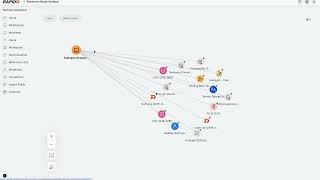
Spot Security Control Gaps and Non-Compliant Resources Across Your Attack Surface