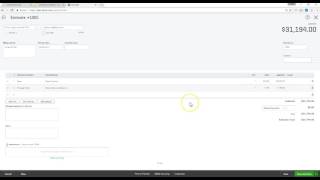
In this instructional video, Daniel from BookkeepingForPainters.com demonstrates how to replicate a traditional construction schedule of values within QuickBooks Online (QBO). He explains the purpose of a schedule of values—tracking base contract amounts, change orders, and invoiced totals to gauge project progress. The tutorial walks through creating an estimate that includes the base contract and any change orders, assigning them to a sub‑customer, and using a consistent invoice numbering system that references the estimate. Daniel then shows how to generate a budget for the sub‑customer based on the estimate, and finally runs QBO’s Budget vs. Actuals report to compare invoiced amounts against the budgeted (contract) amounts, yielding a percentage of completion. The video provides step‑by‑step screenshots of setting up service items, entering amounts, creating invoices, building the budget, and interpreting the report.
Chapters
Hi, this is Daniel from BookkeepingForPainters.com, and this video is about how to do schedule of values in QuickBooks Online. So schedule of values, a traditional one, looks something like this. You have the contracts with the description of work, the total amount of each contract with the base contract, and then all the change orders listed, and then what you've actually invoiced the client over time to get a complete a total amount invoiced to the client versus what the actual base contract and change orders are. And that gives you a percentage of where you are thus far in the job based off of invoices. So in QuickBooks Online, you can generate a report that gives you this information. It doesn't look like this, but it does give you the same information. And this is how you would do it. So, first you want to create an estimate with the base contract price and all the appropriate change orders associated with the appropriate sub-customer. And then from there, as you need to invoice the client, you'll invoice them and use the same sub-customer and a number system. Which tracks back to the estimate. And then, well, yourself or your bookkeeper can create a budget for each sub-customer, which is based off of the original estimate. And then from there, you can run a budget versus actuals report, which will give you a progress to date. So I'm going to go ahead and demonstrate how to do that. So first, let's go ahead and create an estimate. So you you book a job that is a large job, it's going to be invoiced over several months. So, first thing you want to do is put the base contract amount. I've created a service called Base which tracks to an income account. And let's say that the base contract is $30,000. And then we need one, I've also created another one called Change Order. The Change Order product or Change Order service tracks back to an income account called Change Order Income. And then from here, we'll write in what the actual change order was for. And obviously, you don't have to enter in all the change orders in at once because you won't know them right off the bat. But so you can always, you know, maybe you know that this one exists already. And then later on you realize, oh, you need to add another change order. Customer wants something else. Just go back in and enter the that change order. So, from here, remember we're using an estimate for this, and this is tracking all our base contract, the full amount, all the change orders as they come, and it's tied back to that sub-customer. And this is the estimate number that we need to be aware of. We're going to use this estimate number to use in the invoices when we invoice. So I'm going to save and close this. And then I'm going to create an invoice. I'm going to rename it 1005-1 because it's the first invoice for this job. And let's say in the first invoice, you know, they're paying $2,500 towards the base contract. They're paying us for both change orders. And that gives us the total amount that we're going to invoice them. So from there, we just hit Save and Close. And then let's say that, you know, later on you have to invoice them again. Maybe this is like a month later or something. Let's just put next month. And it's towards the base contract, another $3,000. And the invoice number is the second invoice, so that is correct. So from there, we hit save and close. Yes. Now that we have— if we want to see what our progress is so far, let's go to budgeting. And I've actually created a budget already for this job, but basically what you do is hit and click New Budget and you'd create a budget from scratch. And you're tying the budget to this sub-customer here, Honan, uh, 1706. And this is the base contract, which ties back to the services account, and then the 1454 are all the change orders tying back to the change order income. Um, so that's all we need to do for the budget. So if we want to see where we are as far as reports go, We can go to the— under All Reports, there is a Budget vs. Actual report, and you can just run it through the year here. And then we see ours, and it's separated by customers. Subcustomer here is, right, you have your actual invoiced. Versus the budgeted, or AKA the base contract. And notice that the base contract is tracking to the services account, and then all the change orders are tracking to the change order income account. And so basically we have overall 22% of budget because we have $6,954 invoiced compared to the $31,454. So we still have $24,500 more to invoice, so about 22%. All right, so that is how to create kind of a schedule of values in QuickBooks Online. Hopefully this was helpful. Thanks.