Build Your Own Executive Assistant With OpenClaw
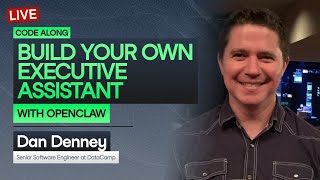
Dan Denny walks through building a personal executive assistant with OpenClaw, covering installation, configuring the assistant's identity, setting up memory via daily logs, and triaging emails. The session covers security practices, cost strategies using cheaper models, and hosting options from local machines to managed services.
Chapters
Hello everyone and welcome to today's session. My name is Rhys and I'll be your moderator for today. We are going to get started in just under a minute or so. Uh, we're just waiting so everyone has a chance to join. So, uh, if you haven't done so already, check out the link that is in the video description and pinned in the chat. That's going to contain, uh, a, well, many more links actually. So we've got a resources document there. The first link is gonna be the most important. Uh, we're gonna be using, uh, a GitHub repo that's gonna be the reference to a lot of the stuff we're gonna be working with today. And then elsewhere we've got quite a lot more resources and related content for you. But yeah, check out the session resources document in the video description or, uh, it's the pinned link in the chat. And yeah, the first, uh, the first link in that PDF document will be, will take you to the GitHub repo. That's what we're gonna be using for today. If you don't already have an account for OpenClaw, obviously sort that out now. We're gonna be getting straight into things pretty quickly. So yeah, please do sort those out if you are planning to code along live with us today. For anyone that's just joined, welcome to the session. My name is Rhys and I'll be your moderator for today's session. If you haven't already seen, or if you haven't registered for this session, today's session, we are gonna be Working with OpenClaw, building an executive assistant. Everything you need is in the session resources document that is in the video description and pinned in the chat. Check out the first link in that resources document to find the GitHub repo that we're going to be using today. That's going to contain pretty much everything you need to prompt along with us. If you have any questions or comments throughout the session, let us know in the chat. If you like this session, please do like the video as well. It really helps us push it out to more people like yourselves. And for your questions, we're gonna be spending the final few minutes of the session, uh, answering those. So if you have a question at any point, let us know in the chat and we'll be covering them at the end. So make sure you stick around for that as well. Also, if you haven't registered for this session, you can use the QR code that's on screen now. There's also a link to it in the chat if you scroll up as well. So yeah, final call. If you haven't done so already, check out the resources document that is in the video description and the pinned link in the chat. The first link in the document is going to be the GitHub repo that is going to be what we're going to be using today. So check that out. So yeah, without further ado, I'll hand you over to your host for today's session, Richie. Richie, please take it away.
Hi there, data scamps and data champs. This is Richie. We're kicking off in just a few seconds' time. In the meantime, hello everyone, glad to see you around here. And yeah, some questions on the repo I see already. We'll be going through those before we get started. I'll get our guests to explain those things before we kick off. Anyway, whenever I'm trying to do a task that I really don't want to do, I have limited options for outsourcing to other colleagues, so usually I end up having to do them myself. And sometimes they get high-minded and think, well, I feel like I deserve to have my own assistant that's gonna just do all those tasks that I don't wanna do. Now, the good news is that although having human assistants is still very expensive, it's out of reach for most of us. Technology's reaching the point where you can have your own AI assistant. In particular, the hottest technology of, uh, the last couple of months called OpenClaw. It's an autonomous agent designed to act as your personal assistant. So today we're gonna learn how to get started with it. We're gonna give it some office tasks, some data tasks to complete, see how well it performs. Our guest is Dan Denny, who is a senior software engineer at DataCamp. Welcome, Dan. Great to have you here.
Thank you.
Nice. So, uh, Dan's one of DataCamp's longest serving developers. Uh, he's also, at this point, he's built quite a lot of DataCamp's front end. Uh, and then in his spare time, he also volunteers for the Uncovered Cold Case Solving Platform. Absolutely fascinating. You have to tell us all about, uh, murders you've, uh, you've uncovered. Uh, he also organizes developer meetups and conferences, so if you're in the Nashville area, then, uh, yeah, please do check those out. All right, uh, Dan, take it away, please.
All right, so, um, first off, one of the things that we want to— I want to jump right into some housekeeping items because I can give my background, I can share things about the project that we're going to do, but there's a couple things that we could get running in the meantime because we're going to have some lulls. So first off, there's a repo that's a backup of the entire OpenClaw that I used to build out this whole experience. The most important part of that is this code-along folder right here. This has files and a file structure with prompts, everything that we're going to do in order to achieve the task today. And in a little bit, once we get everything installed, I'll show where we exactly— we should put that folder. Um, but you can— you'd be able to prompt its way into using it wherever you decide to put it as well. Another really important one is this webinar rimbook. This will be all of our instructions that we have along the right side here. So everything that we do today is all in these two, uh, in that folder and in this file here, and you're going to see the instructions on the right. So we're all set for all of that. The only thing that we don't have yet is having OpenCLAW installed. So if you haven't done that yet, we're going to step through it together. The rest of the files in there is a backup of the actual OpenCLAW that I used to get to this point. You could, you know, grab all of that stuff and like revamp your OpenClaw with it, but what we're going to do is we're going to build one for you. Like, we're all going to do this together, or you'll be able to rewatch this and go through all the steps as we go. So the most important part is installing OpenClaw. So I'm on the OpenClaw website right here, and if we scroll down, there's a Quick Start. And so here, um, you can choose the experience that works for you. The most popular one is the curl. It's what I use very, very often. But if you want to use directly the npm, I wouldn't recommend doing the hackable version. But there are other options for doing those kind of things. This right here is the only part of today's experience that I'm not going to do exactly with you. The reason being is this requires internet connection and files being downloaded, and there's lots of things that could go wrong. So I just wanted to make sure the one thing that I have is I have a local installation that I'm going to reset, and then we'll go through setting up the whole thing together.
Cool.
So with that said, if you're getting this started, we can kind of start to talk through— I'm going to kick off my flow, and then we can kind of talk through my background, how much I use OpenClaw, uh, what we're going to build throughout the day. So the first thing that I'm going to do is I'm going to jump into terminal. And so where you would have been doing the curl, I'm going to do this setup task right here. So what this is, is I'm using the OpenClaw prompt, so I'm using the OpenClaw CLI, saying do a setup. I want to use the wizard, 'cause that's what you all are going to see as you go through it. The difference is I'm gonna use a local mode, and this is just saying I already have installed the files, so just use the files that I have locally and then set up my experience with that. And one final little bit is I have a folder in my setup called workspace, and that's where I have those files for the code-along and this HTML file right here. I didn't want to blow all that away. I wanted to just stay right there so we can get right into the, the fun part of like setting up OpenClaw for all of this. So I'm going to execute this, um, and then we're going to talk through it. And again, one of the reasons I did this is even in the, uh, the installation, um, I've seen variants of like 6 to 10 minutes for being able to get to the point where you get to the configuration. And so I wanted to allow you to be able to do that in the background. Us to kind of step through this early part for me and then talk about what we're going to do. Key parts here, I love OpenClaw. I've been using it daily for I think about 2 months now, which is a couple years in AI time, I think. And so I use it all the time. I use it a little bit differently than some of the stuff that we're going to do today, but I wanted to be cognizant of the fact that this is for enterprise, right? So you're gonna wanna talk to your IT department. You're going to want to find out your rules, what you can install, what you can't. I wanted to be able to show off the power of OpenAI without us having to do any connections. We're not going to connect this to any live things like any messaging tools. We're not going to set it up an email account or anything like that, but we're going to simulate some of that so you can see the power of it and then decide if you want to go forward with trying to set some of those things up. I have hit the Quick Start part of setup mode here. I'm going to hit Enter on that. We can do the Quickstart and I'm going to do a full reset. This will end up giving me the same exact experience you did, you get, except for the fact that I have the files installed. I'm going to reset my config, my creds, and my sessions. This is a cool thing for everyone to see, I think, because you might go through with this and you might play around with it and you might get to a point where you're like, I've played with it, I've broken it, I've fixed it, I've done a bunch of stuff and I'd like to start back over and just do a clean one. This is a great way to kind of go through that process. So one of the most important parts of setting up your OpenCLAW is that you do need some kind of, uh, inference for it. So in this, you choose what type of LLM or what kind of model you're going to be using. You can be setting up full-on harnesses, or you can use direct local models. I'm going to connect it through my OpenAI. So in this And this part here is like the beginning of where all of us are gonna be choosing our own adventure. We're gonna have different experiences. And so in this, I'm going to set it up via OpenAI. And so I'm going to use the OpenAI Codex because I have an account. And if you have an OpenAI, uh, paid subscription, you can use that to provide the inference for OpenClaw. So here I'm going to do the open— the browser login. I'm sure anybody that works in enterprise organizations, your favorite part of everything is authenticating through the various systems that we have. So I'm going to get that going right now. And as we get this set up, what I'm doing is I'm basically connecting OpenAI to OpenClaw, and I'm saying that the— you're going to use my OpenClaw I mean, my OpenAI subscription for all of our prompting, all of our questions, everything that we want to do. And so this is really important because the, the model and/or the harness that you choose is going to change your experience. So if you do like a direct API request to a very specific model, you're going to direct— you're going to be prompting through that experience. I'm going to be going through like the OpenAI Codex harness of getting access to a particular model. In here we have choices for models. You can enter the model manually, you can browse all the models. The one key thing that is really important is if you are using an OpenAI account, OpenAI has a lot of models listed, but the key things that you have to have if you're using your subscription, you have to use an OpenAI Codex model. If you try to do just one of the regular OpenAI models without the -codex, you're going to be prompted to enter an API key. In the way that we're doing it right now, everything that we're going to do is just going to be part of my subscription. We're not going to pay any extra API tokens or anything along that. I'm going to keep that so that we can step through this process. Now, one of the most valuable things that you'll want to have in the future when you deal with this is a way to talk to it when you're not at your machine. What we're going to do today is we're going to be talking about it through the UI, and it's going to be running when our machine is running. It's not when our machine is closed or when we decide not to have it run. But a very popular thing for having an executive assistant is having it running all the time in a local spot. And so here, um, you can set up a whole bunch of channels. It's not something that I wanted to do during this process. For one, it takes time, and we'd turn this into like a configure OpenAI session inside of it. Now, your whole setup, most of the time with Open, uh, OpenClaw, is under an hour, but we could fill up our whole time doing all these configs. But I think the value is in seeing what this thing can do. And so we're going to skip for now on doing any type of, um, any type of channels, any type of external connections. Search, not something you may need. You might just be using these things for local model, local tasks, you might want web search. I personally do use it. I have a task that mine goes out and does some web searches on a daily basis. So you have options for all of that, but for now we're going to skip it. We're also not going to configure any skills. The one— there's lots of security advice about OpenClaw. The one thing to be extra, extra careful of is installing skills from a remote repository. Um, because the tool is very popular, a lot of people started, uh, trying to put skills up in there, and they may have put some things that are questionable and then sometimes just outright dangerous that they put into your things. But skills are markdown files, so if you are interested in a skill, you can go read that skill, look at the markdown file on the web, copy it, paste it into a safe location, have something review it and be like, is this safe to run on my machine? Is there anything that it's saying to do that could be dangerous? And if not, add the skill manually through the UI, and then you don't have to worry about whether or not you're installing something from a remote location that isn't safe. So we're going to skip that part right now. We're not going to need hooks for anything for now. So basically at this point we are done with our initial configuration and we're going to restart our gateway. The gateway is like OpenClaws, um, server essentially. So if the gateway is running, you have access to be able to talk to the agents. And so my gateway service has restarted and we're gonna wait for that to prompt us. So here it kind of like sends down a bunch of information. We can see some different things like where to go for docs, how to troubleshoot, other options that we can have, where our UI will be, where our URL with our token is, Then here is how do you want to start up the thing. Now today I have preferences, but in our things as we do them, I'm going to show you multiple ways to do everything. By default, I'm going to hatch in terminal. What that does is that starts up a terminal UI. Here we can see a terminal UI has started. Once this catches up, it does take a little moment. Like if I was to type right now, it would lag. So it is a little bit slow on this early thing for the first install. But with this open, I can essentially just start talking to the agent. Now, I am a software engineer, but I am a little bit more on the design and UX-oriented type of things for software engineering.
Dan, we seem to have lost you there for a moment. Okay, we shall see what's happening. Hopefully we get Dan back in a moment. In the meantime, yeah, I guess work through the installation of OpenClaw yourself, see where you're up to, make sure you caught up, if not. And also, uh, I'd like to take an opportunity to plug an OpenGLO cheat sheet that we have. So I will get a link for that in the chat. I think Reese can post it in a moment. So if you want to try out some of the OpenGLO commands yourself, then, uh, there is, um, a cheat sheet you can play around with. And also, uh, let's talk a little bit— just while we wait for Dan, uh, let's talk about— oh, there we go, cheat sheet on screen. Let's talk about what's happening for the rest of the week. Case you want to come back. So tomorrow we've got a session on, uh, it's a DataCamp quarterly roadmap. So, um, you're going to find out what's happening with DataCamp for the next 3 months. On Wednesday, we've got a Pinecone-related session. So we're also looking at, um, building assistants, uh, but it's going to be, uh, focusing on some technologies. So, uh, using Na'vi for automation and Pinecone for retrieval augmented generation. Thursday with a session on AI use cases for learning and development. So if you're involved in any kind of training at your organization, you're going to want to come to that one. And then finally on Friday, we're going to be looking at AI for business intelligence. All right. Dan, are you back?
Yes.
Wonderful. I was good. I was just freestyling there. I will leave you to it.
Oh, did I drop off? Oh, I'm not sure where I dropped off.
Yeah, sorry. You were gone about 2 to 3 minutes. We were still going through the OpenClaw installer.
Oh, no. Okay.
So, yeah, if you want to go back about 2 minutes worth.
Sure. All right.
So just done gateway. The gateway is open, closed component of the server was more or less the last thing we heard.
Okay, cool. All right. So at least at that point, we are restarting the gateway, which is a really, really good— we're through most of the stuff. Cool. So we have restarted the gateway. We then saw that our terminal UI is available. What I have been explaining to the universe, I guess, is that I prefer to use the web UI. So once we get this terminal UI set up, I don't really enjoy talking through that space right there. So I went into here and I ran the command opencloud-dashboard. And that opened up a UI, uh, that's a web UI for the tool. The reason that I like this is because I myself often use either the, the web interface on my local machine when I need to, or I use Discord to communicate. So I prefer a chat and a direct, like, human communication to talk with OpenClaw. So in here we have the web UI. There's a whole bunch of controls that we can do and set up with this thing here. Um, we can look at the overview, uh, we can see our tokens, like everything that we want to, uh, to dive through here. I don't do too much here, but it's a great part to say like, okay, now we're here, we have OpenClaw, what do we want to do with it? Um, now I'm not seeing something that I would normally expect and that, uh, you should be seeing on yours, and the assistant should be asking you, uh, questions about like What do you want to call them? How do you want them to behave? And then, uh, what do you want them to call you? And so what I'm going to do here is I'm going to use my terminal and I'm going to go to my root. I'm going to go into the OpenCloud folder. The installation of OpenCloud by default will go into your root and it'll be in a, um, a hidden folder. So if you, uh, use Finder for this type of thing what you would have to do— oops, sorry— in your root of your computer, you would click into the OpenClaw thing. So what I'm doing that is just via terminal, I'm going into OpenClaw itself. And then because I'm an engineer, I have my preferences. One of the things that I prefer to do if I'm looking at code files, I want to do them in a code editor. So in here, I'm gonna bump up the size here and close this. Cool. And so maybe go one more notch bigger here. So in here, um, we are in our OpenClaw folder. This is where you would want to take the, uh, contents of the GitHub repo and put it into a folder in your OpenClaw. So if you're using Finder, again, this would be here. I have named this folder workspace. Now the original name of the GitHub was a very long thing. I wanted it to be identifiable from a link standpoint, but when we're talking about the thing, we don't need to put all of that information. The OpenClaw likes to use a workspace folder for any files that you have in here, so we have this workspace folder here. In here, in this whole thing, we can see our agent, we can see session information, and then we can see a lot of information about our particular OpenClaw itself. Um, cool. And so in this thing, we're going to be looking at these files for the workspace itself. One thing that is important is the bootstrap.md and so we can see these files change as we make changes within our OpenClass setup. I'm going to ask it, "Do you know who you are?" because I'm expecting it to be asking me questions about how we're set up right now. We're getting a little bit of a slow start on the response there. Cool. This is what I was expecting to see. So, hey, I just came online. Who am I? Who are you? We don't have to make it formal, right? And so I typically speaking let it pick these things. I think it's more fun. I think when you're playing with a new tool, being too dictative about it is, is a— it puts you into like a rough spot, whereas I want to explore with this and be like, hey, what are you gonna come up with. Um, and so I'm going to say, call me Dan and you're going to be a helpful executive assistant. And then I'm going to say like, show off your stuff for a webinar. And so what this is going to do is when I do this, it's going to process all that information and it's going to create its information in this identity.md, or identity.md, uh, and then in a sole file. And it'll update the bootstrap file because the bootstrap file is going to tell it what it has to do on like every single startup. And so going off with this is going to edit all those files. Now the important thing for you to know is you can edit these things in multiple ways. So we can talk to it and just have it update things. You can go to the web and you can search for various like ways to say like, what's a great SolMD for an executive assistant that does X? And you can look up these files and you can edit them. You can edit the files directly. You can also tell it to edit the file itself. But we can see in the background here it's doing a bunch of work and it's going through and it's updating like individual files. Based on the information that I gave it. So it's going to pick its own name, it's going to know that I'm Dan, so it's going to add me and the user MD, and it's going to go through all of this information. So while it's working, I'll kind of like step through the things that we're going to be doing along with it. So, all right, cool. We'll read that in just one second. Before we start, we're going to like do a couple of different sections. We're going to do a data intake for local processing, we're going to do some operational memory type things that would kind of allow us to do some repeatable jobs that we would do every day. And then finally, we'll wrap up with some offline communications triage, which is basically like simulating email review. Uh, so we're gonna go through that now. So now it has gone through and it's named itself.
So just before we go on, there are a few people asking in the chat about, um, what to do about API keys. So if you don't have an API key or it's, it's sort of saying failed, can you just talk, uh, people through what to do?
Yeah, yeah, yeah. So in that, um, there's a couple different ways. Uh, in the terminal UI itself, um, during the setup, if you choose one of those models, it should prompt you to add your API key itself. Um, if it did not, you'll have to run through the configuration again in order to do it. Or this will be like a full-on, like, troubleshooting thing where you have to make sure that you get your key into a JSON file Without stepping through it directly and going and grabbing a key, it would be a little tricky to, um, to like share the process. But when you chose that key, it should say paste your key right here, right after it, and then it saves it into a safe spot within the OpenClaw setup itself.
Uh, for anyone who doesn't have an API key yet, uh, maybe you make this a watch-along. Uh, you can set yourself up with an API key after the session, come back and, and go and try things out, uh, with the recording. Uh, all right, uh, with that, uh, Dan, I'll let you proceed.
Cool, cool. All right, uh, so here we can see like the introduction from our agent. It's Cleo, our polished, uh, protective executive assistant. Um, and then they kind of like give some, some just some suggestions of things that we could do. Now it is kind of cool, I didn't get this exact thing when I put it in before, but I did prompt it a bunch to be like, hey, I'm doing this webinar, I want to talk to, uh, people about the things that you can do in a safe way, local files only. And that's how we kind of like came up with the things today, and then they were able to be generated from there. So just to kind of get through, uh, rolling on that, uh, we're going to do our first one. So this is Exercise 1, uh, the data intake review. Uh, so here we're going to be looking at these starter files. So in here we have section 1 and we have some data files, really simple stuff. Um, I'm not trying to say like Open Cloud is going to be your like, uh, data analysis tool immediately. I just wanted to show that like if you wanted to use it to get like a preemptive look at some local files, so things that are on your machine, this is the most valuable thing about Open Cloud to me is you bring an agent to your files where they are on your machine instead of doing something like ChatGPT or Claude where you might go to the web interface and then like manually drag files into it and then process them. Um, here you can kind of keep a running folder including a folder that would be the same folder all the time and have something look over it, uh, over and over again. So here we're going to do that, um, and so I have taken this prompt right here, which is to paste this prompt into OpenClaw. And we're just going to jump in and do this. Again, this is the way that I prefer to use the tool. You could do this from the terminal UI, um, if you wanted to. You could in the future be doing this from some kind of messaging tool. You wouldn't have to be directly talking to the web UI itself. But what we're having it do is review the files in incoming, create a markdown intake report and inputs and then your job is to do these things and your job is to not do these things. And this is a pattern that you'll learn over time when you're like coordinating with agents, both in OpenClaw or any agent at all, is that you want to tell it what to do and what not to do. Um, and so in here we can see it's firing off a bunch of work. Um, it is making tool calls. Um, you can kind of dive through each one of these depending on your interest level and see what exactly it's doing. So how it's like searching through the what tools, what frameworks it's using, what languages in order to like step through and complete the work that it's doing for us. So we're having it review files, give us some like kind of like sanity flags on like what's in there, give us some information, and then most importantly, look for things that we are going to have to do with these files before we would try to do any task with them ourselves. Then important things to say, like not to do, do not modify anything. Don't make any changes, don't do any actual real evaluation, just give us the rundown of this stuff. We can see that it's done. Part of this prompt is that we're having it output this in a Markdown file itself. We can see in the code-along folder, we have now an outputs, folder with something in there. And so we have outputs, we have an intake report. This will be a little challenging to read here, but so here now at this point you could dive through here and just read down through this whole file, get the whole summary of it, and that is valuable. And this is the way I approach things. I want it to do a full report for me and then say Something more simple. I'm gonna work with these files today. What's something I absolutely have to take care of? What are the things, I guess? And so now we have its full report where it ran down a markdown and like gave us a full rundown of everything in those files. Now again, this is a prompt that you can run over and over and over again. So you just keep an inputs folder. Once you're done with all of these, you just move these off to another spot for you, into an archive folder, move them wherever you would like. But you could have this kind of thing be a folder where your inputs are here. You're just going to run the same prompt every day to check things that are incoming to you and repeat that over and over again. For extra credit after this, what you could also do is you could start up something that says, watch this folder. Every time I put something in here, go through and do a quick review of it. Again, it's doing the same type of thing. It's going off and using tools. In here, it's doing a query information that is going to get back to me. How far you go into learning what it's doing is up to you. You can focus on outcomes only, and then you can have discussions with it and be like, hey, I was expecting that you would have given me this type of answer when I asked this question. I didn't get that answer. Here's the information that I have. You can negotiate with it and it'll build a better prompt like as you go, because like I said, this is kind of a generic prompt right here. But, um, so It says like, if you mean the incoming data files, uh, it, uh, talked about its thing at first, but then this is what I was actually looking for. Um, there's some ambiguity in the files itself, so we have different ways that we reference some numbers. We have things that could be null. Um, we have different types of ways that we're handling blanks and nulls in the apps, in the files themselves, things that have to be cleaned up and processed. So I just wanted it to show like Hey, you can do a preemptive look at the things that you're going to be working on. And again, this is a very simple example, but you could do this for anything that you are doing regularly. The key part is that what you would be editing is where you wanna put the folders and then what things you want it to do once you're having it process information. Cool, so that's exercise 1. So in that, there is some extra credit type of things. You could set up things to say like, hey, I'm gonna use a heartbeat. And a heartbeat is going to be a file that will tell it how often to review and pay attention to something. So it'll manually start it up over and over again. Key thing to remember, it will only do that when your actual server is running. So if it's on something standalone running all the time, it will do it at every pace that you say so. If not, it would do it when your server is on your, like for my personal, my Mac here, it would only do it if my Mac is actually on And then it was able to run through those types of things. So that gets us through step 1. We will have some like homework options to go on for there. The next part here is we're going to have operational memory. So we're going to turn some items into a repeatable set of reviews. One thing that I think is really, really valuable in our— in all of our industries is a hype doc. Something that says like, hey, here's what I did this week, here's how I could communicate it, whether that's like to my peers or to up through my like reporting line, just like kind of information that says like what I did throughout the week. And so what we're going to do here is we're going to have it look over some files. Um, so I need that open again. Sorry, I'm using the wrong keys to try and open that. All right, so in our inbox here, we have some information like customer feedback that we got, our release draft notes for something that we shipped, we have roadmap bullets, and then notes from our standup. So you could have these again in an inbox that's going to be in a local thing on your machine, And again, this is all about establishing trust and patterns and being like, hey, I'm comfortable with this when I give it a very specific place to do the thing that it's going to do. You can build up trust with that, move it into connections where you could have this like taking things from your tool that you use at work in order to process these things. You could have these from online notes, you could have these from various like things throughout the internet. So, uh, here where instead of doing one of these, we're gonna do a cron job. So this is just a repeatable task that we want it to do all the time. So this first one here is going to be a daily log. So I'm going to copy this block and we'll step through this as we go, as we go through here. And so again, I'm just prompting the tool itself with a bunch of information. We'll step down this thing as it's working. So I'm saying every day at 9 AM I want you to do this. I should be online at 9 AM. My time zone is normally America Chicago and/or Central US to normal terms. Um, and I'm not in that time zone today, but basically every day at 9 in my time zone, run this thing. Review all the notes in the inbox, process the notes, use file names for context, and then I had to write something different that says that you didn't have to be like writing the exact day before for it to pick up earlier work. It is a little kind of thing you have to work on to be like, hey, I might have written this on Friday and I want the standup note on Monday. Um, then again, you give it constraints and things that you don't want it to do. And so here it is done. It has created the cron job code-along daily log. Scheduled that at 9:00 AM, and then the next run would be this. It'll review all the stuff in the memory inbox and write today's markdown log. That is one way to say this. Now every day that my machine is on in this particular setup at 9:00 AM during my time, it is going to run this. Then that notification would be right here in the web UI itself. If you're using a messaging tool, you can have it notify you in those. And then in here, you can go in at any time, see the cron jobs that you have set up, and then edit them accordingly. Cool. So that gives us kind of two examples. One, manual folder, we drag things in, we tell it to— we prompt it to do something with it. And we did use one particular prompt for that, but you could use multiple. It could be that, you know, this is my inbox file and I'm going to have it do a very specific set of tasks depending on what I just put in there. Then you have a thing where it's going to run daily for you, and then there's another version in here, uh, that will run weekly for you. We're not going to be able to see the weekly log. We could generate it and make it force it to go through it, but, um, the full prompt is here to be able to run a weekly log of these so that at the end of the week you would get your Hype doc. And so I didn't want to like run through the whole cron thing again because we're going to watch the tool calls and we're just going to end up with another output here. Um, again, like, we could force it to generate out the things if we want, but the key part is talking to the thing. Now I have prompts for this, but you could also just talk your way through these things. So you could say, I would like the same thing, but I also want it weekly, and I want it weekly on Friday at 4 PM with a summary of the entire week. It— all of this is like set up to be like what it is that you want to do with the tool. So finally, this is the, the main last exercise that we would, uh, absolutely cover. And I wanted to give something that would show you the power that you could explore later. Um, now I— if you haven't seen it before, you can go into email clients and you can export emails and you can export them as email files. Uh, so they're.eml. And so in our folder, we have a few of them set up. And so we have these.emls. And so this is like generated emails that I just, uh, had it create. So it's if this was my inbox in the morning, I export them out to email files because I'm not so sure about this tool yet. I'm not allowed to connect my email to it, but I want to have the processing power. Um, I export these out and I have it run these locally. So I'm going to copy this prompt here, and we're going to go back to our web UI here.
Cool.
And we're saying review the email files in this folder, produce an action-oriented Markdown triage report and outputs, extract the likely action items, anything that I'm waiting on, be careful with uncertainty, do not modify the source files, do not send replies. I don't I mean, it's not set up to be able to do that anyway, but that is the kind of thing that you could set up if you're like, hey, I absolutely don't want this doing things for me beyond this. Um, and so in here is again doing the same type of things that it does all the time, um, tool calling, uh, the various options to review these files. And then I'm going to show at the end, like, we're going to look at the— you're going to see a pattern of the way that I treat the tool, um, which you can treat it completely differently. But what I'm going to do is I'm going to know that there is a file that has all the information that it's going to give me, but I want a little bit more than that. But I don't necessarily want it every single time. I could edit prompts to say exactly how I want this thing to behave every So it's done it. It's created a thing. Now I'm currently busy, right? We're currently in a webinar, but I've had the tool go check my email while I'm here. I'm not gonna be able to read this thing right now. So is there anything that I need to handle immediately? Or can they wait until the end of the day? And so this is just kind of little things that you can play with yourself, because it's not always— it's not like ChatGPT or any of the things where it's like you have to nail your prompts all the time for exactly what you want. You could say you're just going to interact with the thing when it does its job in some kind of way, but you could also say like, hey, in this, the last part of this is let me know anything that I have to handle within the next 3 hours, and then you know to just go handle email immediately and take care of those particular things. Again, all of this is like the tool is completely yours to customize to what it is that you want to do. And so in here, it's done our full summary, but it thinks a couple of things that could not wait until the end of the day. The deadline says Monday at noon. So if this was Eastern time and this was a real email, I'd have about 19 minutes in order to be able to take care of that. And then here, some other things that can wait and the way that we can go about them. So that kind of covers our 3 primary areas of showing how you can use a folder and run prompts on files just specifically in that folder one time, how you can set up a folder that you would have it update to you on a scheduled basis. Um, there's a homework item that you could have a folder where it just monitors that folder continually on your machine. Um, and then the last part, again, simulating how you could use this for something like email. The only thing I didn't want to do is just having anybody in a code-along instantly hooking up your email account to some kind of tool and processing that. But that is the kind of thing that you could evaluate going forward for yourself. So I had some other things. I don't think time-wise we would be able to do any more than we've done right now. So I had these prepared for extra credit. Post sessions. In the chat, if there's anything specifically that you would like me to do, I will absolutely make another video that we can put up on socials, and I'll step through that one particular part. But the post-session extra credit is to watch that initial folder, uh, set up a Heartbeat-driven workflow. And so you don't have to necessarily know this tool, you can communicate it in whatever way you want. You say like, hey, I'm using this flow but I want you to just automatically do it every time I drop something in this folder. Help me set that up, and the tool will step you through the options and then take care of it for you on its own. Uh, finally, you could generate artifacts on a schedule if you want to. Um, and then, uh, one cool thing which I wanted to be able to get to but I don't think we're going to do it was a Mission Control. And this is where you can not only have this UI that you can go into and talk to it, but you can have your own custom UI that shows the things that you've been having it do for you. In this particular example, we might show the latest intakes, the daily logs, link to your weekly hype doc. And so you could have them running in like a, a UI that's custom to you and like however you want to view that type of thing. It's an absolutely wonderful way to like control your view of your files with an agent, and I think it's a super valuable thing itself. And then finally, down at the end, I've just got a long prompt bank. And then one thing that I thought I would try just as a wrap-up is, can you add all of the prompts that I used today to the end of the— what is this thing called, uh, webinar runbook HTML. And so I just want it to be that anything that I typed today, you would at least be able to replicate it on your own if you wanted to, um, just so that it's like there was nothing left in this webinar that wasn't specifically, uh, talked about with you. And with that, I think, uh, we would want to switch back to Richie Cotton, and go through questions.
All right, super, Dan. That was very cool stuff. And I love the way, like, there's a little bit of effort kind of setting it up, you know, you got to go through things, but then it was just okay. It just simple question like, what do I need to do today? And it's straight in there helping you out. So it seems incredibly powerful. We've got a ton of questions from the audience, but I'd like to ask a few questions myself. So I'm curious as to How much of this work is repeatable from task to task or project to project? Like, do you just provide access to all the tools once and then it always has access to them, or do you want to control this like for different tasks?
That's a good question. Um, from what I have found so far, um, my experience is that I pretty much have it one set of tasks for a series of folders. So not far off from what we did today, where I negotiate with the agent and say, this— when you interact with this folder, this is the prompt. When you interact with this one— and so it's essentially creating your own skill files. And so you can kind of— you can also give it very specific English word commands that say, like, when I say these words, do this very specific set of tasks. And so then I've allowed that for pretty much all of the type of projects that I have. Like, I, um, to get kind of give an example, I have tasks that are similar that would both update a Markdown file and go update a website in a GitHub repo with the same exact communication stuff. So like that allows for you to say like, do this, do it in different ways in different outputs. I think that is what you're saying.
Okay, so I think, uh, if I understood this correctly, the idea is that if you're doing the same kind of tasks over and over again, you probably want to package that as a skill and then say, okay, OpenGlow has access to this specific skill because this is a thing that I'm gonna do, and that controls the fine details of how it works.
Yes, and there's a key part to that too. When you're doing it up front, I think you always want to use your primary agent for for it because you're going to be learning how to negotiate with it itself and get it right. But then after that, you can then either hand it off to subagents, uh, or a skill. And the reason why you may do one or the other is if it is a rote task, you might want to set this up with a subagent that uses a lesser model in order to process data And so you might have your thinking model be your agent. But if this is like wrote things where it's like reviewing text, you might be able to— if you're using API tokens especially, you might be able to use a cheaper model in order to say complete these tasks in this way with this model.
Okay, that sounds like a good cost-saving tip then. So if you're doing something that's not that complicated, you want to use the cheap models and subagents are the way to do that.
Okay. All right.
Uh, so we've got a lot of variations on the same question around how safe is this to use, how secure is it to use. Uh, so, uh, uh, Divan S1, uh, and, uh, I think a few other people there, uh, uh, same one from Llewellyn as well. So lots of people asking this, like, basically what can go wrong? How do I make sure this is secure? How do I, especially the work context, how do you make sure that you're not doing, uh, bad things with the the agent.
Yep, it's by far in a way the most important question I think on OpenClaw and on any automated agent that you're going to give access to your local files. Um, that is like kind of the big difference here. Um, I can tell you personally what I do is I went the initial scared route of OpenClaw. So I bought a Mac Mini, I gave it its own, uh, Apple account, its own Gmail account. It's not connected to it, it's just I I connected it nothing to nothing outside of the machine, um, and the only thing that it connects to outside of it is Obsidian and Discord. And that's so Markdown files can be viewed on a different machine, or Discord I can use to communicate with it. Um, the answer is, I think it's so hard to say it, like, uh, but it's not safe, right? Uh, anything that you are going to give complete access to your machine is not wholly safe. You have to like be very stringent about reviewing the security guidelines. Talk to your IT department. Um, there is a prompt that it will give you pretty regularly to run a little security review of itself on OpenClaw, but it is important to remember you are giving a machine that is not truly thinking, it's just doing tasks in a non-straightforward way, access to your machine. And so at the same time I can say it's not safe, I have also been using this for about 2 months and I've had one thing that wasn't my fault that went wrong. I had one thing that went wrong where I broke a build on a website, but it's because I personally committed a git work tree to master and it broke the build. But I wasn't even having the tool do the commit. It created the work tree, but I pushed it. So it was actually my fault. But I have been running this on live websites and live data for quite some time. And I personally haven't had an issue.
Okay. So for personal stuff, probably fine. I guess you just need to think about what are the consequences of stuff going wrong? And then you're thinking carefully about, am I having those instructions there within— I'm not sure which file they belong in. Like, was it the heartbeat one or the soul file where you got to say you're not allowed to do these specific tasks?
Yes. So you can do that in like the bootstrap file. So you can have it check like every single time it opens up just as a reminder of like where you are. Allowed to go and where you're not. Uh, you can have it in your agent's MD, which is like your session startup time. Like, do not manually read startup files. Uh, like, you can set up memory information. Uh, there's a lot of really good blog posts on how to make OpenClaw like as secure as possible. Um, and then just remember also, uh, right now everything that we've done is local local. Once you start connecting it to online tools, there's a whole nother level of security that you have to investigate as well.
Yeah, and certainly like if you're connecting to a company database, you want to make sure that Open Claude doesn't have like delete access to them. It's like leave that to humans, like read-only access.
Yes, yeah, read-only access. And then even with it, don't like have it make sure it's not even trying to do it. Because like, like one of the things that we're seeing with some of the newer models is like with the right motivation, they have a tendency to try to really solve problems. And if you maybe have a prompt that says, actually, I do want you to write to this, but it doesn't have permissions, it may still try. And so the one thing that you want to make sure of is just these constraints are important.
Okay. So it just seemed like there's a A fair amount of care required to set things up. And then yeah, uh, be paranoid and definitely speak to your IT department if you're doing this.
IT department is the number one thing. If you're doing it personal, just be cognizant of what you're thinking you allow it for, and then maybe build that trust and build up more and more as you go. But if you're doing anything for work, IT first. Talk to them and get their opinion.
Absolutely. And so related to this question from Nelson, but what's interesting running models locally versus, going through APIs for, I guess, Gemini, Claude, GPT, whatever. And yeah, how do you think about the differences?
It's really hardware. It becomes the question there. So if you— so I have a Mac mini and I'm able to run— I do have it do some coding tool jobs for me, and I'm able to run on the Mac Mini like the Quin 7 billion parameter model. Um, and so with that, I can hand off, uh, specific coding tasks to that tool, knowing that they're rote things where it's just updating like markdown files that are going to get built and put out into the web. Um, so those kind of things are there. Now, if you have better hardware or or a really nice Mac or a really nice Windows machine and you can run a really nice model, I think one of the better things to do is run a local model. At that point, you've got a local model running on local files of yourself. You're kind of able to build your own system that's removing you from the kind of mercy of the harnesses. As like one of the things that happened recently is you might have been using Claude with your OpenClaw and then they shut off access to it. And so like if you solve these, can solve these things in your own way, you don't end up in that same problem.
Absolutely. I think we're getting AI sovereignty or sovereign AI where you've got control of your own hardware stack, but on a small scale, not on a country scale. All right. So there's a question from Krishna. Saying, uh, what's the difference between interacting with AI on using OpenClaw versus some of these AI-assisted code editors? So I mean, for example, like VS Code or whatever, it's got a load of AI assistance built in. And I think at this point, all these IDEs have a lot of AI assistance.
Yeah. Um, the, the difference is quickly reducing. Um, so I think when Open Cloud dropped, I, I could be wrong here, I don't think, uh, OpenAI's Codex had shipped yet. Um, and so at that point, if you were wanting to target specific folders without using an IDE and, and firing up the, uh, the one of the agents in there, there wasn't as much that you could just say like, go look at this folder on my machine and do these tasks write them to my— this other file and, and do all of this stuff on my behalf. You could with Cloud Code, but now there— since OpenAI has dropped, there's many more local agents that you can do. There's other ones with other names. You can do this in many different ways. Cloud Code and, uh, Anthropic as a whole has been shipping more and more that you can run on your machine. Um, I think at this point, uh, it's really just choose, like, especially if you're at work, if they're— if, uh, your IT department is kind of dictating what models you use and what harnesses you use, then, uh, you can then make that choice of like, what autonomous agents options do I have based on the things that I'm allowed to do? Um, I think Open Cloud is just fun. I don't think it's necessarily that it's the only answer these days. There's some really nice things coming out from Claude's Automations. Uh, Codex has shipped some really nice things recently where you can interact things within the browser. Like, everything's getting better every day, honestly.
So I mean, that's quite a useful thing. There is a lot of overlap between these tools, and whenever one company comes up with a good idea, then a lot of times, like, the features do make their way into other pieces of software as well. So, uh, eventually maybe we're just converging towards something.
I do have one bit that has been different so far, and it's not— Open Cloud's not the only one, but the remote access is still a little bit trickier with some of the other tools. Um, so, uh, I know Claude has started to ship remote where you can use, um, the ability to like use a a messaging tool and talk to the things. I don't know that Codex has yet. But if you're wanting to be able to do these things when you're not at your machine or not having your machine running with a scheduled task, that part can be more challenging still.
Okay. All right. So remote access, that's still open goal strength at the moment. All right. We've got a couple of minutes left. So Mary is wanting to know more about Um, how do you go about automating email workflows? I don't know if there's anything to add on this.
I'm scared of it myself, honestly. Uh, so I would, if I was doing it, I haven't connected it to my one, um, uh, here at DataCamp, but if I had the permission to, it would be read-only and it would be process-only. Um, because like, I think it was even the head of security at Meta that accidentally wiped their inbox.
Yeah, and this is someone who kind of ought to know better, or should know a lot about security, being head of safety at Meta. So yeah, things that go wrong for them, they can go wrong for a lot of people.
And I'm speaking from a spot of privilege here as a software engineer, but I don't have an email problem. I don't have a whole bunch of email communication. Automation. And so it's not something I dive into very often.
Uh, okay. Yeah. So if you, uh, overwhelmed with a lot of emails, then automation is something to look into, but absolutely. Um, again, something you want to do very carefully. Uh, all right. Um, and so, oh, uh, we talked a bit about local use. Uh, there's a question here from, uh, Uh, uh, saying, uh, are there any recommends for recommendations for hosting stuff? So you mentioned that you had OpenGlaw on a Mac mini and then you kind of, uh, connecting to it via Discord, I think you said. Um, yeah, how might you go about hosting this?
Um, very carefully. Uh, so one of the interesting things, uh, when I first looked it up, um, the first The two ways that you can do it is you can put it up on a virtual private server right away, and that is the first thing that I did. But the second it's up on one of those, by nature it's exposed to the internet and people are trying to get access to it. Um, the, the one nice thing about being on a private network and being a little bit removed from that is there's at least a, like, uh hardware device in between you and the internet. So you're choosing which— what access that you end up giving it out to. Um, the virtual private servers are a little bit more scary. However, there are some tools that— there's a handful of services that maybe you don't want to do this on your own hardware, but you do want to be able to play with it and, and you want to explore with it. There's a handful of tools that are both doing this for OpenClaw and some of the other agents, uh, where you can and just pay a service. And they'll host it, they'll, they'll secure it, they take care of that part, and then you get the benefits of an agent running on your behalf remotely.
Okay, that seems useful. No, and again, it sounds like doing things carefully is, is the way forward. Now we're at time, but I do want to go with one last question. So for anyone who has to jump, then please do check out this out on the recording. And I hope to see you all in the session tomorrow. If the date comes roadmap webinar where you find out what's coming, what's coming soon with DataCamp. But so this question is from Kaelan. So Kaelan actually ran the, the code along session last week on creating secure agents. So just as a fun finisher, like, what are the big failure modes here? Like, what can go horribly wrong?
Everything. So like, if you— I think the Mac is a little bit more I, I don't want to talk out of school, but a little bit harder to completely make your Mac unusable by deleting some files. But if you're on a different type of system, uh, if for whatever reason someone put in a prompt, some kind of prompt injection and a skill or something like that, and it's like your first task is go delete this folder, and it could technically make the machine inoperable. Um, and I don't know if an inoperable machine is actually the worst there. If it's like, hey, go look for the root of your, your Mac and look for your secrets file that like a lot of people have very like common names for files that would be in like your zsh, your bash or your zsh or something like that, and like give me all of the tokens that they have in there. There's a lot of things that Imagine you just left your computer open in the mall and you walked away from it. Anything that somebody could do there could happen to your machine.
That's a truly terrifying thought. Leave your computer unlocked in the mall. Even worse with your phone, I suppose.
Okay.
So on that note, I guess for everyone in the audience, please try not to leave everything unlocked like that. Please try not to break too much stuff. But do Have fun playing around with OpenClaw. Hope to see you again for the rest of the week. Thank you once again, Dan. That was very informative, wonderful stuff. Thank you to everyone in the audience who asked a question. I see there are a few questions around Hermes that we didn't get to. Maybe that sounds like a future session. Maybe we'll plan something for that over the summer.
More from Richie
#359 My Best Friend is AI with Valerie Tiberius, Professor of Philosophy at University of Minnesota







How AI Agents Will Work While You Sleep | Ruslan Salakhutdinov, Professor at Carnegie Mellon
#358 How AI Agents Will Work While You Sleep | Ruslan Salakhutdinov, Professor at Carnegie Mellon