Claude 3.7 Sonnet API | Build a Research Assistant
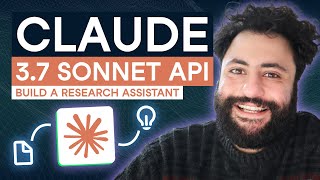
Sam builds a PDF research assistant with Claude 3.7 Sonnet's streaming thinking mode. The tutorial covers API setup, chain-of-thought token budgeting, and a Gradio interface that summarizes multiple papers, finds connections between them, and proposes new research directions.
Chapters
Anthropic was really cooking with this one. This Week Anthropic released Claude 3.7 Sonnet and Claude Code Claude 3.7 Sonnet is probably one of the most impressive reasoning models on the market today when it comes to coding, reasoning and math performance. CLAUDE Code is a research preview tool that is essentially a coding agent that lives in your command line that can work on your own repositories. If you clicked on this video, you probably already are aware of what Claude 3.7 sonnet is and what cloth code is. But if you're not, I highly recommend that you watch this video in which we discuss in more depth what these tools are and what they represent for the future of coding. In this video, I'll instead show you how to use the Cloud 3.7 Sony API to build a research assistant that can take in multiple PDFs, synthesize that research within the PDFs, and give you directions over future research. My hope for this video is to give you a working understanding of how the Anthropic API works, as well as some of the reasoning capabilities of Claude 3.7. So Sonnet, I want to make this as accessible as possible for everyone. So whether you're a developer or someone early in your journey, we got you covered and we hope that you'll enjoy the video. Now, before we get started, this video is brought to you by datacamp. Datacamp is a data and AI skills transformation platform that allows you or your team to learn data and AI skills wherever and whenever you want. Whether it's interactive courses on topics like Python, LangChain, hugging face, the OpenAI API, or more tracks designed to help you or your team pass key technology certifications or avenues to go beyond learning like unguided projects, projects, datacamp, Data Lab, and more. You can get started for free by following the link in the description. Just to note as well, this video would not be possible without Ashi Dots tutorial on the same topic on the datacamp website, so make sure to give her a follow. And with that let's get started. Alright, so I have this notebook here where we're going to be doing our walkthrough today where we're going to be building essentially a research assistant that takes in as input multiple PDFs and outputs a synthesis of these PDFs as well as a direction for future research. So we're going to be using this notebook. We will be sharing the solution notebook directly in the browser in the description of the video. Sorry, but with that said, let's get started and the first thing I'm going to go over is the packages that we're going to be using today. So we're going to be using the official Anthropic API. This is in the Anthropic package. We're going to be using PyPDF2 which lets us read and extract texts from PDFs. This is especially useful for our Research Assistant project. We're going to be using the regular expressions and the OS modules a couple of times. And for the web interface where we're going to be building that Research Assistant, it will be all in radio. Now we given that we're going to be using the Anthropic API, we're going to be using the user Data module from Google Colab to store that API. And then finally we're going to encode a couple of PDF files I think and then use the HTPX, use the httpX client to fetch those PDFs from the Internet. Now with that said, what we need to do is install our relevant packages. I have done that already. For the sake of time all you need to do is just pip, install anthropic, pipdf2 radio and httpx and then you'll get this relatively long messages but then you're good to go. One thing as well you need to do is import these packages. So import anthropic, import pypdf2, import re gradio, sgr, google colab, user data and base 64 and httpx. I'm going to do this again just for good measure. And now let's get access to the Anthropic API. So what you need to do to be able to get access to the Anthropic API. Really simple. All you need to do is just go to anthropic.com let me just clean my tabs here. So I'm going to go to anthropic.com all you need to do is just go under Claude, press on API and then all you need to do is also go here, start building. Now if you haven't signed up to Claude, you will be asked to sign to Claude. Otherwise if you've signed up you will go to this developer portal here. You can press on get API keys here or on the bottom left API keys. You need to create your own key. And just one thing, do keep that key on hand because you won't be able to copy it afterwards. Now one thing for the sake of this code along today you do get around $5 of free credit from Anthropic to play around with the API. So you will be complete the walkthrough under your email. But if you want to go beyond that, build your own systems, experiment some more. You've been warned. Anthropic is pretty expensive and you need to top up your billing account. And I think that's all what you need to do to get the API here. And then what we were going to do given once you copy that API, we'll store it in Google Colab. So you need to press on this Secrets button here. So I've already called mine claudeapikey and I just pasted the value of my API here. And then to to import that API key, I'll just use API key equals userdata, get Claude API key and then we'll initialize the client here as such. One thing as well important to understand kind of the nuances between the Claude family of models. So the Claude 3.5 Sonet 3.5 Haiku models are kind of the previous generation or last week were the most cutting edge Claude models and now have been dethroned by Claude 3.7 Sonet. And this is essentially their key on the anthropic API. Now, one thing that's really important to take into mind is we're going to be using a bit of Claude 3.5 sonnet for some dummy examples at the beginning, just to save on credits as well as save on time. Given that the thinking part of the Cloud 3.7 Sonnet does take some time. But for any examples after that we're going to be using Claude 3.7 sonnet. So I'll make sure that we cover that in a lot of depth. And with that said, let's get started. So what we're going to do first is a simple example where we initialize the Anthropic API and get connected to Claude 3.5 and then we're going to be using the client Messages create function to send a request to Claude. And what this function will do, it will specify a model. We are going to specify the max tokens that we want in the output response and then we're going to input our prompt and get a response from from that model. Now, I already have some boilerplate code here for you. This is the API key that we've initialized from the user data get function from Google Colab where we got the Claude API key. Then we initialized the client and here we used it with the Anthropic API. And then given that I'm going to be using Claude 3.5 sonnet a couple of times over the next few examples, I initialized model ID equals Claude 3.5 sonnet. So this is the code for the Cloud 3.5 sonnet account model. So with that said, as you can see, I've already tried my prompt here. So let me just clear all the outputs from my notebook. So I'll do a message object. So here what I'll do is client messages create, right? So this message object is essentially the output from the model. And then what I'm going to specify is my model equals model ID. So my model is Claude 3.5 sonnet. My max tokens is going to be 1024. So just I think three characters is one token. If I'm not mistaken, my message is I'm going to open a list here and this list takes in as input a dictionary. And the role here is user. So this is who the role Anthropic is supposed to take on and the content is, or I think the role of the prompter, if I'm not mistaken, the prompt that I'm going to be using is what is the distance between the Earth and the moon? And then what I'm going to do, I'm going to print message content zero, right? So here the message object has a content attribute that is a think list. And then I'm going to extract the text key. So the average distance between the Earth and the moon is approximately 384,400 km, so on and so forth. It does vary due to the elliptical nature of the Moon's orbit, and it can range from 363,000km to 405,000km. So I think that is good to go here. Now, Anthropic also does provide multimodal capabilities, so you're going to be able to input images if you want, or process PDF documents. Now, given the nature of today's walkthrough, I'm going to actually be going through Processing Documents. And here the process for processing documents is relatively straightforward. We're going to be using the same function that you saw here, but, but with some nuances. And the nuances are, is that we're going to encode the PDF file that we just saw to base 64. We're going to, moreover, specify in the messages field that you see here in the messages argument, a lot more detail about our PDF file. So with that said, let's get started. Just for context, my link that I'm using here is an anthropic paper called the Claude 3.5 Haiku and 3.5 Sonnet Model Card Addendum. So this is a relatively short paper from Anthropic where they detailed kind of the model safety best practices for cloth, 3.5 sonnet and 3.5 haiku. And what I'm going to be using here, I have this URL, but what I'm going to do is I'm going to get the data from my PDF file, I'm going to use the base64 package. So here, standard B64 encode and indeed Google predicted correctly. What I'm going to be doing is I'm going to be using the httpx get function from the HTTPX package, where essentially I am just downloading this, I'm getting this file, right? And then I'm going to take its content and I'm going to decode this into UTF 8 to make it readable for Claude. Now, one thing we're not going to be. You can use an additional method here which actually we're going to be using for the research assistant phase, where we extract text directly from the PDF and use it as a text prompt. Right, But I wanted to show this just in case you also want to work directly with PDF files. So what I'm going to be using here is I'm going to be using a message object, which is. Right. So I'm going to be creating client messages. Create. And my model is my model ID, same old, same old max tokens is 1024. So I'm setting this as relatively short just to. Because I'm cheap, I want to avoid paying on tokens, but also just for illustrative purposes. And then I'm going to open a bracket here. Now the first thing I'm going to do, I'm going to open my dictionary where I define my role, where I define the role of the model. Sorry, your role user. And then content. Right. And here it is a list where the first argument is a dictionary. And given I'm uploading a PDF here, right. It's a document type. So if you notice above, we just put in content directly here I need to specify what type of prompt I am putting in my media type. I'm going to define it as application PDF. Okay, this is just to tell the model that this is a PDF file and then my data. What is it? It's my PDF data object. So this is encoded. Right. And essentially this closes here. So we have. Oh, actually I think I made a mistake here. So we have content type, document. Oh yeah, I missed a additional. So I have source here. Oh yes, So I should have maybe started with that. So I'm specifying the source of my content, right? And this is where this dictionary comes in. Sorry about that. And then this dictionary needs to be closed. So again, I'll repeat what I did. I defined the content, the argument. This is a list. It's a list of dictionaries. The first one is what is the first prompt? It is what type is? It is. It's a document. And then I need to define a dictionary within that. That specifies what is the media type, it's a PDF, and what is the data of the PDF. And then I close the first, first prompt in the content list. And then what I'm going to do, I'm going to open a new one. And then here, this is my second prompt and it's going to be a text. And then here the content will be text. Actually, the text will be what are the key findings in this document? So this is my query. So again, I'll repeat what I did here. I defined my messages object, which is essentially the prompt. I define the role of the model, which is the user. And then the content here is the document, right? So it's the first dictionary that contains a document, as well as specifying what is the media type, it's a PDF, and what is the data. And then the second part of the prompt is essentially the text prompt. What are the key findings in this document? And then what I'm going to do is I'm going to print message content 0 text. And hopefully I did not make a mistake in defining the dictionary, but essentially this is it. I have to say, though, in contrast with a video that we did on Gemini, for example, the anthropic model is a bit more complicated to use, given a lot of these dictionary trees that you can end up with. So here. We made a mistake. Oh, I think I know why I did not specify that this is a base 64 data type. Let's see if this works. Yes. Okay, so we have an output. And I'll maybe walk you through again, the logic of what we did before we jump into the output. So essentially we defined the PDF URL, we encoded the data with base 64, then we defined the client message. It takes in his input, the model ID. The max tokens I want is 1024. And here I'm opening a messages list. The first element of this list is a. That you. It's. It's. I'm opening a messages list. Sorry. Inside of it, I'm defining a dictionary that defines my role, which is user and then the content of the the prompt. So the prompt is. It's I'm opening a list here that has two elements. So two prompts. The first one, the first prompt has type document. What is the source here? It's type base 64 media type application PDF. What is the data? It's PDF data. I'm closing this first element of the list and the second is my text prompt. So the type here is a text and what is the text it is what are the key findings in the document? And I'm closing the prompt. It's a relatively complex dictionary tree structure but. But essentially all we're defining here are two prompts and then I'm printing out the response. So here are the key findings of the model card addendum. So it has read the content. This document emphasizes anthropic commitment, responsible AI, so on and so forth. Now that we've worked with the 3.5 Sonnet API and got a bit familiar with how client message is created, I'm actually going to jump to streaming Mode with clone 3.7 sonnet. So cloud 3.7 sonnet is designed to be a reasoning model. So we're going to use a reasoning API where we see how it's thinking out loud in practice. Right. So what we're going to be using is actually a different functions than the cloud messages create. We're going to be using client messages stream, right. And it's relatively similar. Is is the only difference is that we're going to be using the width, the width function here that you see the with statement sorry where we're going to be defining it, defining the stream as it goes and printing the stream as it goes. Right. And here it's really similar. So client messages stream the model, same thing, Model id. What is the max token that we're going to doing in the output? Now this is really important when it comes to reasoning. We're going to define this argument that's called thinking and it takes in his input dictionary. So is it enabled and what is the amount of tokens we want to dedicate for the internal thought process, for the chain of thought process. Now one thing that's really important is I think the maximum ON this is 60,060 3999 but on the API you need to be of a certain tier to be able to do it. So we're going to keep it at 16,000 throughout our our walkthrough today. And the max tokens needs to always be higher than the chain of thought tokens apparently. And the message is same thing here. Can you create and explain a code snippet for me? What is the role? So on and so forth. And essentially we're going to define the object as a stream, where for each event in the stream, and I'll show you why we're doing this, we're going to print the event. So with that said, I'm going to code in this exact same code block, but I'm going to explain line by line what I'm doing. So with that said, let's get started. So with client messages stream, so I'm using this with statement to define my output. So I'm going to boot my model equals model ID because I just defined my model ID here to be cloud 3.7 sonnet. My max tokens, I'm going to set it to 2,500. So this is the amount that it outputs my thinking. So I'm going to define type is enabled. And my budget tokens, this is how much, how many tokens are dedicated to thinking is 16,000. I'm going to close this dictionary and then what I'm going to do, I'm going to define my messages, I'm going to define a list. Within that list there's a dictionary. So here royal is user. And then can you create and explain a code snippet that turns a Python dictionary into a Pandas data frame? I think it's taking this content here. So I define this with statement and then I'm defining it as a stream, where for each event. In stream, I'm going to print the event and I'm showing you how it looks like, because it's not going to be very readable. So let's see how it goes. As you can see, we get a lot of these really weird raw content block delta, delta thinking, so on and so forth. The output from CLAUDE is essentially a set of objects, right, called message start, block start, event, so on and so forth, which are essentially a bunch of dictionaries and lists and texts that provide both what are the thinking blocks and the text blocks that are coming out of the model. So what we're going to do is we're going to improve the readability of our streaming response, right? So when interacting with claude, right, it uses these streaming responses, right, and sends data in these, these different event types. And these are content blocks, so text responses, thinking updates, so on and so forth and thinking events, right? So these are kind of the chain of thought within the model, then text delta updates, right? So this is the actual Text, response, stream, piece by piece, and then block, start and stop indicators, all these kind of different events that we need to kind of untangle and get the. The CAD event. So what we're gonna do is we're gonna create this function called ProcessStreameVents, where it returns in one simple text, the text, the thinking part, and then another text, the response, right? And the way it works is that for each, we're gonna run it for each event in the stream. For each event in the stream, what it does is that we have two dictionaries, we have a dictionary. Sorry, that has two keys, thinking and response, right? And then whenever a thinking block is, Whenever a block is a thinking block, we add that thinking block to the thinking key. Whenever it's a response, we add it to the response. And when, with the message stop, we stop. And then we just return the thinking results and the response results. So what I'm going to do is I'm going to run this here. I'm not going to go. I'll go through the code again just so we can explain it a bit more depth. So it takes in a stream, and then we initialize this empty dictionary that has the thinking key and the response key, right here. We set the current block type to none, right? Just in case there's we're iterating through the current blocks. And then for event in stream, right? For each event in stream, if the event type is content block, start, right? Then content block type becomes this event, right? It becomes start else. If, if it's a content block delta. So these are kind of specifics related to the response. You don't need to necessarily be super aware of what they are, right? But if it's a thinking delta, we append the result, the content, to the thinking dictionary. If it's a text delta, we append it to the response key right in the dictionary. And if it's a message stop, we stop the iteration and then we just return the thinking process and the response process. So I'm gonna run this code and then what I'm gonna do, I'm gonna rerun this exact same prompt, but this time with my function, right? So I'm going to just paste it here, right? And the only thing that I'm going to do is when here I do stream, I'm going to define, as you see here, it returns two objects, right? Thinking response equals process, stream, events, stream. Because what it's doing again, for each event in the stream, it's appending these results. So here, for each event in this Stream. It's appending results in thinking response. And what I'm gonna do, I'm just gonna make it a bit cleaner here. I'm gonna do thinking. Let me just make it symmetry. I don't know why it's saying this. That doesn't matter. And I'm gonna break line. I'm gonna do this here again. I'm gonna print my thinking object. And then here I'm gonna do response. I'm gonna print my response object. And one thing here, just because I have already tried this before, I need to break line at the beginning of it doesn't append directly to the thinking chain of thought. And with that, I'll run this. Now, this does remove the streaming part of things, but it does help clean out the response. Okay, beautiful. Wonderful. So we have the thinking part. Sure. I'd be happy to think blah, blah, so on and so forth. Let me just change this here because the semicolon is underneath. But actually we don't need even the semicolon. I'll just leave it like that. I'd be happy to create blah, blah. Let's work through step one, blah, blah. And then it will arrive at a response. Yeah, here's the response. So PEN is a powerful data. Here's a simple conversion. I think we're good to go. Now, one thing that's really impressive about Claude 3.7 Sonnet is its coding capabilities. So what I'm going to be using is the following prompt that was inspired by Ethan Mollick here. Right. Which talks about how he gave most of the frontier models. This prompt, create something that I can paste into P5Js that will start me with its cleverness and creating something that invokes the control panel of a starship in the distant future. Here's what they did. So, yeah, I'm going to be pasting this into. I'm going to be asking Claude to create. A P5Js that will start me with the cleverness and create something here. But what I'm going to be setting is Max tokens equals 64,000. Because the code can be long and the budget tokens, I'm going to keep it at 16,000. But if you do have higher pricing, you can get better results at 63,000 because you're giving the model more time to think. So what I'm going to be doing here is again, I'm going to be walking you through how I'm going to be defining this. So with client messages stream. So I'm opening, I'm creating this stream object with the with statement, I'm setting my model ID my max tokens x 64,000. Now what I'm going to be doing is thinking is going to be type enabled and my budget tokens 16,000. Now my messages. I'm going to be defining role is user and then my content is the prompt and I'm going to be defining this as stream. And just for simplicity's sake, I'm going to be copy pasting here this entire block. Okay, so as stream I'm going to define my thinking and response objects. So this is the thinking part, this is the response part. Print the response. It's going to take a couple of minutes. All right, so it ran for four minutes and here we are. So we have a pretty long response, as you can see. So if I go here and scroll, we have a pretty, pretty long response and even also long thinking window. So what I want to do though, I'm not going to be able to scrutinize this code when I don't know JavaScript node do I know how to. But what I'm going to do is I'm going to go for the response. Okay, so what I'm going to do is I'm going to copy paste here all of this code and see how it performs on that editor. Hopefully there are no errors here. Okay, seems like we have some form of error. Let's try pasting it again because last time I had a similar. Seems like we have an error somewhere. I'm worried that it's related to indentation. So it's here. Oh, okay. We just fixed it here and as you can see. Okay, just deleting that line worked. I'm not sure why, but we can see here a pretty good advanced holographic interface. Now, I do have to say this is definitely not the Most Impressive Thing Claude 3.7 Sonnet, the most impressive iteration of this that Claude 3.7 Sonnet has produced so far. If you look at Ethanolik's examples here as well, you do see some pretty incredible examples and more. Moreover, I've seen some pretty impressive examples as well that I've done of this particular prompt, but we won't have time to cover it multiple times. So I want to make sure that I'm mindful of your time here, so. But I do recommend that you check out his tweet to show just how good this model can be at these types of coding challenges. So with that said, I think we're ready to jump in on our actual project here, which is Building that PDF research assistant. So if I go down here, I'm going to jump in on the research assistant with gradient. Claude 3.7, right? So the first thing that we're going to do here, I just walk you through the logic of what we're trying to do do. We're going to be building a gradio app that takes as input multiple PDF files, right? And then extracts text from DPDF files using PyPDF2 feeds. Claude 3.7 Sonnet with Thinking Mode on the ability to analyze this content. So here's the text, right? And then presents a response on 1. What does Claude think of the research as well as what is the. What are future research directions that we can take? So what I'm going to do here is I'm first going to create a function that extracts text from PDF files, right? So what I'm going to do is I'm going to create this extract text from PDF function and it takes this input PDF path right where the text is. I'm going to define an empty text object because this is where I'm going to store my text, right? And then I'm going to, with this with statement here, I'm going to, with my files open, right? I'm going to open the files, so, and I'm going to set it here as RB as f as my file, right? I'm going to read my file using PyPDF2, All right? And then what I'm going to do for each page in my pages, I'm gonna append that text to the text object that I created. I'm gonna break a new line here, right? And then I'm gonna return my text object, but I'm gonna strip it of any leading or trailing spaces, just to clean it up, up a bit, right? So what this does is that for each PDF file we give it, it appends its content to the text object that we just see here. That's essentially what we're doing, and that is the first step of the work here. And then what we're going to do is we're going to create a function, right, that lets us analyze the text that we've just gotten here from with Claude. So, so the function that we're going to be calling here is going to be defined, define, analyze papers streaming. And then what it takes as input is the text of the papers as well as the number of papers, because it's important for the prompt, right? And what we're going to be doing here is that we're first what we're going to be doing is we're going to be creating a formatted paper object that essentially is one big single text block of all of these papers, right? This is gonna be a bit. A bit convoluted. But first thing, I'm gonna break line here, right? This text that lets me break line. And then I'm gonna join. So. Because if you get a new paper, it starts with a line break, right? I'm gonna join here. I'm gonna define this list, right? I'm gonna create this F string. And then what I'll do is this is paper I plus one. I'll walk you through the logic here, right? I'm going to break line. I'm going to add paper. Right, Let me close this one here as well. Oops, I think we made a mistake here. So I'm going to create an F string. I'm going to paper here. Oh, yeah, this is how we want to do it. And then what I'll do, actually, I'm going to set this up like this so that we can define exactly where we start and where we don't. Right? Where did I make a mistake here? Right, let's start it again. So this is closed. And I'm gonna create here, this list, F string. Oh, now I see. Okay, I'm gonna do here paper. So I plus one. I'm coming up the explanation with this. Sorry for the initial error. And then I'm gonna do paper. So here, so I'm defining here we're joining all of these papers. The first thing is going to be the first set of text is going to be these three hashtags here, kind of the header, header paper number. And this is the name of the paper, right? Or the content of the paper. For oops, this should be outside for I paper in enumerate paper. Oops, texts. I think here we have this. Okay, so we are enumerating over the paper text object here, right? So getting both the index and the content of the paper. And then for each paper, we're gonna join it to like this one big text where we first define what is the paper number and the content of the paper for each index and content of the paper in this object, right? And then what we're going to do is we're going to define our prompt. I'm going to paste my prompt here because it's going to be a bit too long. So I'm going to define as well an F string here, right? I'll copy my prompt. I'm going to cheat A bit, right, but here it is. You're an AI research assistant. You have been provided with paper count. Right? Research paper. So you have been provided with 3, 4, 5 research papers. Your task is to analyze this paper and perform the following task. Summarize each paper, the score, contributions, findings, identify key drawbacks, find interconnections and citations between the papers, and propose a novel research idea. So below are the research papers and the content is the formatted papers here. Right? So see what we're doing? We are essentially taking as input the PYPDF text output here from here. So then I'm going to define my streams, right? So with client messages stream, my model is my model ID my max tokens, I'm going to set this at 25,000, my thinking is going to be enabled, and my oops. And my budget tokens, I'm gonna set them to 16,000. Now, my messages here is gonna be relatively simple because we're not doing any file uploads or anything along those lines. We're just literally taking text. So, right, and then my content, what will be it will be the prompt, right? Which is this. And then let me set it like this, right, as stream. And then what I'll do here and yes, this is correct, Thinking response equals process, stream, events, stream. And here I'm going to just return the thinking and response objects. So again, what I do, we take in as input a bunch of text from the papers, we join them all together in one single block, we create a prompt that says here are the number of paper accounts, do this, blah, blah, blah, blah, blah, and below is the content of the paper. And then we just run Claude. So hopefully we didn't make any errors in the definition here because the last, the last step here will be defining the Gradio interface. And this is going to be relatively simple or relatively not really important to take into account. Like this is not a Gradio video, right? So we're just hacking something here together. I'm going to try to explain the intuition behind the code. But don't worry, if you feel like you need a refresher on Gradio, highly recommend that you check out a tutorial there. So I'm going to create a Gradio interfaces PDF. So I'm going to define a function. This is the graduate UI function. So I'm defining gradient interfaces functions. Oh, I need to fix it here. Interface, right, so and it takes as input my PDFs, right? So let me here in that the first thing I'm going to do is I'M going to define what are the paper texts, because if you remember, right, we get a paper text here. So my paper texts are essentially for each PDF I upload into the Gradio interface, I'm going to extract text from PDF from the PDF name, right? For each PDF file for PDF and PDFs. So here, let's say we upload three PDFs, it's going to be a list of PDF files. And what we're going to do, use the function that we created here to extract the text for each PDF file, right? Then we're going to get the paper count. And this is essentially just the length of PDFs. Oh, actually the length of paper texts here. Right. And then what we're going to be doing is we're going to be creating a thinking and response object, right, where we analyze papers streaming over the paper texts and the paper count, right? And then what we're just going to be doing here is return thinking and response. So what does this function do? It takes it in as input the PDF files uploaded to radio, extracts the text from them, counts the number of papers in them. And then based off of this, right, based on the content here, we use this function to prompt these PDF content pieces and return the thinking portion and the response portion of this function. And then what we're going to do is set up the Gradio app. So here I'm going to create a demo object and I'm going to use the Gradio interface object, right? So my function here, the logic of my function, right, is this radio interface function, right? The inputs are right. I'm going to create a GR file object, right? So what are my file types? They need to be PDF. What is the label? Upload your research papers. What is the file count? I'm going to set this to multiple because we can accept multiple files. Okay. And then my outputs will be. The first one is a text box that is labeled Thinking process and the second one is the research idea. And then what I'm going to do is I'm going to give my app a title. So Cloud 3.7 Sonnet Research Assistant. And then finally the description is going to be upload multiple PDF files and extract insights. Okay, I think we're missing. Okay, so let's see how this goes. So we have a radio interface. We created the logic. The logic is takes in as input PDFs, extracts the text from the PDFs and then returns a response and a thinking tag. Then the inputs will be PDF files and we have a Label for them and we can take multiple. Then the outputs will be a text box that is returning thinking process and then a text box that's returning a research idea. And then we have a title for the for the app and a description for the app. And then we closed the app here. So with that said, let's launch this app here. We already ran this. Yeah, we already run this. I'm going to launch this and let's see how it goes. Okay, we have a successful. Okay, so what I'm going to be doing, actually I'm going to open it here on this public URL because this is cleaner like that. Okay. I'm gonna zoom in as well. So I have three papers here. Right. I'm gonna upload two just to save on. I don't know if we're gonna be have an idea. A risk of context length and context window. So I'm gonna upload these two files. As you see they have been uploaded. I'm gonna submit and then see whether we have an error or not up. We do have an error. So let me close this name Paper texts is not defined. How is that the case? This is in the enumerate. Oh, it's paper text. Huh. Let me stop this here. Okay. Okay, I'm going to upload again. Looks like it's working. Okay, we have an output. So we have allows these two research papers. This is the first one. These are the contributions, safety evaluations, source not key drawbacks, etc. Etc. Problem statement, proposed solution, yada yada yada. And then we have the research idea paper one. Okay, it gives me the again the content here. Okay. Okay, so I think we do have something here. I'm not gonna go and scrutinize every element of its assessment because one, I didn't read the papers, I'll be honest. Also, the purpose here is just to illustrate what is the art of the possible. Now with that said, we just wrapped up creating a radio app that takes in as input PDF files and returns research synthesis as well as research directions based on these PDFs. We use it using the Claude 3.7 Son API. One thing here, I cannot sing enough of the Claude 3.7 Model's praises at coding capability. So make sure to do a lot of research over how you can use this model for coding purposes. We are planning on creating a separate walkthrough on how to use clock code. But with that, I hope you enjoyed today's video and happy learning. Sam.
More from Richie

#359 My Best Friend is AI with Valerie Tiberius, Professor of Philosophy at University of Minnesota




How AI Agents Will Work While You Sleep | Ruslan Salakhutdinov, Professor at Carnegie Mellon
#358 How AI Agents Will Work While You Sleep | Ruslan Salakhutdinov, Professor at Carnegie Mellon