Learn how to import CSV files into R using read.csv. The tutorial covers the CSV format, data frame structure, and key arguments like stringsAsFactors to control how character columns are handled.
Chapters
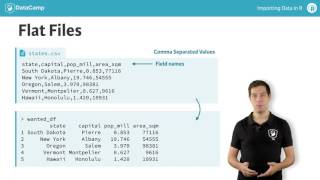
Hi and welcome to the first Importing Data in R course. Imagine this situation. A colleague of yours is still doing his or her analyses in Excel and finally decided to transition to R. He or she needs an easy way to convert the Excel spreadsheets into R dataframes, but he or she can't seem to find the tools to do so. Well, getting to know these tools is exactly what we'll do here. In this two part course we will focus on five types of data from flat files, data from Excel, data from databases, data from the Web, and finally data from other statistical software like ss, SPSS and Stata. You'll learn to convert each data format, one after the other, into an R dataframe. Ready to do some fancy analyses? Let's start off with flat files. Flat files are typically simple text files that display data as tables. Have a look at this States CSV a flat file where CSV stands for comma separated values. The data lists basic information on some US States. The first line here gives the names of the different columns or fields. After that, each line is a record and the fields are separated by a comma, hence the extension CSV. For example, there's a state Hawaii with the capital Honolulu and a total population of 1.42 million. What would this data look like in R? Well, actually the structure nicely corresponds to a dataframe that ideally looks like this. The rows in the dataframe correspond to the records, and the columns of the dataframe correspond to the fields. The field names are used to name the columns of the dataframe. But how to go from this CSV to this dataframe? We're in luck because the standard distribution of R provides functionality to import these flat files into R as a data frame. These functions belong to the utils package that is loaded by default when you start R. More specifically, we'll need the read CSV function as follows. The first argument of read CSV is the path to the file you want to import in R. If the file is in your current working directory, simply passing the file name as a character string works if your file is located somewhere else. Things get tricky depending on the platform you're working on. Linux, Microsoft, Mac, whatever File paths are specified differently. To build a path to a file in a platform independent way, you can use the file path function. Suppose our states CSV file is located in the datasets folder of the home directory. You can use File path like this. Because I am working on a Mac, this is the resulting path. I can now use this path inside read CSV to point to the correct file like this. The second argument, strings as vectors, is pretty important. Say we have columns that are strings. We can choose to import these columns as actual strings or as factors, which R uses to store categorical variables. By default, the strings as factors argument is true, so it would convert strings into factors. In our case, however, the state and capital names shouldn't be categorical variables, so we set strings as factors to false. If we run this call now, we can see that we get a dataframe with five observations and four variables. This corresponds nicely to the CSV file we started with. If we print out the structure of this dataframe with str, we see that indeed the two first columns are strings and not vectors, exactly like we wanted it. Alright, that's enough to get you started for now. Time to give importing data a first try. In the exercises.