Hangouts On Air, Hangouts and Events - G+ Food Bloggers Community Education Hangout
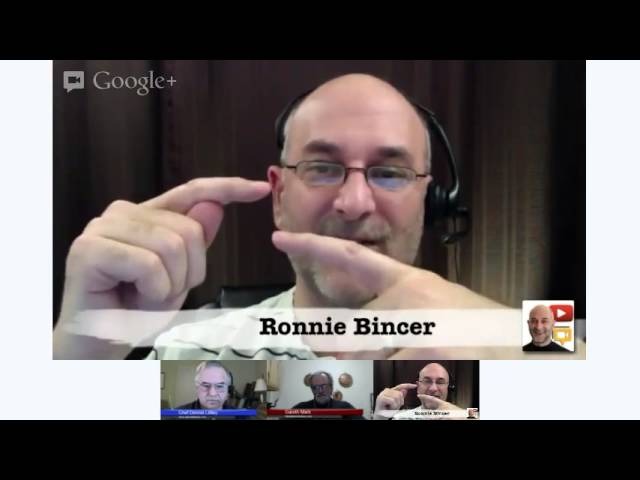
In this community education Hangout, Chef Dennis Littley, Ronnie Bincer, and guest Gareth Markin walk food bloggers through the full workflow of using Google Hangouts, Hangouts On Air, and the Google+ Events tool to produce live cooking shows. They define the three core concepts—Hangout (private video chat), Hangout On Air (public, YouTube‑broadcast, recorded), and Event (a virtual room for scheduling, promotion, and comment aggregation). The discussion covers how to embed a Hangout On Air URL into an Event, the importance of keeping the Hangout‑On‑Air link private to avoid unwanted participants and copyright strikes, and how to use the Comment Tracker to aggregate comments from multiple platforms (Google+, YouTube, Twitter). Technical setup advice includes camera choices (multiple laptops, Logitech C920/C910, built‑in webcams), lighting tips (overhead work lights), and using custom lower‑third overlays (640 × 360 PNG). They explain promotion tactics such as teaser videos placed in the Event’s YouTube URL field, managing invitations via circles, limits on guest numbers, and monetization options (Google Wallet, PayPal). The session also addresses practical workflow questions: moderating comments, handling public vs. private events, practicing before going live, and troubleshooting tools like the Hangout Toolbox, which currently does not work from Google+ Pages. Throughout, Ronnie emphasizes planning, clear communication to participants, and post‑event follow‑up (answering missed questions, promoting future shows). The talk ends with announcements of upcoming live cooking demos and a promise of an upcoming ebook on Events, Hangouts, and Hangouts On Air.
Chapters
Hi, I'm Chef Dennis Littley, and tonight we're going to talk about Hangouts, Hangouts on Air, and events. Our guests tonight are Ronnie Bincer, and I also have Gareth Markin here with me. Ronnie, I'm going to turn it over to you right now, and we're going to get this party started with some Hangouts, Hangouts on Air, and events.
Sounds good. I am doing what I can to help educate the community, meaning the entire community of Google+, with understanding how Hangouts work and how Hangouts On Air work and how they nicely work or not so nicely work in— inside what's called an event. And that's one of the main topics that we're trying to cover here, so I'm assuming we'll go into that, but I want to back way out to the most basic thing about what is a Hangout, what is a Hangout On Air, and how do they work together, and then also what is an event, and just to talk about what I call the players in this, this drama. So basically, let's talk about what a Hangout is. It is this visual video chat that we're in right now. A regular Hangout is not public, it's usually private and it's amongst whoever else you invited into the Hangout. What we're technically doing right now is a different version of a Hangout called a Hangout on Air, and that is public. It's automatically broadcast to the world live, and it's gonna be recorded for you automatically on YouTube. So the big difference between the two is one is public, that's a Hangout on Air, what we're in right now, versus a regular Hangout or what's just called Hangout. And so that for some people is actually a little bit tricky, but the bottom line is one's private, the other's public. The private one's called a Hangout, the public one is called Hangout on Air. Now the next part is where it gets tricky, is I tend to encourage people— I know Chef Dennis Littley and Gareth Littley are both using the event tool to package the Hangout On Air or potentially package a regular Hangout. And because it can do both, one easier than the other, it gets confusing for people. So let's talk about what the event is, at least what I use the event for. And I'm actually in the midst of writing up an ebook to try to explain this, so you're gonna be my guinea pigs with my newest analogies. So here we go. I think in my mind an event is like a room that you rent. It's a, it's a meeting room, it's a place to gather, people can come together in this room called an event. You can advertise the fact that you're going to have the event at a certain date and time and people will know where to go. They can even go ahead of time and leave comments and talk about what's coming up and get all excited about what's going to happen in that room. And then if you wanted to do a regular Hangout inside that room, the regular hangout comes with the rental fee. In other words, it's just part of it. So you can do a regular hangout in an event, and only the people that you invite into that event or hangout are able to join. So it's limited. It's a private meeting room, let's say. Then the other thing happens. People are gonna wanna do public hangout inside an event. So what I say with that is that doesn't come with the room rental. You gotta go pay the guy over at the AV store to bring another piece of equipment into the room so that you can actually do a public hangout. So here's what we've just done. Chef Dennis created ahead of time and advertised ahead of time an event that says this is gonna be a Hangout on Air, and we're gonna talk about Hangouts in this case, or we might be talking about the latest recipe or the latest method of chopping onions, you know, whatever it is that we're gonna be doing, that's gonna be part of the show, and this show's gonna be public. In order to do that, Chef Dennis had to go to the AV store and grab himself a separate piece of equipment which is called a Hangout on Air, and he brought that to the event so that we could all be watching it inside this room because it does not come standard with the event room. And so all that means is Hangouts are in the event automatically. If you press the button when you're setting up your event, you can have a private Hangout. If you want to Hangout on Air, you've got to get two parts, one from not inside the room and one— and bring it into the room. So we're gonna have to go get a Hangout on Air. Chef Dennis set up a separate thing called a Hangout on Air, invited myself and Gareth Littley into it. So right now we're the 3 members that are inside of it, and then he brought that into the event by copying its URL, the little link that goes to the YouTube video. He gets that ahead of time and he's bringing it from the AV store basically and bringing it into the event so that we can watch the live Hangout on Air inside this room called an event. Now you guys over here, does that make any sense to you?
Yes, it does, Ronnie. Now when you're talking about the URL though, I don't know if everyone really knows what it is, but up at the very top of the page when you go to start your, to do the Hangout on Air, there's a little embed button. And when you click that embed button, you're given two little boxes. One is an HTML and the other is a URL. So when he's talking about grabbing the URL, that's where you grab it from. We're not We're not taking the address of the Hangout itself, but we're taking the URL and then we got to go plug that one in. There really are no real rental fees too, that's a metaphor that he's using about that. There's no cost involved here, so don't get worried about that if you heard the rental fee thing.
Right, what I'm trying to drive home is the idea is two separate things because if you start an event you have a button in it that says make it a Hangout. Unfortunately, a lot of people think that is going to be a public Hangout, but by definition it's not. A regular Hangout is not public. And so I've seen, unfortunately, a fair amount of people make an event, call it a Hangout event, and then they're inside this thing called a regular Hangout and they're looking for the button to go live and there is no button because it's not possible. It needs the Hangout that's built into a regular event is not public by default. And so you need to get a separate item, which is a Hangout On Air, and let that start and then connect the two together. So bring it into your event room, and that's where this link, or what's called the embed URL for the YouTube video of your live Hangout, comes into play. And so I'm trying to work with analogies or metaphors There's no rental fee. This is all free. So that's a good point. But there's also something else that's part of a regular— I'm sorry, part of a Hangout On Air that you want to be very careful about. At the very top of a Hangout On Air, there's a thing called a link. Okay, and that link is something you do not want to share publicly because that means anyone and everyone could come into your live Hangout On Air And what many people don't realize is if anybody comes in here, they might start playing music, they might have music in the background, and all of a sudden you're now going to be subject to having a copyright strike. And if the copyright strike comes on your Hangout On Air, you're shut down. Takes one strike and that's it. They shut down your capability to do Hangout On Air until you can clear that up. And it can take quite a while to clear up. So it's just not a good idea to let anybody in to your Hangout on Air, you should control who is on your, in essence, invite list into that specific thing.
I do know there's a lot of confusion about that sometimes. I'll see comments down that says, "I can't get in the room, I can't get in the room." Well, you can't get in the room because the room is actually private and we're holding this Hangout to give you information. Sometimes when we did the community Hangouts, we did open them up. But that did cause some problems because people come in, they're not muted, they're making sounds while we're trying to talk or ask questions. So it is better to do it this way and control it and have someone monitoring for questions.
Yeah, let me bring up another point that's interesting how you said it that way. If I'm doing what I call a Hangout on Air inside of an event, that's the terminology I'm trying to use, it's a Hangout on Air inside an event. If I'm doing that, I usually will advertise ahead of time that this is coming up so I can get people to know where it is and when it's going to happen. And then I'll also try to use some extra text in there, not only telling them what's happening, but try to explain what joining me means, because this is where people get confused. I say, "Join me in a Hangout On Air for this topic on this date." Well, now people are wondering, do I get to come in? Am I in the show, in that little film strip down there? Or am I in the event and interacting by commenting? So I don't know that we've done it yet, but I would encourage people to start to try to be a little more clear by saying, join me by commenting, or join me in the event as we do the live show, right? Or join me in the film strip, which is what I call the thing down on the bottom, which are the people in there. If you're wanting people to do that, and then basically you're limited to 10 people or 15 depending on your account status and things like that. But trying to really make it clear what "join me" means would be a good idea, I think, for people.
We had one question here from Paulino Brenner, too, and he wanted to know if you create an event with a regular Hangout but you invite the public, anyone will be able to come in? And the answer to that is no. Right? It's as long as it's just a regular Hangout.
If you create an event with a regular Hangout in it—
Yeah, but you invite the public.
You invite the public, and that's where the massive confusion happens because the public is able to come and add comments, but they can't get into the Hangout, nor can they watch the Hangout just by the fact that it's part of an event. Here's what I use the event tool for with private hangouts. I do this 2 to 3 times every day. I meet with clients or prospective clients by making myself an event that has a date, a time that it starts, a time that it ends, and I invite one client to meet with me one-on-one inside a hangout that happens to be in an event. The reason why the event works really well is when they say, "Yes, I'm going," it sticks a reminder on their calendar so that when the time and date comes, they get an alert and it's, "Oh yeah, I gotta meet with Ronnie again," or, "I gotta meet with Ronnie," and then all of a sudden they're in this one place where I'm in and we could both join the Hangout, which is a private Hangout, and that works perfectly for that. However, if I try to invite the public, they don't even get a place to necessarily join except up to 10 people, and they could get confused as to why they can't see it if they're on the outside. So when you're invited into an event and that event has a regular Hangout in it, you might be able to join in, but there's a limit, and nobody else on the outside can even see what's going on. Does that make sense? Yes? No? Yes?
Yes, it does. Gareth, did you have a question from YouTube there, you said? Yes, Tessa wants to know how do you watch the monitor to comment, the stuff that we were going through earlier.
Right, and I'm assuming that means monitor the comments that are going on in various places. Okay, yeah, there's a tool that I use regularly, and some— like right tonight, it's not being happy, okay, so we're not able to use it as much as we'd like.— but it's called the Comment Tracker or Hangout Comment Tracker. And it's one of those free things that's built into the Hangout Toolbox, which is where we're getting our little lower third things from. And we can talk about those in a little bit as well. That allows you to basically grab comments that are going on outside, like in the event or on Google+ or on YouTube or on Twitter There's various places you can go out and grab and look at comments, bring them into the show itself, and in fact, just to show how it lets you, I'm just gonna turn something on here, and Chef Dennis, if you would blue box me for a second. Here is a comment that came from YouTube. If I'm using Comment Tracker, it gives me the ability to do that, and we could read it and say, in the event They would need an invite, and how do you watch the monitor comments? Does this just show up in YouTube automatically? So sort of the answer is the comments show up in YouTube, yes, but the people running the show, if they're not looking at what's going on in YouTube because they're busy running the show, they might miss it. And so this comment tracker is one of the best tools to help you grab those comments and combine them all in one place. Unfortunately, this evening it's not working very well. It's letting us grab the comments from YouTube but it's not letting me grab the comments from the event which is where I see most of the activity.
We just had another comment from Trevor Beck. He said to be sure to mention placing the YouTube URL in the description for the mobile users.
Right, that was something we were talking about just a little earlier. Let me do that. I will copy that from our chat and paste that into the event so that people can grab it from there. So I'm typing right now, here is the YouTube link to the show. I'm gonna paste it in there and share it because a lot of times, as Trevor's pointing out, that the YouTube video link is one of the best ways for people that are on mobile to see what's going on, because when they go to the event, sometimes that window on the top that normally opens up and shows your live video, you know, the thing you brought in from the AV store, that extra thing, sometimes that's not visible for the mobile users. And so I, as a standard, I'd like to post it in there in the comments. Sometimes also post it in the description text so that it doesn't scroll down in case there's a lot of comment activity. But I don't have that control. Chef Dennis does.
Yes, I do.
Alright, so let's see, um, Claudia in the event area saying, I don't see where it said to turn this one to video.
Yeah, I just left her a comment saying, Claudia, right up above there should be a black box. Just click on the arrow in that box.
Okay, that may mean if you've been on the event page from early on and the show wasn't live yet, you might want to hit refresh, you know, Shift+F5 or Ctrl+R or Command+R, whatever causes the page to refresh. That should open up the window in the very top, and then you'll see that video there, and you can just hit the play button and you'll be right where we are right now. And if you've missed part of the show, you can always watch it later, because that's one of the beauties of this thing. Once we're done with this Hangout On Air It is a recorded video and as long as Chef Dennis doesn't turn it off, it's going to stay there visible for you to watch later. And to me, that's one of the best reasons why you use the event to hold the Hangout on Air because it allows you to, one, advertise it before it's coming, watch it during the show, and then after the show people can still go back and watch it again later. So it's a gathering room for the event. Literally, and you can keep coming back and enjoying it over and over again as long as you need to or want to.
Alright, well, there's another question from Paulino. I think we just confused him a little with my explanation saying no and then you saying yes, they can come in. Okay, he says—
Yeah, let me try to clarify.
Okay.
When you're in an event and the event has a Hangout attached to it, not a Hangout on Air, just a regular hangout. If you join into that event, you can join into the hangout at that time. However, it's limited to 10 people, and if your goal was to make it a live broadcast so that everybody in the world could watch it and it was recorded automatically, it won't work. It's not part of a regular hangout. So it's possible to have a 10-person hangout in a regular event a regular Hangout in a regular event, 10 people, fine. But anybody else can't come in and nobody else can see it later because it's not recorded and nobody else can watch it if they're not part of that initial group. So if you're, you're okay limiting the number of people in the event that can join the Hangout to be the number 10, then fine, do it. But most people are trying to do a show like a TV show and let it be broadcast like we're doing right now, and that's where you need to do a Hangout On Air that has a link that you've pasted into the event special area. In fact, we didn't talk about what that is. The event has a bunch of additional fields, and one of them is called a YouTube URL, and that's where you paste in your link that's your live Hangout link, your video link. Hopefully that clears it up a little.
Alright, we have another couple questions. Lenny Ferrara wants to know, she says, there's 3 locations to watch from: your feed, within the event, and I just lost it, somebody said something else, and on YouTube. The 3 comment locations are not in sync unless you have Comment Tracker, which aggregates all your comments, right?
That's correct. And she says 3, or he says, I'm not sure who it was, Lena, yeah. The comment says there's 3 locations. There's literally thousands of locations potentially, and that's one of the reasons why the Comment Tracker is a great aggregator of all those. Because if someone shares the YouTube video of this live Hangout and then that share goes out and out and out and out and out and you get lots of people sharing it, you could have 5, 10, 20, 30, 40, 50 shares of it depending on how popular your show is, and people can be commenting in all those places, and it's really hard to keep track of, where the comment tracker allows you to basically track where all those shares are and bring all those comments together in one place when it's working. And that's when it's working. It normally is working. I don't mean to slam the concept, it's just tonight it's not with the events.
Okay, you can also have your hangout on air broadcast live on Facebook, I discovered today.
Right, meaning you share the URL for the YouTube link into Facebook, people can watch it on Facebook, right? There is a dilemma right now and it has to do— I don't want to get too technical, but it has to do with permissions and things like that. So as a result, Facebook comments aren't able to be grabbed in by the comment tracker right now. I know that Gerwin, the gentleman that wrote that program, is working trying to figure out what's the best way to deal with the Facebook permission things. It's not that Google+ people don't get along with Facebook, it's just Facebook has a different method of comments and it requires authentication and permissions and it's a little bit trickier. And so as a result, he hasn't added that in, but he's had enough requests, I think he's going to be trying to work on it soon.
Okay, and another question is, uh, Annalise wants to know, is there a difference in watching here on G+ versus YouTube?
No.
There's no extra terms in commenting, I mean you don't get any benefit?
No, actually, uh, maybe. Let's put it this way, it depends on your audience. If your audience is more comfortable watching inside YouTube then have them go over there. In fact, I— because I have this show scheduled with you, I couldn't do another show with someone else who is a big YouTube guy. And he was asking me a similar question, saying, well, well, should I, should I aim people, encourage them to go to YouTube and add the comments, or should I have them go to the event? And I was encouraging him actually to go to the event. And the reason why, even though he's a YouTube guy, the event allows him to advertise ahead of time, do the show live, and then have activity after the show all in one place. And he could have done like Chef Dennis Littley and I did, made a teaser video ahead of time, stuck that right in the event so you can advertise what's going on, and then right before the show starts, take that away and put the live video link in there. And so you've got all this capability that is built into the event that is not available directly on YouTube. So when it's possible I encourage people to start using the event tool as sort of the room or the container that's holding the Hangout on Air.
Here we have another question. Kim Baltman wants to know if anyone can use the comment tracker or if it's just for the room.
Okay, good question. Yes, anyone can do it. So if you, as someone from the outside that's just watching, wants to watch all the comments you can grab and bring in all those comments into the comment tracker on your own. So it is possible to do if you're not inside the room. So yes.
Okay. Alright, do you want to talk a little about how we made that teaser video since you mentioned that? You talked about how we did the video on the event and then put it in there.
Sure. I met with Dennis beforehand because we wanted to talk about Actually, let's back up. One of the more basic things about Hangouts On Air, a good thing to do is plan. Actually, don't just do it right at the last second, but plan it ahead of time. So then Chef Dennis Littley and I met and talked about the idea of a teaser video to talk about what we're going to be discussing in the Hangout On Air to give people reason as to why they want to join it or not, or join into the event and watch. And so we decided, yep, that sounds like a good idea. Let's make a teaser video. We'll keep it short and sweet. And so Chef Dennis Littley and I joined together inside a Hangout on Air, and we used it to build or create a video of us just saying what was coming up. And then Chef Dennis took the— once the Hangout on Air is done, you get a video link. You have a video. It's built one for you. He took that link and stuck it inside the event's special field called YouTube URL, and then whenever you come to visit the event, it automatically opens up and you see the video and you probably going to hit the play arrow to see what it is. And to me, that's one of the best ways to promote your Hangout On Air by using another video inside the event saying this is coming. And if you're really, really into videos, I might make a couple of them, you know, one that's a week ahead of time, another one 3 days ahead of time, and then 2 days, then 1 day. So you got different things to keep people excited about what's coming up, and then bam, here we are for the full show.
Great, thank you.
Sure. Now, if it's okay, I'll jump to some of the other comments I know we had earlier.
Please do.
One was talking about equipment and what do I need to have to do a basic hang on an air without having to get too fancy. What are the basics? And because I am trying to address this for your target, meaning cooks, chefs, you know, the people that are wanting to make a show out of what's going on inside the kitchen. I would encourage you have a removable camera. In other words, something that's not necessarily built into your computer but has the ability to be pointed at different angles. So you can point it down into the pot that you're working on or up on— basically different ways to do it. Although, if we're talking the most basic, basic structure, I've done cooking shows without removable cameras just by using laptops. So if my laptop has a camera built in— I actually did two laptops on recent shows where I have one of them that's kind of a clam thing, meaning it's angled down showing the cooking surface, meaning my stove, and another one that's on the side showing me. So that way, it'll allow— you got two computers One is the camera, in essence, pointing at what's going on on the stove. The other one's pointing at me as the chef. And then, say, Chef Dennis is in there and he's controlling the show by what's called— I gotta remember the newest name— pinning. There we go. This is the newest technical name. What used to be called— what I called blue boxing is now technically called pinning. So I gotta say it enough times and then it'll be official in my mind. The person that starts the show, the Hangout On Air, has control over what the public sees. So there may be 3 or 4 cameras or thumbnails inside a Hangout On Air, but they're all controlled either by the voice, meaning who's talking, or the originator, the person that owns the show, is able to pin by clicking on the thumbnail, and that thumbnail or that camera is what is shown. So if I'm cooking and I'm— you want to see me because you're talking to me, the chef's talking to me, you're going to want to pin yourself as a chef or pin me as the, the chefy, whatever, what would I be called, the Little Chef, and, and you're trying to walk back and forth. But then when we want to focus on what's going on on the stove, then the originator Dennis would pin the stove camera. And that way I can be talking, but it doesn't jump back to me. It stays focused on what's going on, on the stove. So to me, that's one of the most basic setups, is using multiple laptops so that you have different cameras. The next level I would go would be to get a removable camera and maybe stick it on a lamp stand or something, you know. You don't have to get real fancy. You can get a tripod, but you don't have to. You just sort of stick it on this thing that's holding it and then you change the angle of it. And the most— probably the most popular inexpensive camera to do these Hangouts is called the Logitech C920. The C— I don't know what it stands for. C920, Logitech. And it's about— in the US it's less than $100. And so it's a good one, it's got a microphone built in. I'm not saying it's the best mic but it does have one built in. But the camera is perfectly fine. It works well for PCs by default, and it will work with a Mac. But if you're going to do it with a Mac, you might need an additional piece of software that I use, which is called Webcam Settings. It's an $8 piece of software, so it's pretty much free. And that allows that Logitech— if it's not automatically being recognized inside your Mac, then it allows that Logitech to work with the Mac, because by default it's really default designed for the PC. And that's a separate camera. It's got a cable, you can move it around, put it anywhere where you want. You can mount it on top of your computer, which is what it's technically designed for, but you could also have a lamp stand there and just click it right on the lamp and change the angle of it, and you can have that be your camera for the show.
Okay, Michael Daniels just want to know, with two cameras, do you have two accounts?
No. Not necessarily. You do need two computers. In other words, one computer— well, everything I say now has to have exceptions. Depends. I'm trying to stay basic, okay? I want to get staying with the basic level. To me, the most basic level is you're going to have two— if you want two cameras, you're going to have two computers. And so you can do that with the same account. In other words, Ronnie Bincer signs in twice, and you as the controller are looking at the picture and deciding which picture you want to show and not so much worried about which name of the person. You're just looking which is the picture I want to let the public see. So you can have unlimited— well, it's limited by the number of spots, like 10, inside the Hangout, but you, you don't need multiple accounts to do this kind of thing. You can do multiple cameras on the same account if you have multiple computers. Makes sense?
Yep. Paulino again asks, can you talk more about the difference between a regular event that you use to promote a Hangout On Air and an On Air event?
Okay, sure. Hi Paulino, thanks for these questions, it's great. The On Air event— let's back up. The event tool has a couple different extra options. One option is called Hangout, and we've talked about that for a bit already. Another option is called On Air Event, and this is where a lot of confusion comes in, because people think that because there's Hangout or On Air Event— those are two choices— that the On Air Event is the same as a Hangout On Air. But if you get technical, and these computer programmers are nerds, okay? They are technical, they're literal. It does not say the word Hangout On Air. That's not anywhere inside the event. Just doesn't exist. Most people don't realize that. They see the word Hangout and next to it another one saying On Air Event. It won't let you collect both at the same time, but if you choose On Air Event, then your event is on air. And what the heck does that mean? It doesn't mean a lot for most people. It does not broadcast anything in a Hangout because it's not a Hangout On Air, it's just an on-air event. And what it technically means is it's publicly accessible and people can watch what's going on. So one use case that I've not used, but if you had a party and you wanted people to be able to upload pictures of the party and make that sort of an online active on-air event. You can say, hey, come to my party at this location at this time, and we're all going to be uploading our pictures from our phones or whatever to let everybody that's not able to physically come still enjoy the party. So that's an example of an on-air event. People are adding pictures, they're constantly going and updating, but there's no live video. That's the key— there's no live video in an on-air event. However, you can add a live video into the on-air event. I just tend to encourage people not to because it gets confusing to many people. So I use a regular event. I do not make it a Hangout on Air— I'm sorry, I do not make it a Hangout event. I do not make it an on-air event. I just make an event, and when it says location, I'll put the words Live on Air Hangout or something like that. Hangout on Air live on your computer. So the location is on your computer, and then the last key to make this all work is just— you start up your Hangout on Air as a separate thing, you grab the YouTube link from that embed area, and then you paste it into the— you go and edit the event and paste it into the YouTube URL field. That way when you go live, people are able to watch the live Hangout On Air inside the event. And hopefully that makes sense. Like I said, I'm working on making an ebook where this will be laid out step by step by step and make it real clear to try to help people understand. Because to me, this— I've been doing this for a year and a half and I'm getting some of the same questions over and over this whole time. It's just still a bit of a problem for many people.
Okay, Ronnie, can we do a screen share of this screen so I can show where the embed button is? Gareth was just asking.
Yes and no, and this is a tricky area, so you can try it and get ready to un-screen share quickly.
Yeah, I've had that happen before.
Because if you screen share your own insides of your Hangout, you may go into this repeating of never, never, never ending thing. And I can't remember, I've tried to figure it out when that happens and when it doesn't. So there you go. So now we're looking.
Yep.
All right, when you started it wasn't doing that. So do that again, but don't blue box and then you—
I think that was the difference. Okay, it's doing it.
It's doing it again. Um, yeah, I— all right, now it's working, now it's working. So let— I guess let me talk now.
Yep, you got it.
But now I'm not— okay, so all right, here we are. I'm gonna point— okay, this is gonna be weird. I'm gonna point somewhere over here.
Yeah.
There's the thing that says embed. And when you're inside a Hangout On Air and you're the owner, only you see this extra stuff. And the thing up there that says embed, it's backwards and upside down or something like that. That thing right there, when you click on it, opens up the stuff that's on the black area. And if I move over to this part, you know, it's at the black area, that's the URL you're pointing to. That's the URL that you want to copy. That's the YouTube URL, the YouTube URL that you do want to copy and share with people as well as put inside the event special field called YouTube URL.
Right.
Over here, which I can't point outside the box, but if you were to imagine my finger going up even further, there's a special link for the Hangout on Air itself. That is what you do not want to share with the public unless you want to get copyright strikes. Because you will get people in your Hangout that you don't know where the heck they're coming from and why they live inside your Hangout, but they came because you made it public.
Right. Okay, that's good. Alright, we're back to that then. Alright, and let's see, another question was, Michael Daniels wanted to know if we put the teaser video in the ticket seller URL. No, Michael, we put it right in the YouTube URL. The ticket seller URL will be something completely different.
Yeah, the ticket seller is something I'm looking forward to seeing Google Wallet work out with, but at this point it's not. And what— and if you're into the business of selling your content, meaning you're going to do a cooking show, you're going to invite 10 or 9 other people and you want to charge for that, that would be a phenomenal way to hold a cooking class all inside a Hangout, but you right now have to use a separate place to gather funds. They don't have it connected to Google Wallet. I would love it if they did. That way you could charge money in essence to come into a private event that people— I call private because I don't know why you'd do it public. But anyways, private event and get these people to pay a fee for learning the information you're trying to teach them or show them.
That's kind of what we do on Chef Hangout, Ronnie.. We teach private cooking classes on Chef Hangout, and it just goes through PayPal right now. First, there's something set up on the website where they do all that, and then we invite them into the Hangout when we're ready to go for the cooking class.
Right, right. And then when we're talking about equipment, just to bring up something else that's very important, it's called lighting, you know, getting good lights. When I did my cooking show that I was involved in— I'm not a chef, but someone else Is it okay to say other people's names?
Absolutely.
Okay, all right. There's a gentleman named Larry Fournillier who has a cooking show, it's been around for a while, called Learning to Cook Caribbean. He's had me on a couple times, myself and my wife, and we— that's where we do the multiple laptops with the different angles, one pointing at the stove, one pointing at us. And what I do is I take a work light, you know, the kind of thing that you go underneath your car and you hook it on there and just let it hang there while you're working. It's not real fancy, but I take that and I stick it up above the stove so that it's pointing down at the stove. Because the regular lighting, if you have a tall enough pot, the regular lighting makes it so that you can't see inside very well because there's too many shadows covering the insides of the pot. But if you have a light right above the pot pointing down, then you get some extra light so that when the camera's pointing at it, it's got enough lighting to deal with the edges of the pot so that you don't have your shadows covering everything up. So for a chef, you're gonna need some extra lights right above. It does not have to be fancy, but you do need some extra lights. And if your guest's got a regular stove, like the kind with— well, like, regular, right? For me, the non-professional chef, my stove has a microwave on top of it. I don't know if the official technical people would ever do that, but in my world I've got a flat-top stove with a microwave above it. The microwave has a little button that says, "Turn the light on." Well, that light ain't gonna cut it. It's nowhere near bright enough to give enough light down onto the stove so that the camera's gonna be able to pick it up. So that's why I added extra lighting up above it. And this is again planning. What Larry does with me, and what I would encourage any chef out there gonna run a show like this, is meet with the people that you're going to be having do the cooking and make sure that they have their computers set up where you want them to be and then look at the lighting. Because if you can't see it during a test Hangout beforehand, you're not going to be able to see it during the show and it's harder to adjust at the last second.
Okay, we just had a question about lower thirds, Ronnie, from Joey Giangola. He says that when you create a custom lower third What size does the file need to be? Do you need to account for the full frame of the video to overlay the graphic at the bottom?
I use the size of 640 by 360. I've got it on my little whiteboard here. I'm just gonna check it again, make sure. Yeah, 640 by 360, and what that does is it fills up the whole screen. I'm sorry, let me back up. We're talking about this thing down there. This is called the Hangout Lower Third. The other two guys in this Hangout right now are using more of the traditional looking Hangout Lower Third. I'm using what's called a custom overlay, and that custom overlay allows you to do all kinds of special things. I'm keeping it basic right now, but when I want to, if I want to, I can do stuff like this. I could turn on additional information that's part of this custom overlay. Now this ha— I didn't make one for the show, so I'm sorry, this is just sort of one that's sitting around there. And you can save these things, they're saved presets, so you can turn it on, turn it off whenever you need to. This would be a great idea right here, and backwards, I'm gonna turn that, okay, right here if I had the recipe or I had the major 3 steps that I needed to do for my cooking show, you could have that display the entire time so that when everybody's watching it, in case they forgot, they could just glance up there and they see it. So I think it's a great thing to do for show. I think, Garth, didn't you have one that you want to just turn yours on for a second so everyone can see it?
Sure, give me a second.
Sure. So while he's doing that, just realize this whole thing is one graphic. You can't just do a little bit of it. You have to do the full size and you make it what's called a PNG format. Chef Dennis, are you blueboxing him?
Yes, I am.
Okay, so that's— there's an example of different sizes of graphics. Is that what that is? Channel photo post event 940 by 180. That looks to me like—
Those were my talking points for last week.
Okay, here I am thinking you had a recipe or something going on. You're more nerdy than I am. Okay, anyways, so back to what we were talking about here. You can't just make the lower third. If you're going to use a custom overlay, you have to have the graphic be the whole screen, and that's where I use the 640 by 360 size. And then the parts that are transparent— that's nice— the parts that are transparent are, in order to maintain the transparency, you have to save it as a PNG format. PNG. If you save it as a JPEG, the whole thing is going to be white, and so that won't work. You have to use a special format for the graphic. And for a while ago, I was offering to do that for people. Nobody took me up on it, so I decided, okay, I won't offer it. So I just make my own. But all kinds, like for example, this graphic custom overlay, when I need to leave but I don't want to leave the Hangout, I need to get up to do something behind me, I'll turn something like this on. You see that one? So I've made something that just totally covers up the screen. That's not a PNG, it's a JPEG because I wanted it to cover up the screen. But you can— yeah, back. So there's various things you can do with this Hangout Lower Third. It's a lot of fun. I think Moritz did a fantastic job with it, and I'm a proponent of encouraging him to do that more by giving him money. You know, give him a little bit of— give him a tip in his tip jar if you'd use this a lot. It's really worth it.
Very good. We had a question here from Kim, and it's just about— Kim Bolton— when I hover over the live video, a header comes up with some icons, a thumbs up, a thumbs down, a link thingy, and she wants to know what they mean and what to do with them and when to use them.
Alright, the link thingy and the eye I see there. Okay, the thumbs up means I like the video. And it's like giving it a +1. That's what a thumbs up is. A thumbs down means I don't like the video and I hate it. You know, just one way to say you don't like it. The "i," which is usually inside the circle— I mean, they just changed this, I think, about a week ago. I mentioned that this is new. The "i" is for info. In other words, you can click on it, it'll give you additional information about the video. If that information is available. Right now, during a live show, you're not able to type in the description text and details about the video yet. Once it's over, then you can, and that info will give you more details. But right now it's not going to give you much detail except maybe the channel name, I think. The other thing, which is that share graphic thingy, you know, sort of a circle with legs going out to more circles. That share thing allows you to share the video inside Google+, I think to Facebook, to Twitter, and you might be able to go into a whole bunch of other sharing environments as well. So that's all part of what's called the embed of a YouTube video. Up in the very top, if you mouse over it, you can click and get those things to show up.
Great. Okay, Paulino wants to know, Events on air have a limited guest list. Is that a fixed number or what does it depend on?
A limited guest list. I'm not sure I fully understand the question. And again, we're talking about events on air rather than a Hangout on Air inside an event, if I'm getting technical with them. So I think events on air means, um, An on-air event, I don't believe it has a limitation. I've not run into one. In other words, it could be— and Paulino, you can answer back in the comments if I'm guessing it right or not— it could be we're talking about how many people can you invite into an event. And I have found a technique that I use that works pretty well is when you start your event, the very first invitation, you have to invite the public if your plans or goals are to have the event be public. So once you've done that, then you can re-invite people multiple times over and over again. I have found making my circles of people that I want— I know want to come to the event— I'll make those into circles that are 100 people or less at a time. So I will invite 100 at a time, and I have not run into problems with limits as to how many you can invite. So Paulino says, "Yes, it does have limits, and here's a link." So there it is. You can read it later in the comment. I'm probably not going to take the time right this second, but maybe it's about the specific On Air event thing, the thing that I'm saying don't do. Okay, so that could be why I don't know enough about some of its limitations, because I don't know the value in it for the methodology I do, which is showing a live Hangout On Air inside of an event, to me it's easier and less confusing for people if you just don't turn on any special options.
Now I've invited 500 at a time into these and I've had no problems with it.
I think that's because you're special.
Hahaha, don't I wish. I said, but my Food Blogger Circle for our community, one has 500 and one has close to 400. At first when I created the event, it didn't let me, and then about a minute later it let me.
Were you inviting communities or were you inviting circles?
I was inviting circles. I know when I invite the community it puts the link down at the bottom of the community but I was inviting my circles. I've done that for other events too. I scheduled an event for Thursday and I invited my circles and one was 500 and one was 380.
This is an area that I believe you— I was going to say YouTube. Google+ is a little bit secretive about, meaning how many people you can invite into an event. So my guess is it's somehow tied to your popularity. That's my guess. So for most people, if they do 100 at a time, they're gonna be safe. If you're a rock star like Chef Dennis Littley and you got 300,000 people in your circles, then they might give you more space to invite more people because percentage-wise, as compared to how many are following you, they're giving you a little bit more latitude. For the average person, I don't know that they're going to be able to invite more than 100 at a time. You could try it and let us know, you know, put it down here in the comments, "Hey, I was able to do 300 at a time," or something.
I checked the link that he put in there and all it says is that there is a limitation but the quantity is not specified.
And was that specifically about the on-air event?
The event on air not a Hangout.
OK. Yeah, I'm still trying to figure out a good use for the event on air other than making it— it puts a little red dot there that says it's on air. And for some, that's nice. I've found many people get confused by it, so I just don't use it. But that's my personal take.
OK. And he did say yes, that's what he was talking about, a specific on air event. We have another question here from Michael Daniels, and he just wants to know which cameras that we're each using specifically. And I have a C910 on right now, but I also have a C920 that I use occasionally too.
So that's the Logitech camera, right?
Logitech, yes.
Okay.
I'm using the Logitech C920.
Okay, and I am on a Macintosh iBook with its built-in HD video camera. So I'm not using any external anything, it's just what's built in.
Okay, very good. Then, um, alright, that's all the questions we have right now. So was there anything else we needed to cover? We've talked about making our promo video, we've talked about the live on-air Hangouts and events.
I would say basically think of it this way: your room, which is your event, is a great place to gather. And when you are— if you're in the show and you're done with the show and it's over, you're gonna— you got some work to do over on YouTube, and that's a whole nother show we could do another time, how to optimize your video properly. That's actually where my background is, is from video SEO. But let's just push that aside for a second. When you're done with your show, it's a good idea to go to your event and look to see if there's any questions that were in there that just didn't get answered because you missed them as part of the show, or you were just too busy and didn't get to it. And then do your interaction there after the show, because that again is one of the values of the event. It has life after the show's ended. And then you can— what I would do at times also is I'll say, hey, if this is part of a series, I'll say, "Make sure you come back for the next installment that's going to be on this date and time." And then as another thing, I don't know if I'm on third or fourth or fifth point, but basically if people have said they're coming to your Hangout on Air that's talking about cooking, those are the kind of people that might want to come to your next show that's going to be talking about cooking. And so those are the kinds that you want to maybe gather into a circle, and in the past it used to be a lot easier, you had a button, you click, boom, harvest them all and they all went into one place. Now they took that away, unfortunately, so you get to mouse over all the people individually and add them to a circle. But another point just to sort of fill out the hour, I guess, is— and that's after your show, right? So we just talked about something you do at the very end, so now skip, stop, new topic. Back when you're starting your show, before you go live, you might have made your event a week ahead of time, so you're gathering momentum. That's a great time to use one of the newest tools they've added to the event, is the ability to message your guests. So let's say you send out an invitation to 300 people, or 3— 5,000 people, whatever, whatever the number is. There's gonna be a certain number that'll say, "Yes, I'm going." Another set are gonna say, "Maybe." Another are going to say, "No." And the last set won't respond at all. They just missed it. They didn't see it. It went by their stream. Somehow they didn't get to it. What you might do is you— let's say our show's on Tuesday. You advertise the week ahead on Tuesday, and now it's Friday, right? You got the weekend coming up. Then Monday and then the event. So maybe on Friday would be a good time to go look and say, okay, out of these 500 people maybe they invited, there's still 200 that never responded. But you happen to know they are probably interested. They probably missed it though. You have the ability to send a message just to those that have not responded and say, hey, just a heads up, in case you missed this, we've got a show coming up Tuesday. Just want to make sure you are aware of it. I'm not trying to spam you. Whatever words you want to use and just point out, "You may have missed this," and let that message go out just to them. And you don't have to worry about that same message going to the people that said, "Yes, I'm coming," or those that said, "No, I don't want to come." It's just specific to that particular type of respondent. And you can do the same for "Yes." You can say, "Thanks, we're so glad you're coming. Here's what you might want to do to prepare ahead of time," right? Sending that message to someone who said, "No," wouldn't make sense. So you have this granularity to be able to choose who gets what kind of message now inside the event tool, which I think is pretty cool.
It is. Ronnie, Gareth had a YouTube question. Yeah, Tessa Q wants to know, and I'm afraid the answer is can't do it, but she wants to know if you want the group in a Hangout On Air to watch a YouTube video, how does that work?
I'm gonna interpret and you tell me, Gareth, whether I guessed it right. Meaning, I want to show a video inside my Hangout so everybody out there gets to watch at the same time.
That's what I understand, yes.
Okay. The answer is yes, it's possible. The answer also is it's not wise necessarily because of copyright concerns. If you do that, you're putting a video inside of a video and that first video that you're sharing inside the video, if you don't own it, you may get a copyright strike which shuts your account down. It's a bad idea. Second, if you do own it, it's your own video and you want to show your own video inside your Hangout, you still might get a copyright strike just because. Okay, so if you get past that, technically it's possible but it's difficult and you don't— you can't do it with the regular built-in tools. You've got to For example, one way is to have that second computer showing the video and you do a screen share where you're showing the video playing and you somehow get the sound, which is a problem, get that sound to come into the Hangout either through an external microphone or some special fancy mixer stuff and then you can show the video inside. And then there's other options like there's a thing called CamTwist or there's, um, XSplit, or there's— you get more expensive quickly as to how you do this. The bottom line is a Hangout On Air is not built to display a video inside the video of your Hangout. It just isn't made to do that on purpose because of copyright concerns, because otherwise you could be showing everybody else's video, part of your thing, somehow claiming that it's yours, and that is not good with the YouTube Copyright Police.
Okay, we have a couple more quick questions and then we'll try to wrap it up. Was Joey Jangola saying he's having a hard time using the Hangout Toolbox when he's using his Google+ page. He can use it fine from his personal account but not from his page.
Right, and he's not the only one. In fact, everybody— nobody can use the Hangout Toolbox from a page. Yet. We are all hoping and waiting. When Google+ allows a page to have its own YouTube channel, there's a good chance that the account permissions and things will work out so that you can use the Hangout Toolbox from a page. But right now there's a permissions problem technically, and it just doesn't work. And we've been unfortunately aware of this for a long, long time, and the bottom line is you cannot use the Hangout Lower Third or these toolbox or a lot of the different apps that are built into the Hangouts. You're not available to use them as a page right now, but we have hope that in the future we will be able to have the page have its own YouTube channel, and my hope— again, it's not for sure— my hope is that when that's possible, then some of these other things that are not possible for pages to do will become possible for us.
We have a question from Michael Daniels, and he says he wants to invite people into his event, but they don't want to set up a G+, a G+ account. I don't know why they wouldn't want to, but they don't want to. He wants to know if the only way he can send it then is to email them individually. Is that the only way?
I believe if the question— if I understand the question right, he wants people that are not— that don't have a Google+ account set up want to come into the event for one reason or another, maybe to watch a Hangout On Air that he's doing. And his question is, how do I get them in, or how do I allow them in? I believe you can send— if you have a, for example, Michael, if you have a circle of non-Google Plusers, right, you just have all their email addresses in a circle. I think you can just invite that whole circle and it sends out the emails to all those people. I do not believe you have to invite them one email at a time. I believe you can gather all of them into a circle and send them that way. That's my understanding as to how it works.
Good to know. Okay, and one last question we have here is, is there a way to practice an event without going live?
That's a loaded one, isn't it?
I guess it is.
Let me interpret what I believe that means. First off, whenever you're doing Hangouts, it's just a good idea to hang out with yourself first. Okay, see what you look like, see what the room looks like around you, if the lighting's good. Don't invite anybody else in, just a regular old Hangout and just talk to yourself, see what it looks like. I do that, then my second suggestion is do it with a friend that This is again a regular Hangout. Invite some friends and so you can play with each other. Put the hats on. Put on a mustache. If you're a lady, put on a mustache. Everybody likes to do that. And have fun and get used to being inside the environment. That's part of the practicing. When it comes to Hangout on Air, you can also practice, but once you hit that live button, it's live and there's no practicing involved. It's live. So what you can do just to realize it is you can start a Hangout on Air and you'll get an interface and you can invite your guests in there if you like and you can talk about what you're going to do all before you press the Go Live button. It's called Start Broadcast. So this is the, the first part of a Hangout on Air is not live automatically, you just are in a place which I call the green room. It's where people are meeting each other, checking out the microphones, making sure everything's fine. Then when you're ready, you hit the start broadcast button, you got a 10-second countdown, and then it goes live. And at that point, you're no longer practicing, you're live. Now, if I were as sneaky as I am, I would have multiple YouTube accounts and multiple Google+ accounts that nobody knows about to do my practicing. If I really, really wanted to go live and do a real live broadcast, but I didn't want anybody to see it, As a practice, I would do it in another account and then take the video down after the fact, you know, so it's streaming live, people don't know I have these other accounts, they don't know where to go look, and so as a result they wouldn't necessarily see it. That is the true practice, but I've tried to cover all the different answers I might think of in that response.
Great. I think, I think that answered her pretty well, I would think. And Michael said, yeah, that was exactly what he wanted. With the email and the circle, so that's good. Gareth, did we have any other questions on YouTube or anything? Yeah, one last question from Cindy Kirschner. How do you switch cameras if you use one built-in laptop and one external? I just change the settings personally.
Right. If you have, for example, two cameras on one computer, You can change from one camera to the other, but it's not as easy as just clicking on the thumbnail. You have to go to the Hangouts settings and then change the camera input device and then save it or not save it. I mean, you technically, I believe, can actually change the setting and it'll change before you save, and then you could change back again if you want to do it really fast. But that's about the only way to do it unless you're getting fancier and you're using what's called a video switcher, which is more money, where you can get a box that basically is feeding a different signal to the Hangout On Air interface, and you can control that externally with a video switcher. But there we're talking about extra money.
Okay. Alright, I think that kind of wraps it up. We don't have any more questions, and that was a really good Hangout and a lot of A lot of good information. I know a lot of people are going to be going back over it and watching it and listening again and taking notes because there was a lot to take in there, a lot of information on the different aspects of Hangouts. I really appreciate your time, Ronnie, and all your knowledge. You really are the Hangout Helper, that's for sure.
Thanks. Well, everybody out there, I don't have the name, I don't have the title, but soon— and I don't even have the date— but soon there will be an ebook written that will talk about Events, Hangouts, and Hangouts on Air and how they play together really well. Take a look for that. It'll have all kinds of other resources to help you figure out. In fact, I might even build a community around it because it is that much of a concern for people here on Google+.
Very good. Gareth, thanks for stopping by. I don't know if you have anything you'd like to say before we go. We're good?
Alright.
I would like to remind everyone that one of the reasons we're doing this is for our Google+ Food Bloggers community, and if you're a food blogger, it's the place to be. We will be holding community education Hangouts regularly. We won't have any the next 2 weeks, actually, because we're starting up our live cooking demos, one for the Super Bowl. We're still looking for participants for that. That's going to start on Monday the 28th and run through Saturday, February 2nd. We have slots open every hour from 12 noon Eastern Standard Time until 8:30 at night each day. You can make something. You need about a 15-minute 20-minute live demo and you're good to go. We got a lot of help for you. Gareth is around to help and we have a lot of other really good people to help you and learn from the mistakes that we all made when we just went into them cold. Then the week after that we'll be starting our Valentine's Day demo. There's a lot of opportunities, a lot of interaction with other segments of the Google+ communities. Also, since Google is sort of sponsoring these, you know, you might end up on their landing page, and that would do wonders for your popularity and really get you some notice out there. So this is a really wonderful opportunity for everybody. And if you have any questions or need information about these, contact me, Gareth. Stop in the community, request an invite to the community, and as long as you're a food blogger, you know, you're welcome to come in. Alright, so thanks a lot for coming tonight. I'm Chef Dennis Littley. And, uh, it was great having you here. I'll see you again soon. Bye-bye.