Hootsuite and Evernote- Your Business Power Tools - Second Annual Virtual bloggers Conference
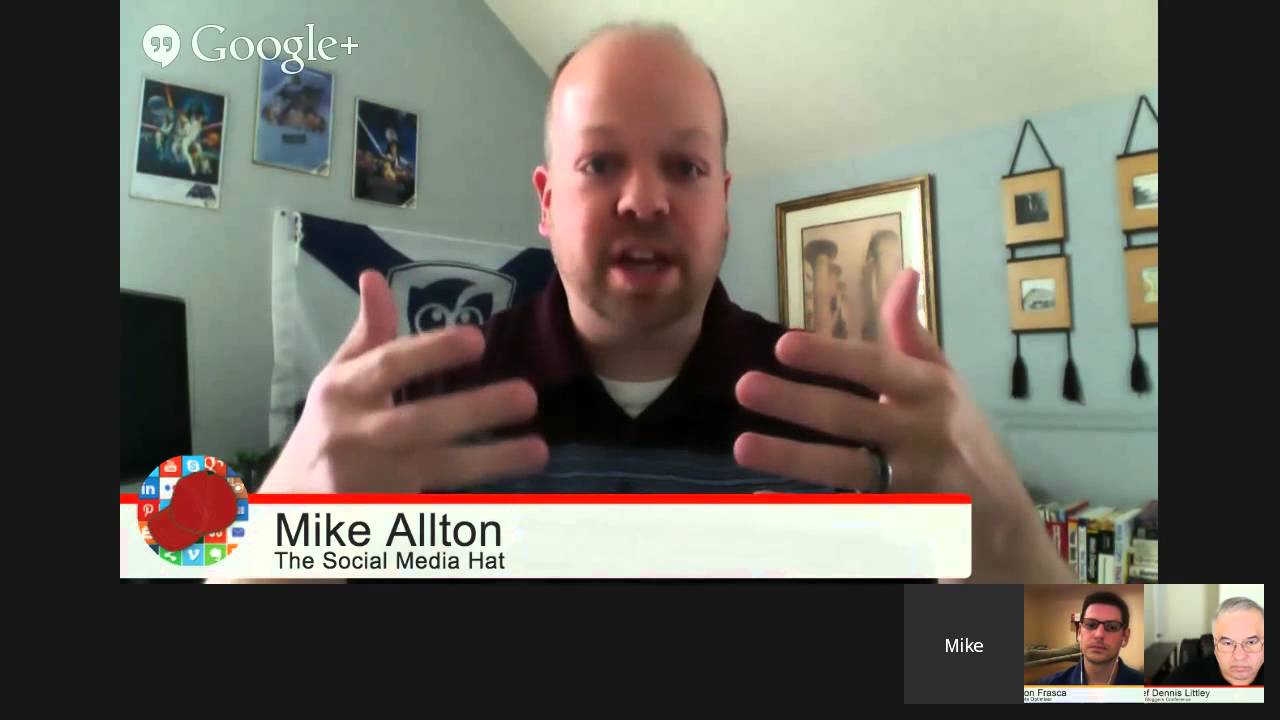
In this live Hangout-on-Air session, host Dennis Littley brings together Evernote expert Jason Frasca and Hootsuite specialist Mike Allton to demonstrate how bloggers and small‑business owners can boost productivity with these two platforms. The discussion covers Evernote’s core value as a centralized, searchable knowledge base, premium features like offline notebooks, UI tricks (sidebar toggle, presentation mode), and workflow setups for blog post ideas, content curation, and backup strategies. Jason also reviews essential add‑ons such as the Web Clipper, FileThis, and Byword, and explains how Evernote can be linked to Hootsuite via the native app and IFTTT recipes. Mike then walks through Hootsuite’s dashboard, explaining the difference between broadcasting, scheduling, monitoring, and analytics, and shows how to use RSS syndication, stream filtering, team management, and reporting points. Pricing tiers for both tools, mobile app limitations, and third‑party integrations (Pinterest, Pinterest‑via‑Viraltag, CoSchedule, etc.) are discussed. Throughout, audience questions are answered, providing concrete tips for setting up streams, handling multiple social profiles, and measuring ROI. The session ends with a recap of resources, upcoming collaborations, and encouragement to adopt both tools for more efficient content creation and social media management.
Chapters
Hey everyone, I'm Chef Dennis Littley and we're here for the 5th session of the— oh my God, I forgot what we were here for. We're here for the Virtual Blog Conference on Google+ and it's the 5th session and we've been having a great day so far. We had some really good sessions earlier and we have one more after this for today and then I'm going to take a rest and get ready for tomorrow when we start all over again at 10 in the morning. But right now we're here to talk about two business power tools, as I like to think about them. And I do not use either one, so this is a good session for me to be learning more about them. And I want to use both of them because we need to be able to work more efficiently, we need to be more productive, and we need to use as little time as possible to do that. So I think we're going to learn a lot by using these two tools, and we have two experts in their fields in this, both having books out. Mikey just put a book out, Denny, on on Hootsuite.
I did, thanks.
And Jason, I know you sent me yours and I haven't read it yet. I apologize, but it's on my list and I will get to that. And so we are going to talk about those. So if you have questions, leave them in the comments section here and we will answer them. We'll pull them up on the screen and hopefully answer some of your questions about it and teach you something about Hootsuite and Evernote. So I'm going to turn it over first to Jason because there's a question up here for him, and we're gonna let him get started on this. And guys, please feel free to engage with each other, ask each other questions about them. We're here to all learn together. So Jason, why don't you take it away and tell us a little bit about yourself and what you do?
Yeah, sure. Jason Fraskashev, thanks so much for having me on. This is fantastic what you're doing today. I know there's been tremendous energy and buzz, so this is wonderful. I'm Evernote, I'm the Evernote guy, right? I blog a lot about Evernote, I really enjoy using the tool. I use it to manage all my projects and I got a lot of things going on. So I work with entrepreneurs, consulting entrepreneurs, I consult on Evernote, I'm working on a couple startup projects and some other projects within the local entrepreneurial community here in New Jersey based around meetups and things of that nature and entrepreneurs. I manage it all with Evernote primarily. I mean, I use a couple of other tools obviously to support that, but Evernote is the foundation to it all. It's the glue, it's the foundation to make it all work, to track it all.
Is Evernote free or is there a paid version?
Yeah, there's a premium version and I highly recommend the premium version. There's several features that they kick in on premium, but there's one in particular that I think makes it a no-brainer. It's only $45 a year for the premium, which I think makes it a bargain compared to— they're not direct competitors, I wouldn't call Dropbox and Google Drive because there's storage elements to Evernote. But the one that makes it a no-brainer to go premium on Evernote which is the offline notebooks. So you have on your mobile devices, you will have access to these specific notebooks that you specify within your mobile devices, your data with you anywhere, anytime without connectivity. And for $45 a year, it's just, it's a no-brainer.
Yeah, that's a drop in the bucket. We're not really talking about like $45 a month, a lot of places are. $45 a year is just change.
Yep, absolutely.
Okay, so we'll get started talking about it, but I just want to throw up a question here from Jeff C. Yeah. And this is maybe such a newbie question, but is there any way in Evernote to turn off the note listing sidebar and have just the note in the window and nothing else? I use Evernote in Hangouts for my show notes and would like to have the added real estate.
Yeah, so there's two things I'd suggest to Jeff. The first one is if you go to View and then go Sidebar, and you can, you can show the sidebar and hide the sidebar from view. So that's your first option, and that'll solve your problem right there, Jeff. And then the second thing you could try to do is play around with presentation mode if you're on a Mac. So presentation mode will just turn your screen into like a full-screen mode, eliminate all of the elements of Evernote and just show you your note as if you're doing a presentation. And if you really wanna, you know, just take advantage of the full area and show just your text, that might help you out a bit too.
Is that only on Mac?
It is only on Mac, but it's also on your iOS devices too. So if you want to use a second screen for your show notes and really free yourself up, that might be helpful on if you haven't an iPad.
Okay, do you know if there's any word of that coming to PC so they have that possibility?
I have no word on the presentation mode coming to PC at this time, but I do know that it is a huge feature used internally at Evernote, so I'm certain at some point it will make its way.
Okay, sounds good. Alright, so where would we start? Let's say I have it loaded. And I've actually created a notebook and I've used it, but why do I really want to use Evernote?
To organize all of your data from disparaging places. So you have data coming from all different sources, you want to save and clip data that you're interested in from social media, you have data that you're creating and writing And we have like Google Drive and things of that nature, or Word and things, you know, places that we're creating data in. And then we store it on Dropbox, and that's a wonderful tool to save data. And the problem is that your data gets scattered in all these places, and then we have it on our hard drive too. But we need a centralized place to hold on to it. And the other thing is, is how do we recall that information? How do we find it easily? And Evernote does a really great job of pulling that all together from all different parts and places that we can organize it and find it easily in the future. So it's essentially creating your own database of information that you know at one point it's important to you now because it's going to be important to you in the future. And/or you're working on it currently. So if you set it up right, you can always refer to your information.
Would I pull the information in, or would Evernote actually pull it in for me?
There are tools that you can pull the information in automatically, and then at the same time you will pull the information in manually for using other tools and/or manually. So it's a number of ways, a number of things. A lot of moving parts.
Sounds good. Here's a— let's see, Lee Rickler is just putting a question up. I've tried but just never got Evernote. A friend swears by it. I understand there's a ton of features but ultimately I use it for taking notes, grabbing pics, URLs, etc. But for that I use Google Docs. I'm presuming I'm missing something but I haven't found it yet. Which is why I'm here. So what's he missing?
Yeah, you know, Lee's not alone. It's a hard tool to grasp. You know, most people, the typical user goes something like this: I see value, let me try it, I download it, I don't know how to get started, I'm a little overwhelmed, and I leave. And then I come back and I try again, and then there's like this lightbulb moment, like it sort of makes sense for some reason, it clicks, and then they dive in. And get going. So Google Docs is great, you can create documents and create documents and that's nice but it's very traditional and the difference is with Evernote you can create sort of like— I kind of came up with this the other day, it's kind of a different take on it. Think of Evernote as like your own personal website if you will. You can create links to other notes, within Evernote. You can link to different parts of your Evernote. So for example, let's just take this Hangout On Air for a moment, right? We're in this Hangout On Air, but maybe we want to link back to the prior mentions and prior notices of the Hangout On Air that you had released, right? We just simply take— if this were a note, we could click back to the prior notices so we have them all in one place, right? That's really powerful. You want to save it in perpetuity, right? And down the line next year when you're creating the show again, the 3rd annual conference, right? You say, ah, you know, I want to get Mike and Jason on again. They were super, they were awesome, they had so much value, right? And you could go back and you could recreate the whole thing real easily because you could trace back and pull it all together real quick in one place. With Google Docs, how are you going to do that? I mean, it's one static document, right? You create a document for this show, for the show notes, and how you push this one out. How do you reference that, all the prior releases announcing this one particular show? And what about all the other shows that you created? How do you pull them all together? I mean, you could put them in a folder, certainly, but it's— now you're opening folders and opening folders and opening folders. Think of a website, right? You just click on links, you just click on links, right? You don't actually have to go out and move. So it's. It's a much cleaner, more sophisticated way to move about things. That's why we have the internet, right? Versus folder structure.
So are all those links in Evernote then?
Yeah, they're all in Evernote and they're Evernote links. So it's a folder structure which is older style versus a more sophisticated style. That's just one way.
Yeah, I love how Jason is already selling our session for 2015.
Like how I built that in, right Mike?
I do, I like that too.
You know, it's interesting, Shep, because I actually use Evernote for blogging. It isn't necessarily any better than maybe Google Drive, but compared to saying use Word documents or blogging straight into WordPress, I have a notebook within Evernote that's just for blogging, and inside that notebook, every blog post idea that I have it goes in there as a new note, which is awesome because I can be out and about shopping and I can grab my iPhone and punch in an idea that I had on the fly, and I haven't forgotten it when a day or two later I'm actually sitting down and ready to write that blog post. It's already in my Evernote. I just jump into that notebook and there's a running list of— right now there's probably 50 blog posts in there. Some of them are just a title and an idea, some of them are notes, some of them are links, some of them are done. And they're ready to be published when I'm ready to actually put them into my website and go with them.
So you've got about 2 days worth of blog posts in there, right?
Yeah, that's right, only 2 days worth.
I have the same kind of setup, Mike. I do the same thing. I have one notebook stack with similar notebooks. I've got an in-progress, completed, ideas, images, newsletter, and resources. Those are all the notebooks I have dedicated just to blogging in my Evernote as well, to your point.. And I can on any device, anytime, just add to all those different sections so that I can keep my blogging, my website machine kind of rolling.
That is a good point, is that it's available everywhere you go. Now, that being said, is there any danger of ever losing all that data?
You know, I think on any platform there's always a chance of losing data. I think the nice thing about Evernote, you know, and I've blogged about this, how to back up your Evernote data, right? So the nice thing first is that because it's on so many devices, you have automatically multiple backups. Second, Evernote is cloud-based, so it's up on their servers. Next, you can back up your information on a traditional backup. So let's say if you're using like a CrashPlan type of service, and there's so many of those, and you should be using one of those types of service to back up your data. If you're not, please start using one immediately. If you're not sure what kind, contact me after, I'll get you on something— Carbonite or any of those, right? That will also automatically back up your Evernote database with all of your information. And then the next thing you should be doing is backing up your Evernote .enx files. So I know some people don't agree with me on that, that it's not necessary, but I do that also so that you actually can control some of the notes that you want to back up and restore independently. So it's like this extra level of backup that I go through, and it's helpful. It's actually— you get to move your data around. So there's a lot of backup built into Evernote beyond some traditional services.
Good idea. We have another question here from Layla Martin and she wants to know, is there an easy how-to-get-started tutorial somewhere like a dummies book for Evernote? Isn't that funny that she asked that because somebody has a book.
I think my book is a great place to get started, Layla. Evernote Success: Strategies and Tactics to Get Going on Evernote. I think my book is a really good place a great place to start. It creates a foundation for how to set your Evernote up for success. But there's several other books out there that I think are equally as good as mine, and you can definitely check those out. If you go to the Kindle store, there's quite a few. There's no shortage of Evernote books out there.
Good to know. And Tim Sweeney, I've used Evernote since January and I'm using it as is, but I see there are add-on apps. What are your top apps and why are you using them? For example, top content curation app, automation app, etc. Looking for a few ideas.
You know, I don't love a lot of the third-party apps that are out there, to be honest with you. I mean, the Web Clipper, just in case you're not using it, because I still come across people that are not using the Evernote Web Clipper, and it's not third-party. I just want to make sure you are using that. But FileThis is a new service that I'm starting to get into and dig. So that'll go out and pull all your bills for you into Evernote and automate that process so that you don't have to go and download all your bills for you. So that's one. Another one from a blogging perspective is Byword. So if you're into markdown syntax, starting your blog post in Evernote, which I do, all of my blog posts originate in Evernote, which Mike had touched upon. And then what I do, I've been doing this for the last, let's say, 3 or 4 months, and this has improved my blog posting time by 50%, I'd say. I move the blog post once I'm ready to really bear down in the writing process over to Byword. And the reason why I use Byword is it has a publish to Evernote feature. So this is the third-party app portion to answer your question. And I'll finish writing the blog post in Byword, and I'll write it in Markdown at that point. The reason why I write it in Markdown is previously when you have to— once you get up to WordPress, then you have to kind of go through the machinations of coding it with all of your URLs and the H references, the HTML to link to your other posts and other third-party posts and things of that nature. It takes a lot of time. I personally don't like to do that while I'm writing because it becomes very difficult to read with all of the the HTML markup in your post, you know, your bolds and your breaks and things of that nature. So what I've done is I start to write markup markdown in Byword because it's a very clean language. Then I use a third-party plugin in WordPress called WP Markdown, and when I post the markdown syntax from Byword from Byword into WordPress, it's virtually ready to go. I don't have to do any of that extra work because I'm able to read the text in Byword over through that syntax. And it's been a much speedier process and much more fluid. In Byword, I'm able to publish over to Evernote and it's like HTML. It produces perfectly with all of the bold and the H references and the HTML and the links. So it's perfectly Word recorded. It's a perfect post, if you will, in Evernote, whereas previously I would lose those links and such because I would never have a linked document in Evernote. I would always have to get it off of my website, almost like a web clipped document. It would always be incomplete in Evernote, and that bothered me. It's a much more complete document now in Evernote that I've written, and it's a much speedier process that I'm going through, through Byword. That's probably my favorite third-party application.
Cool. Mini Gupta has a question. It says, as a blogger, can I create posts connected to my WordPress platform and upload it directly? You did kind of allude to that with what you were saying, how you do the process. But can it go right from Evernote to WordPress?
Yeah, there's a program called Pistachio and it's essentially its own blogging platform. That connects directly from Evernote to Pistach.io. All you have to do is change the tags from, I believe it's from draft to publish if I'm not mistaken. I don't use it personally because I don't believe in that type of a publishing platform. I apologize, that's not WordPress, it's a third-party platform. She asked for WordPress but this is a third-party platform more like a Tumblr, but this is the only one that I'm aware of. I believe there are maybe some others that are WordPress-based, but I'm not familiar with them. I don't use them.
Okay, fair enough. All right, and Veronica Foley just showed up. She's saying hi. Nice to see you, Veronica. And I want to say Sam Need is here. No pressure, Frasca, I'm here. I'm not—
I got this, Sam. I got it.
You got it?
Great.
Okay, and like I said before, if you have questions for either Mike or Jason, just leave them here and we'll answer them. And now I'm going to turn it over to Mike to talk about Hootsuite.
Yeah, so first again, thanks, Chef, for having me on here. This has been a fabulous conference so far. I'm so excited. I've never been to a conference before. Like a lot of you, there's none near me. I'm in St. Louis. Big city, but we don't have conferences here. Apparently they don't believe them.
Well, that's one of the reasons I did this, is, you know, a lot of friends just can't travel to them because of time constraints or financial, and this way we bring the conference to them.
Yeah, yes, it's very exciting. So for anyone watching who doesn't know me, I'm Mike Alton, I'm with the Social Media Hat. So I help businesses with blogging, content marketing, social media, and one of the tools that I started using a couple years ago is Hootsuite. And I, like many people, was really overwhelmed by the Hootsuite dashboard. It's kind of scary, to be honest. You get in there, free or pro, doesn't matter, it's overwhelming how much data is in there. It's very complex, it's hard to understand right away. A lot of that's by design. It's a powerful tool, and to have a tool that that's that is that powerful, it's going to be complex. But I decided to try and break it down for my readers and for myself. So I started to blog about what I was learning, and that kind of steamrolled. People really appreciated that, so I ended up blogging dozens of articles. Some of them were even republished on Hootsuite's blog. I'm going to turn that into a book. So what I use Hootsuite for, what I teach my clients to do with it is more than just broadcasting to social networks. I know that's why a lot of you, if you're using HootSuite, have an account so you can plug in a bunch of social networks and hit share and spread that message to all your networks at the same time. Don't do that. You can sometimes, and that's fine. You can use it for scheduling, which is even better. But just broadcasting messages out to social media is not going to be an effective use of your social profiles. So what I teach people how to do with HootSuite is certainly how to schedule, but also how to monitor, how to engage with people, how to listen to what's going on, listen to conversations by using search and so on, and how to measure the effectiveness of what you're doing by using analytics. So that's from, you know, a social media and promoting and engaging perspective. The other really cool use of Hootsuite, and this is where you get into some super time savers, is as bloggers you want to be paying attention to what other people are writing and what they are talking about. So you want to subscribe to RSS feeds, right? You want to pay attention to what other bloggers are writing about, you want to pay attention to news so that maybe there's either something that might impact you or your business or stuff that you might write about. As a blogger. And with HootSuite, there's an app that's actually made by HootSuite, although there's about 100 third-party apps. There's an app made by HootSuite called the Syndicator, and you install the Syndicator and you subscribe to whatever RSS feeds you want, and you can bring those RSS feeds into a single stream, and you can see the latest posts from your favorite bloggers and news sources right there inside your HootSuite dashboard. These are things you might just decide to share out, so it's a nice easy way to curate content to keep your social activity going and relevant to your audience. But that's, like I said, only part of what I use it for. The other part is I subscribe— since I'm a tech blogger, I subscribe to Google's RSS feed, Facebook's RSS feed, Twitter's RSS feed. People wonder sometimes how I'm able to blog so quickly about a breaking news item. That's how. I subscribe to the source and I see that announcement as soon as it's public. So I get that news at the same time as any other mainstream tech journalist does. And that's just a matter of prioritizing my time. Do I want to blog about that right now or do I want to just share that announcement to Twitter or wherever and be done with it? So that's one of my big, big tips.
If you have the setup for RSS feeds and you get your blog posts, if you want to be social and share other people's posts, that's how you would do it right from there then.
Right, yeah, you see it, you'll just see a line item that says, you know, the chef blogged about this particular topic, and there's a little share button right there. You click it, and inside HootSuite at the very top you've got a compose field, and that's where your message goes. And you hit that share button and that automatically puts title of that article and a shortened link right there in the compose field. You can edit it, you can add to that, or you can just select one or more social profiles and hit send, auto schedule, do whatever you want from there. For Twitter, where most of the time I'm really just going to share the title of the article and a shortened link, this is a huge time saver. I bring in that RSS feed, I look at it, I might see tech news from the Wall Street Journal. That's one I love to share. So I'll see a stream of tech stories today from the Wall Street Journal and boom, boom, boom, queue up a bunch of them for shares for the rest of the day. I might do this at 7 o'clock in the morning, find 3 cool articles on tech news and queue them up to be shared to my Twitter account and I'm done.
So you can pick and choose what you want to share that way. And what can I share it to? What medias can I share to from Hootsuite?
You can share to every social platform, and you can share to basically every kind of social profile except for personal Google+ profiles. And this is a question that comes up a lot. The only tool that's out there that will allow you to schedule posts to a personal Google+ profile is DoShare, the Chrome extension, or EveryPost, which is an app only. It doesn't work on desktop, so you can, you can Pull that up on your iPhone if you want to schedule a personal Google+ post. Otherwise, you can send to Facebook profiles, Facebook page, Facebook groups, LinkedIn profile, LinkedIn company page, LinkedIn groups, Google+ pages. Then you can even throw in third-party apps for Pinterest, Tumblr, and so on.
Hmm, interesting. We have a comment here from Veronica Foley.— and she's saying, my concern with Hootsuite is exactly what you said, I don't want to be throwing the same stuff out all over the place.
Right, right. And that's something I talk about again with clients all the time. That's why in this example it's so good to have so many different sources of articles and information coming into those streams. And you can decide in advance the kinds of topics that you want to talk about on your profiles. You know, I'm a perfect example. If you go to my Twitter profile, you're not going to see the same information as my Google+ page. I don't share as frequently, for one, because it's totally different audience and different medium. And I tend not to share newsy type stuff on my Google+ page unless I've written it. So those Wall Street tech stories, those only go to Twitter. Google+ page, on the other hand, if I see a new great article from Content Marketing Institute. That's going to go to my Google+ page along with a little bit of commentary that I might add.
So how much commentary can you add in through Hootsuite?
That's exactly what I was going to say. Good question. Because with Hootsuite, you can treat it just like a Google+ post. Hootsuite recognizes and abides by whatever platform's limitations are imposed. So Twitter, Facebook, and LinkedIn, they all have limits on characters. Google+ doesn't. So if you're posting strictly to Google+, a particular post, you can talk as much as you want, you can put in formatting, you can mention people as long as you use their user ID and not their Plus name, and it will post and it will look perfect. It will look just like you did it manually. But you can schedule it then.
Very good. Barbara Gilbert is asking, as a small business owner and blogger, I'm wondering what would be the best use of my time using Hootsuite.
Yeah, and so what I usually talk to clients about is spending about 30 minutes a day on social media with, with Hootsuite as kind of your command center. They call it a dashboard because it's got so many different things that you can look at at the same time. Now if you're like me and you're in the social media business, so to speak, you're clearly going to spend a lot more time. But your typical small business owner who has their business and that's their focus and they want to be on social just, you know, enough. 30 minutes a day is all you need. You can go into Hootsuite, you can schedule out some posts for the rest of that day. That doesn't mean that you aren't going to listen throughout the day. You want to make sure that you're monitoring, you've got alerts or something like that, your notifications on your phone are on or something along those lines. That way if somebody does leave a comment or respond to you you can respond in time. But I firmly believe it's good practice as a small business to have activities scheduled out throughout the day when your audience is going to be there. Because 5:30 in the morning may be when you are available to create those activities, but that's not when your audience is going to be listening. So you can schedule that out. You can go into the different streams and see, okay, who mentioned you on Twitter? You know, since the last time you looked, and you can respond to comments, and you can have specific streams set up that are listening for different kinds of conversations. So you might, for instance, be a caterer here in St. Louis, okay? So you could set up a stream inside HootSuite that's listening on Twitter or Google+ for conversations about weddings or events or anything that might apply to your business, and you can actually put a geotag around it Hootsuite will only show you the conversations that are taking place within your geographic area if that's where your audience is. And you can look for opportunities to jump into a conversation in an intelligent way, obviously not just, you know, drop a link, hey, I heard you need catering. There's a technique that has to be learned here too. But my point of the blog post and the book was to help people get past the technology barriers learn the tool so that way they can take the next steps, which is to learn these kinds of techniques, learn how to have meaningful dialogues and conversations with people on social and take those relationships to another level.
Excellent. Now, is there a way to measure— what tools are in Hootsuite where I can measure anything, engagement or what my times are? What's there for me?
Yeah, I'm glad you brought that up because this is probably one of the most complicated parts of Hootsuite. It's one of the most misunderstood factors of Hootsuite. It's why a lot of people dump it as a tool, because they don't understand the reporting. And I'll be the first to tell you, and I've told Hootsuite, it's not the most— easiest system to understand. So I'll try to break this down. You've got 3 different kinds of membership levels for the tool, for the product. There's free Hootsuite, there's Pro which is like $10 a month, and then there's an Enterprise level which is— I don't even know how much but it's expensive. With the free version of Hootsuite you have very limited access to reports. With the Pro you get what's called 50 points. And if any of you have heard 50 points per month, take that out of your head because it has nothing to do with a monthly basis. You simply have 50 points.. And when you go into Hootsuite's reporting mechanism, you have the ability to either pull a templated report or you can pull in different modules and you can build your own reports. To have whatever you want to understand. If you want to know how many new followers you're getting on Twitter alongside how much Google traffic you're getting to your website alongside with how many Facebook likes you got last week, okay, you can build that report. That's what you want to see. Each one of those modules has a point value. So there might be 3 modules that you want to use that might be 10 points apiece. So you put that report together, now you've used 30 of your available 50 points. That means you've got 20 points left to spend on other reports if you want. Or when you're done with it, you can blow away that report and now you've got your 50 points available again., and you can go build more reports. So it's flexible but it's really complex to wrap your head around.
You can only get 50 points worth at any given time.
Right. And you can pay Hootsuite more money if you want more points. I honestly never felt the need. I'm able to build the reports that I need on a regular basis and they'll stay saved, they'll stay there and you can run them whenever you want to, you can customize them, you can have them emailed to you on a daily, weekly, monthly basis. You can email to other people, you can brand them if you want to. It's extremely flexible. But like I said, I've got some basic reports running all the time. There are a bunch of modules that are free. For instance, whenever you share something with Hootsuite, by default it's going to shorten the link, okay? And it's going to use one of 4 different Hootsuite shortened link options. Usually most people use the owl.ly option. So you've got a custom Hootsuite shortened link for a particular article that you've shared. You can go to the reports and you can take that shortened URL that you created and put that into a report because maybe you want to track that particular link. You want to track how often it's shared and when people are clicking on it and so on. That module for an individual link, that's free. You can build as many of those as you want to. One of the cool things I think that I use Evernote and Hootsuite together for is I have a bunch of blogging articles on my website, probably like 25 or 30. In Evernote, I built a Google+ share. It's formatted for Google+. I'm using asterisks and underscores and that sort of thing. It's basically a list of all these articles broken out into different kinds of pieces— how to blog, where to promote your post, those kinds of things. For each one, I've got a shortened link that I created in Hootsuite. I've got an image that I created for it. About maybe once a month or every other month, I'll simply copy and paste that into Google+ as a new Google+ share to share this resource and all these different links that are— all these articles that I've written. With my Google+ followers. Well, every one of those links I've added to a report inside Hootsuite. And this report, because all these modules are free, it doesn't, it doesn't use any of my points. I just keep it there all the time. Anytime I want to, I can jump into that report and see how those links have worked. How well is this technique working for me as a small business owner? How many people are, you know, actually clicking on it? I can know how many shares I get on Google+, I know how many comments and +1s. But you and I both know not everybody who +1s one of your posts actually clicks through to read it. And so with the use of these specific shortened links, I know exactly how many people clicked on that specific post. Not just how many people came from Google+ or how many people overall hit that article. How did that technique work for me as a small business owner? Should I do it again? Should I improve upon it? Or should I just forget it because it was a waste of time and nobody clicked on that link?
Hmm, very good. Okay, I have a question here from Minnie Gupta again, and she wants to know, I keep a personal Twitter profile as well as maintain the company Twitter profile for the company I work for. Can I pick and choose the account I want to use while sharing, or do I have to log in and out?
Yeah, that's a great question because there's a couple things that go into that. The first, as I mentioned before, there's a Hootsuite Pro that's $10 a month. I mentioned the one benefit is you get 50 points for reports. The other major benefit and the real reason why I would tell somebody to go Pro versus free is that with Pro you get more than 5 social profiles. Free account, you can connect 5 social profiles and that's it. So for most small business owners, that's a Twitter, a Facebook page, a Google+ page, and maybe a LinkedIn company page, and then you've got room for one more. If you've got a personal and a branded profile on every social network, that's at least 8 profiles and you're going to need to upgrade to Pro. So that said, barring that limit aside, If you've got a personal Twitter and a company Twitter, you can absolutely connect both of those to your HootSuite dashboard, and you can pick and choose which one you want to share to at any given moment. When you decide to create a status update, there's a dropdown that's going to show you every social profile that you've connected. Some of them you can have by default, so if you're 9 times out of 10 sharing to a particular Twitter account— you can just have that checked as default so that you don't have to keep going and checking it every time you create a new share. And you can have different reporting on all of them, you can have streams that are specific to every social profile. That's the other nice thing about Hootsuite, the dashboard itself, while overwhelming, is completely customizable. Most people will create a tab for each social network and then they'll set up the default streams for each social network within that tab.. So for instance, you have a Twitter tab, and inside that Twitter tab you'll have streams for your mentions and your, your sent messages, excuse me, and maybe your scheduled messages and your inbox, and that's it. Doesn't have to be that way. You can change the names of those tabs. You can put whatever streams you want within whatever tab you want. So I might have a listening tab that shows me several different streams from several different social networks where I want to listen to what people are saying, maybe about me, maybe about my brand, maybe about a particular topic. And that way I just look at that tab and boom, I'm seeing all this in one easy dashboard, one place I don't have to keep clicking around the different tabs or networks.
That's a good tool. We have a comment here from Sam Need.. He's saying, since Twitter is international, you can clean up a stream in HootSuite by filtering by language. I did this with a stream I follow for Evernote. I had many non-English languages I wanted to filter out. Maybe Mike can share with the group on how to do this.
Well, it's interesting, Sam, because I know you can do it, but I actually have never done it myself. I would assume that inside HootSuite, when you've created a stream in the top right-hand corner of that stream, there is a little drop-down box where you can set up filtering and do some other settings and adjustments for that stream. So I'm guessing that's where it is. I can go and double-check that and put the answer in the comments after the event, but that's probably what I would do.
Sounds good. Okay, well, I— it's been quite informative from both of you, and if either of you have any questions for each other or— you guys have been on a lot, so probably not. You've been on together from what you told me in the green room. If you have any other questions for either Mike or Jason, now is the time to ask them because we're kind of getting close to the end of the session. It's been really informative. You've taught us a lot. If I started using them and I have your books, you guys will put the links to your books in the comments for us. We'd appreciate that so everyone else can know where to find them and any websites you want to list where we could go for help if we have questions, that would be greatly appreciated. And hopefully we can get us all using both of those so we can be a little more productive with our work.
There's actually quite a few ways that Evernote and Hootsuite work together, and Jason and I have talked about them on different HOAs at different times, different ideas. So we're actually collaborating on a blog post that I'm that we're both really excited about. It will come out probably in the next week or two. Coming up with all the different ways that you can use these tools together specifically. But one really neat way that Jason kind of touched on earlier this week was that there's an app for Evernote in Hootsuite. So you can pull Evernote into Hootsuite and you can create a stream inside Hootsuite of your most recent Evernote notes. And then what Jason shared, which I thought was brilliant, is that using If This Then That, a recipe that he can share if anyone's interested, you can pull in any tweets that you're favoriting as new notes into Evernote. And inside HootSuite, there actually is no way to see tweets that you've favorited as a stream. That's not an option. But now it is with this particular recipe. If you've got the Evernote app installed and you've got this If This Then That recipe set up to bring your favorite tweets into Evernote as new notes, you'd now be able to see those in the stream inside HootSuite. Cool.
Here's a question from Eddie Hope. It says, will HootSuite ever have the ability to post to Google+ from the mobile or tablet iPod app?
Yeah, and I feel your pain, Eddie. That's definitely one of my complaints, and it's something I ask about all the time. I would have to say the answer is yes, someday the mobile app will be updated with that functionality. Quite frankly, I don't know why it hasn't happened yet. I understand why Hootsuite doesn't support personal profiles. That's up to Google. It's a Google API issue. That's why nobody else— Sprout Social— nobody supports personal Google+ profiles. But as far as the app not yet supporting Google+ pages when the desktop does, yeah, I don't get that. So hopefully that's high on their priority list. That said, I will tell you I love the HootSuite app. If you haven't tried it, definitely do. Most of you will probably love the app more than the desktop version. It's gorgeous. They totally redid it for iOS 7, and then they recently refreshed the Android version so that they're on par.. And it's gorgeous and it has replaced Twitter for me. I never use the native Twitter app. I only use Hootsuite on mobile.
It's easier.
Wow, that's pretty cool. I've never been fond of Twitter or the Twitter app, so I will definitely look into that. Tim Sweeney is asking, going back to content curation and sharing, is there a way to automatically add those on-the-fly shared content pieces to a content calendar so as to keep track of them? I can think of some manual ways of doing this, but that's not efficient.
Yeah, that's a great question, Tim, and I would say HootSuite probably is not the best solution for that, depending on what you're trying to do. Now, certainly some people haven't noticed, but when you schedule content in HootSuite, there's a button in the left side that's kind of like an Indian arrow. You click on that, that's the publisher. And the publisher tab will take you to a calendar view and you'll be able to see all the content that you have scheduled within Hootsuite for that purpose. That may or may not solve what you're looking for. There's another WordPress plugin, I'm hoping I get the name right, it's called CoSchedule. That will allow you to publish your WordPress content and social content all in the same calendar. So if you're trying to develop an overall message calendar, which I think is a great idea for businesses who are producing a lot of content, very active on social media, that might be the way to do it. Manually, I just use Excel, but Really just depends on what you're trying to accomplish and the tools that you have available.
And Mike, you're using Excel because Excel is what ties into the Hootsuite platform, right?
Well, that's it. You're right that it does. That's not why I'm using it. I use it for me. Evernote actually would probably be a better idea if we're just trying to map out content. Yeah, you can if you, if you're using Excel just to create social messages, export that as a CSV and then import all those in the bulk, in the Hootsuite as a bulk message update.
Statement here, comment from Kim Vige, and it's like, thanks for all your advice setting up accounts and feeds while I'm listening. My hope is that someday Hootsuite will have a capability to work with Pinterest. It doesn't yet, right? Or am I missing it, Michael?
You're missing it. There is a Pinterest app. I don't use it a lot because I don't really need to schedule my Pinterest pins. I hop on Pinterest from my phone morning and evening, and that's all I need to do. But yeah, for those of you who are far more active on Pinterest than I am— I know, Kim, that's you— there is a Pinterest app for HootSuite, and it uses one of the third-party Pinterest tools. I want to say Viraltag, but don't quote me on that, I could be incorrect. There is going to be a monthly fee associated in there. Some of the apps in Hootsuite are free and some of them aren't. Those that use third-party tools usually have some kind of a fee associated with it. It's pretty cool, it's pretty powerful. You can go to any website and pull all kinds of pins from that website and pull them into Hootsuite and have them auto-schedule so you're not pinning an entire website full of pins all at once. It's pretty powerful.
Pretty cool. Here's one from Lee Rickler, and Lee is saying, I run around 20 Twitter profiles and use TweetDeck for this. It works great, but if you can only have Twitter IDs, I'm now needing a Twitter, G+, LinkedIn, etc. platform. Sounds like Hootsuite does this and more.
Right, right. You need the pro account, which is $10 a month, but once you get there, you can have up to 50 social profiles or something like that, so it sounds like it would still be way more than what you need in terms of volume. So you can absolutely set up that. The other thing you can do with Hootsuite for those of us who are kind of bigger organizations is you can set up teams, and for each team you can assign different social profiles. So you can, you can have a team member who has access to your Hootsuite dashboard, but maybe you only want them to have access to one of those Twitter accounts. Maybe they're customer service, so they don't need the marketing side of your Twitter profile. They don't need your Google+ page. They just need to be able to answer help questions. Or maybe you've got a VA who's going to come in and he's going to handle some of the activity. That gives you that flexibility.
That's a great point. You can do that with a Pro account with the $10 a month. How many teams can you set up?
You can set up as many teams as you want, actually. There's no real limit there. The limitations come in if you want other— in terms of the individuals. Each team member, you get one extra profile with the Pro account, and if you need other people to have their own unique logins to your Hootsuite dashboard, that's where you're going to start to pay per person. I think that might be an extra $10 per person.
Okay, very good. And there's Barbara— oh, here we go.— Sam Need, does Hootsuite sell socks? Sorry Jason, I had to ask.
It's a great question, Sam. That's an awesome question.
I won't even ask. Barbara Gilbert, Mike Altman, Jason Frasca, this has been awesome. I've had many aha moments and will use these two platforms to their full potential eventually. Hopefully all of us more than none. Kim Vij, I knew that you could with viral tag. But it makes sense with the connection. Thanks. I'll research it a bit more on Hootsuite. Perhaps Cynthia Sanchez can share more during our Hangout tomorrow at 4 PM, and Kim and Cynthia will be on to do some Pinterest talking tomorrow, so that'll be fun too. Alright, well guys, you know, this has been great. You've really shared a lot of good information with us. I think we got a lot of great questions, and if you have any other questions, if you want to leave them in the comment section, I'm sure they'll check for a little while and do their best to answer them. Thank you so much for coming, Mike. It's great seeing you, and a lot of great information. Thank you so much for being part of my conference this year. I have to get out to St. Louis again to say hi to you one of these days.
I'm hoping you and Mia can come out here for one of your food and booze trips. We've got some good ribs and toasted ravioli and frozen custard. Yeah.
Gotta love it. Sounds like a winner to me. Jason, thank you so much for coming on and talking about Evernote. I know you've got some other interesting things working on and I'm looking forward to hearing more about those in the future because I know they're going to be some game changers there as well.
Thank you for having me.
Oh, my pleasure. Thank you all for coming and we have one more today so stay with me and come back at 8 o'clock as we have our last session for the day today and then tomorrow morning back at 10 o'clock to start all all over again for the 2nd Annual Virtual Bloggers Conference. So I'll see y'all soon. Bye-bye.