How to Build Nested Tree Structures in Bubble (Subtasks, Folders, Comments & More)
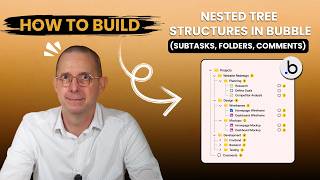
Dennis H. Lewis shows how to use the Tree Explorer plugin to build nested structures in Bubble, which can't do recursion natively. You need a list field of child items on each record, and the plugin handles subtasks, folders, and nested comments. Watch out for circular relationships and performance issues with large datasets.
Chapters
If you've ever tried to build nested comments like Reddit or folder structures like Google Drive, or basically any kind of multi-level hierarchy in Bubble, you've likely hit the same brick wall I did. Bubble's native functionality just can't handle recursive structures. You literally can't put a reusable element inside of itself. The platform won't let you. It's a limitation. But here's what's crazy. I've spent the last 6 months working with a plugin called Tree Explorer by GoIncrement, and it's completely changed how I handle these situations in Bubble. In this video, I'm going to show you exactly how to set up tree structures in Bubble, how to handle multiple data types in the same folder system, and a critical mistake that most people make that breaks their entire implementation. By the way, I'm Dennis H. Lewis from ratio.dev. We've built over, I don't know, 50, 100 production Bubble apps, and this is legitimately one of the most powerful plugins that we use for our clients. Stick around because I'm also going to show you a real production example from one of our client apps where we use this exact system to manage, you know, complex document hierarchy. And I'll break down the complete database structure you need and all the, all the nitty-gritty details. But first, why can't you do this natively in Bubble? First of all, let me just show you a quick example. This is a popup in a project management application that we have, and we have a section called subtasks. Which we have here, notes, and we have subtasks. And subtasks can have subtasks, can have subtasks. It could go on as deep into the nested structure as you like. And so here we have two different ones in that one. There's three in here. And you can select one of these and see the details up here and then go and edit it or whatever you, you want to, you know, change its schedule or change its status. So I can, you know, I can come here and I can mark this one as complete. Now it's complete. And this is the tree structure that I was mentioning, and we'll see a little bit more detail in here. Beforehand, we had a table in here, but you could only see the next level, and then you couldn't keep going down deeper and deeper because Bubble would, you know, these reusable elements that are on here can't include themselves. And since you can't put a reusable element inside of itself or inside of another reusable element that contains that first one, it creates a circular dependency, and Bubble just It doesn't let you do that. And you know, there's some kind of workarounds with tables that you can kind of get around a little bit. And, but it, it just was clunky. It didn't, it didn't solve the actual problem that we're seeing here is that you want to be able to see the whole structure. And you know, you don't want to have to just go one level deeper and then reset the popup and go one level deeper. And imagine that this was a blog post and these were our comments and replies. You want to be able to see them in a, in a structure that makes sense for your specific application. And so what you need to do here is use a, a plugin that I'm going to show you now that allows you to manage both a tree structure in your Bubble database, or you can use a JSON structures or JSON data that you've received from an API call. And, uh, and plug that into the tree as well. Now the plugin, as I mentioned, called Tree Explorer: Things, Files, and JSON. And you can see here it's by Yocto Increments. Yeah, it's, uh, it costs $12 one-time fee or $3 a month. I mean, you can test it out at $3 a month, but then obviously $12 is not going to bankrupt anybody. And, uh, this is the exact plugin that we're using here in this example. And I'm going to walk you through how it is implemented into your Bubble page. Here is what we're seeing here. This was the, the card where I'm showing the actual data of the selected element in the tree. And here I have the, the tree element created, and I'm just going to walk you through all of these fields here, just kind of give you an idea. So in my case, the root note. Of this tree structure is a task, and it is all of the children items sorted by date due. So they're sorted by when they need to be accomplished. In our database structure, a task, if I come here and go to task, what I have is a field of tasks. It's a list of tasks called children items. And that is the, is the field that I'm using to create the tree structure. But I could also have inside here a list of project updates. In this case, it wouldn't make too much sense, but I could. And I could have those mixed into my tree structure so that you could see subtasks and project updates all from inside the task, which, hey, maybe that's not a terrible idea. Maybe we'll, we'll put that into place. And so the, the first thing you're going to do is configure the first type of data that's going to be handled in the tree. So, and it is of type task, which are those children tasks. And the label that it's going to use is name. Okay. Now you can see here, it's not dynamic. So you just, it is one field. So you, there are some cases where I've wanted to, you know, maybe have the task name and its due date. Well, then I would need to create a text field and do that concatenation, put it into the text field, and then use that field as my label. That's the workaround to get around that. You can change the icons. So these icons here, I haven't bothered to change them, but you can change them based on the content of this, of these, the actual task. And in that case, I can either say derive the icon from a field. So if it has a file or an image in your, in your tasks, then you can use that as the icon for it. So that is one way of doing it. You can also use a custom icon for this. If you have, if we have tasks and updates, then I could have one icon for tasks and another for updates so that I could differentiate them. And then here is where I'm telling it the children items from the task. So I'm saying, okay, we're starting with a task. Okay. We're using all of its children items, but then each task also has children items. And now it knows the tree structure. There's some beta options here for going backwards the other way. So you could use the parent field. I'll let you kind of dig into that. And then you can have another type. So this could be updates. This one, number 3, you could have, you could have another 4th type here, so you can have up to 4 different types of data in your tree structure. And then you have some other settings here. You can add Allow Multi-Select, or you can just have where they can only select one. Immediately Select and Open the Root, you could have it automatically pick one of those there. You could have it show checkboxes for the selection if you want. They could be tri-state checkboxes. So, it has checked, unchecked, or partially checked. That's when, you know, if you've got if you want to choose different elements inside of the, of the tree structure, and you want to reflect that in the, in the checkbox and expand node on click. So if you click on an element, it expands it instead of using a little triangle. You can also tell it to sort by a field here. I'm just doing that on the data field there. So I don't want it there, but you could have it. If you want to use it on the label, you could have it either be alphabetically or none. In my case, I'm doing none because I want them to be sorted by the date. If you were doing a, like a folder structure and it has PDFs and images and stuff, then you can have it automatically put icons based on the type of element that's in there. And it will automatically do that. And it can have a, you can give it a value for if the label is empty and you can tell it to automatically open the first one or two levels if you want. That's up to you. You can also have some icons for specific icons for each level, and you could make it be 1, 2, 3, make it more like an outline. So, you can handle that. And then you can also do, you know, for non-hierarchical data, you can kind of virtually mimic that there. So one of the cool things here about using this plugin is that it's really flexible. You can do quite a bit. They do have another plugin for almost kind of creating org charts from hierarchical things where you can actually have connector lines and show it as a kind of like a, something like an org chart. I haven't really needed that in one of my apps yet, but if you do, then you might want to check it out. It's by the same developer. We've talked now about multiple data types in there. We've seen a little bit about how the, the database setup. It's very simple. You just create your list of children inside your, inside your table, and then use that to go down the structure. Nothing really complicated there. Some pitfalls here before I wrap up. If you let users manually set the parent relationships, then you can actually create some circular references, or you could have, you can have like a Unix file system where a folder is actually appearing inside two different folders. Okay. You can do that. That is doable, but be careful. It could kind of get a real little messy there. You don't want to load too much data at once. So, I mean, I don't think this would be awesome for thousands thousands of records, I think it would, it would kind of probably not handle that really well. I haven't had that need, but do be careful about it. And then, like I said, you know, they can take a little bit longer to render. So, because it does have to kind of process this through the plugin. So, do take that into account. But for having nested comments underneath a blog post, for creating a folder structure where users can create subfolders and store pieces of information in those folders, perfect example for this, for subtasks like we've seen, that works also. So if you've enjoyed this video, be sure to go to ratio.dev and sign up for our No-Code Resource Center. You'll find the link to this plugin and to all the other Vedit plugins that we recommend in there. You'll find podcast episodes, tutorial videos, you know, great books to read, just a lot of stuff there. We're updating it constantly. It's totally free. So just sign up with your name and your email. If you're a business owner or a founder, and you're interested in using no-code or you're interested in creating software to create competitive advantage for your business, definitely recommend that you sign up for our school community called Bubble Gods. There, you know, that's where we do live Q&As and we have courses set up with all of our videos structured exactly what problem you might have at this point in time. And I hope you've enjoyed this video. Give it a like, a thumbs up. If you want to subscribe to our channel, I would really appreciate that. That makes Tony and I really happy. And if you need help implementing tree structures in one of your Bubble applications, just feel free to reach out to us and we will set up a call and talk with you and see if we can help you out. Thanks a lot for watching. See you in the next video.
More from Dennis








Is Google Killing Websites? The Future of Search, SEO & Web Design After Google I/O

Something we're still looking forward to in Bubble: richer design experiences! #bubble #nocode #ai

Big mistake companies are making right now: firing employees instead of empowering them. #ai