Accounting Firms: Build Your First AI Agents in 20 Minutes
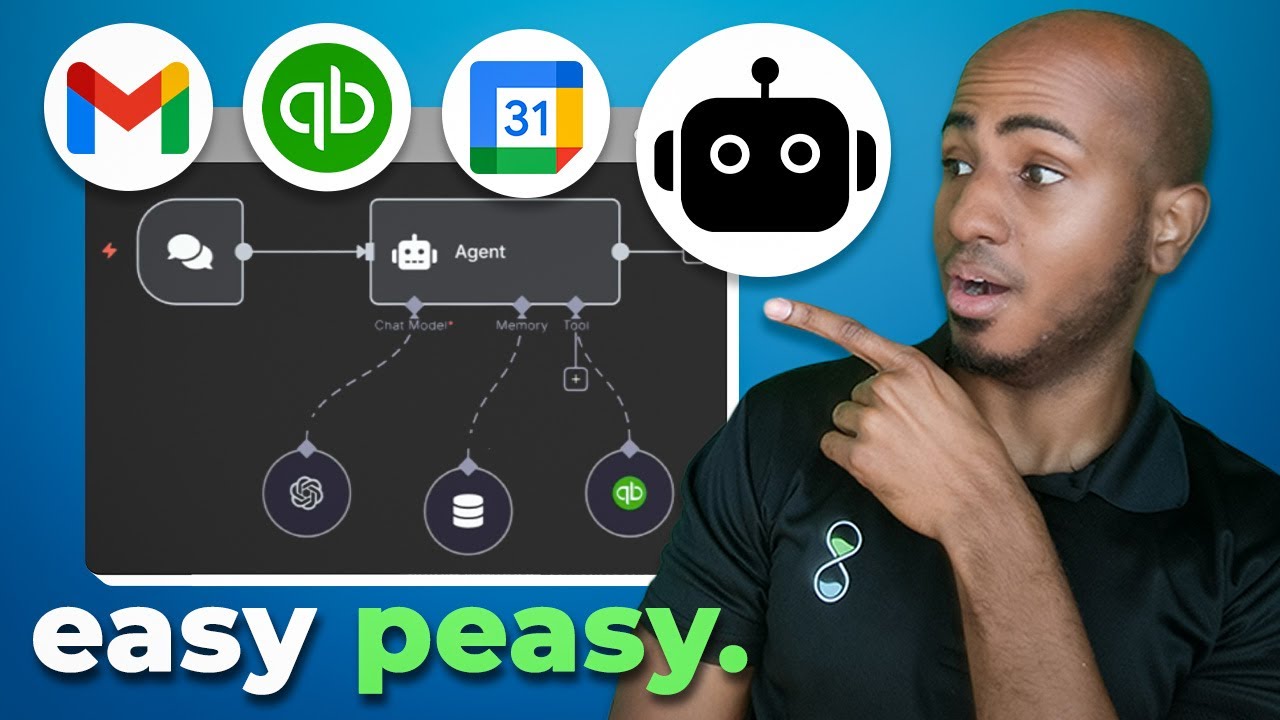
Isaac builds an AI agent in n8n that connects Google Calendar, Gmail, and QuickBooks Online to handle accounting tasks from a chat prompt. The agent retrieves calendar events, sends emails, and generates invoices, with tips on model selection, memory size, and tool permissions to make it reliable.
Chapters
Hey, this is Isaac from Appcet.co. And in this video, I'll show you how to build your first AI agent in N8n to create events, send emails, or create invoices in QuickBooks on your behalf. So this should be a great introduction to agents if you haven't built one before, or just a quick recap if you have. With that, let's get into it. All right. So I'll be using N8n Cloud, the cloud version that starts at $24 a month if you're paying monthly. And this is what it should look like. You should be able to see your overview, your personal section, and you can You can come here and add projects. Although I have one already for my plan, looks like I can just, I cannot add more than one. But in this particular instance, let's go into this folder. Let's create a workflow. Effectively what you're seeing on the screen, if you are familiar with Make, Zapier, or some of the other automation tools, this will look very familiar, but it's essentially a blank canvas where you'll be able to add step by step what it is that you want to do. Okay. The first step, as usual, it's simply the trigger, the step that's going to enable you to run everything else. In this particular context, they have one that's on chat, which pretty simply, it's essentially having the ability to chat with it right here at the bottom. And it's a very simple way to come here and say, you know, hi, see it run and have that quick back and forth. It's awesome to test with. And at least for the purposes of this video is everything we will need. Okay, of course, please keep in mind that I could change this to be a Slack message, an email, a Teams message, um, a voice note from Telegram or WhatsApp. I— this could really be any other step. We're doing this for demonstration purposes. Of course, the main core thing we want to build right now, it's an AI agent. Once you click the second step, you'll notice that we have now a different list First of which the sub-options are AI agent. You have a couple of other options if you wanted to directly use just the OpenAI model, or you have like very specific use case where you're trying to extract information or have do sentiment analysis and assess if a text is kind of like a positive or a negative comment. But fundamentally, the AI agent can do many of those things, but it's a little bit more flexible. Flexible in what it can do, which can be both a good thing and a bad thing depending on your context. So let's click on it. You'll see that something comes up all of a sudden, a little section where we see input in one side, output in another side. This is typically how N8N works. And in this case, I'm just going to say connected to chat trigger node. What that actually means is I'm going to, I want to run something through the AI agent and specifically I want that to be The input from the previous chat that came in. Okay. Now, the AI agent itself has a couple of components. It has a model, it has a memory, and it has tools. The way I like to see this is essentially it has a heart, right? Something it needs to function. It has a brain, and it also has hands to do things and to do stuff. In this particular context, the model is something like OpenAI, You know, Google Gemini, DeepSeek, etc. For the purposes of this video, I do have an OpenAI account already connected. If you wanted to connect one, you'll simply have to create a new credential and find the API keys in your account. And they do provide some documentation to make that easier for you and even an AI to kind of like ask questions if you get stuck. So I'm not going to dive into that, but I'm just going to say which model I want to use. Okay. In this case, let's stick with The one that was my favorite for a while, although we don't have access to it anymore in the chat, is this O3. It looks like we don't have a GPT-5 available yet, so let's stick with that for now. And you'll see that now I have the model available as an option. Effectively, this is the model that the AI agent will be using to execute. The other thing that we could have is the memory. Okay. Effectively, I wanna make sure that if I come here and say, Hey, my name is Isaac, right? And then I say, what is my name? In this particular context, it has a heart, but it doesn't have a brain. It would be like, I don't know what you're talking about, right? So you want to make sure it remembers the last few, at least, or potentially the last several or dozens of interactions you have with it. So in this particular context, I'm going to be adding, just for the purposes of demonstration, this is the best one for beginners, requires no additional credentials or any additional setup. It's just as simple as clicking that, adding a context window, which means how many past interactions do you want to give it as context. Do keep in mind that this could be— you want to be probably 5, 10, maybe 20. Of course, if you put it like 1,000, then it's going to have a lot of context and that might impact the results. So let's just do 10 for now. And again, let's just test saying here, my name is Isaac. It should now As you see, run this in the memory. And then if I ask, what's my name? It should be able to have that answer available because now we have that context to pull from. Perfect. Now let's talk about tools. This is probably the most useful one because this is where you're going to be able to determine what do I want this AI agent to do. Most accounting firms think they're moving towards automation, but when you look under the hood, What we find is messy spreadsheets, siloed tools, and half-baked workflows that are still slowing them down. So that's why we built our AI and automation readiness quiz, which just in 10 quick questions, you'll be able to see where your firm is strong and where you're falling behind. Here's why it matters. Understanding where you stand is the first step our clients take towards a smoother, more scalable practice. That's exactly how Donna Bordeaux cut a full-time bookkeeping role and went from 90 hours a month down to 1 day a month of her time while scaling her firm from 45 to 60 clients without adding new staff. And that's how Gareth, a partner in a Canadian tax firm, went from dreading every January to looking forward to tax season and actually earning 47% more per hour on their tax return work without price increase. So feel free to check the link in the description, take that quiz now and see exactly where you stand. All right, now back to the video. Do I want it to schedule appointments? So I have to access, give it the ability to create an event in my calendar. Do I want it to send an email? So I have to give it access to my Gmail or Outlook account. Do I want it to create invoices or contacts or records in, or suppliers or vendors in QuickBooks. I have to give it that ability, and it's relatively easy and straightforward with, you know, the typical workflow that you would do to create an automation. I'll click here and you'll see that I can here search for some of those applications that in this particular context are under Other Tool. Let's start with something simple. Like Google Calendar. Okay, so if I look for Google Calendar, I already have my account connected, but it's worth noting here that I effectively have to restrict what do I want it to do. In this case, let's just say I just want you to get events, and in this case events from my calendar, up to 50. And it looks like it is from now up until next week, so look the next week for this. You can change if you wanted to adjust the date range that you typically want to look at. You could even say, hey, I want this to be automatically defined by the model. Actually, let's try that. Let's go back and now we should have— let me execute this step just as a way to test, make sure we are good. Let's refresh the chat and say here, what do I have in my calendar today? This is a simple example. It should reason and say, oh, I should, let's see if it does it properly. I have the ability to get events. So it should, as you see, do that and then come back to me with an answer on what it found. So here we go. We have essentially a client work block, a meeting with Robert, a lunch break. Actually, none of this is actually true. This is one of the reasons why sometimes there's additional context you have to provide it with. We didn't really give it the option to say, to tell it What today's date is. And that's something that you could come here and actually add as a system message. I can say, hey, you're a helpful assistant. Today is, on the brackets, I'll say now. So by giving it that additional context, it should be able to come to us with a better answer. Okay, let's save it first. You should now know what date is today. So because I'm using O3, this is kind of still thinking and reasoning. Give me an answer. I realize that maybe it should have picked a different model. But if I go here to get many events, you'll notice that it actually picked the right before and after. It picked from the 21st of August, which is today, to the 22nd. You see that it pulled some of the things I have. For example, I have a slot to record a video in my calendar. Then I have, let's see, a lunch break after that. Then I have another particular meeting this afternoon. So it's be able to tell me that. And actually now we can go back here and say, okay, early morning we have LinkedIn and community engagement. You're capturing and scripting ideas earlier in the morning. You have a coaching call, then you have a lunch break. And this is exactly everything I have on my calendar today. So it really nailed it. And this is where you can come in and say, okay, now I want to give you more tools because you've proven to be somewhat reliable, a little slow. So let me change you to a mini model. Let's do 4o Mini. But now I can give you a little bit more room to play with. Let me give you an email tool as an example. In this case, I don't have it connected, but it's really easy to connect just by clicking on Sign In with Google, picking the email address that you want to use, giving it the appropriate scope in that And that's pretty much it. Going back and now I should be able to have this available. And in this case, let's just say I just want to email myself. I don't want to give it the option to email anyone, at least at this point. And I'll just say the subject is today's calendar events and the message is, I'll let it figure it out for itself. So let's go back to the canvas. Let's make sure this is proper. Yeah. Previous, that should go away. Resetting the chat again, and let's just say, can you email me the events I have in my calendar this afternoon, please? So now in theory, it should use both tools available, right? It should be able to use the calendar events to get them. And then it should come back and say, hey, actually, now that I have the response, I should be able to use the Gmail tool to send that email directly. Perfect. It says I've sent the emails. Let me actually take a look at my inbox and we should see today's calendar events. Let's see if it, you know, I suspected that maybe the format wasn't going to be the best, but this is one of those things that again, the less guardrails you put, the more it might just not do the job exactly as you laid out. So that's something that could potentially be solved with the prompt itself. I could have told it, hey, make sure it's a bulleted list and it has some separation and, you know, a little bit more pretty, but at least we can see that it It did its job. So let's try something a little different, maybe with a tool that accountants would be a little bit more familiar with, which is something like QuickBooks Online. Within QuickBooks Online, I already have my account connected, but similar to how we've done some of these processes, you can create a new credential and it will walk you through how do you go about getting these credentials. In this particular case, you have to go into, into a developer, create an account to get those, and you'll be able to select if you want, like both in sandbox, if you're testing like I am right now, or both in production. So you can actually have this running on your various clients' accounts and creating and doing useful work for you. As I mentioned, I already have this connected, so I'll go back. As you can see here, I'm telling it, hey, I'm going to set the description manually and just create an invoice in QuickBooks Online. In this particular case, it's taking the chat input from the previous step. You can see here that it has access to several resources or things it can create. In this case, because I want an invoice, I will directly select that. And in this particular case, what do I want it to do regarding the invoice? In this case, creating. For the sake of the example, let's assume that this is an automation that I'll set up for a specific client that has maybe an email inbox for AP that you get that then you have to create it for, or it might look different for different firms, but the idea is that you're getting something you want the AI to format it in the proper way to then push it as an invoice to, uh, to QuickBooks directly. You can see that there's a couple of things here that I hardcoded, quote unquote, like sales item and item name, but the quantity, the description, and the amount are things that I'm letting it figure out by itself. And for the sake of this particular example, I'm allowing to create up to 2 different items or 2 different line items for the If I come here and say, can you create, if we try to get a little bit more fancy, an invoice for 3 whiteboards of $100 and a pack of pens of $10. If that's what I give it, then it should, you know, take that information and start running the agent, which we'll see the results in a few seconds. Okay. Your invoice has been created successfully. Let's actually see if it was able to come up with Specifically what we wanted. Okay, so you can see that here it actually did come up with whiteboard as the description for 3 of 100 and a pack of pens for 1 of 10. So ultimately I can see the successful response of the invoice that was created today, specific number, specific date, and it has the whiteboard here, quantity of 3, and it has the pack of pens. A $10 quantity of wine. So that's just an introduction. Now, I do believe that building AI agents in NA8 is pretty cool, but we found, and probably you saw some examples, where reliability can be a question. And that's why sometimes we prefer to put some guardrails and build AI workflows, which are effectively automations with AI Step. And that's exactly what I did in this video where I walked through an AI bookkeeping workflow using Make.com. And this is actually an automation that one of our clients actually use. So check out that video next, and until then, stay efficient.
More from Isaac


This Boring AI Automation Could Save Your Accounting Firm 40 hours (But most ignore it)

How to Build AI Systems With Claude (So Your Accounting Firm Runs Without You)