Claude 101 + AI Automation Ask Me Anything
Claude 101 for accounting firms: how to choose between Chat, Cowork, and Code modes, pick the right model (Opus, Sonnet, Haiku, Fable), and master five high-impact features like Connectors, Projects, and Routines. Real examples include weekly client updates and inbox triage.
Chapters
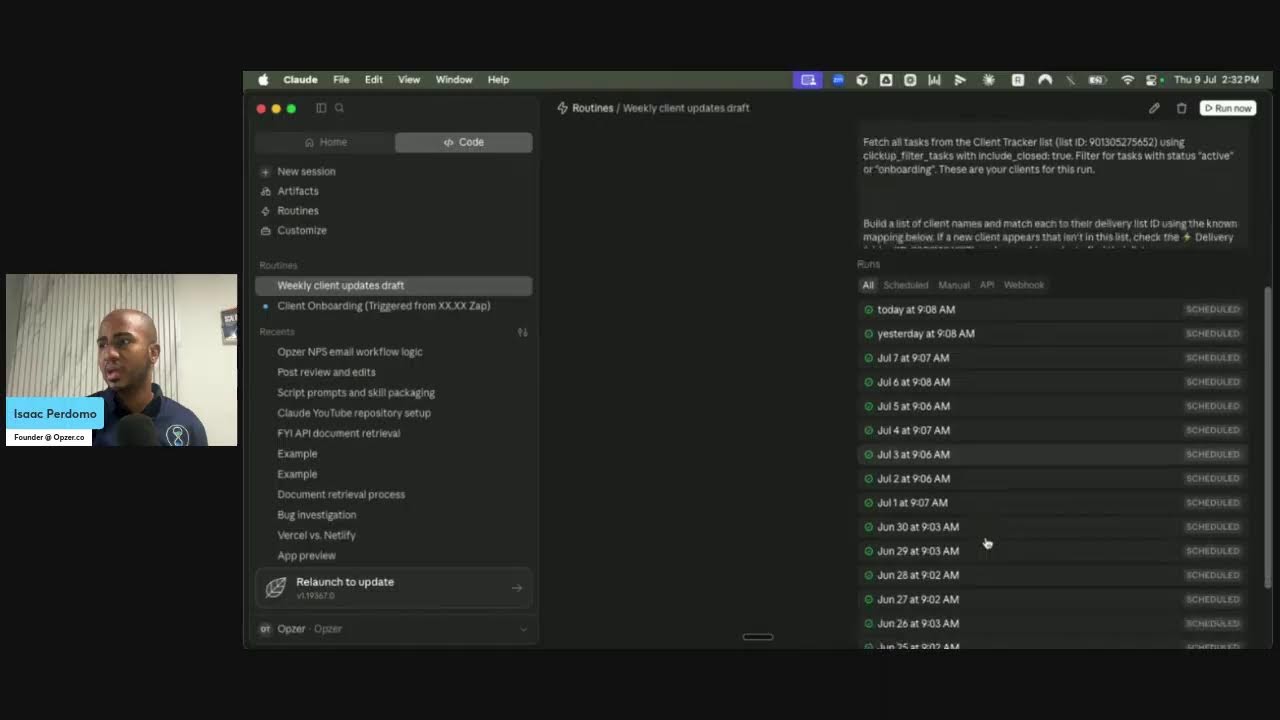
Hello, hello everyone. Welcome to another quick ask me anything. In this case, I also have a little bit of a short lesson to share of what we see as kind of Claude 101, some of the basics you can learn on Claude that are worth keeping in mind as you start thinking about how to leverage it to the best of your ability for your company. So probably let 30 seconds go through here just to see if anyone joins us live, then I'll dive straight into the quick presentation. Then if we have people in the room, we'll leave you time to answer any questions. All right, all right, start sharing my screen. This is actually a part of a longer presentation, but I thought I'd take the middle part and teach it briefly here live. So really, to get benefit from AI, you need 3 things. You need to map the use cases that will benefit you, master the cloud concepts to understand the modes, the models, and the capabilities it has available, understanding what's the difference between skill on a project and an artifact and this and that and the different modes like The better you understand that, then the better you'll be able to lastly pair them up. This use case would be best solved with this feature. This use case would be better solved with this feature. At least this lesson first, I want to walk you through what those features are that we believe are the 80/20, right? 20% of the features you need to know to get 80% of the benefit. Let's talk about that. So we'll talk about modes, we'll talk about models, and we'll talk about capabilities. What are modes? Modes are essentially the different modalities you have where you work with Claude. We have Claude Chat, we have Claude Cowork, and you have Claude Code. At a high level, you can think effectively of like chat is conversational, you want to have a conversation. Code, you need to get something done. And Claude, you're building or chipping something. Website could be an app. Again, chat is where you think, you draft, you explore ideas. Code is like the agent hardness. It has a couple of benefits in terms of being able to really be built to track and get work done, but also being able to work with your local files among other things. And as we mentioned, Claude Code, it's really the first one that came up and then created as simplified, a more user-friendly version for non-technical people. Let's really quickly here demonstrate some of the differences between them. So I'll pull up here the Clock desktop app briefly, and you might have noticed this, this is actually a very recent update where now chat and cowork live within the text window as opposed to Leaving within this top navigation bar where it used to be before. So now they're a little bit more joined, a little bit more easy to swap one with another. Now at a high level, chat versus text. This is very subtle but very important in terms of what it means. If I am on chat, fundamentally I am— let's see, looks like that changed as well. This is fun. This is changing all the time. But previously, only cowork had this feature for you to effectively pop up different windows so that you're able to multitask. Okay? So as an example, if I say, hey, please go ahead and create me a presentation on quote one on one, I can while that's working be able to pull up another thing and say, could you help me draft an email to a client that met? Just as an example, and be able to like interact with multiple chats at a time. You can do up to 3. And if I go back, actually you'll notice that because I'm on cohort mode, I'm able to see what are the active tasks I have available. And here in the chat, I'm also able to see what are the ones that are waiting on my answer. I can mark them as unread. This is something that at least right now I can't really do with chat. So chat is very transient, something that if you're doing work in with chat, it can be hard to keep track later on if you're doing multiple things at a time. Another difference between chat and core, you notice that chat has voice mode. Big fan of voice mode and I use it probably every commute where I'm going alone. I just pop up my phone, put in voice mode, and if I'm thinking through a problem, writing an outline for a presentation, I'm thinking about where to further invest Our profits in our company. I'm thinking about it, you know, issue with an employee that perhaps I have, you know, some thoughts about them. I want to like understand what are my options. Like really anything you want to just talk through out loud, have a sounding board, that can be very helpful for. On the cohort side though, you'll notice a couple of additional things that come up other than the task list we talked about earlier. We have the scheduled tasks we've been talking about. On. But also you have a project or folder selection. Folder meaning that you'll be able to effectively pick which folder from my computer will this have access to, as well as if I want to associate this with a particular project, which we'll talk about later on as well. So that's chat and tasks, voice modes, composer, which now they're calling quick tasks. This literally just changed from this morning to now because it's changing all the time. We talked about the active task, the folder, and project selections. Let's quickly look at the various sidebars when you're working in code as an example. Sorry, in chat, you'll be able to see at any point in time any files you interacted with or you like dropped in, as well as any artifacts that Claude created. On Cowork, on the other hand, you have a little bit more detail. Number one, you have the plan it created to execute a longer task. Again, remember, you use code when you're trying to get something done that perhaps a little bit of a longer multi-step task like I was doing in this particular context. And you also see the connectors and skills that this particular code task has used, including being able to trace back all the calls that that tool made, which can be very useful for traceability, understanding what it did to get where it got. On the code side, there's a couple of things unique about code. We're gonna dive— we're not gonna dive into too much detail, but you don't have projects right now. We got artifacts like a week or 2 ago, but routines is probably the feature that we use the most for us internally. We have at the moment 2 automated routines that run on a regular basis. that we don't need to have Cobalt open or need our computer open at that time, and they run automatically in the background. So really, cloud— sorry, I just confused those terms now— a cloud-based routine, it's at least right now one of the few things that I'll be paying attention to, even if you're a coder, another developer, not looking to build anything fancy or any fancy widgets or apps or anything like that. This could be almost like a finalized version of a task that if you really get it to a point which is working well every time, you just want it to run in the background. This could be very useful for the core version of that, which is scheduled tasks. As you can see here, there's multiple of them and you'd be able to pop them up at any time. But again, remember, your computer has to be turned on. That might have changed, or that might change at some point. This is just an example of like a daily meeting prep where it runs every day. Now I can see the runs here and I can see what it creates. And this is an example of a task that goes through my calendar, see everything I have to do, helps me prepare for all the meetings, looking at the context of what I've spoken with, with the client before, and so on and so forth. So that is the various modes and how to know which one to use. Let's talk about the models. This should be a quick one. My thought is use Opus as much as you can. That's my default. That's where I start. And only if you're like hitting limits, if you're not a heavy user, you can just rely on Opus if you use it, you don't use it that much. As you get more familiar with— Then you'll start to use Sonnet or Haiku when you don't need as much power. Every time I have to get data from a tool And do a lot of calculations, I always rely on Opus. The only instance where I just might downgrade to Sonnet might be, hey, this is a very simple task tool, I'm just like creating something, or if it's just text that I want back, it's like email and a prompt that I want to put together. And also, even if I'm in a hurry and I don't want to wait several minutes, that's really the only reasons why just downgrading to IQ or Sonic. We also have Fable now, which is a powerhouse for coding, but it's a lot more expensive. So really, we found Fable not any better for knowledge work than Opus. So I would rely on Opus for now and Fable if you wanted to test and experiment. Capabilities. Let's talk about capabilities. 5 capabilities you should know about Claude: connectors, This is how you plug in the app you already use. Projects, a workspace that holds some static and stable context. Scales, these are Sage playbooks typically in the form of MD files, which is text files, or PDFs, Excels, like reference files if you wanted to tell Claude what the output looks like. And scripts as well to do a task more repeatably and in more consistently. And artifacts, it's like a self-contained mini application. And then a schedule of routines, which we already hinted at in the notes section. So connectors, again, this is how you give Claude the ability to read and pull information without you actually having to copy paste anything. Incredibly, incredibly valuable. And if you have yet to use Claude with skills with connectors on it, it's night and day the difference. Of how you store it becomes. So just as an example, if you go to the Okla app, this could also work in the browser. You go to customize, you go to connectors. This is where you see the list of apps you already have connected, as well as the ability to add from their ever-growing list or existing applications, as well as add custom connectors. In case your the app you wanted to connect doesn't exist yet. Quick tip: If you use Zapier, sometimes we find Zapier or Make to be good intermediaries to get access to another tool. For example, we're using PipeDrive for a while as the CRM. Some people I know are using. Perhaps you don't have the ability to create a purchase order in the native QuickBooks connector. This could be another option you have available that we sometimes are putting in place for clients. So in your case, what tools would— do you have connected today? How would you benefit from perhaps connecting your own so now you don't have to copy paste? It can both read and act on those tools directly. Very underrated, and probably the first thing I'll be looking at if you're setting Claude for yourself or for your team. Projects. Projects is like a dedicated workspace that where you have context files and instructions. I would really only use it when, you know, the context is fairly static. So the way this looks here, if I go to projects, you'll see I have instructions. And I have some context that I can have here. But because this is something I kind of like uploading, at least from our perspective, there's better ways. And just as an example, something we helped recently is an audit firm primarily. They have some guidelines from the PBC, like an organization that those really don't change that often. They change once a year. So they could really— and they're also like a less tech-savvy firm, so we really felt like Project was a good starting point for them to build a review process where part of the files in the context was the PPC guidelines or the guidelines from the organization that they have to abide by. So in your case, think about some instances for clients, some instances for projects, some instances for a type of task like the review I just talked about that you do regularly where the context is fairly static. That could be a good use case for projects. Skills, probably our favorite one. These are safe playbooks for repeatable tasks. You can get very consistent output. They also live in the customized section, and you see here that they actually have, as I mentioned, the ability to have not only MD files, multiple, but also scripts. This could literally host code. And it could also have, like, reference files. If you have a PDF that uses an example, Excel as an example of what should be very, very helpful to get more consistent. And I think this is highly underrated because if you can have a script there, it means that there are things that you can run literally like software, traditional software will run a lot more reliably and with less hallucinations, right? So you can really build a prompt that almost tells Claude, hey, make sure to run these things based on prompts I have here. But if there's things you can run with the code instead, do that for more reliability. So yeah, anything that you could turn into a skill where Claude will benefit from seeing what the output looks like for you to get there more reliably, more safely, skills are incredibly powerful. Artifacts. There's 2 types of artifacts. There's plain artifacts where they don't really store any data, you just use them. It's like a one-use, single-use type of application. There's also now live artifacts where you can have a similar concept like an app that's pulling from one of your connectors, which was the first capability we talked about. So as an example, I've seen some people build calculators as artifacts, right? You just have to put like income, financial status, this and that, and then get it to run. I think we have— well, not here, I have it in another account— like a compound interest calculator. I mean, different clients will have different ideas around what you can use artifacts for. But as you can see here within Core specifically, there's also the ability to have an artifact that's pulling from one of your connectors. In this case, this is an inbox triage simple app that pulls up last 5 days any unread emails in my inbox to see if there's anything high priority, anything that I have yet to reply to, anything that's noise or newsletter so I can ignore for now just to help me better prioritize my inbox specifically can be a very helpful example of what a live artifact in this case would be able to be used for. Talking out loud here, but if you're using a project management tool, project management tool, we see a lot of firms not really getting the exact data they want in the format they want. This could be a first resort for you to explore if a live artifact will help you solve that problem. That particular problem. Last but not least, the moment you have something that you wanted to run in the background, because it's great if you could use this on an ongoing basis for you and have like a good prompt to do a particular— get a particular task done. But the thing we hear again and again is that, well, I want my team to use this too, and perhaps I've asked them to, or I've told them to use it, and maybe they haven't. They have yet to adopt the tools as we have perhaps as a management team, as a leadership team, has up until this point. So this is where it can be helpful to say, hey, maybe there's something we can put running in the background so that ultimately it just happens without anyone having to trigger anything and without your team having to go into the tool on a day-to-day basis. So think about for your case, like, what's something that you want to do every day, every week, or whenever something occurs. When an email is sent out, when a task is completed. We kind of hinted at the fact that we use a couple of routines. Uh, to give you an example, you use one to send a weekly, uh, update to all of our clients. And you can see this one that ran, uh, today and yesterday, kind of supposed to run every week. It's funny that it's running every day seemingly. That's something we should look at. But it literally goes through every client and ultimately drops on Slack. That's If you'll notice here, let's go back. It has access to Slack. In our case, it has access to ClickUp and Fathom, which is— this is how we record meetings, this is what we do for tasks. So it has the context of what we've done for that client that week. It just pulls that, sends it to Slack for our client managers to review and ultimately push to our clients. We also have the client onboarding one, which is essentially In this case, every— we have a simple form that people register to deposit and to work with us, Luck and Spot. So every time they do that, we're going to trigger this to run. I don't want to click through because there might be some information from new clients, but essentially it creates the list on a project management tool. It adds the client to a tracker that we have, a master client list. It pulls all the meetings we've had on the sales process and researches these firms online so that ultimately populates The different things that we have available almost to serve as a handoff document for client managers to have the context from sales, from the initial discovery conversations, have that ready to go. Creates like a Google Drive folder and announces to the team and creates a draft for me to just make some adjustments and send them the welcome email. So that's an example of how Claude routines in this case can be used. Run in the background for a particular event. A simpler version of this would be cowork sketches. Beyond the basics, there's a couple of other things that vary from whenever you install the desktop app and use it to use more cowork and code as opposed to just chat. But one of them is you can steer and redirect Claude in the middle of a task to restart or do something else, having access to local files and local connectors and being able to automate things within your browser with Chrome and in your computer with computer use are some of the benefits you also have. Although go beyond the scope of today to dive into detail unless any of you has a question that wants to post and I'll be happy to, to get into it. So that is my opinion, my perspective of the 5 capabilities That's really the 80/20 rule. If you know what these are and where to use them, you're like already far ahead of the pack. With that said, happy to answer any questions. Looks like we have 4 individuals from Twitter. I don't— now that I'm thinking about it, I don't know if the Twitter comments actually come through. My livestream. But if anyone listening to this right now has any questions, happy to answer them. So stick around for another minute or 2. Well, I actually double-checked. We have people asking questions, I'm just not seeing them. All right, okay, I'll see several people available here. 13 questions. Check YouTube. All right. Well, with that said, worth knowing that of course we are a the AI and automation partner for accounting firms. If you're looking for help making sense of AI and automation for your particular accounting firm, feel free to check us out at. Upset.co/discovery to have a conversation with our team and see if we can help you out. Other than that, thanks for taking the time, and I hope to see you on the next one. We're doing this regularly, somewhat regularly, uh, 2 PM Eastern on Thursdays. I might miss some weeks, but we're trying to do this more regularly, so feel free to tune in and put that in your calendar. If you want to have some lifetime with me and have any particular questions about automation, security, different models, Claude versus ChatGPT, and how to think about starting to roll this out in your firm. Other than that, thanks for your time, and I'll see you in the next one.
More from Isaac


This Boring AI Automation Could Save Your Accounting Firm 40 hours (But most ignore it)

How to Build AI Systems With Claude (So Your Accounting Firm Runs Without You)