I Automated Task Planning For This Accounting Firm
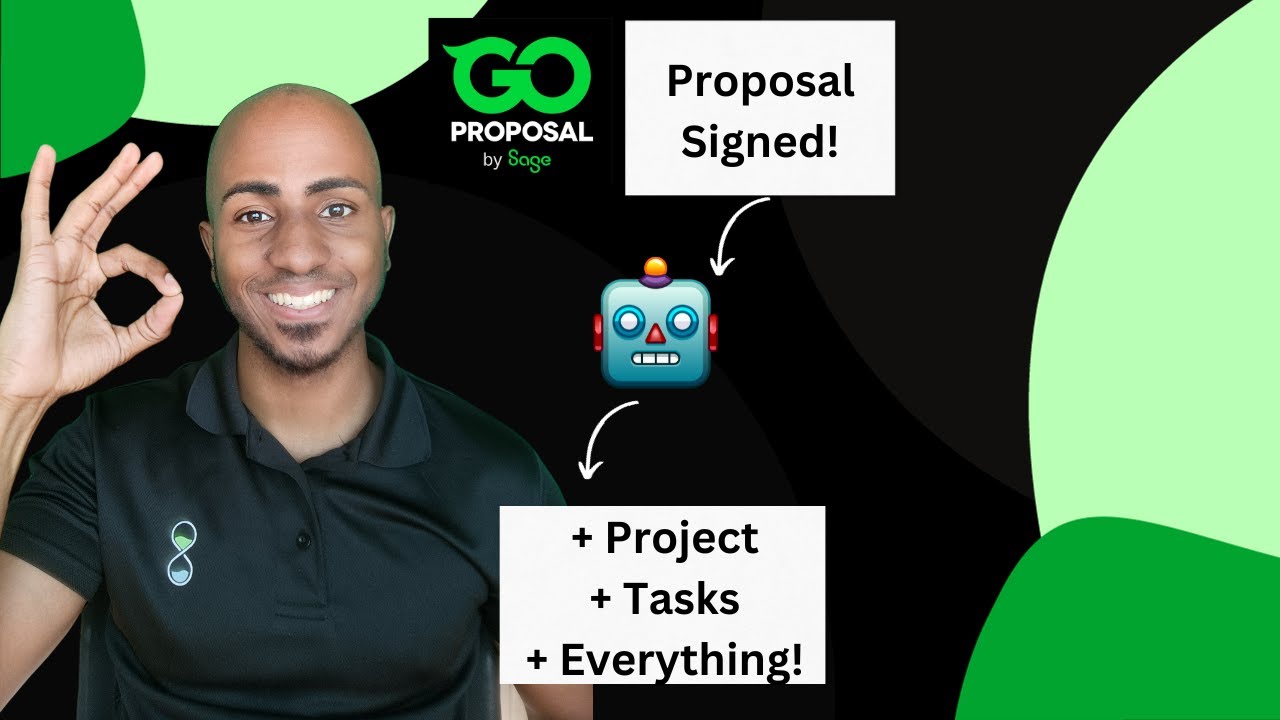
Isaac builds a Zapier automation that converts accepted proposals in GoProposal into task lists in Teamwork. The workflow connects GoProposal as a trigger, splits line items, looks up template IDs in a Zapier table, then creates a company, project, and task lists in Teamwork. He walks through each step, tests it live, and shows the results.
Chapters
Hello, hello. Welcome to another episode of Automating Public, where we share specific automation tutorials that are relevant for the processes in your accounting firm. So instead, in this particular case, we're going to be building an automation that's going to create teamwork tasks as a result of someone accepting your proposal in GoProposals. This was inspired by Nicole and the team at Momentum Accounting, so I hope this be relevant for them and relevant for any other person here that's using either similar tools or, you know, it's a similar concept of like proposal is accepted. Let's create all the tasks that are required. So for this particular case, if you guys go to opcer.co/public, you'll be redirected to this landing page and you'll be able to subscribe to be notified of any automation tutorials we release. And you'll also be able to request a process. To see if we can automate it in public for you. But in this particular case, we want to focus on this particular automation, and I want to discuss some of the requirements, the things you need to have in place before you actually do this. So there are 3 specific ones. One is having all the individual line items in GoProposal represent each service you provide and have task lists on Teamwork that match those services. So we're going to see how that looks like real quick with a couple of examples. And third, here we have a table that matches the services with the teamwork list templates, and we're going to be building that on Zapier together in a bit. So how does that look like here? If we go to GoProposal, here's kind of what the dashboard looks like. This is a trial account, but if you go to configure and you go to line items, you'll see the different line items that they have. For now, I have the default options here, but I would assume that if you'd be using a similar proposal tool, if you'd be using GoProposal, you might have this customized to your specific needs. So in this particular case, I'm just going to be taking reconciliations. 1099s, sales tax annual reports, and quarterly reviews, just for the sake of examples. If I go to Teamwork, you'll notice that I already have— I click More and I click Templates— I already have tasks templates that align with these 5 services with an effort, you know, to create this tutorial. Now I'm going to actually start building the workflow in Zapier and the way you like to build these things just for efficiency's sake, usually it's just I start at the end and by starting at the end I'll realize what I need and then I work backwards from there. So that's going to make sense in a second. Technically the thing I want to create at the very end of this process is tasks as we outlined, right? So I'm gonna go ahead here and I'm gonna add an action, um, Teamwork. I already connected my account, uh, but technically what I want to do here, it's to add task list from template. Technically you could create the task, but this is going to create an empty task. You might want to You might want to rather create a task list so you can already have certain tasks, potentially assignees, due dates, time estimates, etc. And I actually did a little bit of an example with the 1099 where you can see you already have specific subtasks, names, and estimates. And you could, as I mentioned earlier, you could potentially add assignees, due dates, and other custom fields. Here. So add list, task list from template is what I would want to use. I'm going to click on continue. I already have my account connected, but if you wanted to connect yours, it's as simple as this window will pop up and you'll be able to log in. I'm actually logged in with one of my, um, email addresses, so I'll go ahead and click on that and you'll see how this kind I just logged in successfully, and that should— let's see. Oops, didn't mean to do that. So that should allow me to connect. You can see it right there, isaacobject.co number 2. That's the one I just did, and I will click on continue. So Very quickly we realize we need two things. We need a project and we need a task list template. Okay, now the task list template I already have here, um, or I'll have several options here that align with what I created. But the challenge is I want this to be custom so that when this runs, it goes through And kind of like depending on, you know, what the client accepted specifically. Now for the sake of it, I'm just going to copy this. I already did this, but just for the sake of example, and this is what I'm going to use to build my, my table. Okay, it's going to make sense in a second. So this is the data I have in Teamwork, and I have to that to what's here on GoProposal. So I'm just going to go ahead and go to Zapier, and if you go to the sidebar, you'll see a tables option. I'm going to create one. Let's just create a blank version and let's just call it GoProposal to Teamwork Task Match. Let's create that table. In this particular instance, Let's just set up no automations. What happened here? Let's just refresh. Okay, now we only have, for the sake of this tutorial, 5 different items, so let's just create 5 different records. Let's call these Go Proposal Line Item. And let's call this— I want to match the proposal line item to the teamwork task list template. Okay, now as you can see here, I actually got 2 things. I got a name and I got a— what looks like an ID. So I'm just gonna put both here. Um, it's possible I might only need the ID, but in case it's useful, I'm gonna have the name here showed up as well. So it's relevant and easy to understand for the people looking at this later on. Okay. So now let's actually populate some of these things. So you have the T99 template on teamwork. It's these particular ID. Which remember, again, we got from this list and it would relate to the 1099 filing line item on GoProposal. So I'm going to pause this real quick. I'm just going to complete this for all of the other line items here. Okay. So we've finalized here and we have matched now the GoProposal line item to the teamwork task list template, and this is going to be useful for us to go through in a second. Now I always like to just lay out the last step to get an idea of what we need and start understanding what it is that I'm going to need to go through it. But let's actually go to the trigger now. Let's just go, go proposal. Proposal 1 would be the event want to trigger it from. Again, I already have my account connected, but connecting is very simple and it's usually just a matter of plug and play and following the instructions. So for example, here they ask you for an API key that you have to get from GoProposal, and it's as simple as you go into settings, integrations, You'll see a Zapier tab that if you toggle on, you'll have the API key available. I'm not going to repeat the process, but that's there. It shouldn't take you that long. Now let's test this trigger. I already have a proposal that I kind of won, but I believe this particular one doesn't really have Well, it has some of the versions I want. You know what, let's work with it. I'll just test with this one, but we'll test live at the end of this presentation, at the end of this video. Now, now that I have the proposal, I already know I'm gonna need the task list template. Which I'm going to get by matching this to this. But notice that there are multiple line items. As such, I have to like— what would be the right word— split them up first and loop because I want to take this action to as many services I sold, right? So if I sold 5 services, I'm going to add 5 task list templates. And for that, we're going to use the format for the splitting and the loop function to repeat that action as many times as we want. So, formatter step, in this case, I'm going to be using text. There should be a split text function here. Here, there it is. And I'm just going to be inputting here the line items. Of the proposal that I just won, uh, and I'm gonna separate them, separate them by commas because that's the structure they have, and I want them as separate line items. Okay, so I'll just test this out, and you can see now that instead of having one bucket of all the items with commas, now I have them separately here. What that allows me to do is to loop them. So by using the looping function on Zapier, I'll be able to create a loop from line items. And now that I think about it, we could have probably used text and used commas, but hey, we're moving forward, so this works too. Let's just say here proposal items, let's call it that, the variable, and the value would be what we just got from here, the output of this step above. If I test it, what should— what this should tell me is like, hey, this would iterate 4 times, and in each time, the variable proposal item will have this value. So we'll run the first time with this value, the second time with this value, etc., etc., etc. Now, for the sake of this, let me actually do this real quick. I'm just going to add a 6th row here just because I tested with this line item. I'll just put something like this here and just— this is just a way for me to be able to test because unfortunately they only give me the first variable to test, but when you run it live, will run as many times as it needs to, to, to run, in this case 4 times. So let's look for tables. Well, it's actually here, and what I'm gonna do is I'm gonna find the row or the record that matches that line item on that first column, right? So we're gonna select that table and and we're going to look up Go Propose a Line Item by the value that is exactly the line item we are currently processing, which is right here. If I go ahead and test that step, I should be able to get this row, which again, I sort of created temporarily because this is kind of what I tested with initially. But what's important here is that F3, which would be field 3 or column 3, has the value that I want for this step, which is the last step. Okay, so now rather than saying here I want this to be a T99 or reinitialization, I can have this be a custom step that effectively aligns with— let's see— with the ID that I found above. Hopefully I haven't lost you, but essentially what we're doing is I want X amount of services, like 4 different services. I'm splitting those up so I can run certain actions for each one of them. And for each one of them, I'm going to go to a table, find the match between that proposal line item I found and the task list template I've created associated with that, and that's what I'm going to be using to create that. So that's one of the things I need. The other thing I'm looking here that I need is the project. So it looks like we'll have to create a project before we get to the step. Now, I'm not— I don't want to create the project after the loop because I don't want to create one project per service, but I just want to create a project for the client as a whole, okay? So I'm going to be adding a step here. I'm going to be using Teamwork and we're going to be creating a project. Okay. Let's create a project and let's name it— let's see what we can name it. You could potentially name it company name dash letter of engagement name. That could be an option. Let's do that for now. And I can see here that I can add a company too. Okay, so this is kind of like the process I like to follow. You can see that now I know I need a project, but per project I could also add a company, which would be valuable. So let's also go one step above and let's actually create a company. So in order to create a company, looks like here we just— we would only need a name. If we wanted to actually put the website as well, technically we could get it from the email address, assuming it is a business address, but let's not complicate it. We just need the name. The name is the only thing that's required, so I'm gonna test the step. And this should give me a variety of variables associated with that company that now was created, and I should be actually able to go here to teamwork and see that company now created. And you see now it has an ID. Perfect, that works. So now I can create the project and actually associate it right away. With the company that's related to that client. So let's test that step as well. And here you can see project is 0. If I update this now, I should be able to see projects 1. Great, so we're on the right path. Um, now I should be able to come here and Rather than saying, hey, attach this to X project, attach it to the project we created as a result of this, you know, of this proposal that was accepted. So here we would just click the ID of the 4th step. Okay, now that effectively would allow me to— let's just test this real quick. Well, in this particular case, it's not going to work because I have like 1, 2, 3, 4, 5, 6 for this particular line item that I created, but I'm confident that that's, you know, it's built well, so we can actually go ahead and publish this, and let's actually test live. I'm going to delete this row. I created it temporarily so that I could kind of like set those steps up, but as long as we select either all of these 5 or some of these 5 line items and go proposal, we should be able to have immediately in Teamwork the company created, the project created, and all of the tasks associated with that. So let's go ahead and test that out. Let me pause it here real quick just so you don't see me doing a lot of the boring stuff. I am back and And now I have officially sent myself, on behalf of myself, a proposal. So the idea is that I can open this up as if I'm a client and I'll be like, okay, let me see. Okay, it's here as a PDF, which I don't like about GoProposal, but that's fair. So I can see here created by Isaac, created for Isaac Test, and we can see The do the different line items. So we have 1099, annual report, quality reviews, and reconciliations. I skipped sales tax just as a way for us to test and see if those four come in as we expect. So let's go ahead and say whoop. Isaac test confirm, and that should. Let's wait a second. Success. So now if I go back to GoProposal and I refresh, I should be able to see one proposal by the absurd automated public organization. And if I come here and see the run of the test, it hasn't run yet. So let's wait a few seconds. Okay, so now we can see it running. Let's click and see what it's doing at the moment. We can see that it's done a couple of steps. Let's refresh the page. We can actually go here too. We can see that the company was created, the project is there. If I click to see the project, I should be able to see the name of the company and the name of the engagement letter. If I click through, I should be able to see 4 different lists. It looks like one's missing, so that's something that may be for me to troubleshoot. But for the sake of this tutorial, I think we did, we did enough, right? So you can see 1099, the annual report, the quarterly review. What's the one missing? Maybe it hasn't run yet or hasn't finished or there was an error. That's something for me to troubleshoot later on. I don't want to extend the video a lot. But as you can see, we can create a simple table that matches the Go Proposal line items with the different task lists that we want to create and we can automatically create clients, create projects, and create tasks. So this is a video inspired by Nicole from the team at Momentum and Accounting. So shout out to the people there. And if you have any ideas, please go to opstream.co/public where you will be able to subscribe to be notified for new episodes and also request new ideas. So I thank you for watching this video. Hope you like it. Subscribe and I'll see you in the next one.
More from Isaac


This Boring AI Automation Could Save Your Accounting Firm 40 hours (But most ignore it)

How to Build AI Systems With Claude (So Your Accounting Firm Runs Without You)