Setting Up the Gateway On Graber Motorization App | Best Buy Window Treatment | South Florida
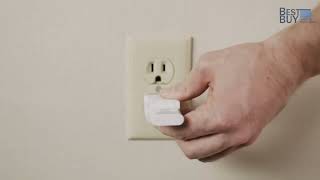
Step-by-step setup for the Graber Gateway using the Graber Motorization app. Download the app, connect to the gateway's temporary Wi-Fi network called Atom, enter your home Wi-Fi credentials, create an account, and enable location permission before adding motorized window treatments.
Chapters
Welcome. This video will help you get started using your Graber Gateway in the Graber Motorized Shade app. First, install the Graber Motorization app on your mobile device. You can download the app for free from the iOS app store or Google Play. Open the Graber Motorization app and choose New to Graber Motorization. Connect your gateway to the adapter and plug the adapter into a constant power source. Once plugged in, the blue LED light will flash once, then turn off. The gateway will also work with a USB power adapter as long as it's always connected to power. During setup. Keep the gateway at a 90 degree angle to more easily see the LED indicator after setup. The gateway is flexible to accommodate tight spaces. Open the Graber Motorization app. The app will prompt you to connect to the gateway using the Wi Fi Settings menu on your mobile device. Location settings must be enabled. Select the temporary network named Adam. Follow the prompts Once you select the Atom Gateway network, return to the app and follow the prompts to complete network setup. Choose your home Wi Fi network and enter your home WiFi password. While your gateway is connecting to your home network, it should blink once per second. When it's connected, the gateway will stop blinking. Now set up your account. Enter your name and email address, then a username and a secure password. Once you submit this information, you must validate your email account before continuing. Look for a message from Graber in your email inbox. After you verify your email, return to the Graber Motorization app. To set your location on the setup screen, choose Allow to automatically detect your location. If the location is correct, click Save. If not, manually type the correct address. That's it. Your account setup is complete. Click Start to begin adding Graber products to your account. We have it all for your home and your business. Let us make it easy for you. Call or click to schedule a consultation and we will guarantee a custom fit.
More from Ergun

Bali | How to Install a Layered Shade with Continuous-Loop Lift (Outside Mount)

Beyond Aesthetics How Artisan Drapery Saves Energy | Best Buy Window Treatment #shorts
5 Reasons Why Plantation Shutters Are Perfect for Florida Homes | Best Buy Window Treatment #shorts

Bali | How to Install Solar & Roller Shades w/ EasyTouch Lift & Flat Valance (Inside Mount)

Bali | How to Install Solar & Roller Shades w/ EasyTouch Lift & Flat Valance (Outside Mount)


Bali | How to Install Solar & Roller Shades w/ EasyTouch Lift & Contour Valance (Outside Mount)
Smart Choices: Motorized Roller Shades by Graber | Best Buy Window Treatment #shortsvideo

Woven Wood Shades & Graber App for Easy Comfort in Florida Home | Best Buy Window Treatment #shorts
5 Reasons Why You Should Choose Wood Blinds for Your Windows | Best Buy Window Treatment #shorts