The Power of Video Marketing with Lou Bortone
In this Free Webinar Wednesday episode, host Eric Cook and co‑host Jeff Simpkins welcome video marketing expert Lou Bortone to discuss why video is essential for modern branding and how entrepreneurs can create professional‑looking videos without expensive equipment or software. Lou explains the strategic difference between marketing (tactical actions) and branding (the essence of a business), emphasizing the need for a clear target audience, a unique value proposition, and visual consistency across all channels. He walks through practical tactics such as custom YouTube thumbnails, using free screenshot tools (Jing) and design platforms (Canva) to craft eye‑catching thumbnails, and demonstrates several affordable video‑creation tools: Video Maker FX (a $67 animated video builder), VideoScribe for whiteboard/sketch videos, and Adobe Voice for mobile storytelling. The demo shows how to assemble slides, edit text, change colors, add royalty‑free music, record voice‑overs, and export videos for upload to YouTube, Facebook, or a website. Lou also highlights the business case – a low‑cost tool can replace agency fees, making video production viable for small businesses and virtual assistants, and mentions a referral link for a discount. The session ends with reminders about recording availability, links to tools, and contact information.
Chapters
Greetings everyone. Welcome to the Wednesday, October 29th, 2014 episode of Free Webinar Wednesdays. This is Eric Cook, and I'm with WSI Internet Consulting where we work with businesses and organizations in helping them better understand and leverage the power of the internet as a strategic business tool. You can learn more about me at www.poweredbywsi.com. Or if you are into Twitter, I'm actually starting to use that a little bit more. Follow me @EricCook. With me this week, and it's good to be back, is my good friend and Free Webinar Wednesday partner, Mr. Jeff Simpkins. Jeff, say hello to everybody out there in Free Webinar Wednesday world.
Hi everybody, this is Jeff Simpkins. I'm with Community Bank Consulting, Inc. And you can learn more about me and Community Bank Consulting, Inc. online at www.communitybankconsulting.com.
Excellent. So the leaves are changing. Well, by changing I mean laying on the ground, at least here for me. And Jeff and I were having a little pre-conference chat, and he informed me that he's sitting there in shorts with the windows open and was a little hot. And those of you that are joining Free Webinar Wednesdays from the northern climates like myself here in Michigan, I won't tell you what I told him when we were on the pre-conference, but it was kind of a rub it in, pal. So, but I'm looking forward to fall. We've got Halloween right around the corner, and that means Halloween candy. Candy corn is my crack cocaine, I think, so I don't let my wife buy it very often because if she does, the bag's gone in like a day. So I have to be—
what are you dressing up as for Halloween, Eric?
I'm dressing up as a digital marketer. How's that?
One of my buddies on Facebook has gotten a new puppy within the last few months and looks like it may have some lab or something in it, maybe Weimaraner. And She has bought a Robin costume for the dog, and her daughter is dressing up as Batman.
It's pretty impressive. Batman, nice, nice. Well, hopefully if anybody out there— because we're talking all about video today— if anybody out there is dressing up or dressing their animals up, make sure you snag some video and share it with us, because I do love getting the I think every year I get the same email that has the same pictures of dogs dressed up, but it's just hilarious to see the poor dogs just Batman and Robin, Princess Leia and Darth Vader, dressed like an alligator. They're hilarious. Well, I think today's topic is very timely because I was sitting in on a webinar. I was telling Jeff with Mari Smith, who's probably one of the better Facebook consultants that I've come across. And she did a webinar on Monday, and one of the things she was talking about is your Facebook strategy for 2015. And if I heard the word video once, I heard it 100 times. Facebook has just surpassed YouTube in videos viewed, although Jeff and I think that the autoplay functionality has a little bit something to do with it. But ever since everybody's been uploading their videos to Facebook for the ALS Ice Bucket Challenge I think users are getting a lot more familiar with creating video, publishing video, and how to use video. And that is one of the best ways that you can tell a story. So I am really excited. Lou Bortone is with us today, and I am going to make my magic happen and shift the presentation controls over to you, Lou.
Cool.
But Lou is here with us, and he has been a guest of ours before. And he is kind of the go-to guy when I've got a video question. And he's going to chat about the power of video for marketing and getting your brand and message out there, but he's also going to share with us a cool tool that I discovered thanks to him that makes video creation a snap. And I'm just really looking forward to today's chat. So without further ado, Lou, welcome officially to Free Webinar Wednesdays. The mic is yours.
Thanks, I appreciate that. My screen is a little messy right now, so I'll get it cleaned up in a moment here. I'll just I put up a kind of generic slide for the time being. But yeah, I appreciate that. And please jump in, ask questions. I don't have a really formal presentation other than just trying to give your folks sort of an update on what is cooking with video and some best practices, and also the tool that you mentioned. Because I am all about really easy ways to create video. And again, video obviously has become really ubiquitous and powerful. And we all hear the statistics about YouTube being the 2nd biggest search engine and just how much video is uploaded. So yeah, I'm really— my whole thing is just to empower entrepreneurs and folks to be able to do video so that it isn't a hassle and that it isn't a huge time suck, and that there are easy ways to create video that you can be proud of and not embarrassed about.
Very cool. Hey Lou, before— one thing I just realized I kind of forgot because I got all wrapped up in Jeff sitting in shorts and the windows open. Just want to remind everybody that Free Webinar Wednesdays is recorded. I'm looking through the list and I see some fresh faces there that may not have joined us in the past. So welcome anybody that's new to the show. We do record these and they are available at freewebinarwednesdays.com. And Lou mentioned ask questions. We certainly love questions. And if you'd like to, Use the control panel that's likely located to the right of your screen. Just use the question and answer, submit it. Jeff and I will keep an eye on those, and we'll be happy to ask your questions for you and make sure that Lou covers everything that you want him to cover. So I forgot those housekeeping things. You reminded me with that little ask question, so there you go.
No problem. Great. So I did a workshop a couple weeks ago in San Francisco. For this platform called CreativeLive. And I'm going to borrow a few of those slides here and just change the screen around a little bit so you don't have to see all my notes and things like that. So hopefully the screen is not too distracting or too messy at this point. But I did want to go over a couple things. One of those is sort of when you talk about video, everybody wants to jump right into the cameras and technology and YouTube versus Vimeo and that kind of thing. But I really think it is more important to go back to the marketing discussion and realize that video really is at the end of the day a marketing tool. And I know that there is always a lot of debate about marketing versus branding. And I know people sometimes use those terms interchangeably. So my own definition, I thought I was quite clever coming up with this, But my own definition really is that marketing is what you do, but branding is what you are. So marketing is really more tactical, while branding is more strategic. So just something to kind of frame the discussion.
You need to put your name on that, Lou. That's a good one. You need to put your name on that. Put a little— put your name down there, subfootnote that so you get a little traction.
I'll tweet that out.
Mm-hmm.
So thank you. That's tweetable. Marketing is what you do. Branding is what you are. So I always talk first before we get into all the equipment and technology, go back to some of the basics of who is your target market, what's the big result that you get for them, and then what makes you unique and memorable. Once you've got that foundation, you can start to talk about using video and doing it more easily. So I use video really primarily as a branding tool, and it's what I use and what a lot of my clients use to sort of get their name out there, get as much visibility as possible, and really become a bit more distinctive. Because, you know, anybody can do social media posts and anybody can do articles, but video is more personal and more engaging. And at least for my money, you know, it really helps to build that know, like, and trust factor better than anything. And when you think about it, with video you are sort of getting a sense or a flavor of the person who is on camera if you are doing an on-camera video. And it is a great way to sort of start to establish that familiarity and that trust that is really important in what we do. Excuse me. Any questions about that so far? I have to take a quick drink here.
Nope.
Excuse me.
The tweet did go out.
I was multitasking.
Awesome.
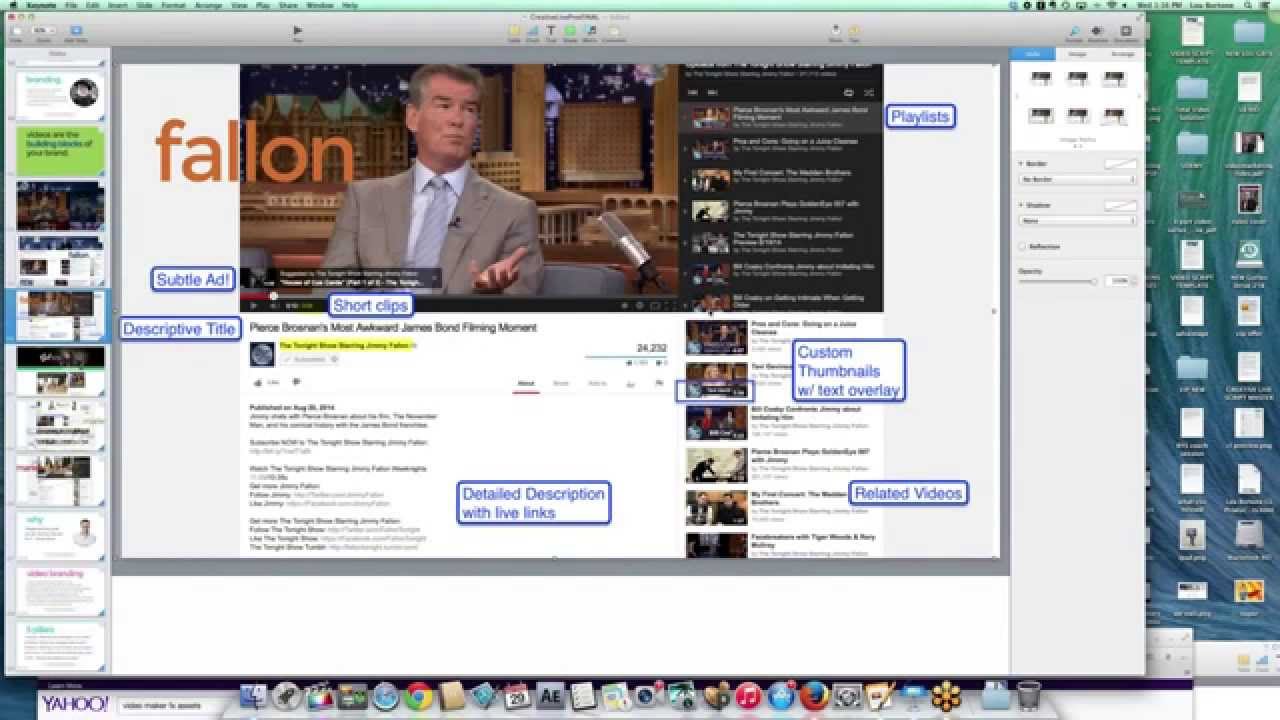
So when I talk about video, I usually kind of preface it with, you know, you can use video to build your brand. You can use video to be more memorable and unique. It's a great way to stand out and be noticed online in what has become a very crowded, noisy environment. And then I also like to say, you know, when you're doing video or video branding, you know, don't be too generic and don't water yourself down. I think a lot of folks think, oh, if I have to do video, I have to get my video face on and be all professional and stuff like that. My whole thing was that I didn't like being on camera, so I started to do really goofy stuff and wear costumes and put the dog in the video and things like that to deflect the attention away from myself. So When I'm giving video tips, I might dress up like some goofy Hollywood director and do it that way, like in this photo here where I did video tips as Cecil B. DeMoraan. I just think I'm going to put some personality into it. I'm going to have fun with it. I don't want to be on camera, so I'm going to make a character to be on camera. It's been a great way to really get the word out with video because you're injecting your personality into it. Doesn't necessarily mean you have to dress up in a goofy costume, but as long as Halloween is a few days away, it is a great opportunity to do that. And I have to get— I have Rocco the pug often appears in my videos. And he is a little black pug. And he has a Batman costume for Halloween too. So I will have to get him on there and start to show what he is up to. So the other thing I like to say about videos is as you do videos, they are all— you kind of are what you post. And the videos become the building blocks of your brand. It's just a lot easier to establish a brand with video because you're putting it out there. They are all sort of building upon each other, and that whole cumulative effect is what becomes your brand. And I like to use the example of The Tonight Show when I talk about video and video branding because they really do a great job with it. And obviously they have a large staff and people that can handle all this stuff, but you don't necessarily have to have a lot of resources to do what they do. So if you look at The Tonight Show and Jimmy Fallon, this is their regular homepage on the website. So they've got a banner up top, they've got all kinds of videos below. And then if you go to their YouTube page, it's essentially the same thing. You can tell it's branded very much the same with their banner at the top. And any of us can go to our YouTube channels and customize the banner at the top and make sure that, that it matches and is consistent with our brand. So you can take something from your homepage and make it as the banner on YouTube. And just, you know, that one little 5-minute action right there is already going to start to make your brand more consistent. And, you know, now your YouTube page feels a little bit more like your homepage. While I'm on this slide, a couple of the other things that The Tonight Show does really, really effectively is they do custom thumbnails So if they have Barbra Streisand on, they are going to take a clip from that and put the thumbnail— oops, sorry, dropped the phone. And you can see at a glance, now you can tell, okay, I can see whose video is whose. They do a really good job with all their thumbnails. So you can look and at a glance you can pretty much tell what they are. They also use playlists. They use very descriptive titles, and they take advantage of all the real estate that they have in the description section. So they've got all kinds of links and a nice long description. So I like to use them as, as an example because they do a lot of things right on YouTube, but those are the same things that anybody can do. I mean, it doesn't, you know, cost any money to do a good title and a good description on YouTube, and it's going to give you a lot more mileage, a lot more SEO, and it's going to make your videos much, much easier for people to find. Let me see if there are any questions over here. So far I don't see anything, so I'll keep going.
Actually, just a comment on the thumbnails. I know one of the things that was a challenge for a lot of businesses is you, or anybody that is using YouTube, you upload a video and YouTube would pick 3 snapshots and those are the ones you were stuck with. And invariably those were the 3 that your mouth was open, your eyes were closed, you looked goofy on another one.
Absolutely.
But the thumbnail capability is relatively new. You want to maybe just touch on that a little bit and how you can override that and if there are any specific requirements to building a thumbnail?
Yeah, you are right. YouTube is going to give you the worst 3 possible shots on thumbnails, but you don't necessarily have to stick with what they give you because you can create custom thumbnails. And that means you can upload anything you want to represent that video. So in the case of Jimmy Fallon, for instance, they're taking a clip. So this clip is Pierce Brosnan or whatever. And then they're doing a screen capture. You can use Snagit or Jing or whatever you want to create a screen capture. And then just create an overlay or something that describes what that video is. So for Fallon, they're basically saying who the guest is. So there's Bill Cosby. Marie Forleo does a really, really great job with this as well. I think I have a slide from her here. But you can see where she's basically taken a shot from the video, usually not one where they're drooling or her eyes are closed, but she'll take a shot from the video and then just put an overlay of what that video is about. So in this case, it's 4 Ways to Sharpen Your Intuition. So that's pretty obvious what that video is about. So when somebody goes to Marie's site, for example, they can look at a glance and find the video that they want because she's created these custom thumbnails that tell you exactly what's in the video. So again, that's, that's why the thumbnails have become so important, because as much as we don't want to admit it, people may make a decision about whether or not to watch your video based solely on thumbnail. And you can see if you go to Marie's site, again, she's doing a nice long description just like they do on The Tonight Show. I mean, she really has high-end videos, so she's doing a great job shooting them professionally. But even with her thumbnails, you know, you can look on the right-hand side and at a glance you can kinda see what the videos are about, so you can see what else you may want to watch next. So I think that part is really important when it comes to doing videos and uploading them to YouTube. Again, this is a Basically, it's a free site and they give you all this real estate to promote yourself and your business, so you might as well take advantage of it. Perfect.
That was really helpful.
So I have basically 7 tenets or guidelines that I like to follow for video branding. And after this, we'll get a little bit more into the actual tools and things like that. But again, I think it's really important because people sometimes sort of default to what camera should I use, and they are not thinking about the branding, and they are not thinking about the bigger picture. So when you think about video branding, think about your core message or your why, so to speak. Decide on a look, a feel, an attitude for your brand. And again, Marie's videos are very consistent with her overall brand. I mean, here is her website. She is fun. She is sassy. You know, she's a New Yorker, and all of her videos reflect that. So think about that when you're doing your videos, that you want them to have a certain look and a certain tone and certain attitude. And that includes visual aspects for your brand, like colors and fonts and style and design. Again, even if it's just a matter of what you use as an overlay or what you decide to use as a thumbnail, all that plays into it. And you also want to think about consistency across all platforms. So what you're doing on your website, you want to carry over into video and even social media. So think of each video as an individual building block for your brand. So don't sort of do videos in a vacuum, like this week I'm going to do a PowerPoint, and next week I'm going to do something completely unrelated. Think of all of the videos as building blocks for your brand, because everyone that you put out is going to reinforce that brand. And then of course, stay on message. You want to be hyper-focused and ultra-clear with your video communications, because it's easy for us as entrepreneurs to get distracted or have a short attention span like I do and want to go off and do something else. But for your viewers, you know, they want to know what to expect and they want to come there and find what they're looking for. So as video producers, we have to be really focused with that. And then of course, allow your videos to be a natural extension of your personality and your brand. And that's in everything from copy to pacing to music. Maybe it's location or appearance where you do your videos. So that's another thing to think about because, you know, all that stuff plays into it. A lot of people again think that they have to be generic or water down their copy or make their videos something that they're not. And I say the opposite is true. I say you should, if anything, amplify your brand and exaggerate your personality to make your videos more distinct. So let me just pop over to the next area here because I want to talk a little bit about content.
While you are doing that, Lou, there is a question Connie asked. What were the sites that you mentioned to pull up a thumbnail?
Okay. Jing is one that is a free video capture site. You can capture any image that is on your computer. Or Snagit which is also from the same company called TechSmith. Those are the folks that make Camtasia. But they also make a product called Jing. They make a product called Snagit. And either of those you can used to capture that image. Let me just go to Video Maker FX here. I've used Jing before.
That's an awesome product.
Yeah, Jing is free. Jing is great.
Yep. I'm going to go ahead and I'm going to put the URL in the chat box so everybody is going to have that link. It's JingProject.com. I use that almost on a daily basis. It does screenshots and it will also capture video up to 5 minutes. So you can actually do an on-screen video tutorial. Then you can use their free hosting service called Screencast, and you get a limited amount of space that you can share your videos. You can put a link up and then send somebody a link without having to send the actual file or the attachment, but you can save everything locally if you want. It's a great platform. So Jing Project, it's in your chat log there so everybody can click on it and save it as a bookmark.
Once you've got your screen grab or your image, You can then go to a free site like canva.com, C-A-N-V-A dot com, and you can use one of their layouts to create that video overlay. So it makes it really, really easy. I use Canva all the time. Like, I was just creating a podcast cover here, but you can upload your own images. So you can take that image and then add text to it as an overlay. So Canva gives you all kinds of options for Adding text, it is as simple as dragging the text bar over here and then customizing what you want to call that. So once you add your image, you can upload your own images and then overlay the text and tell folks what the video is about by customizing the text here. Canva is a great tool for that. It is free. It is really easy to use. They have a lot of layouts To start with. So you've got a lot of things to begin with. You don't have to sort of make it up from the get-go. So to make those thumbnails, you can use Jing to capture the image and then Canva to add text or anything else that you want to embellish it. So I'm having a little trouble getting to my Video Maker site. I'm going to try it one more time for some reason. I may ask you guys to pull it up, videomakerfx.com. Because it keeps wanting to pop back to Yahoo for some reason. So I may have to bounce the screen back to you, but I will try it one more time. There we go. So I know you mentioned in the— yeah, see, for some reason mine keeps popping back to Yahoo for some strange reason. That is weird. Do you guys see that? Every time I pull up Video Maker FX, it is going back to Yahoo. Yahoo.
Weird.
Do you—
are you able to maybe try and pull it up on your side and I can give you the screen back?
Eric, are you able to pull it up?
Oh, sorry. I had you on mute. Yeah. Todd Gross decided to start talking on me, so I quickly muted myself. Oh, yes.
Yes.
Yeah.
So let me—
All right.
Do I have to give the screen back to you guys, or can you do it from there?
Oh, perfect. I've got it from here.
Yeah, there is my neighbor Todd Gross. So Video Maker FX, we talked about the foundation of video which is the branding and the marketing, and basically thinking about it strategically. But once you've got that foundation and once you say, okay, I want to use video as a marketing tool, And I want to keep it simple. So one of the ways to do that is a lot of folks are intimidated by doing on-camera videos, but video includes off-camera videos. So on-camera video, just as a quick definition, like you are looking at the screen right now and that Video Marketing Dude here, Todd Gross, is doing an on-camera, basically a video talking about the software. Although Video Maker FX, the software that he is talking about, is an off-camera tool that you can use to create videos. Very affordable, very inexpensive, and very easy to learn. And what Video Maker FX does is basically it gives you the ability to create off-camera videos. And they've got all kinds of different templates. I don't know if they show any. If you scroll down, you might They may show some of the templates. But basically you can take one of their templates and customize it and create your own video with it. And again, it's very easy to use. You can see their templates. Yeah, there they are. So they do things like those sketch or whiteboard videos. They make that very, very simple to use. And basically what you do after you download the software again, pretty affordable. I'm pretty sure it's still under $100. You pick a template and then you kind of create your story around it. You say, okay, I've got— I want to promote my business, or I want to promote a sale or product. And you pick a template and you just cut and paste your own copy. And you can— that way you can create a whole video story and a whole video, off-camera video. You can see some of them all. Some of the templates here. And again, it's what used to take video producers or creators many, many hours, now you can do literally in minutes because they've created the template for you and all you're doing is replacing their generic text with your specific text. So that's one of the tools that I like because it is really sort of low-hanging fruit and very easy to use and very affordable as well. Another tool that is similar but a bit more expensive is VideoScribe. And VideoScribe does— they do those same kind of sketch or whiteboard videos. And I think it is actually videoscribe.co. I know they, again, they try and keep you guessing, but it is videoscribe.co. That one is a bit more expensive, but the neat thing about that is that they have an iPad app that is very inexpensive. And you can create these sketch videos or these whiteboard videos on your computer or on your iPad really, really affordably. And again, I know you have seen those because even some of the big brands use these kind of sketch where their hand comes up and draws everything. And VideoScribe is the software that a lot of people use to create that And it is the same kind of thing. It is all drag and drop, very easy to use. And you can do it online with the VideoScribe app, or if you have an iPad you can get the VideoScribe app which is, I think it is $4.99, so very, very affordable and has all the functionality of the online version. So you can become an animator. You can create these kinds of videos really Pretty simply. I think a lot of people are kind of amazed when they get into it and they do it and they say, oh my gosh, if I had known it was this easy, I would have started a long time ago. So you can see all the different kinds of—
I found pricing on Video Maker FX. The current pricing is $67 for a perpetual license. It is not a monthly recurring.
That's great. So to think for under $70 you can get software that allows you to create animated videos. And again, I used to produce a lot of videos and I used software like Adobe After Effects, which is very expensive and has a pretty steep learning curve. So to think that you can do that for under $70 or for $13, $14 a month with VideoScribe is a pretty good deal. VideoScribe is an annual and Video Maker FX is a one-time fee. Then there is one other software that I wanted to mention that I am a big fan of called Adobe Voice. This one again is an iPad app. Thank you for pulling it up. This is a free app on the iPad. So if you have an iPad, you can download Adobe Voice for free and basically create videos by kind of telling your story and narrating your story. I love this app because basically you talk each line right into your iPad. So you record it right on your iPad. And then you add text or graphics. They've got all kinds of different templates that you can use again to create your story in minutes. So you're basically narrating your story and then using graphics or text that Adobe Voice gives to you, provides for you, to tell your story. So I think this is great because it brings video back to the basic kind of storytelling idea. And just the idea that when you are doing a video, you are basically telling a story. And Adobe Voice makes it very simple to do that. And I think you can— I don't know, you may be able to play one of the videos that they created with Adobe Voice to see what it is like. I'm not sure if they— Audio will come up, but you can check it out and see how easy it is to create that. This is actually, I think, a promo, but I think they show some of how they use Adobe Voice in here. Let's see it.
Video over a webinar over—
Yeah, I know it's not ideal.
Yeah, we may have a little bit of an issue here.
That's okay, but you can see that you can use your own images, or you can use images that they provide. So if you want to tell your story with images, you can use your images. You can add text, you can add captions. So again, this is a free app for the iPad, and it makes it just incredibly simple to create videos. And I have some videos on my phone that I could show you too, but I think it would probably— you probably have the same problem with the video playing over Yeah. Okay. So let me know if you have any questions. Again, remind me how long we usually run on these so I know.
Well, we usually go an hour, and I was kind of hoping— of course, if the Video Maker FX doesn't want to cooperate on your computer, it's going to be hard to get in and kind of do a backend demo. I think we had talked about if you can try a different browser, if you can fire up Safari or Chrome or something else and give that a shot. But what I will also do while you are doing that is I'm going to hop over to LouBortone.com and you can maybe give us some instruction on where we can get an idea of a few of the videos that you've created using a couple of different tools so that the people that are out there will know where to go when they come back and visit, because I suspect a lot of folks are going to want to check you out.
Thanks. Yes, and I will pull up Chrome and see if I can get Video Maker FX to cooperate that way.
You can also follow Lou on Twitter @LouBortone. I was almost going to say LouBortone.com, but that is your website. @LouBortone on Twitter as well. And you can support Free Webinar Wednesdays hashtag, so I appreciate that.
And what I'm going to do is I'm going to pull up my Video Maker FX software, and that way I'll be able to give you kind of an on-the-fly demo Without having to use the web, so I won't have to depend on the site which keeps defaulting back to it.
That would be great.
So just give me a couple minutes to pull that up because I've got many, many things open here and it's taking its time opening.
So as we're on your website, I'm assuming people would just go in and click on the video link?
Yeah, and then I've just got some video samples down there, and actually it's kind of a one-page website, so if you scroll down you'll see the videos here. Like I've got I've got these sketch, you know, kind of thing, other ones that are animated, just a lot of different kinds of video because I think, you know, although you want to have a consistent brand, for me I have to do a lot of different kinds of videos because I'm doing client videos and things like that.
Sure.
But you can see that there's really a lot of ways to go at this, and not all of them require you to be on camera. I will say that I always think you should be on camera to do your, what I call your welcome video, your homepage video, because that's one where you do want to engage your clients and you want to be able to kind of have them see that there is a real person behind the company and behind the webinar. And it's just a really good opportunity to sort of make a good first impression and again just welcome people to your site, let them know what they can expect and how you can help them. So that's a good video to do as an on-camera video. But I think again, I like to do off-camera videos too, because those are the ones that don't necessarily require you to get all cleaned up and dressed and have a good hair day and things like that. I have my Video Maker FX software open if you want to switch back to me when you have a chance.
Excellent.
Good, good, good. And as a reminder, if you've got a question or you want me to dig into something else, don't hesitate to type it into the chat box. So I'm going to Send you over the controls, so you should now have the controls, Lou.
Awesome, thank you.
Okay, hold on a second. Can you see my screen, or do I have to accept it first or something? You've got to accept the screen.
Show my screen.
There you go.
There we are.
There it is. Now we are in good shape. So basically when you get the Video Maker FX software, which is again a bargain for $67. And you go to Create Project. You can create—
We are seeing your Yahoo page for right now.
Oh, that's weird.
You have paused. Click on Play. There we go.
Now can you see Video Maker FX? So this is the dashboard of Video Maker FX. I can open a previous project or create a new project. And I'm going to create a new project and enter a name for that. I'll just call this Lou for now. Then you'll see Add Slide. It's kind of like putting a PowerPoint presentation together. When you click Add Slide, you're going to be presented with a menu of all kinds of different options for videos that you can create. You can go through and take a quick look at what these look like just by going to— if I say I want to do a whiteboard video, I go to Whiteboard. I can look at the various slides that are available for something like this. So let me select this one. And they've got in this one they've got a series of 14 slides or animations that you can customize. So if I say I want to do a whiteboard video and I want to add all slides, then that puts all the slides down into my timeline which is this thing at the bottom. Are you guys able to see that?
Yep, that's coming through just fine.
Perfect. What these guys usually do is they give you the basis of a story, kind of a problem-solution kind of a story or video. So right from the get-go, you've got a whole bunch of slides to choose from, and you can take any one of these and reorder them, move them around if you need to, and change the order, or delete them if you don't want that slide at all. But what you can do is when you go to the animation like this, it's going to show you that animation. I've got my GoToWebinar thing blocking this here, so I'm going to move that a little bit. So if I want to customize this particular slide, I can pause it first of all, and then I can go in and say, okay, well, this says, hello, are you struggling to promote your products? If you want to customize any of that, you can just go in and type in the text that you want. And if you say, I don't want red, I want blue, you can change it to blue. And then again, for each line of text, you change it to be specific to what you want to promote or what you want to talk about. So you could say, are you stuck trying to— I'm stuck trying to— Create Video. So now I've got this and I can play it and see how it is going to look. Play it back. And this particular slide, so now you see it pops in there. It draws the figure. You can't really change the stuff on the left, but you can change the text which is great because for any one of these you can create your own text. And customize it the way that you want it. So in this particular one, you could say, we take care of your video strategy. And again, I may want to change the color. I might want to change the size of the text, so I can actually make that larger. So you can see here how you can really customize it and create a cool animated video that has your words, but they are sort of doing all the, all the work of all the animation and the sketch kind of stuff. You can also, in many cases you can also change the font, not on this particular one, but sometimes you can change the fonts as well. Here you can change the size. You can add images if you want. So you could go and pick, if you say I want to have an image below this video strategy thing, you could do that. Oops, I've got the beach ball here. Bear with me. The Mac, the infamous Mac beach ball. I used to refer to it as a kaleidoscope, but I was corrected.
Nope, nope, it's a beach ball. It's not a kaleidoscope.
Yeah, I know kaleidoscope is way too fancy for what this thing does.
Beach ball is my name.
Let me back in here. But I can still show you from here. You can see you've got a ton of basically slides or scenarios to choose from. I'm going to cancel that out. And you can change the order. You can change the length that they run. You can duplicate them. So if you say, oh, I want to use this guy again who is doing such and such, who is asking questions, and you can delete that. You can change it around. The other cool thing is you can change the— hold on, let me pause this. You can change the background image if you want to use a blue background or pull something in. You can add different shapes. You can add different animations. So see how the background here is just white? If I want to make it a little fancier, there's an arrow maybe that points to some kind of an opt-in box or something. So they've got little arrows that you can add here, all kinds of different arrows. It's kind of fun. So it just depends on the slide and on the animation that you want and what you want to add to it. Let me go back to the beginning here. Get rid of that. And I will show you another one here. I'm going to go back and go to a different project. But once it is done, it all plays together and the transitions are all seamless and smooth. And it is just a great way to create that kind of stuff. So I can go back and I can say I want to do a character video. So I can say do I want to use this character, or do I want to use this character, Jerry? Yeah, we will do that one. And then you just click Add All Slides.
Sorry, go ahead. Can you embed your content information to display on Each slide rather than load it individually.
Like a master footer. So let's say you wanted to do a video and put your Twitter handle on all of the slides. Is there like a master footer where you can just do @LouBortone or @EricCook or something?
No, you would have to do it one at a time unfortunately on this. Slide by slide. Yeah, the other thing is you can't really change the animation, but again you can change all the text. So what I wanted to show you on this other one was besides the— you can add different animations. Like if you want to change the background to something that is more dynamic like that.
And you said you could take pieces of the animation out, right? So if there is one screen that you don't like, you can take it out?
Yeah, you can take slides out. So if you say, I don't really need this slide, I already have all the text I need, you just exit out and it is gone. And then again, you can add different animations to each background. I would like to pause these because it gets a little distracting, but you have to play it initially so that you know what you have to work with. So you know I've got 3 lines of text here, and then when it continues playing I've got a couple of lines of text over on the right-hand side. Again, you can change the background. So there are little clouds. That's a little bit of animation. So it's got all kinds of groovy backgrounds that you can play with as well just to kind of keep it different.
This is an awesome tool.
It's amazing. And I think it gives you a lot of options and just a lot of ways you can go with it. really change the background quite a bit. You can make— if you say I want the slide to be on a little bit longer, there's something down here called slide delay, so you can make that slide stick for a bit longer. So it's not completely customizable. I mean, you know, you can't go in and change the character, but again, there's so many different little scenarios here.
But it's $67.
That's the thing. And I mean, yeah. Back in the day, just a few months ago actually, to do this on Adobe After Effects you would have had to hire somebody and pay them a couple thousand bucks, or learn Adobe After Effects which took me about 9 months to learn. So it really is a pretty amazing piece of software for what you are getting.
Yep, absolutely.
You've got a huge amount of flexibility. Now I changed my background to blue here. I don't know if you just saw that. If I don't like the red background, it's like, well, You know what, I think this is a color that's in my website so I'm gonna have it be a blue background instead. It's really as simple as going in and changing the text to your own text.
Do they have a help area or a support forum or anything where if you had a question similar to the site-wide footer or maybe an enhancement request where you can send it in?
Yes, they do.
What is that like? Have you used it? Is it responsive?
Yeah, and again because I was promoting this I don't know if they were ultra responsive to me, but I'd hear back from them in like 5 minutes. But I know they get back to you pretty quick. They've got good support, usually within 24 hours. I'm trying to open the support page but it's not coming up here. Oh, it would be coming up on my website down here. Oops, there we go, support. So they have a pretty decent— can you see this screen now?
Yes.
Technical support and knowledge base. And they are always adding new themes as well. So a lot of times if you say, oh, I'm kind of sick of this character or that character, they have other things that you can add. They are always coming up with new things. The other cool thing about this that I didn't mention earlier was that you can— I mean, now it is all right, that is great. I've got my animation. It looks good. It is the way I want it. But you can also add music or voiceover to your videos which is really great. So if you say you want to enable the music track, basically what you do is you open up all of these audios. I know you probably won't be able to hear it. But the nice thing about this is—
and these are all provided by them, they're royalty-free. You're not going to get into copyright issues if you use them for your business, so that's great.
It is because if you just say— you can save a ton of money because if you did go to an audio site like they recommend audiojungle.net which I use a lot, but even that's $20, $30, $40 for a cut of music. This whole software is $69. $67 and you've got all of this music that you can use without getting into any trouble at all. So you basically go through and find the one that you want that's got the right mood and the right feel, or upload your own MP3 file. Again, as long as you have permission to use the music or you are using royalty-free music that you purchased. But I typically just take one of their music cuts and use that. And apply that to the project. I have my volume turned off here so that it won't interfere with anything. And then if you want to take it one step further— oh, go ahead.
While you are on the audio, do you have the ability— I have a hard time reading— do you have the ability to actually record your voice while it is playing so you can record it, or do you have to do a separate recording and then match it and time it up?
I'm glad you asked because here you can say you can enable a voice track. And you record it straight from your— you can record it while it is playing. So you can basically, once you go to record it here, you see there is a voice recorder.
Oh, there we go.
You basically just record what you want to record while it is playing. So like, hey, this is Fred, or no, this is Jerry. And you could say whatever the text is saying or whatever you want. So you record that. When you are done with it, you stop it. It. And now that is part of— you've got the music in the background, but you've also got your voice on here.
Very cool.
It becomes part of the video. And then last but not least, so the audio thing is great. You can always preview your project at any point. Now again, I've got the audio turned off, but you can see how it just kind of pops from slide to slide. You could bring your own images in here. You could bring your own text. That's the one where I changed the background to blue. So you can take a look at it, and then finally when you are done, you export it to whatever size you want. And I don't know why they even have low quality, but you just put very good quality or perfect quality. You export your video, and then you've got a video file that you can then upload to YouTube or put on your own website or upload to Facebook or do whatever you want with it.
Yeah.
So really just very easy software to use, very intuitive, and very affordable.
Yeah, that's very cool. I would suspect, and I know we're actually talking with a bank right now that has a lot of video, but the video is all resident on their website. It's great video, but it's not anywhere that anybody else can really find it outside of the website. So the real advantage here, and as I said kind of at the beginning, is You can take that video and upload it directly into Facebook. You can upload it directly into YouTube or Vimeo or any other video hosting and then embed that within your website so that it's in 2 or 3 or 4 different places, which gets you maximum exposure. And again, you're doing all that with a program that costs you $67.
Yes.
And unless you're also on this webinar, you're probably not going to realize that this was created with a program that you spent less than $100 on.
It's true and it's funny because I'm starting to see local commercials done with this and things on television. So why should I pay an ad agency all this money if I can take half an hour and do it myself and make it exactly the way I want it?
Exactly. Now the only caveat because I know me and if you are easily distracted, you probably want to get this when you don't have a lot of stuff on your plate to do because this is one of those things that I would buy it. I would spend the $67, and I would be in it all weekend long, and I wouldn't get any of my honey-do list done. So make sure that you know what you're getting into. But this looks pretty sweet. And I took a little bit of a demo when you had shared it with me originally, but did not dig in nearly as deep as what you've done today. And this has been really eye-opening.
Great.
Very, very cool.
Very cool stuff.
Yep. And they've got different kinds. I like these. This is called kinetic. You see a lot of this nowadays where the text kind of comes in and does cool stuff. And you say, oh my gosh, how do they do that? It's like, well, it's really just a matter of changing the text and making it your own text.
Yep.
And if you say, this is great, I want to use this particular slide, but I don't have that many words to say, or this is too much stuff, you can just eliminate that line. If you don't need textarea3, you just delete textarea3 and it goes away. So really, really change— again, I mentioned earlier you can change the fonts in a lot of these, which is kind of cool. And they have a ton of fonts. It's not just like 3 or 4 fonts.
Yeah, I would suspect on the handwriting one they probably don't want you changing the font because then it kind of eliminates the possibility of It looking like a hand-drawn scribble. Changing it out to different font styles makes total sense.
I use this Chunk 5 all the time on my website, so it makes sense for me to say I'm going to go in here and make that, and I want it to pop more, so I'm going to make it yellow or something like that. Again, that easy to just kind of go in and mess around with it and customize it. Yeah.
Well, I was going to mention when you kind of said your marketing versus branding, if you've got a font style that you're using in your letterhead or your logo on your website, you can certainly carry it across so it ties in even more so it doesn't look like it's a separate standalone. It supports exactly what— especially if you're embedding it on your website, you don't want to have, like you said, chunk 5.
Yeah.
You don't want to have chunk 5 on your website but then something completely different in a video. video and make it look all inconsistent, especially if you're pulling in anything that needs to carry across. It's cool that you've got that capability in here too.
Yeah, and again, you know, it's just— yeah, I mean, if you decide like, alright, I don't want red because my website's blue, or my colors are a certain color, you can change that as well. So because at first when so many folks were grabbing this, I thought, oh my gosh, everybody's gonna have the same videos and they're all gonna look alike. But the truth is, now that they've got so many different templates to choose from and so many different ways to customize them. It's really, you know, I've yet to— it's not like I'm seeing the same animation over and over.
Sure, cool. Well, we are closing in at the top of the hour, and I knew it wouldn't take long. Again, if you've got questions or you want to have him go into a different area, feel free to post and we will cover what you need to. One question that I do want to ask is, as a user of the software, Lew, I don't know if you get any advantage if you've got a referral link where if somebody signs up under you, you get some special credit with them. Obviously, we've got a lot of folks that are going to be listening to this webinar and we've got several that are attending live. Do you have any sort of a referral link that people can use so they can throw you a little link love if we decide to—
Sure.
Yep, maybe I can put it in here as well, but it's just loubortone.com/videomaker.
Excellent.
I think if anything, if they know you came through me, they'll take good care of you. Like I said, because I was an affiliate, they were responding very quickly. Yeah, their support's been great. I think initially they were sort of overwhelmed, but now they've got enough folks to to handle it. It was one of these things where, you know, we'll just put out this little software, it'll be no big thing, and then suddenly, you know, thousands of people were jumping on it. They're like, oh my gosh, what have we got? We've got a tiger by the tail here. So, but yeah, now they're really set up to do it and they're doing a great job. And they keep, like I say, they add new templates. They are, I think, what, you know, a lot of the things that these marketers do is like they'll sell the initial software pretty inexpensively And then there may be some one-time offers or upsells, and I usually resist the urge to do that and just kind of stick with the basic software and get out of there for under $100.
Yeah, for those of you that are attending live, I have put that link in there. So if this is something that you'd like to try out, they do have a trial period as well, I believe. If I scroll down, I think you can try it for like 15 or 30 days.
I'd have to go back to the site to see that, I think. But yeah. Yeah, I think that's on their website. And I'm actually in there right now.
So I think you can give it a— yep. So you've got a— it says 30-day guarantee, money back, blah, blah, blah. But for $67, I know I spent $67 on stuff way less stupid and way less worthwhile that I don't use anymore.
They've even got, like if you go to the image gallery, they have certain things already like different backgrounds. I don't know if you can see that on the— even like add to cart buttons. So you can put any of this stuff into your— I mean, they just give you these things like an iPad background.
Oh, that's very cool.
Example graphics. There is their logo. So you really do have a ton of flexibility in terms of what you want to do. You can even add your Twitter and Facebook links. So they give you quite a bit of wiggle room here as far as customizing it. Very cool, tons of stuff.
Well, good.
Excellent.
Yeah, I hope that is helpful.
Yeah, I think that's very helpful. I'm excited. I know when I told Jeff that I took a sneak peek at some software and kind of broached the idea of bringing you back, you always share great stuff and did not disappoint this time around either. So good, good stuff. So very cool. And I guess just as a reminder, the Jing project and Canva were the 2 others that we talked about. Those links are in the chat feature there. Those will help you get some screenshots and kind of mark up and create a little bit of style. You could probably pull those into an Instagram or even a Snapseed if you wanted to and play with them that way as well.
Absolutely.
Cool. Any closing thoughts on your part, Mr. Simpkins?
Cool. Actually, it's interesting. I noticed one of the people in the audience is a virtual assistant. What a great tool for a virtual assistant to offer when they are helping with clients with this kind of thing.
Yeah, I mean, a lot of folks use this to provide additional services. If you are a VA, it's like, hey, I can do your video now because it only takes half an hour. I can customize it and it looks like something that took a few days.
Yep.
Well, and you're not having to pay for the technology. You buy the technology once at $67, and then what you charge is basically your time. So they're paying for your expertise. So your, your, your other costs are almost negligible.
Yes.
You get a first project out of this and develop one little video for a client, you basically paid for the software, and then everything else is gravy. So that's very cool. Very cool. Well, thank you, Lou. You did not disappoint, and I am looking forward to getting this recording up onto the Free Webinar Wednesday site and sharing it out. I'm sure that if people did not get an opportunity to sit in this live, I'm going to strongly recommend that people check it out because you shared some really good information. Do you want to, before we leave, just pull up your website and leave that as kind of the final, here's how we get a hold of Lou? Should we do one last little plug?
Thank you, yep.
Over at louportone.com.
And you can always find me here. I'm pretty accessible, pretty easy to reach. You can email me or use the contact form on the site. And yeah, just hopefully this stuff is helpful because I think the main thing is, you know, once you see that there are really easy ways and there are shortcuts to doing this, hopefully you'll be able to do it more often and use it to kind of boost your business. I've got my beach ball again. Oh, there we go.
I was going to say your computer just doesn't want to cooperate today.
Maybe when we're done, I think you need to reboot.
There we go.
So yeah, feel free to get in touch or if there are any questions afterwards about the software or anything, just reach out.
Cool, good deal. Well, this is great. Thanks again, and thanks everybody for joining us live. It was good to be back this week, and thanks Jeff for being my wonderful co-host. And enjoy your warm weather and the cool breeze, and just don't send me any pictures because I just don't want to see it. It's cold and rainy here, but that's alright.
Thanks guys, appreciate it.
Cool, well everybody, yep, have a great week and be sure to check back to freewebinarwednesdays.com .com for future shows. But until then, have a good week and we'll see you online. Take care, everybody. Bye-bye.
Bye. Thank you.