A walkthrough of the SBA's 8(a) initial application on certify.sba.gov. Download the checklist first, then work through six sections using status indicators and questionnaires. Save as you go, review your answers, and submit from the Application Overview.
Chapters
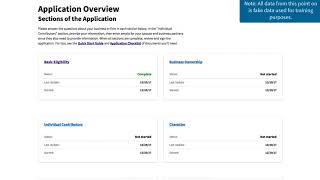
Getting started on your 8 initial application as a reminder, we suggest that before starting on this section, you download the Certify Application checklist from the Prepare tab or help tab of certify.sba.gov so you can have all the documents you will need to upload throughout the questionnaires Ready to upload for an improved application experience when you begin your 8 initial application, you will be required to first complete the Eligibility section of the questionnaire, which is the first of six sections that you will complete on your application. For each eligibility question, Certify will give you a warning if your answer may disqualify you from the 8A program. For example, only four profit businesses can participate in the 8A business development program, so if you click no when asked is this applicant firm a for profit business? You will see the warning and additional information about why you are receiving the warning. If you selected NO by mistake, you can change your response to yes and by doing so the warning is removed from the screen. If you need to log out of the system before completing your application, Certify will save your progress if you've answered all questions on any page and select Save and continue at the bottom. Upon completion of the Eligibility section, you'll be taken to the Application Overview where you can review and complete the remaining five sections of your application. Each section will begin with a status of not started which will update as you work on your application. If you begin a section but do not complete it immediately, the status will show as in progress while a finished section will display as complete. There are five remaining sections to complete before submitting your potential for success Control, Ownership, Character and Individual Contributors within each section, there are subsections shown on the left side of the screen that help you track where you are within the section. Each section of the application is comprised of online questionnaires consisting of multiple choice questions, text based responses and document uploads. As you answer each question, make sure to read the details under each question to help you understand what is being asked. This is especially true when the system asks for you to write a narrative about why you answered a question a certain way. If you do not answer all parts of a question, SBA analysts will return the application to you electronically after submission to make sure they have everything they need to process the application. As you finish a section, you will see a summary of your responses to review. At this time you can go back and change an answer if needed before finishing the section, or you can print or save a document of each review page. If you want a third party to review your application prior to submission. Otherwise, you can submit and continue back to your Application Overview. The Sections will not actually submit to the SBA until you complete all Sections and click the Final button from the Application Overview page. Until then, you can revisit any completed section to make additional updates.