Hamel Husain shows how to make Codex manage its own workflow. He prompts it to generate 16 tasks for an SEO project, spawns separate threads for each, and uses computer use to open browsers and interact with Google and Bing consoles. Threads communicate with each other and report back when they need human input.
Chapters
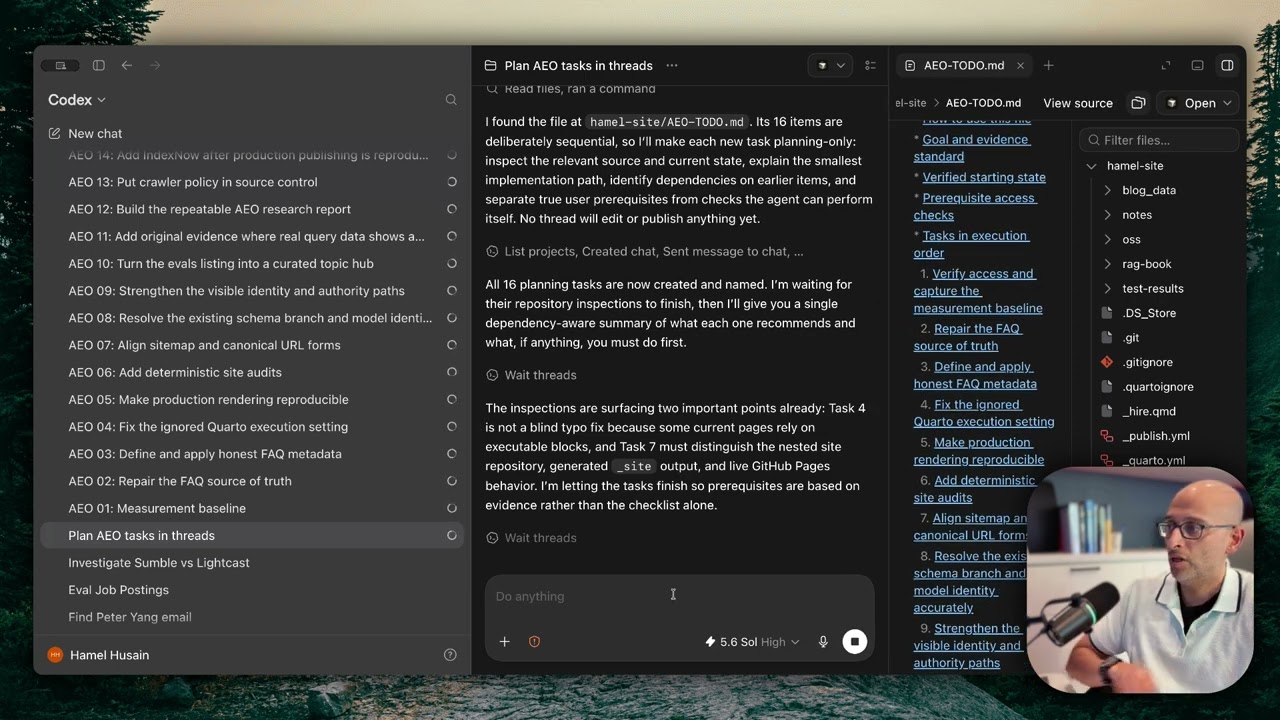
One thing about Codex that most people don't know is that Codex can control itself in really powerful ways. Let me show you. What I have open here on my screen is OpenAI's Codex desktop app, and I'm currently working on a project, and the project is AEO, or optimizing one of my websites for AI discovery. I had Codex go through and list all of the tasks that are high value that could optimize my site for AI, and it gave me these 16 different tasks. We don't have to worry about the details here. I'm just going to use this as an example to show you how Codex can control itself. So I'm going to go ahead and write a prompt. I'm going to use the dictation. With the AEO-todo.md, there are 16 tasks. What I want you to do is open a new thread for each of those tasks and explain to me how you would tackle that specific issue along with any pre-requisite steps that I need to do before you start working. And what it is going to do is going to spawn a bunch of threads on the side. And that's really helpful because now I can manage these separate tasks completely independently and I don't have to jump between different windows or worry about what to do. Codex is just going to help me do it. You can already see that the first task is created. By the way, Codex can rename threads for you too. It can delete threads. It can do a lot of things. And actually, it looks like all 16 threads are created. And you can see we have all of these 16 threads going in parallel. We can click on one of them and we can see some instructions. It reads what that plan is, and then it tells me what to do. So that's how you can create threads. Let me show you something else that you can do. Inside any thread, you can actually talk to another one. So I can come here and I can say, what is AEO1 doing? Does it need any help? And that's just a toy example. Let me go ahead and steer it here. And you can have your threads talk to each other. And this is really great if you're orchestrating your AI and something is getting stuck, but two things are related, or you want to start a new thread that can manage other threads and help them get unstuck if a lot of them are coordinating with each other. And so what we see here is this thread is now checking on the other one. And we can check on this other thread. And I can say, after you're done spawning all the threads and the threads are finished, give me a concise table with the status of each thread and which things I need to work on next, or which groups of threads can be worked on together in parallel, and which ones need human intervention or need something from me before it can get started. And I love this ability to steer or let it just wait in queue. I'm just going to let this wait in queue. Looks like this first one is done. Measurement baseline. I'm going to ask this first thread, can you use computer use to check the Bing, Google, etc. console for me and get as far as you can and let me know if you get stuck? And I can actually go to another thread and say the same thing. I can say, hey, apply this guidance to all threads. For example, I can copy that same prompt, I can come over here to this one, or I can even create a new thread I can say, I have a bunch of AEO threads right now. Which ones can work independently and with computer use to accomplish their task? Please go ahead and direct those threads to start doing work. You don't need to start work if you need other threads to finish first. We only want to start working on threads that are able to start right now independently. And so this one will inventory the active threads. It'll do some coordination for me, and we can see how this starts to become super powerful. You can get a lot more done a lot faster this way. Also, one of my favorite uses of Codex is computer use. It's actually opening the browser, it's checking the Webmaster Tools, the Bing access, the things that it needs to do. So it's telling me to accept a Bing Webmaster Tool thing. So I'm gonna do that. And it's gonna keep doing its thing. It's gonna let me know when it needs my help. I can come back to the thread I started, start independent AEO threads. It's still looking at that. But this should give you an idea of what you can do with Codex, and you can work a lot faster. You can coordinate lots of things right here in the desktop app. I already covered how Codex can be used from mobile. You can do the same thing on your mobile phone. You'll get a list of all of these threads directly on your mobile phone, even if you're not at your computer, which is excellent. So this is it. This is one way you can have Codex control Codex and become a power user to do a lot of things. Faster and parallelize your work, sometimes you don't want to just use subagents. Sometimes you want visibility into your different tasks and you want to think about your different tasks separately and keep track of them. And so something like this is really useful for when that happens. I hope this helps you use Codex better.