Hamel Husain shows how to control multiple Macs from your phone using Codex and ChatGPT. Connect computers with a code, pick a folder to work in, then run AI tasks like fetching emails and critiquing them with sub-agents. Watch real-time agent status across devices and adjust speed settings on the fly.
Chapters
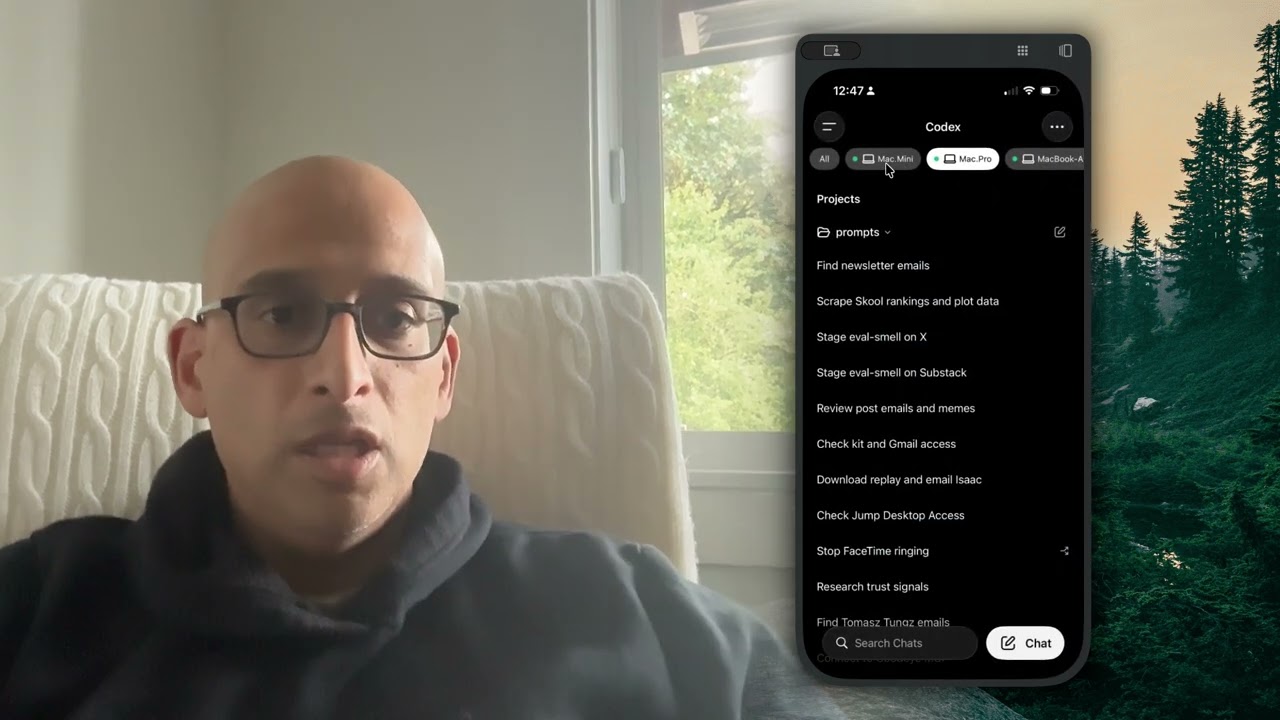
If you're coding with AI, one of the most important things is not being tethered to your computer. You want to be able to walk around wherever you want, do whatever you want, and not worry about closing your laptop screen or just putting your computer away altogether and be able to check things on your phone. And the best experience I've had so far with this is the Codex desktop app. But a lot of people don't know how to use it to remote control your computer. It is probably the best client out there for doing AI coding and being able to do so on your phone or remotely. And let me just show you how it works and how to set it up. Here's the Codex desktop app. The way you get started is you go to settings and you can scroll down to connections. I'm currently connected to two computers. I'm on a MacBook Air, but I'm connected to a Mac Mini and a MacBook Pro. These are both servers that I use for agentic coding, and it's very easy to connect a computer. You just have to go to that server or to the Mac Mini and just click add. It'll give you a code that then you can put in here. You can just go add and it'll ask you for a code and you just put it in. The key thing is you want to make sure these dots are green, and from time to time you may have to refresh this. You may even have to sometimes, very rarely, delete one of these and re-add it. Another thing to make sure is that this is updated, so make sure your Codex app is updated. You can go to the Codex menu and you can check for updates. So once you've connected your computer, you can see that I have these sessions open, but let me just do it from scratch. There's two different ways to do this. You can do new chat, so Command+N, or you can add a new project. Either way, it's it'll bring up the same kind of menu. I'll just click on Add a New Project and click Remote. When I do this, I have a choice of my connected computers. So I'm gonna click the MacBook Pro. It's gonna ask you what folder you wanna work in. So I'm just gonna give it the path to the folder, or you can just choose it from this picker. I'm gonna go ahead and Add Project. And when I do that, the magical thing is I can see all the sessions that are running in that folder on the remote computer, which is really great. So you can see this is running on my Mac Pro. You can see this green dot here. It's running remotely. And I'm in the prompts folder. I'm gonna say, look at my Gmail and find the last 10 emails received from this email address, which are newsletter hooks. Put it in a table. It's gonna use the Gmail skill and connector. This is using computer use, by the way, which is really great. So it's using Gmail on my MacBook Pro and it's gonna try to read my email and it's gonna try to do this task for me. So let me go ahead and switch to my phone so you can see how this works. You can use the ChatGPT app, and there is a tab called Codex. If you click on Codex, and if you've connected it to your phone, then you can see all of the computers. I'm currently on this MacBook Air, but that session I just kicked off is on a MacBook Pro. Let me refresh this. So, okay, we have this find newsletter emails thing. So this is the exact thing I said, look at my Gmail and find the last 10 emails, blah blah, and I can give it some text. So I'll try to say something like, please critique my writing in all 10 emails with subagents. Use the writing skills in this repo to do so. It's gonna do this task. In the meantime, let's switch over to my desktop to see what it looks like. We're back at my desktop and you can see that it's working. You can see my message here. It's gonna kick off some subagents and I have this running on 5.5 high extra fast. One thing I like to do is actually look at this summary view. We can see if there's any subagents yet. There isn't. It's still thinking. All right. It created 4 agents. We can actually see the agents by looking at the summary. You can see it created these 4 agents and it's gonna go through these email in batches. Let's go to the phone view. We can see that there's 2 agents currently running, 2 agents finished already. So you can see everything is running here. If you wanted to, you can even attach photos from your phone. You can do screenshots. It's very, very full-featured. So that's pretty much it. That's how you use Codex Remote Control, and it really is the best remote control I've ever used. I haven't found any limitations. I can spawn new threads, I can schedule things, I can do that all from the app, and it's great.