Peter Antevy walks through Handtevy, an EMS app for documenting patient care. You'll see how to log medications like fentanyl and midazolam, select equipment sizes, set up drips with dosing instructions, deliver electrical therapy, and submit timestamped charts to ESO via Wi-Fi or cellular.
Questions this video answers
0.4 milliliters
5 years old, 20 kilos
11 treatments
1522
12 cc per hour
Chapters
Get started with downloading the Entevi application onto your Windows device, iPhone or Android device. Simply log into the store, type in hantevy and here you can see is the application. Simply download the application from the appropriate store.
You now see the username and password screen. This is a username and password unique to your agency and will be provided to you by your system administrator. And then press Continue.
You can see here now that it's asking you for your first, last name, agency, employee ID and email. Please fill that out accordingly.
And then press Continue.
Then read the terms and conditions.
And click I Agree.
The first screen you will come to is this screen. You can read the blue box and then you can uncheck that checkbox and you'll land here. This will be the start screen every time you open up the application so that you're ready to start a new patient. The goal of the system is to provide information to you prior to arrival on scene, on scene with the patient, and also after you've transported the patient to the hospital.
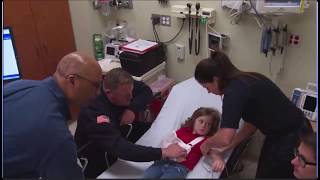
And so now we're ready to start the case. As you saw in that video, the girl was having pain and she needed some medication for pain. So you simply start by pressing the green button going to her age. In this case, let's say five years of age.
And now these medications are customized to your department. That's been done on the front end. It took weeks to get that done and to be customized. So here you can see the dose of fentanyl is 0.4 milliliters. We're going to go ahead and click there. You see the route is either IV IM in. Let's say we want to give that 0.4 ML in. And now you have a choice of requested or given. If you're a pre hospital provider, you're strictly going to use the given button. So click on given. So you can see here that let's say we wanted to use another medication like midazolam. We can click on Midazolam again, all the information is listed there, even the amount, the two milligrams. But again you're going to be focusing in on the dose which is 0.4 ML. We'll click on given and that turns green. Now look towards the bottom. You see here it says equipment. Again this is all the equipment you'll be carrying. Again, this is customized to your agency here. Let's say for example we wanted to use an ET tube. It's a 4.5 cuff ET tube. And let's say that was not successful. Click on the red button. So let's go to our eye gel, which is a size 2, and we click on green. That was successful. And you can see how quickly you can go through that. Then let's go down to drips. If you're an agency that has drips, this section will be populated. If not, it won't.
For example, let's do an EPI drip. And you can see here that it tells you exactly how to mix the drip. In the notes section, it tells you the rate of 12cc's per hour. And again, you'll click on given. So not only are we giving you the rate, we're actually telling you how to mix it per your agency specification. And then you can see here that the electrical portion, if you want to defibrillate, you click on let's say 50 joules. You say rhythm not converted, that turns red. So let's say we have to move ahead and go to 100 Joules. So all these numbers are being given to you. There's no need to do the math any longer. And that turns green. When it's positive. You can keep flipping back and forth. Go back to medications. You can just keep giving medications. I'll go quickly here. Amiodarone. Let's do some calcium. EPI for cardiac arrest is two cc's.
And you can see that any information from your protocol or from your medical director is in that little notes box. This is the way that we're customizing the information so much so that this could act like a protocol set for you.
So now let's go through how to submit this record over to your ESO record. So we'll go ahead and click at the top right, the menu bar.
Now you want to click on review and submit the chart. Here's your opportunity now to look through all the information and all the medications and equipment that you've provided. You can just simply scroll down and you can see this is all the information. Everything's been timestamped. And you can see everything is now being documented in micrograms or milligrams and not in the volume. All we ask of you now is to put in your name, your full name, and this is how we know who the documenter was.
Now let's say that you wanted to change the dose or the timing of the fentanyl. So let's click on fentanyl. We'll click into the time bar. And let's say we gave it at 1612. Simply update by checking the box going update. And now you can see that that medication Time has been changed and when everything looks okay, you click on this green box and click on Submit to my EMR and close. And now this chart is now being sent wirelessly in the cloud over to esl. Note that this step requires WI FI or cellular service. You can see the chart has now been sent and let's go see how to retrieve it from the ESO side. Okay, so now we've simply flipped over to the ESO EHR and you can see here that I'm inside a patient record. Now you simply go to the flowchart and at the bottom right you'll see the import button. Click on the import button and you'll see that a list of recent patients will show up here with the most recent being at the very top. You'll note that the child that we were demoing was a 5 year old 20 kilo child. We had 11 treatments. And you can see that it was sent here at 1522. We'll go ahead and click on that and we'll press receive. And that's all that has to be done really to then bring all the information over from Hand Tevy into ESO and the system will work. And you'll see now that this screen comes up, it says import done and you'll click on ok. And you can see here that in the order that it was completed, this information has been walked across. Note at the bottom there's an Undo import button if you wanted to undo the import if you mistakenly brought it through. Still note that the provider's name still has to be added.
Some other items. So if you go to edit, you'll still have to put in for example the provider name and the patient response and so forth. The other way you can do it is coming here to view a list of items that still have to be completed. There's a few other things I'd like to show you after the patient has been submitted. Notice that that information no longer exists on the device, yet it does exist on the cloud. You can direct the device to send the chart from the cloud. To do that, go out to the top right menu. Again, go to Chart Archive right here. Then you'll see the patient record. You can click on it and then you'll have fax or email options. So let's say, for example, I wanted to send this to my medical director. I can send it just really quickly that way via email. The other option is to send it to a fax. If, for example, the fax number of your hospital was listed in here, you can just click the fax and send it that way. One other item that's important is that when you come back to the front screen, the newer active patients click the green button, scroll down and notice there are adult ages as well. So this is not simply just a pediatric system. This is now for pediatrics and adults. And you can see at the bottom, you can go for the 100 kilo adult and it's going to have all of your information for that adult per your protocol. I want to personally thank you for committing to improved care for patients in the field. Thank you very much.