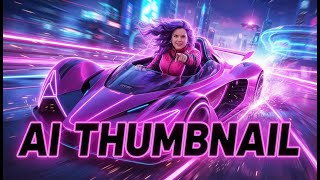
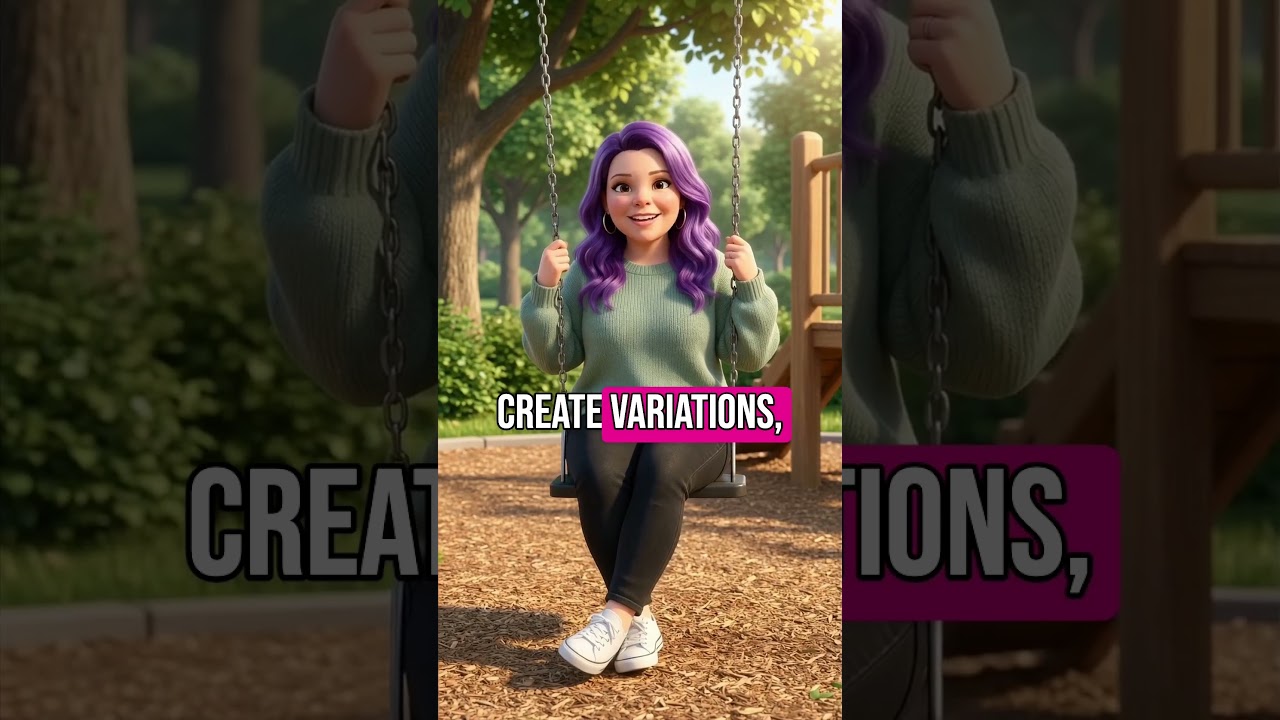
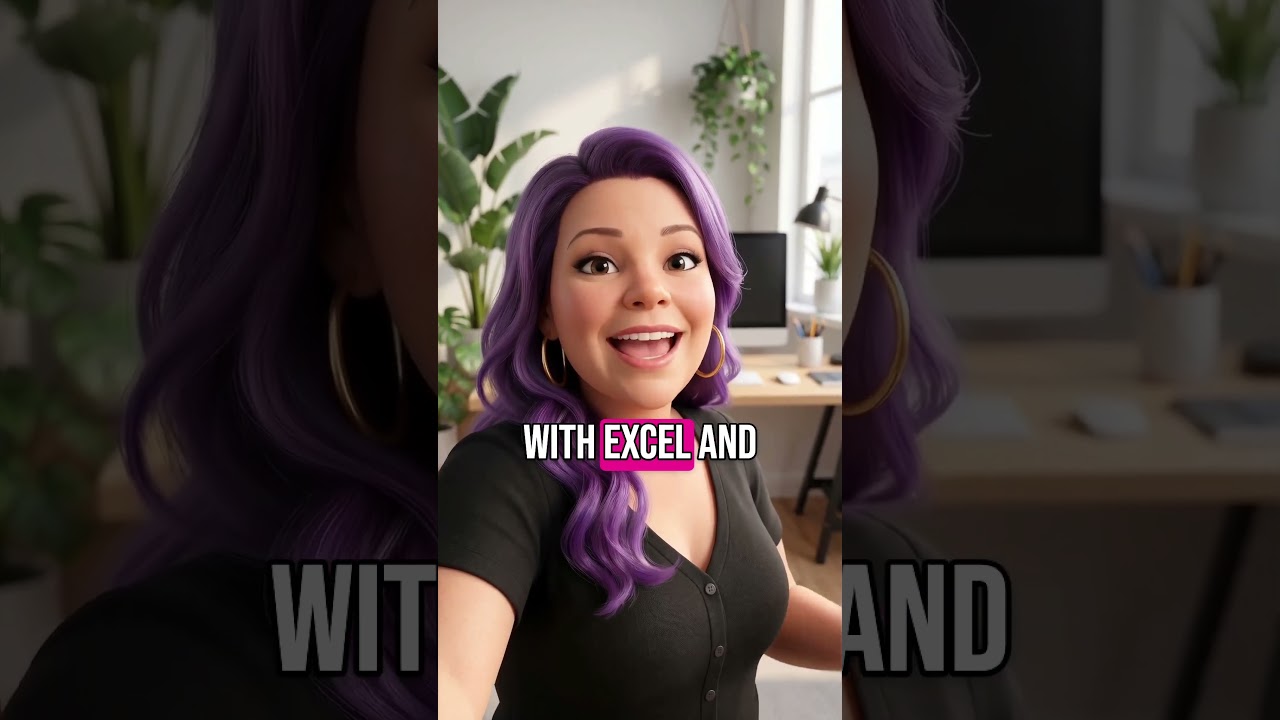
Tutorial video by Brittany Long (Impact Driven AI) demonstrating how to create high-quality YouTube thumbnails end-to-end using Gemini’s Nano Banana image tool. Brittany explains a five-step workflow: visualize the story (pick visual metaphors like race car for “fast”), prep an avatar (front-facing face image), choose thumbnail keywords (using tools like Ubersuggest), specify brand aesthetic and pop (colors, outlines, futuristic vibe), and apply a “sandwich” composition (layer text behind the subject for depth). The walkthrough covers using gemini.google.com → Create image (Nano Banana), prompt advice (big bold letters, neon outlines), troubleshooting (re-run chat, add “16x9 horizontal”), and outputs a 16:9 graphic ready for YouTube. The creator’s mission (help 1M women make money and save time with AI by 2030) is stated as context for the channel and related course AI 200k is referenced.
Questions this video answers
gemini.google.com
Nano Banana
Help 1 million women make money and save time with AI by 2030.
16 by 9 (horizontal YouTube thumbnail).
About 210 searches per month (for one queried keyword in Ubersuggest).
Chapters
Welcome to this how to video. I'm going to show you how to create thumbnails with AI. I'm Brittany Long, CEO and founder of Impact Driven AI, a global AI education company. If we haven't met yet, I teach practical AI education built on best practices from me, a former award winning educator serving women all over the world. Our goal is to help 1 million women make money and save time with AI by 2030. All right, so in this session what you're going to learn is how to create a a high quality thumbnail using an AI tool. Now, for a long time I would not recommend using AI tools to create thumbnails because it just was not there yet and a lot of people would ask me what? Well, today I'm here to tell you that has changed. Thumbnail creation with AI. YouTube thumbnails, Instagram thumbnails. It is totally doable right now from start to finish. In fact, there is nothing at all that I need Canva or a similar tool for at all in this entire process because AI can do it from start to finish. And the really cool part is the AI tool. I'm going to show you you can use it for free. Now, the tool we're going to be talking about is Gemini and specifically Nano Banana inside of Gemini. To use it you'll go to gemini.google.com and then once that comes up, you're going to click Create Image. If you don't see Create Image below, you'll click Tools and then Create images. This is using the tool nanobanana. So we're using the tool Nano Banana inside Gemini. Now I'm going to show you how to create your thumbnail inside of Gemini for two reasons. One, because it is absolutely free to use and two, because after testing out so many different tools day in and day out, this is currently the best one as of right now. And three, it is also extremely easy to use. So let me go ahead. All right, you ready to see the steps? Here we go. In a nutshell. This is what it looks like. I'm going to actually do a tutorial to walk you through it, but just so you can kind of. Alright, so this is the overview of what it looks like. This is the overview of the steps. I'm going to give you a step by step tutorial in just a second. But let me give you the overview first. First, step one, we're going to visualize the story. So when I'm thinking of a thumbnail, I'm thinking what words am I using or what concepts am I using? That I can visualize. For example, if I'm talking about doing something fast, I might show a race car or a rocket or something like that. That is also very fast. Step two is to prep the avatar. Typically, thumbnails with a person's face on it do much better than not having the face. So that's why we're going to have a high quality front facing image. Now, even if you don't have now, you don't need to have a professional photo shoot to be able to have a high quality front facing image. I'll show you how to do that in a second. Step three is your keyword strategy. So what are the words that we want on this thumbnail? Step four is the brand aesthetic and pop. We're going to put in the colors we want and then we're going to add some kind of outline so that it grabs their attention a little bit more. We all know that there's a lot of noise in the online space. This helps you break through the noise. And then finally, step five, the sandwich composition. So we want to layer in some depth between the background, the text and the subject. Now, if you're finding this helpful so far, go ahead and subscribe to this channel so you can get updated when we have more tutorials like this one. I'm going to get into the tutorial in just a second, but if you like this and our other tutorials, you'll also love AI 200k, where we show you how to use AI to save time and earn more by cloning yourself, creating your AI team and more. Now let's get to that tutorial. If you haven't already, open gemini.google.com Once you're there, you'll click Create image at the bottom and then we're going to put in the prompt. Remember in step one we talked about visualizing the story. Let's say I want to make a thumbnail for this video on how to create thumbnails and how to create them fast. So my story has the word fast in it. I think going with a storyline of fast or quick is probably going to be my best option. Now that I know what visual I want, I want to prep my avatar. So I'm going to choose a photo. It can be a picture that I took today, just a quick selfie. It can be a picture that I've had for a while. But we want to go ahead and bring in the image. It should be an image that is easy to see. You should be able to see my face since I'm going to be the avatar here. If the face is blurry or if there's a lot of people in the picture, it's going to be really hard for it to understand what it's modeling it after. So I'm going to go ahead and add that image. All right, now I have the image and I said woman in the photo with brown eyes. And the reason I'm specifying that I have brown eyes is because some of the images, they'll show up with me having blue eyes and I don't, I have brown eyes. So you'll notice those things as you test it out. So I have women, the photo with brown eyes and a super fast race car. We talked about the fast part earlier. The car is sideways from the right of the frame to the left, meaning it's going from the right to the left. The woman is in the car but looking at and pointing to the front. So now we've added the image and we've also added a prompt around what the woman is doing. And again, our goal here is to make people think fast. Next we have keyword strategy. So this is essentially what are the words that we want to have on the thumbnail? Now personally, I like this tool, Ubersuggest. You can also use other tools like SpyFu to help you come up with some ideas for the thumbnail keyword. So here you'll see I typed in thumbnail creator AI. Now let's see what people are searching for. So they're searching for create thumbnail from image YouTube thumbnail AI generator. And you can see there's about 210 searches per month and it's going to be moderately difficult to rank for this, so I might want to look at others. Okay, AI Thumbnails. That's AI Thumbnails is getting more searches and it's the same level of difficulty as the other one. So I'll probably go with this one here. We also have generator AI for thumbnails and so on. Just for the sake of this video, I'm going to choose AI Thumbnails. So here I added the image you're creating is for a YouTube thumbnail. So the letters on this thumbnail should be big, bold and easy to read. Outline them and then create a glow around them so it stands out. The words should be huge and take up almost the entire thumbnail. The reason I say that is because if I don't, then the words are fairly small and it's going to be hard to read. So it takes up almost the entire thumbnail and the Letters are AI thumbnail. That brings us to step four, brand aesthetic and pop. So here I want to add a little bit of extra pop to the avatar and then I also want my brand aesthetic for me that's going to be futuristic. So here I said the vibe of the image should be futuristic. Add a bright neon pink outline around the woman. And finally we have the sandwich composition. And that's where we're going to basically put the letters behind the woman in front of the environment. Let me show you what I mean. So then I have the letter should dip slightly behind the woman's car just enough that it adds some depth. But all the letters are still very readable. And the letter should say in front of the background. That is super futuristic. The size of this graphic is 16 by 9. So I'm going to go ahead and now press submit. You'll see here this is a professional photo I had taken. You can absolutely do a selfie. I just didn't have one to quickly upload. So I going to just pause while we're waiting for this. It usually takes about a minute or less. You'll see here that it's loading Nano Banana. So again, even though we're in gemini.google.com nanobanana is what we are using for the images. All right, so we have AI thumbnail. So a few things here. One, it wrote AI thumbnail twice. And so I'm going to ask it for a few changes. I'm going to say this should be 16 by 19 and I'm just going to check and see. Okay, so I did say the right size. Every once in a while this will happen. All right, and here we go. Now this is kind of weird, but what I find is that sometimes the weirder stuff works better. So it's big, you can see the face. I love that we have AI thumbnail here. Everything looks like it's spelled correctly. So there we go. Then we can download it and upload it into YouTube. Now occasionally if I want to, I can go into Canva and just remove this little icon here. That comes automatically when you create something in Nano Banana. But it is totally up to you. I also want to show you a few things that I updated. Here's the first one that it gave me and we had the letters twice and it was vertical. I asked for it to be 16x9 again and it did this, which I actually like better, except that it's vertical. And so then I opened up a new chat, put in a different picture and this time I started with 16x9 horizontal YouTube thumbnail graphic. And then here you can see we have that thumbnail graphic, the horizontal one. So every once in a while, if that's happening, you just have to do a new chat paste in your prompt again and then maybe change it one thing or two things. Like I added horizontal to the top and that helped it understand a little bit better. All right, again, my name is Brittany Long. I hope you enjoyed this tutorial. If you did, you'll love AI 200k, where we go over more of this kind of content in depth with live resources and tools to help you go from point A to point B a lot faster so you can start making more money and saving time with AI. Talk to you soon.