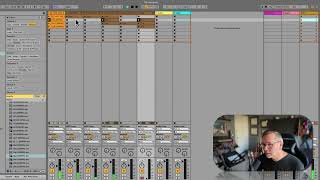
J. Anthony Allen shows how to launch clips and scenes in Ableton Live's Session View. Only one clip plays per track at a time, but you can trigger an entire row of clips at once. Use Command + E to hide the stop button so clips keep playing when you switch scenes.
Chapters
Progression in it. So I can move around and launch as many as I want horizontally, but only one at a time vertically. Okay. Now, on top of that, if I want to launch a whole bunch of stuff all at once, let's say I want to launch everything in this row. The row is called a scene. And I can launch the whole row all at once by going right here. Okay, now notice that when I launch, if I.
If I launch this first scene and then I go to the second one, it's going to launch the stop button, right?
So it's going to stop. Anything that doesn't have a clip going in it, it's going to hit the stop button. If you want it to not do that, you can select some stuff and say command E. That's going to hide the stop button so that this one will now continue playing as I launch. See how this one just keep going? Because there's no stop button. No one told it to stop, so it's going to keep going. Now this is how people very often navigate Session view. They go to the scene and they change the name. So let's do command R and say intro. Command R, verse, chorus, verse two, whatever. Okay, so now we go to the verse.
Sure. We launch the verse right there. Chorus, verse 2.
So launching by scene, which is the row, is how it's often done. But again, don't forget, you can do things however you want. Okay, let's move on.