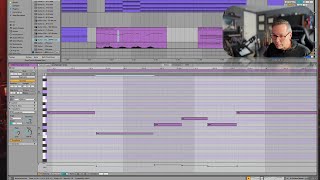
In this segment of the free Ableton Live 12 music production class, J. Anthony Allen explains how to tighten up sloppy MIDI performances using quantization. He demonstrates selecting notes, using the Command‑U shortcut (not Command‑Q) to snap notes to the nearest grid line, and shows how grid resolution and zoom affect the result. Allen then explores the Transform > Quantize dialog, covering options such as current grid, specific note values (quarter, eighth, 16th, triplet), quantizing note starts, ends, or both, and adjusting the ‘Amount’ slider for partial quantization that retains a natural feel. Finally, he introduces the Transform/Generate menu, highlighting its ability to create new musical material by transforming existing clips, positioning it as a creative tool for generating ideas. The tutorial is instructional, conversational, and enthusiastic, aimed at helping beginners master Ableton’s quantization workflow and discover generative features.
Chapters
Okay, let's talk about quantizing. So quantizing is maybe something that is on your mind, that is the ability to rhythmically fix MIDI notes. So we play something in, we play it sloppy. How can we just magically tighten it up and make it lock onto the grid? Is there, like a key we can press that'll just magically do that? Actually, there is. It's two keys, but you can do it. So let's look at these. See how these notes are not perfectly on the grid. Let's zoom in a little bit more. Okay, not quite perfectly on the grid. Let's select them. Let's tell it quantize. Quantize means look at each end of those notes, find the closest point. You can find the closest, like, grid marker, like vertical line here and snap it to that. Okay, so if I do this, I've selected these few notes and now I'm going to press the magic button, which is command U for quantize. Do not make the mistake of doing Command Q for quantize, because command Q means quit the program. Don't do that. Command U is what we use for quantize. So command U and then watch the notes on the screen. Bloop. They just click together quite nicely. Okay, so you can use that for everything. I could select all Command U boink. And I could get it tight. Now, what that's going to do is move it to the closest grid spot. Okay, so if I'm going to undo that. Okay, so now I'm back unquantized. If I go in here and now I do it. See this one, it's just going to move it over to right there. Right? Watch. Blink. So that's very, very different than doing it out here, because this one, it's going to move it all the way back to here. So the grid resolution does most matter. Now, luckily, there's a way for us to adjust that, and one way is to zoom in and zoom out of the grid. But we can get a little bit more control by going over here. Go to transform, and then from this list, select quantize. Okay, now you can say current grid or, or like quarter note or eighth note, 16th note, 32nd note, or a triplet. You can also say quantize the beginning of the note or the end of the note, which can be important sometimes or both. Okay, so now we have quarter notes. Every note begins and ends on a quarter note. Okay, now you can see this kind of radically changes our melody. So that's not actually what I want. And you can also tell it to have a little bit of flexibility. So if I do this and I turn the amount down, you can see it kind of breathing a little bit. And what that Is is at 100%, that's going to make it exactly on the grid. If I dial that amount back, it's going to let it have a little bit of flexibility. So it's going to give it a little more natural feel. Okay. So quantizing, tighten up your sloppy performances or just make things fit onto the beat a little bit tighter. Now, this menu, this transform menu is a new thing, and I want to go over that next. This gives us all kinds of interesting tools that we can use to help us just kind of generate new material. It's kind of wild. This generate button, this really lets us generate new stuff. This lets us take the transform option, lets us take what we have and, like, spin off into weird directions and let Ableton kind of write music for us. So let's play around with that for a minute.