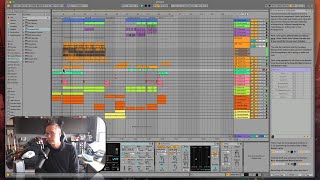
In this segment of the free Ableton Live 12 music production class, instructor J. Anthony Allen walks viewers through Ableton’s Help View. He shows how to open it via the View menu or keyboard shortcuts (Command‑Option‑7 on Mac, Alt‑Option‑7 on PC), explains that Help View contains a series of short, interactive lessons that load example sets and guide users through both Session and Arrangement view features. Allen demonstrates loading a lesson, navigating pages, and returning to the home screen. He encourages learners to explore all the lessons for a broad overview of Live’s capabilities, emphasizing that mastery isn’t required now because the full course will cover everything later. Finally, he explains how to close or hide Help View to reclaim screen space, recommending that students check the lessons and keep the view closed during the rest of the class.
Chapters
Okay. The next thing I want to show you is something called Help View, and that is what I have open over here. Now if you don't see this over here, go to View and then Help View. You can also press Command option seven or Command. Yeah, Command option seven or alt option seven. I think on a PC that's going to open up this. Now this is really helpful because this has a bunch of little lessons in it. Okay. So you can click on a tour of Live. Okay. And if I click on it, there's some text and then it says click here to load the set. Sure. I'm going to say don't save what I was just working on and it's going to load a little set and then it's going to walk me through it. Look at that. Okay. And then once I'm done reading it, I click next page at the bottom and it says, here's this thing and you can walk through all these little lessons. Okay. And it loads you up with kind of a cool little. Yeah, it's cool. So it's really going to walk you through each thing. There's session view stuff, there's arrangement view stuff. And then we can hit this little home button up here to go back and walk through each of these lessons. Now you have me here helping you learn live and walk through it. But multiple perspectives is a great thing. So what I'm really going to ask you to do is take a minute and go through each of these. Don't worry about mastering everything because I'm going to walk you through just about everything over the course of all of these classes. But this will give you a good idea of a lot of different things happening in Live and show you some cool sets. So take some time and do that. When you're done, you can close this view because this is really the only purpose of this view is to show you these lessons. Once you don't want it anymore, you can just go to View and then re click on Help View to hide it. Or you can just click this little X right here. And now it's gone. So I'm going to leave that closed for the rest of this class because I've watched those lessons. They're delightful, but I don't need them. And it frees up a little bit more screen real estate, we like to say, to hide them. So I'm going to keep that closed for now and move on. So check those out. Highly recommended.