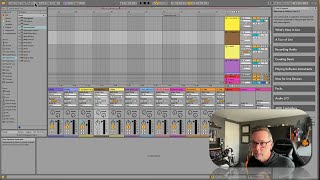
In this segment of his free Ableton Live 12 music production class, J. Anthony Allen demonstrates how to open Ableton’s Info View (via View → Info View or the '?' key) and explains its purpose as a contextual help box that displays descriptions for any UI element the mouse hovers over. He shows a practical example with the monitor button, reads the description, and emphasizes that virtually every Live component is covered. Allen advises learners to keep Info View open while exploring, noting that he personally leaves it on except when teaching to appear more proficient. He positions Info View as a quick‑reference tool for beginners who get stuck, and then transitions to the next topic, Help View.
Chapters
Okay, I want you to do something with me here. Go to the menu at the top of the screen. We're going to go to View and we're going to go to Info View. Okay? So when I click this, I'm going to get this little box down here. If you already have this box, do that same thing again to get it back because you probably just turned it off. Make sure that you see this box. This is called Info View. So view info. You can also just press question mark. So this is such a handy little box. Okay, watch. If you look at InfoView and then move your mouse over literally anything, it's going to tell you exactly what it is and how to use it. Okay, so let's say this monitor auto button. I didn't know what this was, I didn't know what this is. So going to put my mouse over it, look at InfoView and it says monitoring. When monitoring is active, it tracks input, is played through its device and heard at its output. Great. This can literally be anything. You know, anything that is part of live is going to show up there. Okay? So I strongly encourage you leave infoview open for like a while. To be like perfectly honest, I almost always have InfoView open, but when I'm teaching, I turn it off to make it look like I know everything. But in between videos I turn it on. No, I don't really, but kinda it's just a super handy little tool. And whenever you don't know how to use something, you can just put your mouse over it and look down there and say, oh, that's the metronome. Now I know what that is. So keep that open and whenever you're stuck, just glance down at it and it's going to tell you exactly what something is. Okay. Even, especially for these classes of mine, if I show you something and you don't catch what it's called or you want to get a little more detail on it, put your mouse over that thing and look over at InfoView and it will really help you out. Okay? So just keep that open and glance down at it whenever you're getting stuck. Super duper helpful. Alright, now let's go on to help view.