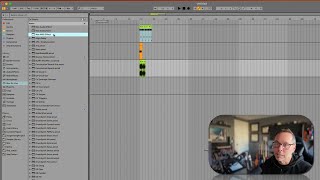
In this segment of the Ableton Live class, J. Anthony Allen explains Max for Live, describing it as an optional programming environment embedded in Ableton Live that lets users create custom instruments, effects, and MIDI devices. He emphasizes that users can benefit from Max for Live without learning to program by downloading community‑made devices from sites like max4live.com, many of which are free. Allen points out visual cues in the Ableton browser that identify Max for Live devices and shows how the device’s edit button opens the Max code editor for deeper customization. He shares that many producers, including himself, keep personal “secret‑weapon” Max devices that give them unique sounds, and he demonstrates a few of his own creations. Finally, he notes that the class will cover how to build and edit Max devices later in the sequence, reassuring beginners that programming is optional but powerful for those who wish to dive deeper.
Chapters
All right, Max for Live. I hate to put it this way, but Max for Live can kind of be a you love it or you hate it kind of thing. The good news is, if you don't want to really get into Max for Live, you don't have to. There's no. You can use everything in Ableton and make some awesome music and never touch Max for Life. But I personally love Max for Live, and I've been using it for a super long time. So what Max for Live is, is essentially it's a programming language that exists inside of Live. The programming language is called Max, and it lets you build your own effects or instruments. It's very powerful. You can really do some wild stuff. Now, if you're not interested in programming at all. What this tool lets us do is get access to everyone else in the world who's making cool stuff, right? So there are websites you can go on. Like, a Great one is max4live.com where people are posting instruments and effects that they've made that do really cool and wild stuff. And you can download them and use them a lot of the time. They're free. Not always. So what we have here is a whole bunch of instruments and effects that have been built in Max for Live that we can play with. Some of these are mine. Like, probably Test demo class is something I made, and some of these other test ones. Driller, I think I made Driller, I don't remember. But the little icon shows that it's a Max for Live device. So if we go back to modulators, you can see this lfo. We can tell just from this that it's a Max for Live device because of this button, button here. If I click that button, that's going to open, like, the code editor where I can actually modify it and make it do really, really cool and customized things. One of the fun things about Max for Live is that a lot of producers, myself included, have their own little, like, secret weapons that they've built in Max 4 Live. And they're things that, like, they use on tracks all the time, but they'll never tell anyone about. And it's how they get these really cool, unique sounds. I have a bunch of those that I've made in MAX and I'll never tell anyone about. So circling back to the browser here, we have a whole bunch of Max for Live things that Live found on our computer. We also have blank ones. This is a blank Max audio effect, Max instrument, and Max MIDI effect. So. So you can throw that on a track and start building something totally new. Now, we will go into how we do that at the end of this class. We will spend time learning how to use MAX at the very end of this sequence of classes. So if you don't want to invest that time to really learn how to use max, you're missing out. It's really powerful stuff, but if you don't want to do that, that's just flat. That's why I put it at the very end. But Macs will come up a whole bunch, because Macs for Live devices are sprinkled all over throughout LIVE at this point. So remember that you don't need to be able to program Macs to use MAX for Live devices. There's tons of really cool stuff that you can just use like any other effect or instrument.