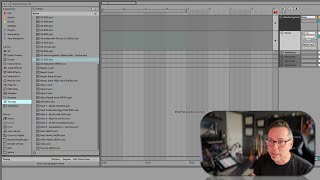
J. Anthony Allen teaches Ableton Live's Collections feature, a tagging system for organizing sounds and assets. Tag drum kits, audio files, plugins, and synths by right-clicking and assigning them colored dots. Use collections to group samples by key, tempo, or type like guitar amp emulators.
Chapters
Okay, so think about everywhere we've been in the browser so far is just saying, here's all our stuff. Okay? Everything in this library and places has been saying, this is all of our stuff. Cool. When we go up to collections and then everything else that I'm going to talk about in this section for the next five videos, what we're looking at is how to find specific stuff. Okay? So all of these things is about the stuff I have, but now we're going to talk about finding stuff. Okay? So the first way we can find stuff is with collections. Now you might. Now yours won't look like mine. If you put the mouse over collections and hit Edit, you will see probably a bunch of colors here. And you can turn some on and some off. You can only have a maximum of seven different ones here, which is a really bummer. Like I would use a lot of these because I use these a lot. So you can turn them on or off with these yellow buttons here. And you can rename them. If I go done go here, I can control click to rename them. Okay, now what this is, is this is a tagging system. If you know what a tagging system is, you know what this is. So let's say I'm going to go to Drums here and say like this drum kit I really like. I really like the way this drum kit sounds. So I'm going to control, click on it or right click, whichever, and I'm going to add that to Drums. Okay, now it gets a little yellow dot. See? Neat. Okay, now if I go up to Drums, it shows up there, right here. Okay, so these are all drums things that I've added through tagging. Okay? You can add whole folders, you can add individual audio files, you can add kits, you can add plugins. And that's the real powerful thing about this collection tagging is that anything can be tagged as anything, right? Like, let's say this tuning, like this was a tuning I really liked using for synths. Something I could put a tuning file into my synths and now it's going to be there. Right? Here it is. Okay, I don't really want that there. So I'm going to control. Click on it again and untag it. And now it's going to go away if I just kind of reload that. So you could put anything anywhere. Now I've seen people use this collections thing a bunch of different ways. Seen some people use it for keys, keys and pitch content of samples. I've seen people use it for like tempo related things for whole tracks versus stems. But the way I've been using it, and there's no wrong way to use it, you should use this however you want. But the way I've been using it is these categories, so. Amp emulators. So I do a lot of guitar stuff where I plug in a guitar and play. So I'm always kind of experimenting around with different amp emulators. So I've got three of them here, and they each have a bunch of presets that I can play with.