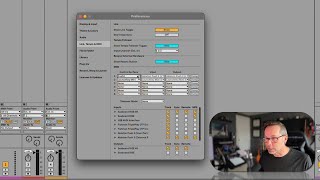
J. Anthony Allen shows how to connect a MIDI controller to Ableton Live by opening Preferences, navigating to the MIDI tab, and matching your device name in the input and output columns. Once configured, it stays set even after unplugging. The video covers Push 2, Push 3, Launchkey Mini, and other controllers.
Chapters
Okay, let's get our MIDI controller to talk to Live. This is super easy. So we do need to go to Settings or our preferences. And what's cool about this is that if everything works right, you should only have to do this one time. Once you set up a keyboard, it's set up for good, even if you unplug it and replug it in later. So we're going to go to Preferences, that's up in your Live menu and then Settings, or you can press command comma or I think alt comma on a PC. Okay, we're going to go to this link tempo and MIDI tab. Okay, and then we're going to go down here. So we have two different chunks of stuff here. We have this MIDI where we see all these dropdown menus and then we have inputs and, and outputs. Okay. So in midi, what we're really looking for here is any kind of control surface. Okay. So like the push is a control service. I don't know why it doesn't see my Push 3 right, right now, but it still sees my Push 2, which is not plugged in, which is why it's grayed out here. Okay. Here it sees the launch key mini. So let me define Control Surface. Control Surface is something like this that has a bunch of controllers on it. It's a little different than a MIDI keyboard. However, a MIDI keyboard could be both. So like this one, this one has MIDI keys, but it also has some controller things, knobs, faders and things like that. So it can be both. If I just want to play notes, then I'm going to go down to this input section. So if you're setting up a control surface, you need to make sure it shows up here. It might require you to install some drivers or something like that on your computer, any software that came with it. So you're going to look for it here and set up input and output. Just select the same thing all the way across, but for your average run of the mill MIDI keyboard. Okay, so here's where you see my push three, my Fishman Triple play, that's my MIDI guitar, some other USB MIDI interface that it doesn't know about, and my two Seaboard controllers. So you don't see this one because it's not plugged in right now. So I'm going to plug it in and you'll see what happens. This is how easy this can be. So I'm going to plug this in with the USB cable to my computer. And if we look down here, there it is. No edits there. It just popped up. Okay, so here it is. It shows up twice, and a lot of keyboards and things will show up twice. We can kind of open it and see some settings, but we shouldn't need to go into there at all.