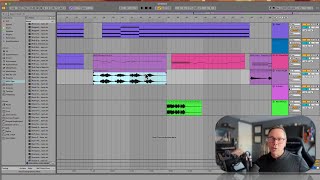
In this segment of the free Ableton Live 12 music production class, J. Anthony Allen explains how to share a Live session with another user. He first stresses the need for both parties to run the same Live version. He then describes Live’s internal file‑reference system, likening it to a map of spider‑webbed pointers that reference audio files on the creator’s hard drive without copying them. Because these pointers break when the session is opened on a different computer, the session’s clips appear deactivated. To resolve this, Allen walks through the “Collect All and Save” command, which rebuilds the map by copying all referenced files into a dedicated folder alongside the .als project file. He outlines the selectable options—include files from elsewhere, other projects, the user library, and optionally factory packs—warning that including factory packs can bloat the project. He recommends leaving factory packs off unless needed. Finally, he notes that after packaging the session folder, it can be sent to a collaborator, and he hints at the next topic: rendering the final track.
Chapters
Okay, so let's go down that road a little bit farther. Let's say you want to share this session with a friend, okay? Not this track, like you've made a track. You like the track. We're gonna render that track out and we'll talk about how to do that next. If you want to share a session like this, everything I see on my screen, then there's an extra step you want to do to make sure that the person you're sending it to is going to be able to open it. First, you're going to want to make sure they have the same version of Live, in our case, live 12. But then there's this extra little step, and in order to explain that step, let me explain kind of briefly how Live puts together the Ableton set. So when you have a session like this, what Live remembers, what it's keeping track of, is kind of like a map. It's a map with spiderwebs all over your hard drives. And it's looking for all of these files that you've pulled in here, like this one. Not necessarily these MIDI files, because we made those, but these audio files and anything else you imported into your session. So it's got these kind of fingers all over your hard drive, and it doesn't make a copy of these. It just remembers where it is. So it knows that for this file, it's got to go into one of my hard drives, a folder, another folder, another folder, and that's where this file is. That's how it's keeping track of it. So if I send this session to somebody and they open it up, what it's going to do is it's going to open this file, it's going to get to the spot where it's trying to load this file, and it's going to say, hey, this is on the Michigan hard drive. And that's not connected to this computer, because it's not. So the other person's not going to be able to open it because they don't have the same files that I have. It's going to look like this. It's just going to get grayed out, and it's going to say session or clip deactivated. It's going to say. So the way we fix that is before we send it to them, we're going to go to file and then collect all and save. What this is going to do is it's going to remake that map with all those spider webs going everywhere. And it's just going to take everything we're using and, and save a copy of it into a folder and pack that all together as our session. So we want to say files from elsewhere, yes. Files from other projects? Yes. File from the user library, probably safe to do. Files from factory packs that you can usually leave off. If you turn that on, it's going to make some of your sessions really, really big if you're using like big libraries. So I tend to leave that off unless I'm sure that I need it. And then you say okay and it's gonna take a second to think and then you can save that session and it'll make a folder that goes along with your session that'll have everything you need. So then if you want to send that to someone, send that whole folder. That's what they need to be able to open it. Okay, last thing, let's talk about rendering out your track when it's done.