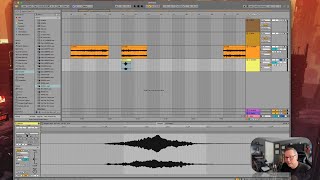
In this segment of J. Anthony Allen's Ableton Live 12 tutorial, the presenter explains the different ways to create loops in Ableton Live. He demonstrates how to enable looping for an entire clip, how to isolate a specific segment (a single meow) and delete the rest, and how to set a custom loop length using the loop brace and the Command + L shortcut. The tutorial emphasizes the distinction between looping in Session View versus Clip View, showing that precise loop length adjustments must be made in Clip View. Throughout, he uses a simple audio clip as an example, walks through deleting unwanted parts, enabling the loop button, adjusting the loop brace, and confirming the loop behavior by dragging the clip and observing the loop start tick.
Chapters
Okay, let's talk about looping. They're Looping actually can mean a few different things in live, so let's talk about all of them all at once. So we could loop a clip by clicking loop down here. Okay, now what that means is that this clip could keep going forever and ever, but it's only going to do what we tell it to do in our timeline. So let's actually find a new clip that might be a little easier to understand this with. Okay, so I'm going to solo this clip and zoom in on it a little bit. Okay, this is a cat. Okay, cool. So let's say I just want this first meow. Okay? So I'm going to highlight all the rest of this and just press delete to get rid of it. Okay, now I just have this meow. Now let's say I want this meow to loop over and over and over. Okay, I could press loop here. Okay. But then if I drag it out, we're just gonna kind of reopen the file and get all those other meows that I deleted. So we're gonna loop the whole clip. Okay, so now it's starting over here. I can tell because of that little tick right there. It's starting over, and I can just keep going. Okay. And I can loop the whole clip. But that's not what I wanted. What I wanted to do was loop just this. Okay, so let's go back. Let's delete all of that. So if that's what I want, if I want to just loop this much of it, then I need to set a loop length down here. Okay, So I could do that much and then press Command L down here. Okay, now I have this loop brace actually set to be just this much, not the whole clip. Okay, so now when I drag it out, I'm gonna loop just that much. Okay, so let me explain again what just happened there before the. Let me go. Let me undo here. Okay, so loop is turned on, but it's set to be the first bar up to the fourth bar, right? That's this whole thing. This is my loop brace that says how. Where the loop starts and ends. Okay, the loop starts at one and ends at the end of beat four. That's the whole clip. I don't want to loop the whole clip. I just want a loop this. So I'm going to change that loop brace and bring it all the way back in. Now I have to do this in the clip view, not up in the session view. Okay, Now I can loop this all day. Long.