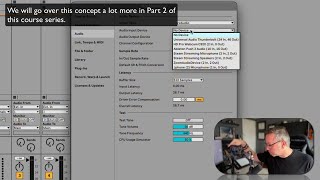
In this tutorial segment, J. Anthony Allen walks viewers through accessing Ableton Live's Settings window (Live → Settings or Command+,) and configuring audio recording options. He explains the three key audio settings—driver type, audio input device, and audio output device—highlighting platform differences (Core Audio on macOS, various drivers on Windows). Allen discusses the necessity of an audio interface for traditional microphones, using his Universal Audio Apollo Twin as an example, and notes alternatives such as USB microphones, the Push 3 controller acting as an audio interface, and virtual audio sources like Zoom, Steam, and phone microphones. He emphasizes selecting the device that matches the hardware you intend to record with, and warns that without a proper interface, traditional mics cannot be recorded.
Chapters
Okay, so in order to get to our settings, we're going to go to Live and then Settings, or you can press Command comma. Okay. And this is the window we're looking at. Okay, so here we can set up two things. We can set up our MIDI to be able to record, and our audio to be able to record. Let's go to audio first. Okay, here are the things we care about. Driver type, audio input device, and audio output device. Okay, so driver type, if you're on a Mac, is always going to be Core Audio. So make sure that says core audio. If you're on a PC, you get all kinds of weird options, but you want the one that is whatever sound card you have that you can plug things into. So audio input device. This is what you're going to plug into. Now, maybe you've taken my Intro to Music Production class and you already understand all this. But if you want to plug a microphone in, a traditional microphone in, you need some kind of audio interface plugged into your computer. The one that I have is called Universal Audio Thunderbolt. It's right there. Universal Audio is the company and the model of mine is Apollo Twin. It's great for small studios. But you want here whatever you're going to be plugging your microphone into. If you have a USB microphone, it should come up in this list. If it doesn't, you might need to install some drivers. So you can see this is everything I have plugged in here that can. That can take in sound. Here is my actual microphone, this one going into my Universal Audio Thunderbolt. I have a webcam set up. I have a Push 3. My Push 3 controller actually can work as an audio interface. So I could plug a microphone or my guitar into that and route it into Live if I wanted to. Steam is like the Steam gaming platform, if you know that. I think it's open right now so it thinks it can take in a microphone. I don't think it actually can. Zoom audio device. That's a virtual thing. I'm not really sure what that is. And I can use my phone microphone if I wanted to. That's coming up here. So I want Universal Audio Thunderbolt. The reason I want that again is because that's what my microphone is plugged into. Okay. If you don't have a hardware interface, you. You're not really going to be able to record a traditional microphone. You might be able to record a USB microphone or something like that.