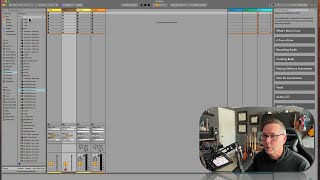
In this tutorial, J. Anthony Allen opens Ableton Live 12 and guides viewers through the Preferences panel, focusing on the Themes & Colors section. He explains how Live can follow the operating system’s light or dark mode, shows how to switch between built‑in themes (Default, Classic Dark, Classic Light) and mentions community‑made themes. He demonstrates the new fine‑tuning controls introduced in Live 12—intensity, brightness, hue, contrast, and grid line intensity—designed to aid users with visual impairments. Allen also shares his personal workflow: using a darker theme for his own music production and the classic light theme when teaching, while encouraging viewers to choose any appearance that works for them. The segment reassures viewers that visual differences are normal and can be adjusted via the preferences.
Chapters
Okay, so we've got Live installed and you've just opened it and it looks like this, right? Maybe not. Does yours not look like mine? It might not. If it doesn't look like mine, that's okay. There's a whole bunch of different themes of Live that are built in. And there's even like some people on the Internet that kind of hack together their own. And you can do some cool stuff by changing the colors around. One thing that Live is doing now is if your computer is using like a light or a dark theme, it's going to grab onto that. So it might look all dark where mine is like nice in shades of gray and stuff. If you want to adjust that, we're going to go to the preferences. Okay, so go to Live and then Settings or if you're on a PC, I think it's just command comma will get you to your preferences. So here's our preferences. We're going to end up here in the preferences, like kind of a whole bunch. But just to get us started, I'm going to click on themes and colors and then theme. I'm on default. You might be on classic dark. I think when I first launched Live12, it took me to this one. And to be honest, when I'm working on Live, when I'm working on my own music, this is the theme I like to use. This is kind of my default. But when I'm teaching it, I go back to this one. This is kind of classic Live. I think it's easier for most people to see. That's why I teach on it. But you're welcome to use whichever theme you like. There's also follow system light and dark. Yeah, so this is the one I was on because my system is set to dark, but I'm going to set it to light. There's also some other things you can do here. You can adjust some of the tones, contrast, you know, things like that, grid line, intensity, brightness. If you. All of this actually is new in Live 12. These fine tuning the colors and saturation and hues and intensity, all of this is new in Live 12. These different settings for intensity, brightness, hue, things like that, and they're designed to help people who have some degree of being visually impaired. So. If these settings help you see things better, then that's great, adjust them. But I'm going to leave on default and the appearance set to light. You can use whatever you like. But if you're confused why yours doesn't look like mine, that's probably the biggest reason. Now you probably also don't see things over here. Maybe you see something like this. You can click around here and kind of explore if you want. I just have more stuff installed on my computer, so you're gonna see more things. But don't worry, I'll be explaining all of this soon.